minute read
This page describes how to use the Criteria filter box of the Digital Line Item Page.
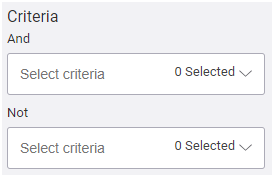
The Digital Line Item page has two Criteria boxes:
- And criteria: The criteria selected in this box will add any screens that have the same criteria to the selection list, for example, if you want screens in airports and coffee shops.
- Not criteria: The criteria selected in this box will exclude from the selection list screens that have the same criteria, for example, if you do not want screens in Rome.
Tip: Assigning criteria to screens must be done in the Content and Network Management solution. For more information, see Criteria and Conditions in the Content and Network Management documentation.
In the Line Item page, you can type a criterion name in one or both of the Criteria boxes, or browse through the list of criteria available. This allows you to narrow down the selection.
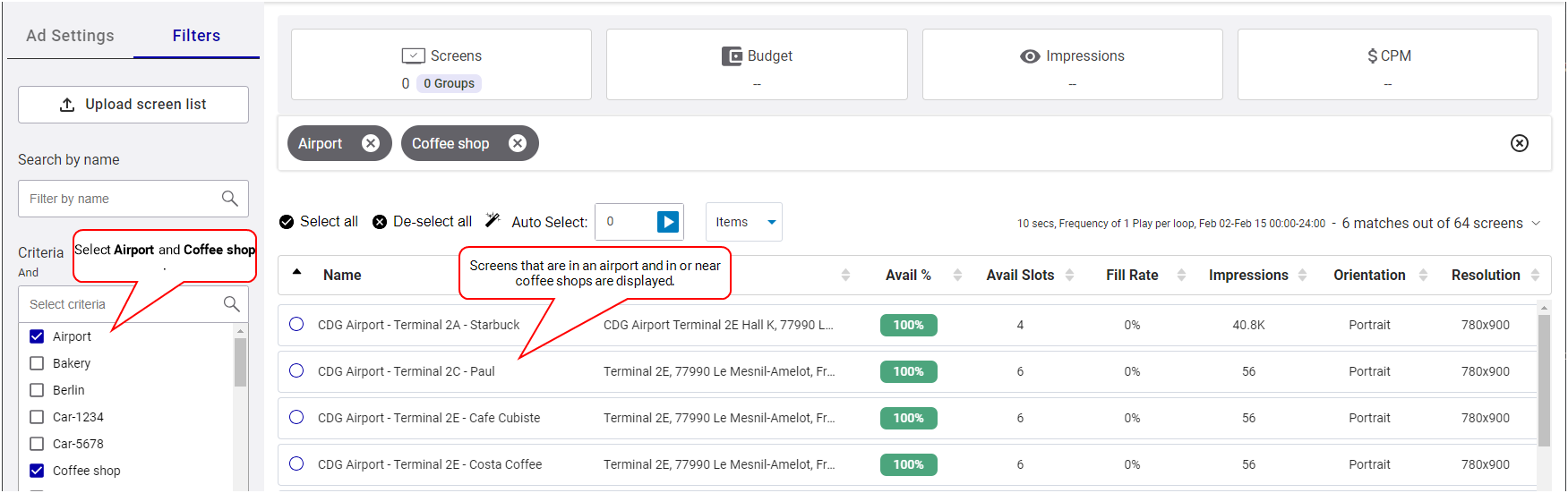
When selecting more than one criteria in the Criteria boxes, an AND operation is applied between each of them.
- And criteria: The system will display screens that apply to all of the selected criteria, for example, if you want screens in airports and coffee shops. The And criteria are represented with a green pill box.
- Not criteria: The system will exclude from the selection the screens that apply to all of the selected criteria, for example, if you do not want screens in Rome and in London. The Not criteria are represented with a red pill box.
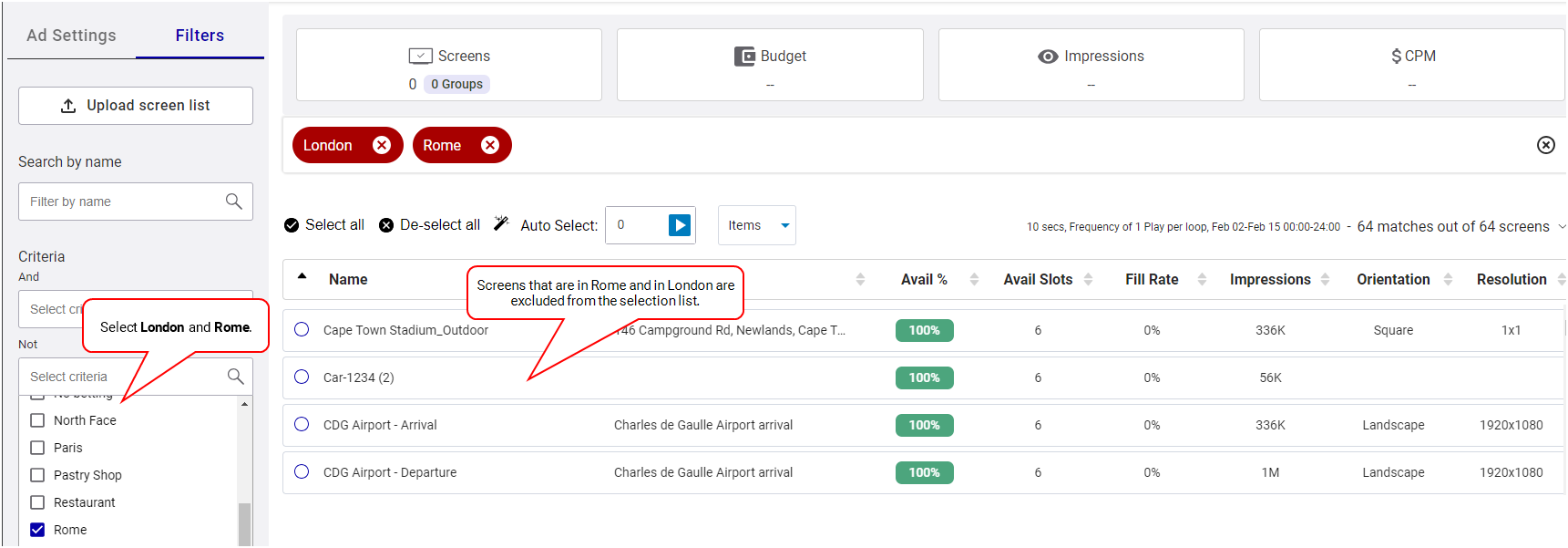
You can combine the two boxes to filter your selection. For example:
In the Not Criteria box, select one criterion, such as “Rome”. Then, in the And Criteria box, select two criteria, such as “Coffee shop” and “Airport”. As a result, the system narrows down the selection to all screens that are not in Rome, but that are in Airports and in Coffee shops.

It is possible to make an OR selection between several criteria, meaning that the system will display screens that apply to one OR more of the criteria. Be aware that this can give a long list.
To make an OR selection:
- In the And Criteria box, select the criterion “Coffee Shop”. From the list that the system displays, select your screens. In this example, you can see that there are two screens selected.
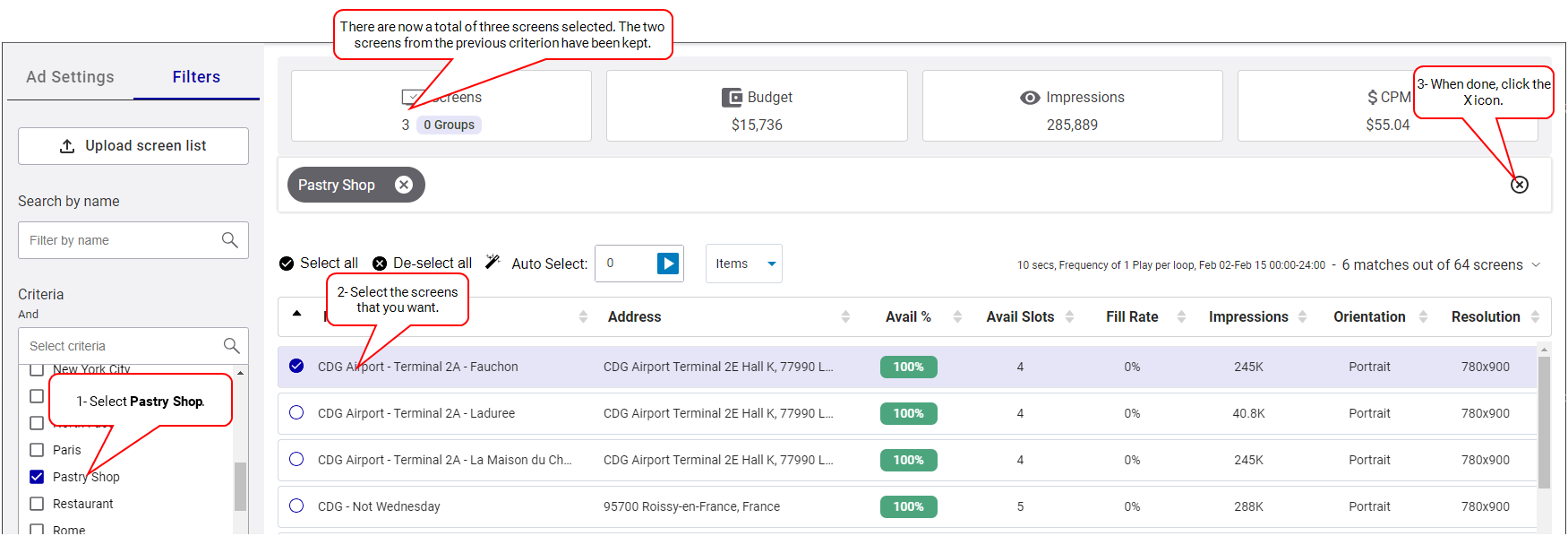
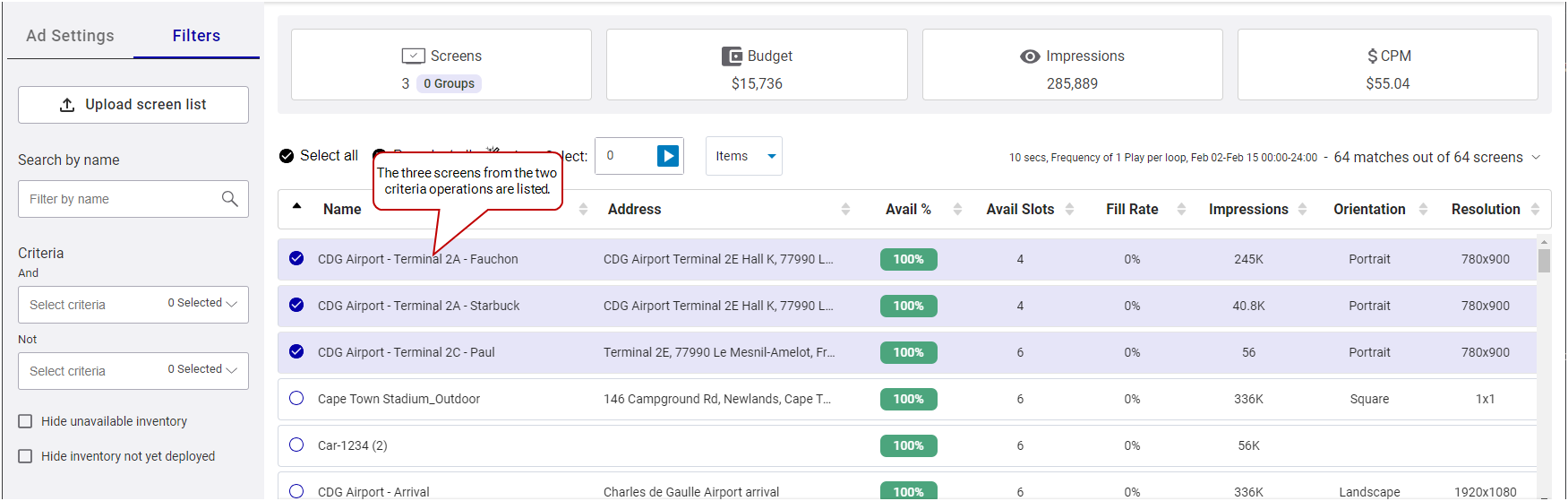
- Click the X icon on the right. This will remove the “Coffee shop” criterion while still preserving your selected “Coffee shop” screens. Next, add a new criterion in the And Criteria box, for example, “Pastry Shop”, and select additional desired screens. Your previous selection is kept and target the screens near “Coffee shop”. In this example, you can see that there is one screen selected, bringing the total to three screens.
- Remove all filters. Your selection will show as a mix of screens near Coffee Shops or Pastry Shops.