 minute read
The campaign PDF is the document you send to your clients, whether responding to a Request for Proposal or prospecting for business.
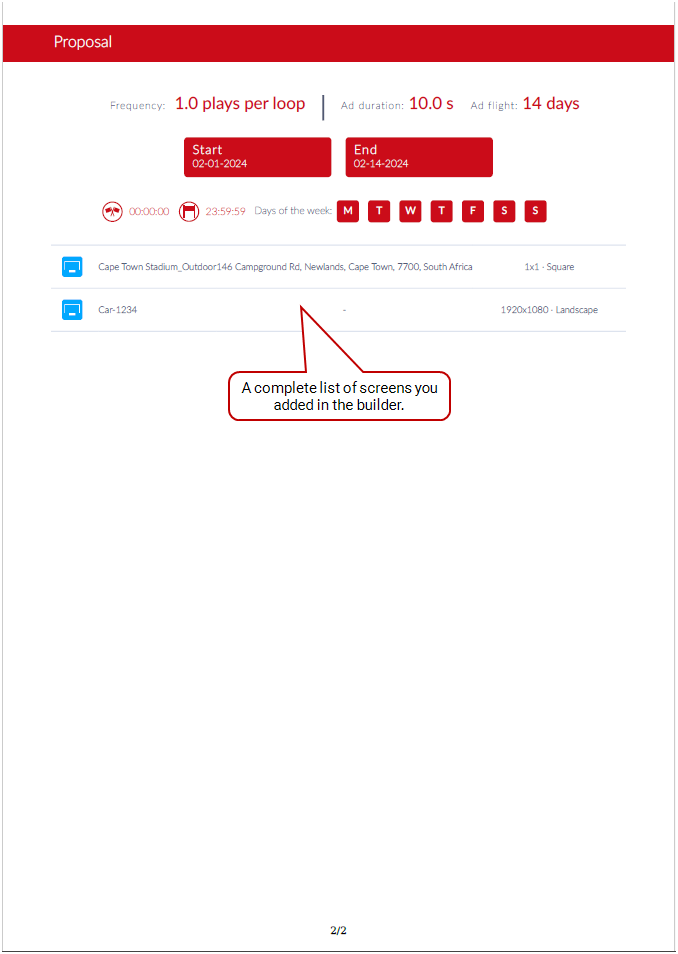
Most of the information that appears on the campaign PDF comes from information you enter in the Campaign Builder.
Note: The campaign PDF will not include preemptible line items. See About Preemptible Line Items for more details.
Customize Campaign PDF
Guaranteed Campaigns
Campaign PDFs can include the following information:
- Your terms and conditions. See Submit your Company Information to Broadsign.
- Graphics, for example, logo or images of screens, and a campaign accent color. See Configure your Domain.
Note: Though the main task of Direct Sales, all other roles in the Guaranteed Campaigns module can create campaigns. See User Permissions.
To generate a PDF:
Guaranteed Campaigns
- On the main Guaranteed Campaigns page, find your campaign and click its name.
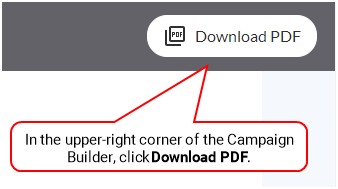
- In the top-right corner of the campaign, click Download PDF.
A dialogue box appears that provides details about screen availability. If you want, you can return to the Campaign Builder to edit your package or screen selections.
For more information, see Availability Check Feature.
- Click Download.
- Open the PDF and review the details. If you feel the campaign is ready, send it to your potential client for approval.

The Guaranteed Campaigns module saves the PDF to your system.

