 minute read
You can create a new user from scratch.
Note: The User Management page is available to users with the Admin role. See User Permissions for more information.
The following video describes how to create users on the Broadsign Platform.
Note: This instructional video is also available in French and Spanish.
To create a user:
User Management
- In the User Management list, click Create User.
- Add the email address of the new user in the Email field.
- Select one or more roles for this user in the Role drop-down menu.
- Click Create User.
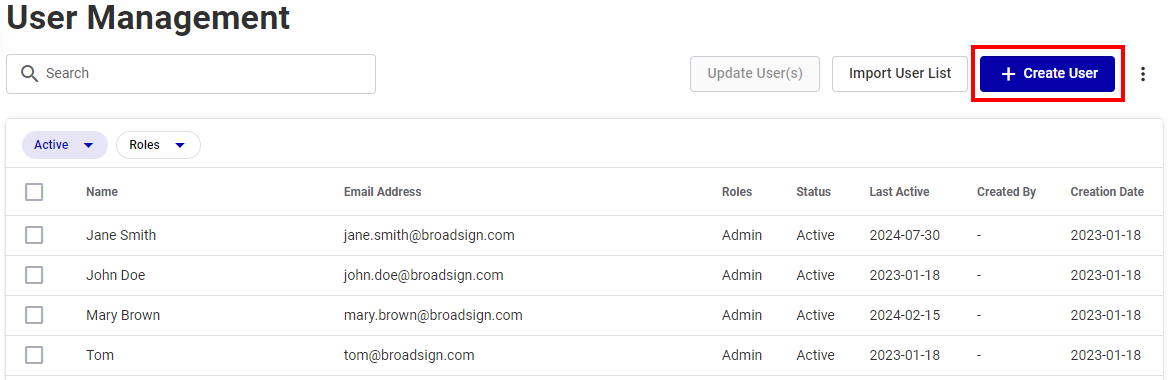
The Create New User window is displayed.
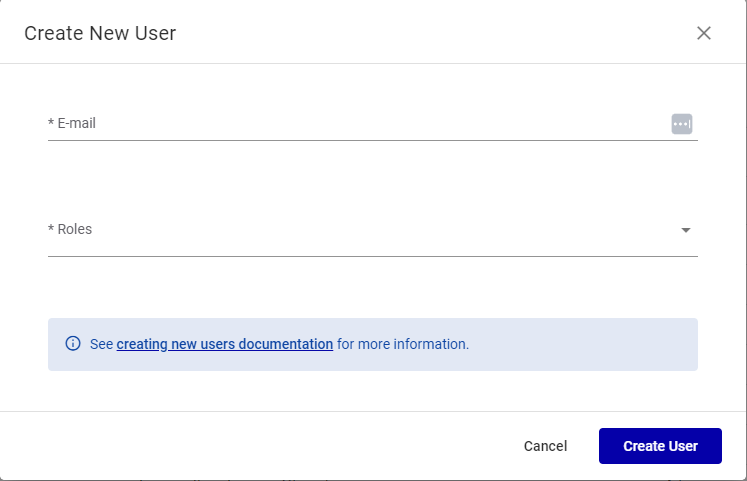
The list of roles depend on the products that you have. The roles assigned to the user will define what they will see in the Broadsign Platform.
See User Permissions for a list of roles and their assigned privileges.
The user is added to the User Management list. Its Status is set to Active by default.
The user should receive a Welcome to Broadsign email inviting them to set their password. The user will then be able to log in the Broadsign Platform.
Note: For a Static Operations module user, you must assign static roles to this user in the module.


