 minute read
You can use the Bulk Upload flow to add a large number of screens to your Third-Party Players inventory by using a .csv data file.
You must properly define specific parameters to make your screen programmatically transactable. See Screens Programmatic Transactability Status.
Note: The Inventory page is available to users with the Admin, Direct Sales Admin, Programmatic Admin, and Static Admin roles.
You can add a large number of screens to your Third-Party Players inventory by using a .csv file. We provide a screen data template for you.
To bulk upload screens to your Third-Party Players inventory:
Digital Inventory
Creating the .csv file requires three general steps:
- Select and export the screen data template from the Inventory list.
This template contains all the current screen information. See Step 1 – Export the Screen Data Template.
- Add the screen data information by respecting the format.
You don't need to enter the information all at once. You can enter a part of the information and enter the rest later. See Step 2 – Enter Your Screen Data.
-
Import the file, now containing your screen data, back into your network. See Step 3 – Import the File into Your Domain.
Note: You must follow the format of the screen data template. Otherwise, Broadsign will consider the file to be invalid.
The screens data template provides the allowable columns and correct format.
To export the screen data template:
Digital Inventory
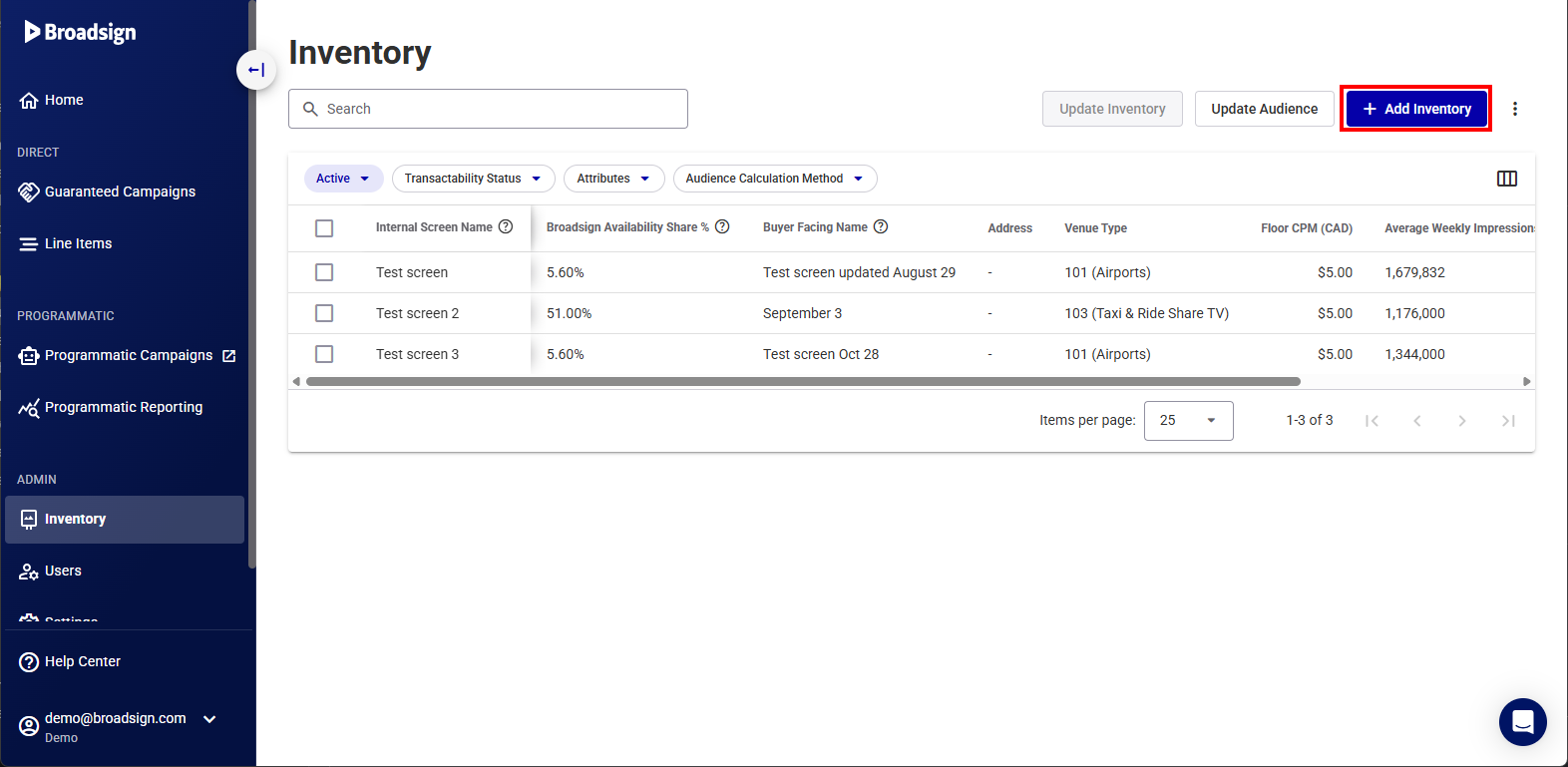
- From the Inventory list, click Add Inventory.
- In the Update a File window, click Download Excel template to download the screens data template.
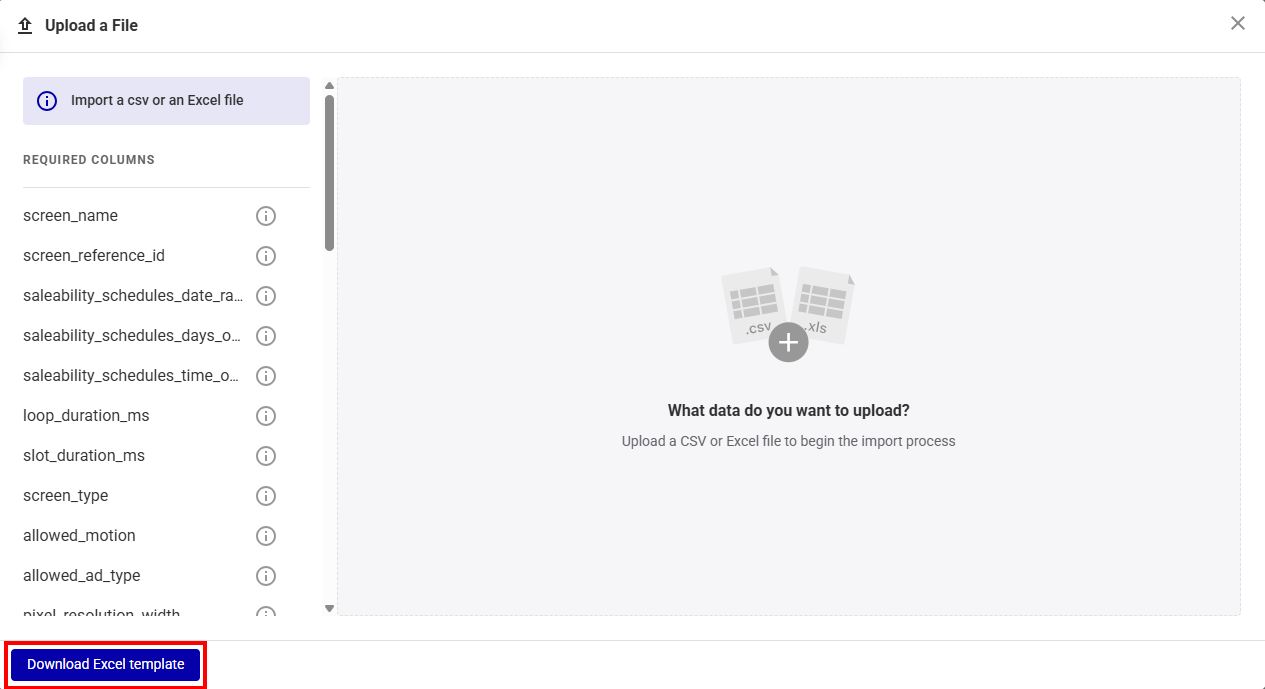
Your system will download a .csv file.
The file name is inventory-sideloaded-template.xlsx.
Note: You must follow the format of the screen data template. Otherwise, Broadsign will consider the file to be invalid.
You must properly define specific parameters to make your screen programmatically transactable. See Screens Programmatic Transactability Status.
To open the screen data file:
- Open the screen data
.csvfile that you downloaded (Broadsign recommends Microsoft Excel or similar spreadsheet program). - Enter your screen data as described in Step 2B – Format the Screens File.
The screens data file includes several columns.
| Column Letter | Column Name | Description |
|---|---|---|
| A | unified_inventory_id |
ID used to represent the panel in the unified inventory. It is read-only. |
| B | programmatic_device_id |
Device ID used in programmatic campaigns. |
| C | screen_reference_id |
External reference ID available to the customer to identify the screen. This ID will be used to match the screen and update it if it already exists. The field is limited to 255 characters. This is mandatory. |
| D | screen_name | The name of the screen. It must be unique. The field is limited to 150 characters. This is mandatory. |
| E | screen_buyer_facing_name |
A short and descriptive name of the screen or face (location, specialty, etc.). It must be unique. Example: Times Square Screen |
| F | orientation |
Cardinal orientation of the screen. Select between UNKNOWN, NORTH, NORTH_EAST, EAST, SOUTH_EAST, SOUTH, SOUTH_WEST, WEST, and NORTH_WEST. Example: NORTH_EAST |
| G | image_urls |
URL to fetch an image to display on the screen. The URL must point to a valid Direct Hosted Image URL and not a link to the website containing the image. You can add multiple URLs by separating them with a semicolon (";"). Valid URL Examples:
Invalid URL Example:
|
| H | size_diagonal_value |
Diagonal size of the screen in the measurement unit defined in Diagonal Size Unit. It must be a value higher than 0. Example: 20 |
| I | size_diagonal_unit |
Measurement unit for the diagonal size of the screen. Select between:
Example: in |
| J | screen_inactivity_schedules |
List of schedules that determine when the screen is inactive. Each schedule must be separated by the "|" character. The field uses the following structure:
|
| K | screen_attached_attributes |
List of Non-Broadsign Attributes associated with the screen. The field uses the following structure:
Example: color:yellow;size:large |
| P | loop_duration_ms |
Loop duration of the schedule, in milliseconds. This is mandatory. Example: 10000 |
| Q | slot_duration_ms |
Default ad slot length in milliseconds. It must be a value higher than 0. This is mandatory. Example: 10000 |
| R | minimum_slot_duration_ms |
Minimum ad slot length in milliseconds. It must be a value higher than 0. Example: 10000 |
| S | maximum_slot_duration_ms |
Maximum ad slot length in milliseconds. It must not be lower than the Min Ad Duration value. Example: 30000 |
| T | hivestack_id | Screen Identifier in Hivestack. |
| U | vistar_id | Screen Identifier in Vistar. |
| V | place_exchange_id | Screen Identifier in Place Exchange. |
| W | floor_cpms |
Screen CPM floor in the following currencies, separated by semi-colons:
This is an information field where the publisher should add an average CPM for the screen. Actual pricing will be set at the deal ID level. Example: USD:5;CAD:5;EUR:5;AUD:5;GBP:5 |
| X | screen_type |
Type of the screen used. The screen type is used to assist with Broadsign’s sustainability efforts. Accepted values are:
Example: 101 This is mandatory. |
| Y | allowed_motion |
Whether or not motion type content is allowed to play on this screen. This is mandatory. Example: true |
| Z | allow_deal_creation_on_users_behalf |
Indicates whether Broadsign can create programmatic deals that include this screen without prior authorization. |
| AA | allowed_ad_type |
Ad types supported by the Broadsign Platform. If more than one type is supported, use a ";" to separate them.
Example: static;video;html This is mandatory. |
| AB | pixel_resolution_width |
The width of the screen in pixels. This is mandatory. Example: 1920 |
| AC | pixel_resolution_height |
The height of the screen in pixels. This is mandatory. Example: 1080 |
| AD | audience_data_sources |
Name of the audience data source, separated by ";". See Audience Sources for supported sources. Example: ACI;Blimp This is mandatory. |
| AE | audience_calculation_method |
Audience calculation method.
Each ad within a loop gets the same number of delivered impressions.
The audience per hour should be prorated proportionally to the actual slot length. In other words, a prorated formula takes into account variable slot lengths and their impact on impressions calculation. This is mandatory. |
| AF | venue_name |
Name or description of the venue. This is mandatory. |
| AG | venue_reference_id |
An external reference ID provide by the customer to identify the venue. If no ID is provided, it will be automatically generated. |
| AH | venue_type |
Venue type ID. See options in Venue Types. Example: 80701 This is mandatory. |
| AI | venue_address |
Address of the venue where the screen is located. Example: 21 Greens Road RD 2 |
| AJ | venue_city |
City of the venue where the screen is located. Example: Boston |
| AK | venue_state |
State of the venue where the screen is located. Example: Massachusetts |
| AL | venue_country |
Country of the venue where the screen is located. Example: United States |
| AM | venue_postal_code |
Postal code of the venue where the screen is located. Example: 90210 |
| AN | venue_latitude |
Latitude coordinates of the venue where the screen is located, in decimal degrees. This is mandatory. Example: 48.829268 |
| AO | venue_longitude |
Longitude coordinates of the venue where the screen is located, in decimal degrees. This is mandatory. Example: 2.355219 |
| AP | timezone |
Time zone of the venue where the screen is located. This is mandatory. Example: America/New_York |
| AQ | dma |
Designated Market Area (Nielsen measurement). Applicable only to US networks. Example: 501 |
| AR | availability_share |
The percentage share of the loop duration for a given screen. Example: 0.51 |
| AS | private_auction_only |
Whether the screen is limited to private auction only. |
| AT | auction_type |
Auction type for the screen:
For more information, see Understanding Deals on Place Exchange. |
| AU | unit_count |
Number of units for the screen. |
| AV | external_ids |
External identifiers associated with the screen. The field uses the following structure:
|
| AW | asset_type |
Type of asset for the screen. It is automatically set to Digital. |
| AX | impression_four_weeks |
Total impression count over a four-week period. |
| AY | impression_multiplier |
Average impression multiplier for the screen, as in the average amount of viewable impressions per ad slot. |
| AZ | open_exchange_enabled |
Whether this screen is transactable on our Programmatic Campaigns solution's Open Exchange. If enabled, floor prices are taken directly from the screen object, screens will be visible to integrated DSPs and transactable without a Deal ID. Supported enable values are:
Supported disable values are:
|
Once the screen data file has been properly filled out, you can import it into the Broadsign Platform. If you encounter issues when importing the file, contact Broadsign Services.
The Upload a File screen allows you to select your screen data file and upload it in the system.
To upload the screen data file:
- In the Upload a File window, click anywhere in the right, grey part of the window.
- Navigate to your data file and select it.
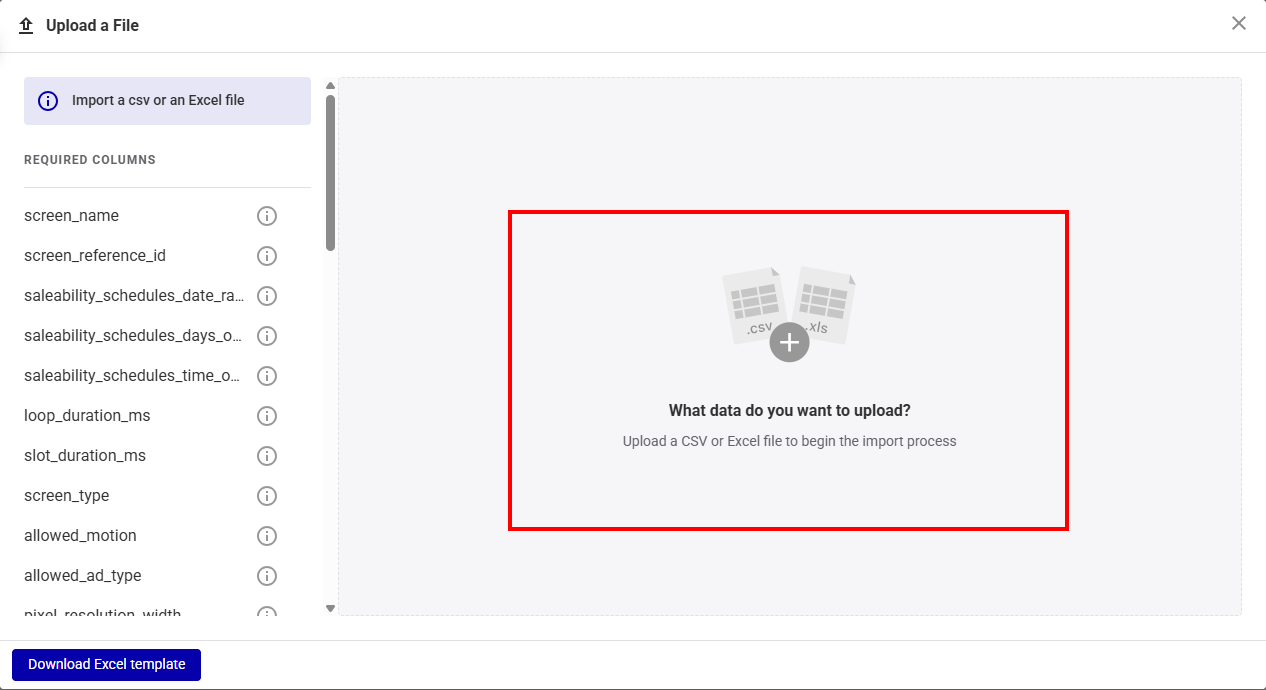
You can upload any .csv, .xls, or .xlsx file with any set of columns, as long as it has one record per row.
The Review & Finalize screen allows you to check the imported screen data to ensure accuracy

Review and Edit Data
You can do the following in the Review & Finalize screen:
- Edit Screen Data – Make changes to the screen data in the table by double-clicking the cell to edit. For information on the values accepted for each cell, see Step 2B – Format the Screens File.
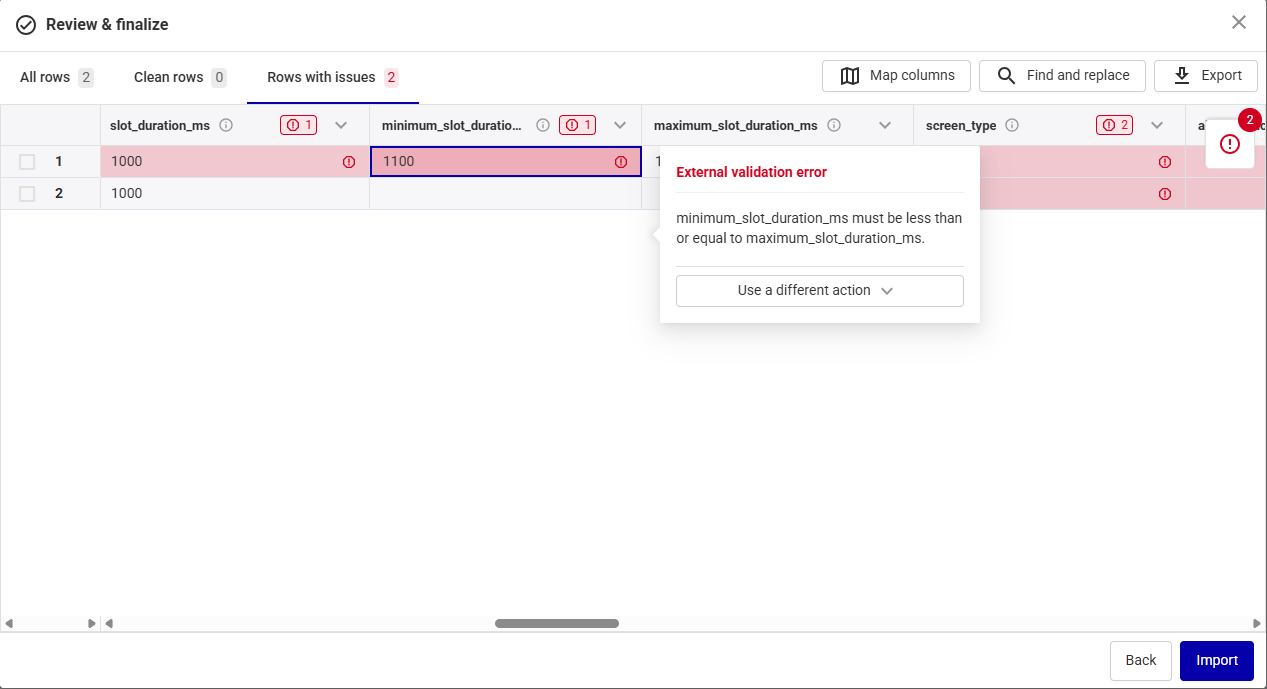
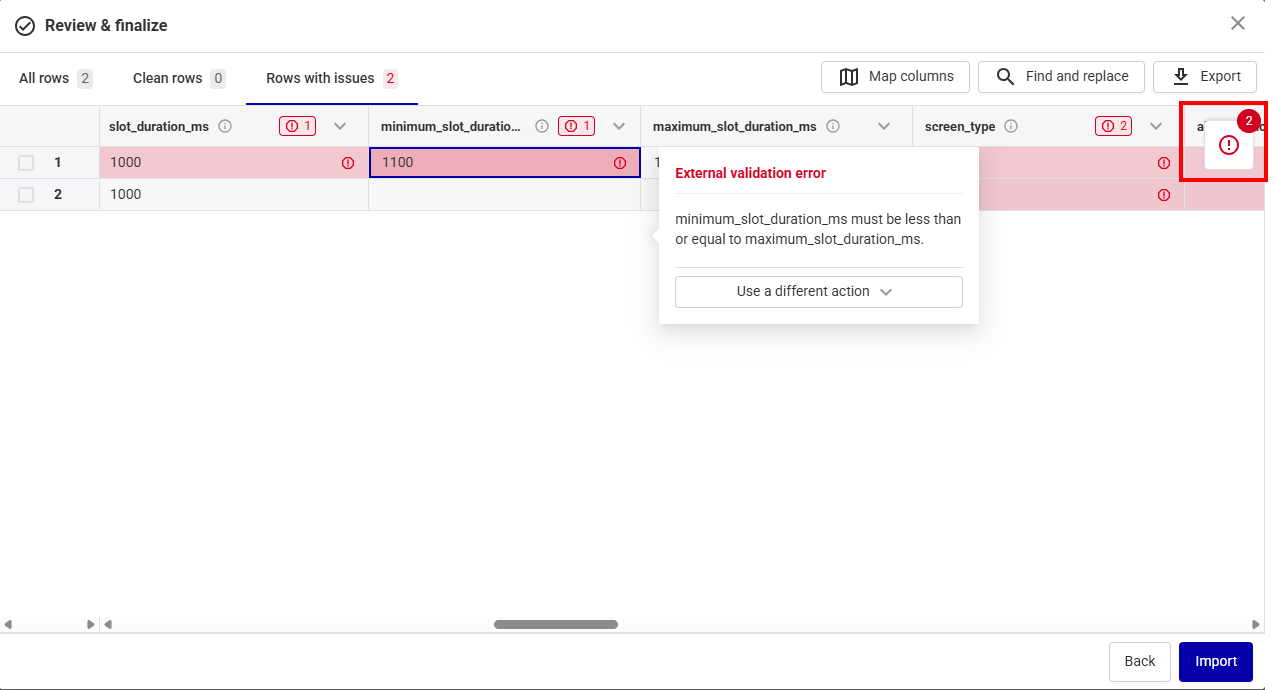
- Display Issues – Show only the rows with issues by clicking Rows with issues.
- In the main part of the Review & Finalize screen, where problematic cells are highlighted.
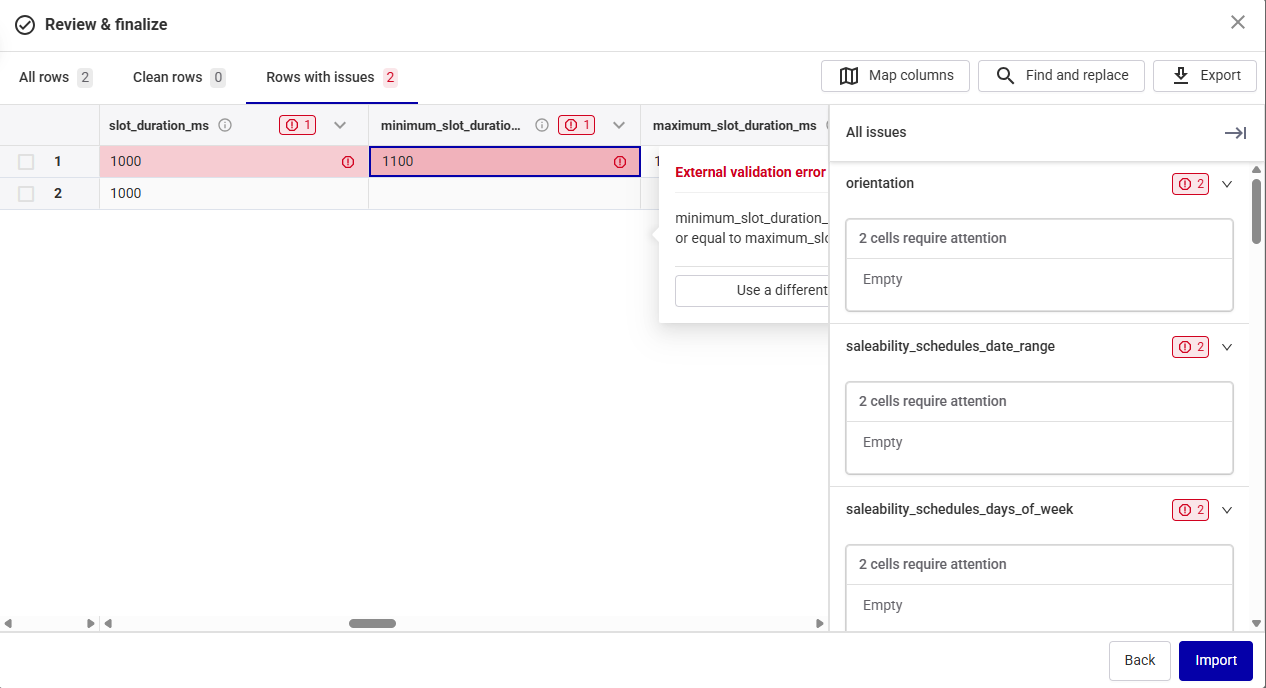
- In the All issues pane after clicking the red circle icon, which lists all issues. Clicking an issue automatically takes you to the corresponding cell in the imported file to fix it.
- Correct Errors – Correct a problematic cell:
- Click a cell with an issue to get information on the problem and correct it.
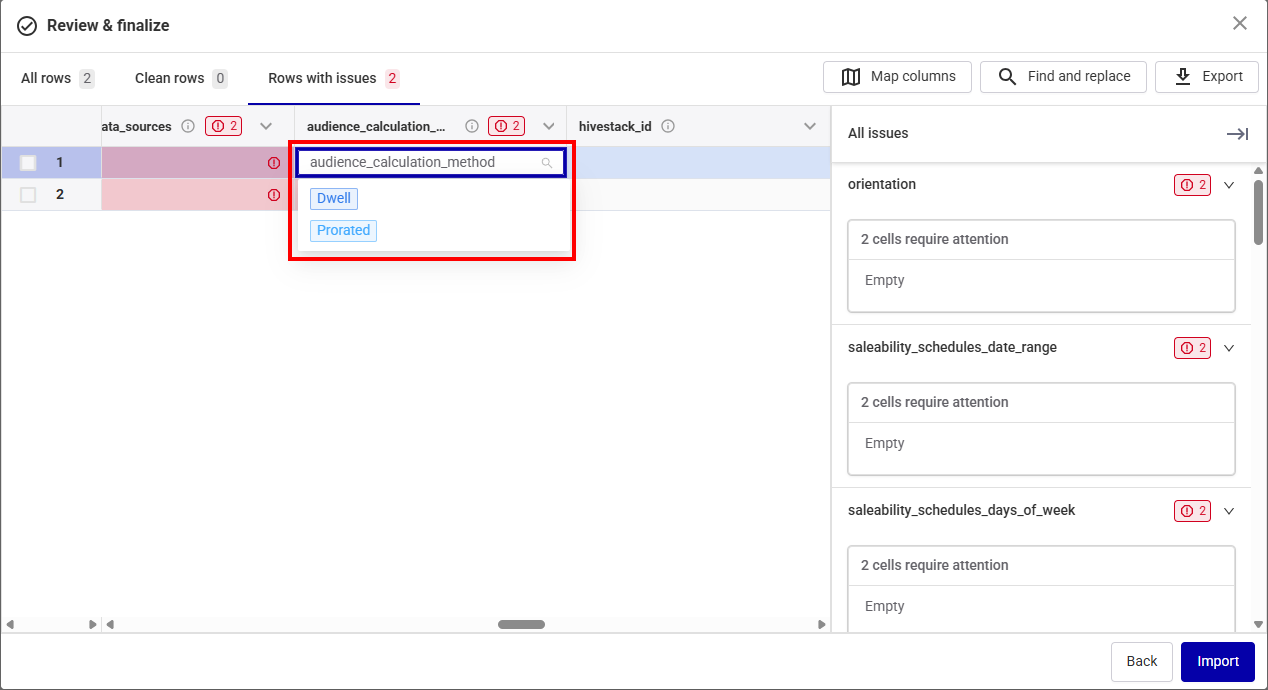
- Double-click a problematic cell to edit it. The cell displays the possible values.
- Enter Missing Data – If information is missing, type the correct value in the corresponding cell. The cell is displayed in red if you enter an incorrect format. A pop up explaining the issue appears. Use the pop up to correct the error.
- Map Columns – If one or more columns are not properly mapped, see Map Columns.

Issues in your imported file are displayed in red in two locations:

Map Columns
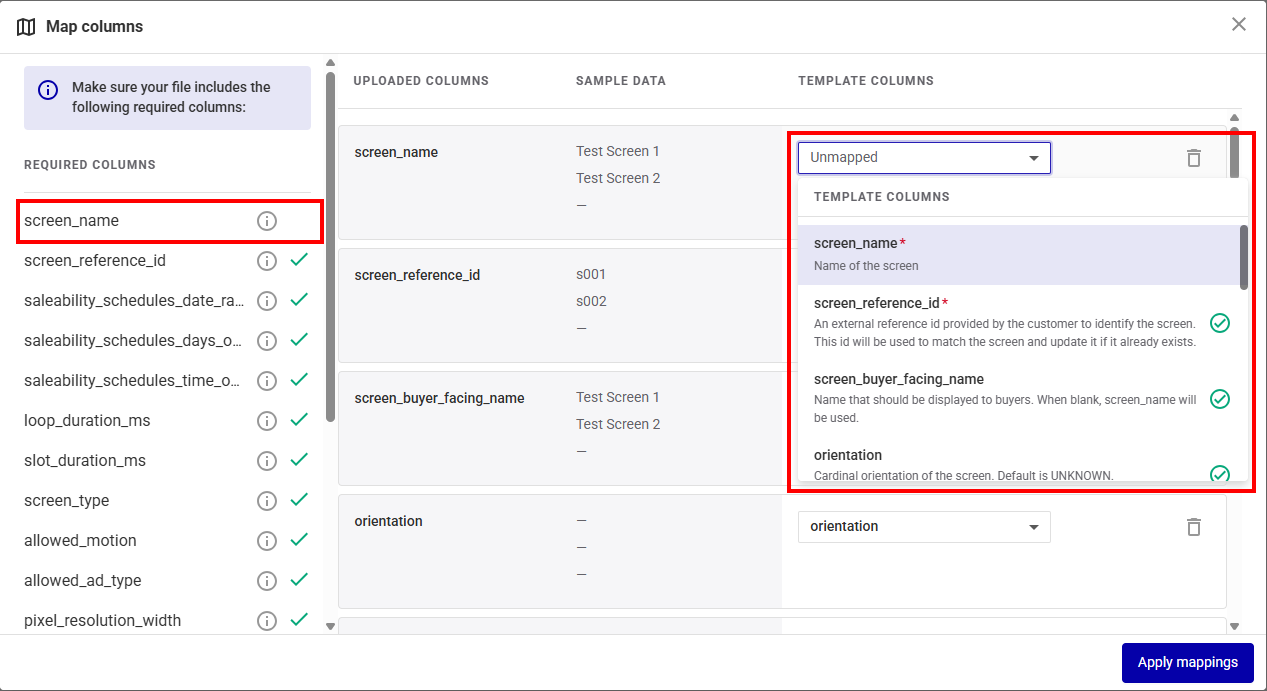
If columns are not mapped correctly, use the Map columns button. The Map columns pane shows if your data columns match the required template columns.
- If all columns match, click the Apply mappings button at the bottom of the screen.
- If columns do not match, select the corresponding column from the Template Columns drop-down menu and click Apply mappings.
- To exclude a column from your file, click the Delete icon next to it and then click Apply mappings.

This is useful for templates with extra columns that are not provided by Broadsign.
Import Data
When finished, click the Import button.
If you still have issues in your data, the following window is displayed:

- Click Fix remaining errors to return to the Review & FInalize page and fix the issue.
- Click Import rows to go on with the import process. The row that contains the problematic data will be discarded and will not be imported. The valid rows will be imported.
The Broadsign Platform finishes the import process and displays your updated screen inventory.
Now that you have updated your screens inventory, you can do the following:


