 minute read
Submit Useful Support Tickets
Step 1 – Go to our support page: https://broadsign.my.site.com/s/login/
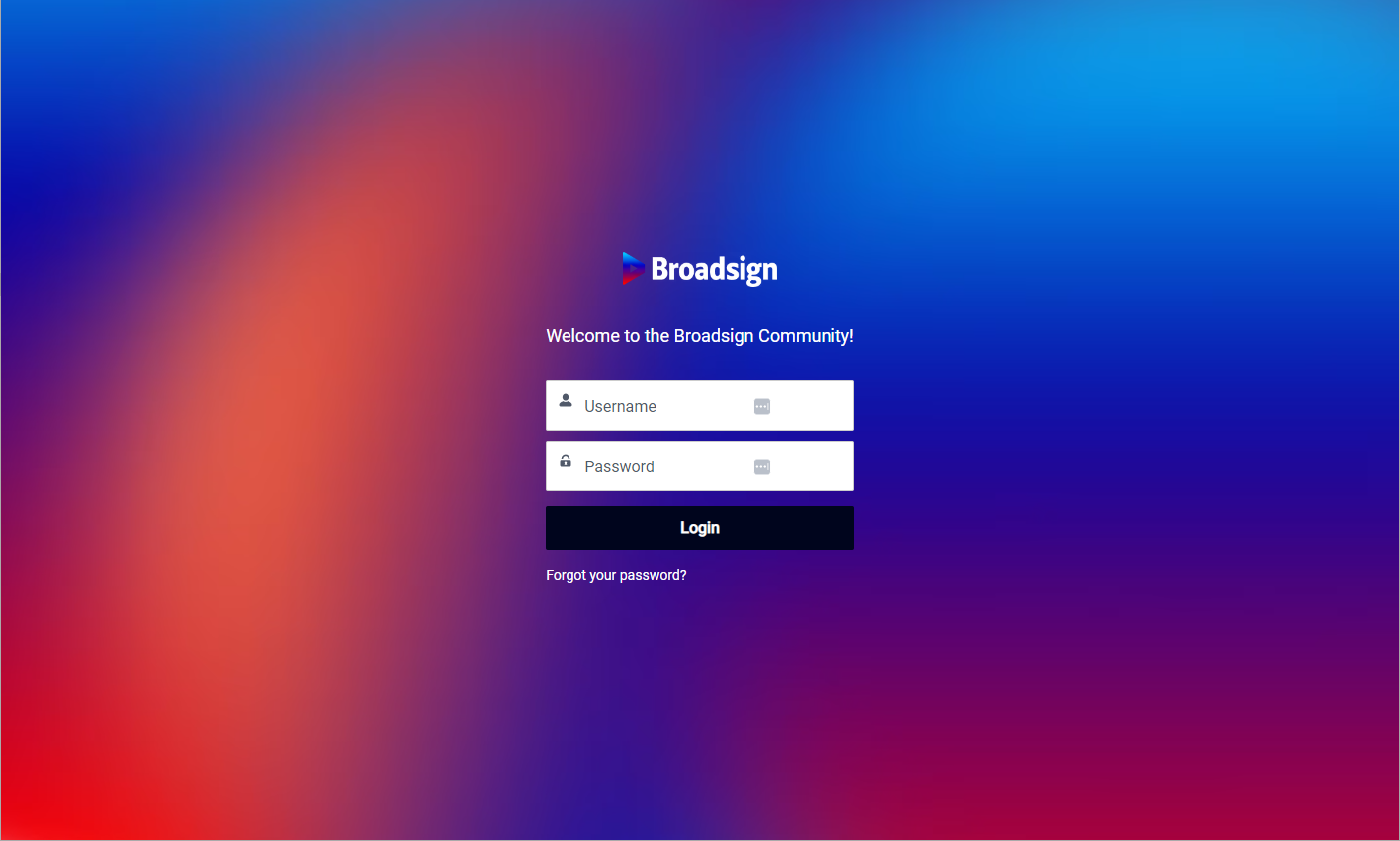
Log in.
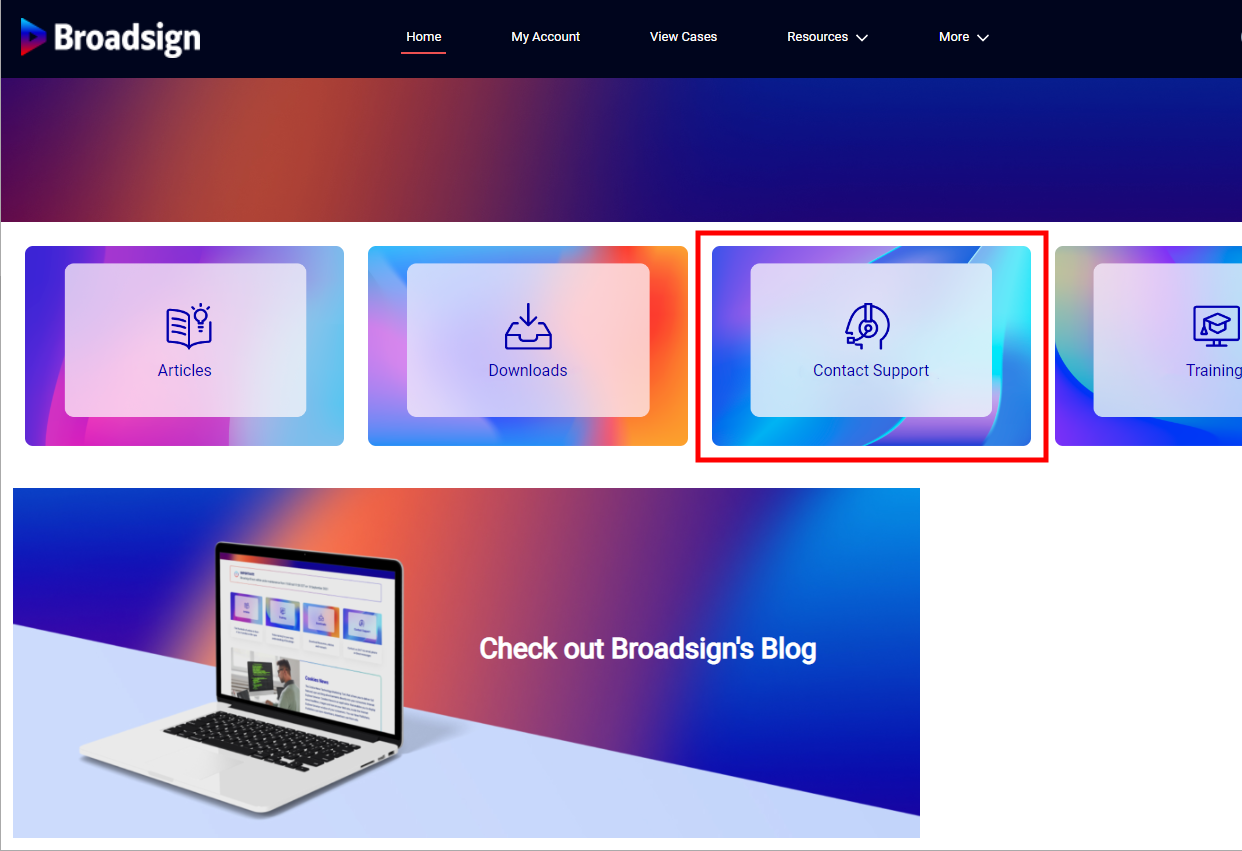
Click Contact Support. This presents a new help ticket screen.
Step 2 – How to Write a Helpful Ticket
To help us resolve your issue as quickly as possible, please include the following details in your ticket:
- A Clear Subject Line: Briefly describe the problem (for example: "Cannot Add New User," "Campaign Report Fails to Load").
- The 5 Ws:
- Where: Which part of the Platform are you in?
- What: What were you trying to do, and what was the unexpected result?
- Whose: Is this affecting a specific user or customer?
- When: When did this start happening?
- Why: Include a screenshot of the issue. A picture is worth a thousand words!
- In Windows – Press Windows + Print Screen – Windows 11/10/8 saves screenshots to the Pictures folder. Windows screenshots are saved with the name Screenshot followed by a number in brackets.
- In Mac – Press Command + Shift+3 – Mac OS saves screenshots to the desktop. Mac screenshots are saved with the name Screenshot followed by the year, date and time.
- Attachments: If you have relevant reports, files, or multiple screenshots, please attach them to the ticket.
Windows users can try Steps Recorder.
Alternative Contact
If you are unable to access the support portal, you can also reach the support team by sending an Email to Broadsign Services.
Other Things to Try
Emergency Repair Procedure
Log out, quit your browser, log back in and try it again.
Sometimes there’s an intermittent connection failure and taking a moment to log out and log in again gives it time to clear. Doing this can also resolve a stuck process and clear any partially completed processes that were in forgotten browser tabs.
For a complete refresh, you will need to clear your browser cache and cookies.
Break the habit of a lifetime and read the manual
Broadsign has extensive and growing on-line help. Take a moment to research the issue. It may be that an option is working just fine – but some additional steps are needed.