minute read
Getting the Most Out of the Broadsign Documentation
Find what you need, fast. Here are a few tips for effectively navigating and searching the Broadsign Platform documentation.

The Best Way to Find Information: Search
Our search bar is the most powerful tool for finding specific information.
- Always double-check your spelling.
- Search is based on keywords. For example, "audience data". Do not search with natural language. For example, "How do I add audience data?".
- If you are looking for exact words, put them in quotes. For example, "screen inventory". Doing this also helps to ignore boolean operators, such as AND, OR, NEAR, NOT, and ( ).
- Use the filter button in the search bar to narrow down your results to a particular area.

Useful Features on Every Page
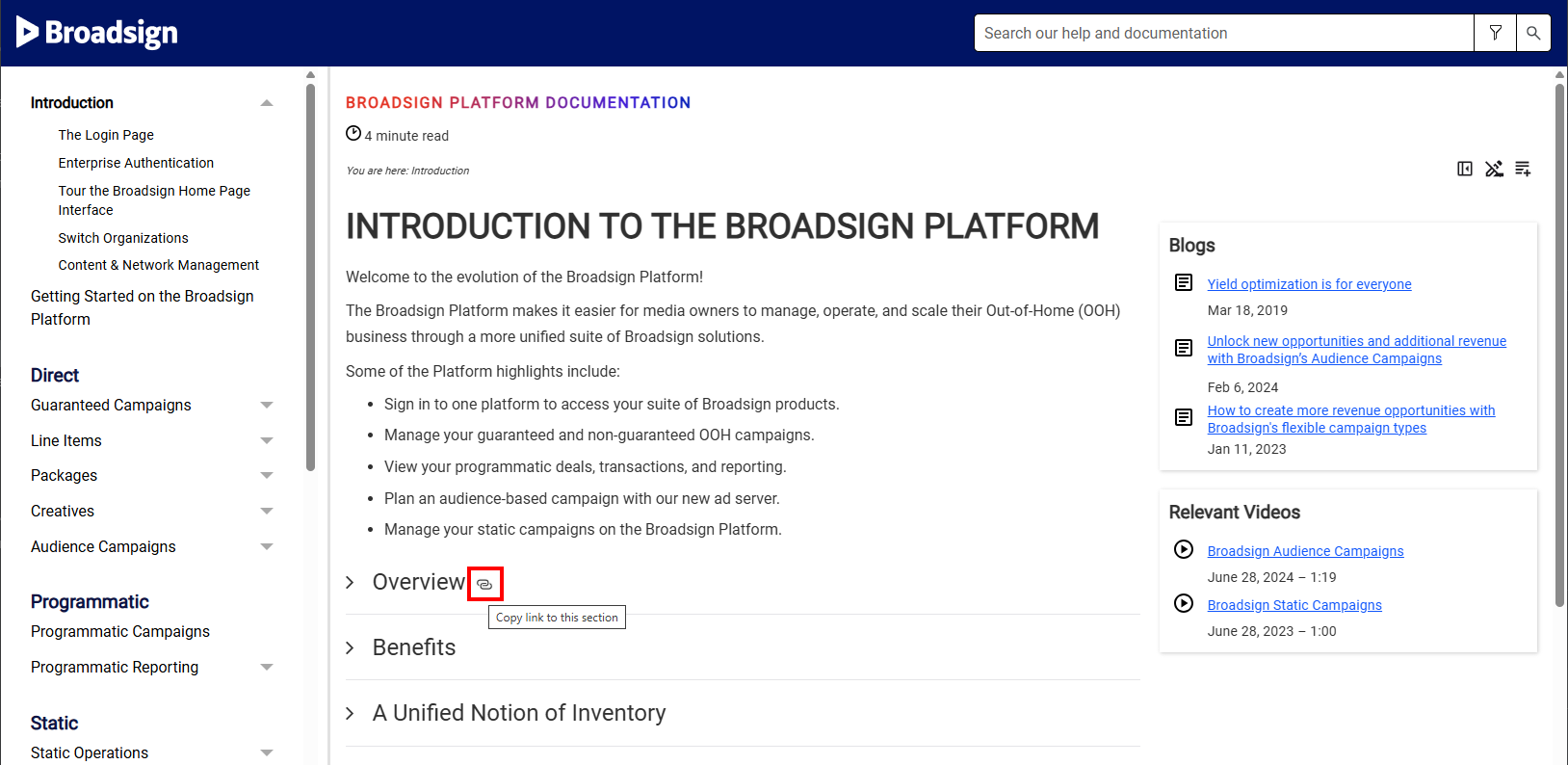
- Copy Heading Links – Need to share a link to a specific section of a long page? Hover over any heading and click the link
 icon to copy its direct URL.
 - Use the Toolbar – The toolbar at the top of each page allows you to expand all drop-down text and remove highlights.
- Resize the side menu bar – Drag the edge of the side menu to resize it.
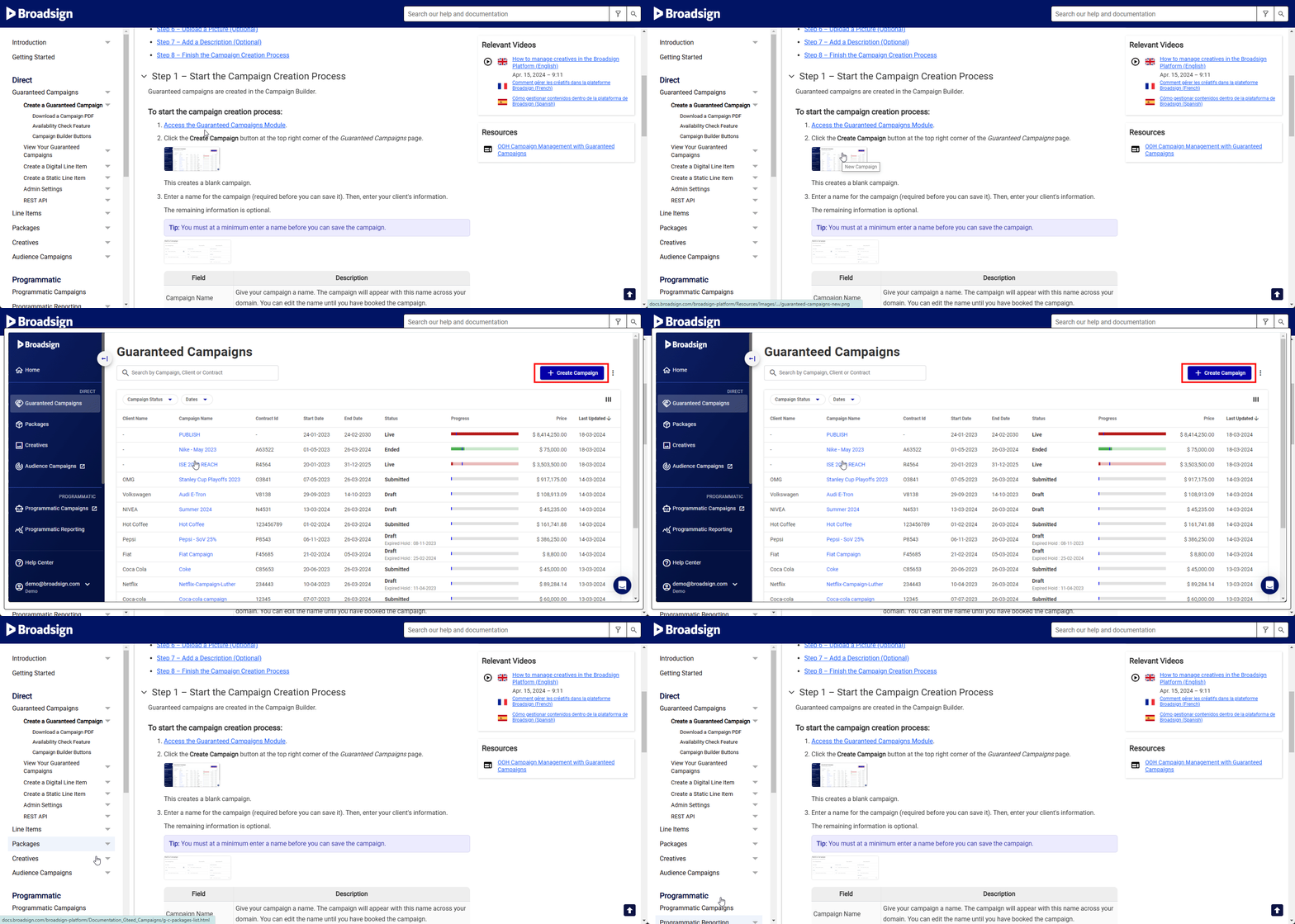
- Enlarge images – By default, all images in the Broadsign Platform documentation portal are in thumbnail format. To enlarge, click the image.
| Toolbar Icon | Description |
|---|---|
  |
Show or hide the left-side menu bar.
|

|
Remove highlights after accessing a topic from the Search bar. |

|
Expand all drop-down subtopics on a page. This is useful for long topics with multiple drop-down subtopics if you want to print the page or use CTRL+F/CMD+F to find a text on the page. |

|
Collapse all drop-down subtopics on a page. |

|
Click the arrow to go back to the top of the page. |