
This page provides steps you can take to correct issues as they arise on your network.
Broadsign detects that the MAC address of a player in your network already belongs to a player in another domain. See Register a Player.
This issue is especially problematic when configuring a 3G or 4G network. For example, see 3G Synchronization.
Conditions
The following conditions may apply:
- When you turn on a player, you receive an error message saying: MAC address conflict with active player. This player’s public key fingerprint is 22:22:22:22:22:22.
- You have reinstalled or reimaged the player since the last time it was online.
Causes
The following causes may apply:
- Some hardware manufacturers ship devices with the same MAC address as a player on another Broadsign customer's domain.
- If this is the same player as previously registered, this error can show up when the player loses its fingerprint and Broadsign Server no longer recognizes it as the same player.
Solution
Broadsign uses a public key fingerprint in addition to a MAC address to identify a player. If the server is reporting a player to have a duplicate MAC address, you will need to update the public key fingerprint in Broadsign Control Administrator to match the public key fingerprint reported by Broadsign Control Player as explained below.
You can assign your own fingerprint to the player which we will use to identify it. You can copy and paste the fingerprint from the error message or the logs.
- In Broadsign Control Administrator, open the player properties.
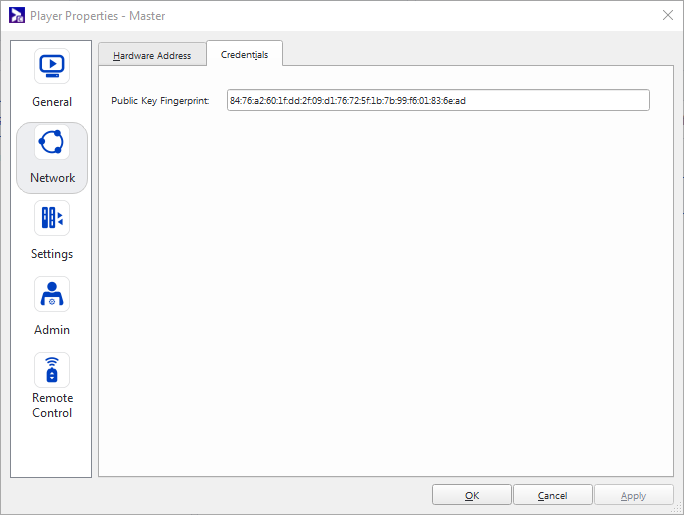
- Go to Network > Credentials.
- Enter a new public key fingerprint. Click Apply.
Scenario
“I have created a registration in Broadsign Control Administrator (BCA), but my Broadsign Control Player is not registering.”
Possible Causes
The following causes may apply:
- Issues with the registration itself
- The player has network issues
Solution
Check the following:
Registrations
- Ensure that you have reviewed the documentation on registrations in case something was missed.
- If the player is an SoC player, be sure its unique Custom ID matches the player’s.
The registration information must be correct and match the actual player’s information, specifically, the player’s MAC address.
The Custom ID must be in the following format: {PLATFORM}_{SERIAL_NUMBER}.
Check the Broadsign Control for SoC documentation.
The Player
- Pay attention to the registration window message, it can give you a hint of the problem.
- For example, if the message indicates a "duplicated MAC address," you will know where to investigate.
- Remember to take a screen capture in case you have to contact our Support Team.
- There are tools that will help you check if the issue is related to the network, if it's MAC-related, select which MAC address to use.
- The Diagnostics Report and MAC Filter are the most common issues in registrations.

Diagnostics Report
To generate the Diagnostics Report:
- Access the Broadsign Control Player's Help menu by minimizing the Player window by pressing Esc.
- Access the small "hamburger" icon at the top left of the Broadsign Control Player interface, and click Diagnostics Report.
- If any of the tests are not successful, you might have to check your network configuration. See the Network Access Rules documentation.
- You can also save the report (or take a screen capture) in case you have to contact our Support Team.
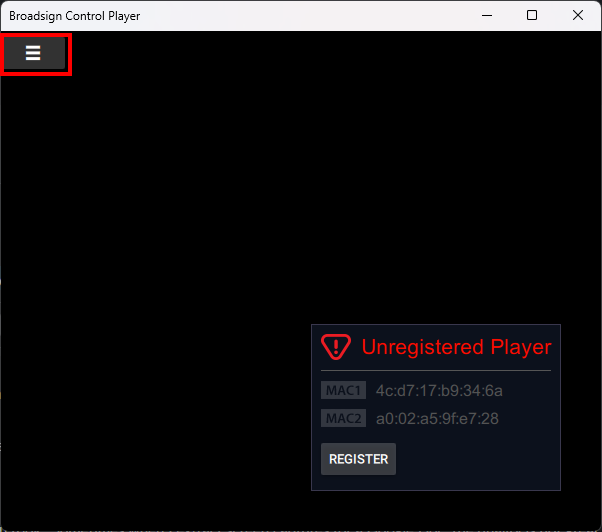

The Diagnostics Report window opens. After a moment, it will list the results of various tests.
If everything is fine, you will see something like this:

MAC Filter
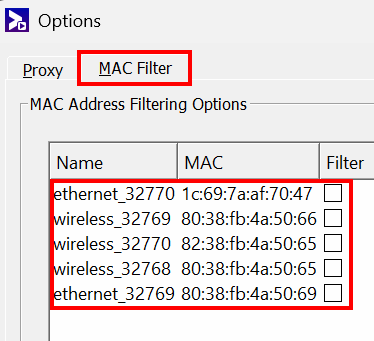
Some players, depending on their network devices, might have more than two MAC addresses. This can lead to confusion on our servers or duplicate MAC address errors, as the player will only pick two of those MAC addresses when attempting to register with the Broadsign Server.
Duplicate MAC addresses often occur due to virtual adapters re-using a limited MAC address space, or manufacturers not purchasing a MAC OUI and re-using a MAC address (sometimes seen with 3G/4G dongles). A player registration should only ever use the MAC address from a physical adapter, avoid using MAC addresses from virtual adapters.
The MAC filter lets you choose which MAC addresses will be used. When you select a MAC address from this list, the player excludes it from the list of MACs sent to Broadsign Server.
To access the MAC Filter:
- Access the Broadsign Control Player's Help menu by minimizing the Player window by pressing Esc.
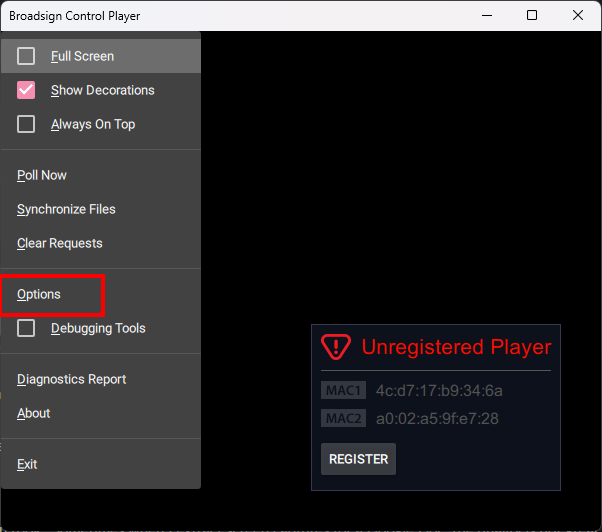
- Access the small "hamburger" icon at the top left of the Broadsign Control Player interface, and click Options.
- Click the Mac Filter tab, which lists the recognized MAC addresses.
- Check the MAC addresses that you do not want to be used.
For more information, see Options.
Events enable you to schedule specific media to interrupt and play at set times, distinct from your usual content schedule. You can set Events to play once, or repeat on a daily, weekly, monthly, or yearly basis.
Cause
In synchronized Broadsign environments, where multiple players need to display the exact same content simultaneously:
- The Event must target only the Leader player.
- A regular campaign should target the Follower players.
This is crucial for maintaining synchronization, as the Leader player then triggers the corresponding campaign on the Follower players.
Solution
The following steps outline the procedure to properly schedule Events:
- Create a Trigger Category : A trigger category acts as a signal to synchronize content between the Leader and Follower players. See Categories & Triggers.
This category will be used to link the Event on the Leader with the Campaign on the Followers. Any campaign using this trigger on a Follower player will play if it receives this trigger, so be sure to use unique trigger categories for different event synchronizations.
- Create an Event: Target this Event exclusively to:
- The Leader player(s).
- Any non-synchronized Display Units (DUs), which are screens that are not part of the synchronized group
- Edit the Event's Bundle:
- Open the Event you created in Step 2.
- Navigate to the Categories tab within the bundle settings.
- Assign the trigger category you created in Step 1 to this Bundle.
- Create a Campaign:
- While in the campaign creation wizard, set the exact same duration as the Event from Step 2.
- Target this Campaign only to the Follower players.
- At the Bundle Trigger Category step of the wizard, uncheck Campaign is auto-synchronized and assign the same trigger category that you assigned to the Event.


This way, when the Leader plays the event, it will send the trigger to the Followers so they play at the same time.