
Once a Broadsign Control for SoC device is provisioned, you can upgrade its Applet version by editing the device’s Applet or Timing assignment. You do not need to generate a new Deployment URL again.
You can update the Applet on a single device, or bulk update the Applet on multiple devices.
The Broadsign Control for SoC device must already be provisioned.
To update the Applet on a single Broadsign Control for SoC device:
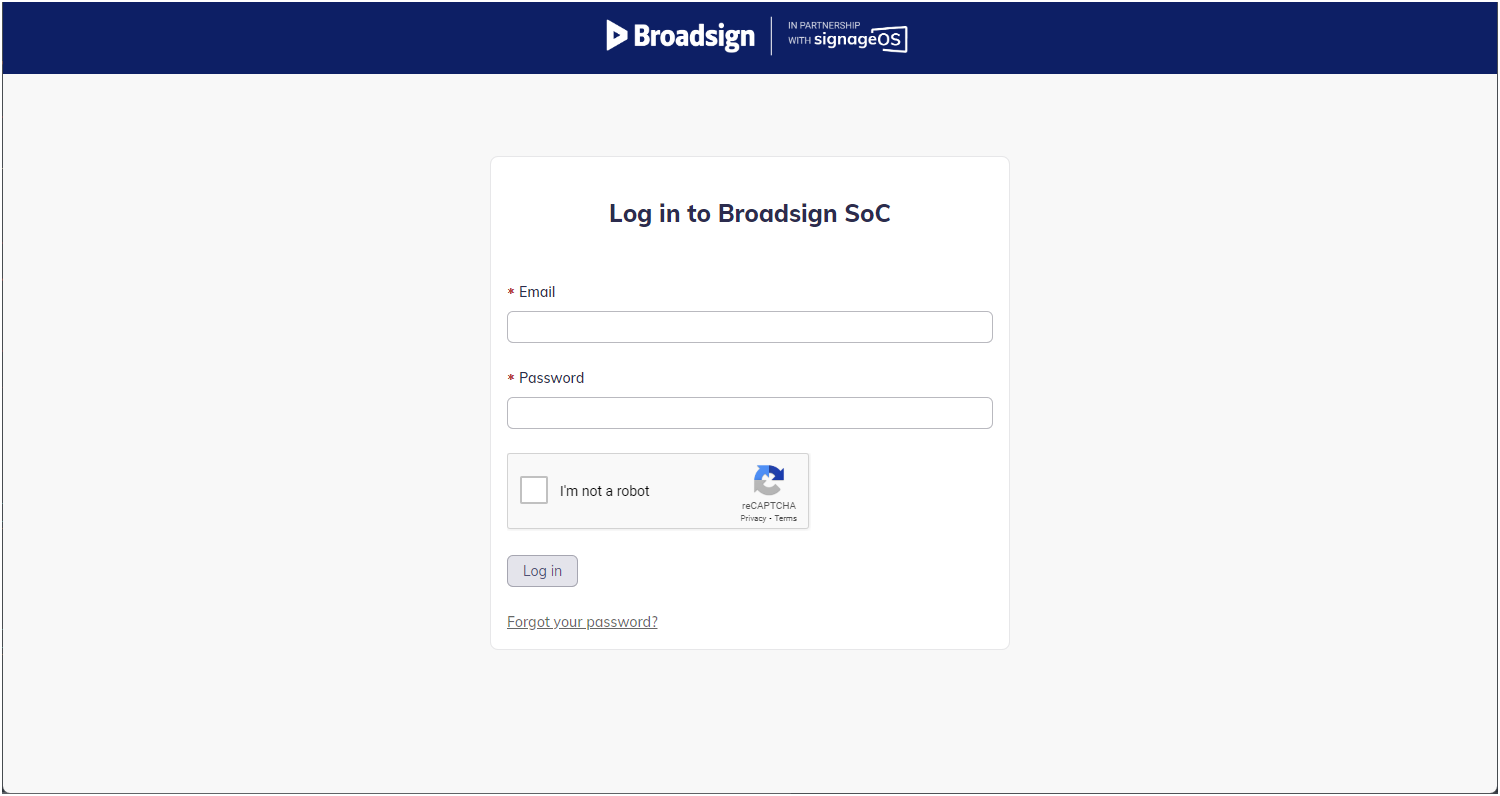
- Access the SignageOS interface.
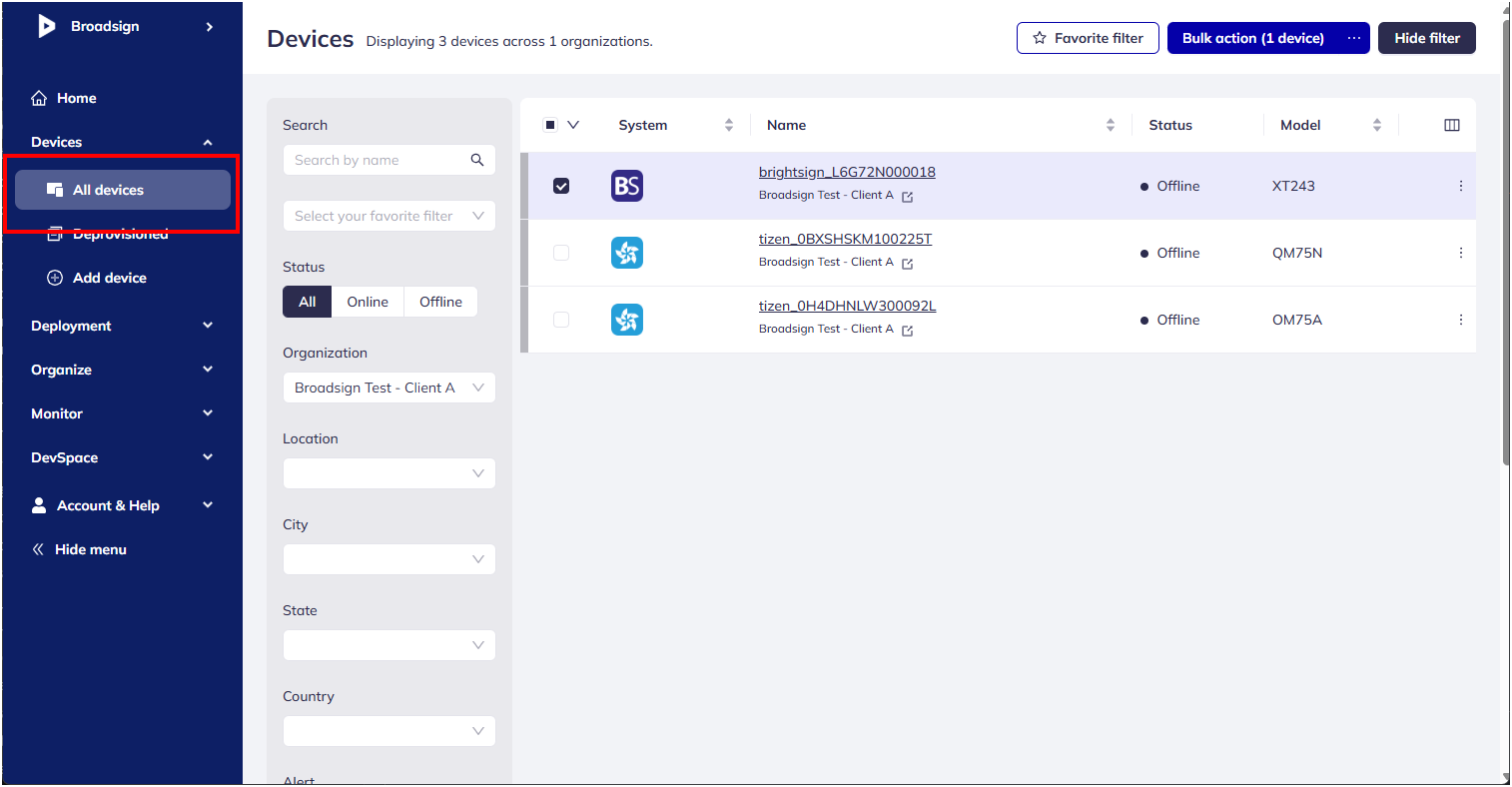
- Locate the device for which you want to update the Applet version in the Devices > All devices menu.
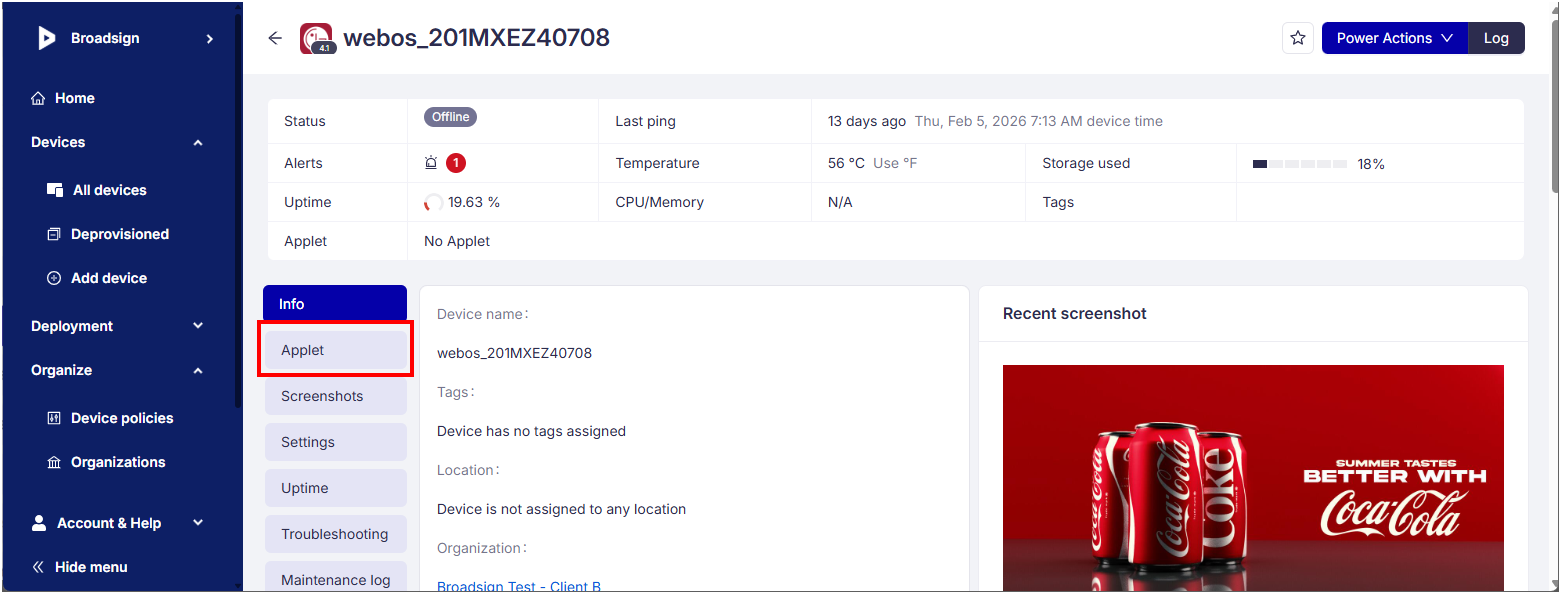
- In the Device information page, click the Applet tab.
- Click the Add new Applet button or the Edit Timing icon of an already existing Applet (this opens the Timing editor).
- In the Add Applet page, select your Applet and its version (choose the newer version you want).
- Click Save & add set active to apply the new applet to the device.

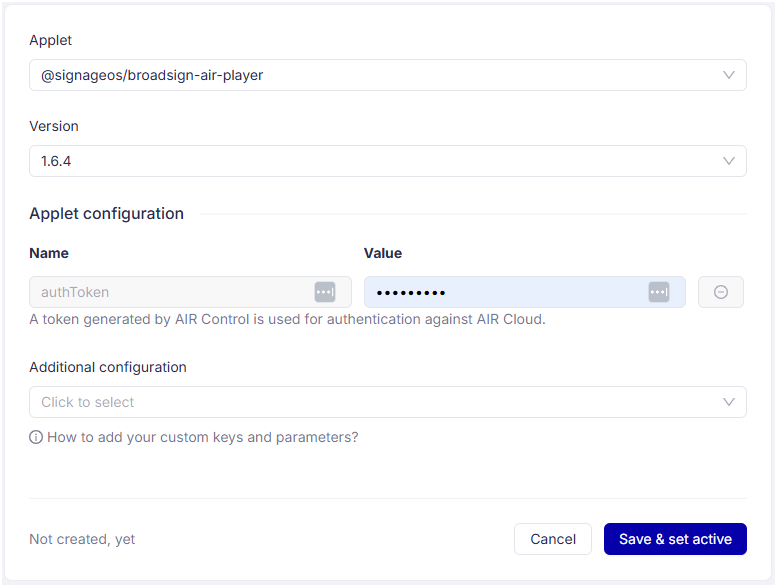
Tip: Optionally, when assigning or updating an Applet, you can also set configuration values.
The Broadsign Control for SoC devices must already be provisioned.
How bulk applet updates affect the configuration:
- If you update the Applet version without adding new configuration data, the system preserves the original configuration.
- If you add new configuration keys, the system merges them into the existing configuration.
- If you set a configuration key that already exists, the system replaces that value, and the rest of the original configuration remains.
To bulk update the Applet on multiple Broadsign Control for SoC devices:
- Access the SignageOS interface.
- Locate and select the devices for which you want to update the Applet version in the Devices > All devices menu.
- Click the Bulk action button.
- In Step 1- Select of the Bulk action wizard, select Update Applet (Update timing).
- You’ll see Update Applet (Update timing) only when the selected devices already have an existing Applet timing that can be updated.
- If the selected devices don’t have an Applet timing yet, use Assign Applet (Create timing) instead.
- Devices don't have to be on same Applet version when doing a Bulk Action. The key requirement is that all selected devices are compatible with “update timing” (otherwise the system may disable it or show a warning).
- Click the Continue to Configuration button at the bottom of the page.
- In Step 2 - Configure, select the Applet and the new version to roll out, then choose whether to Execute now or Continue to schedule.
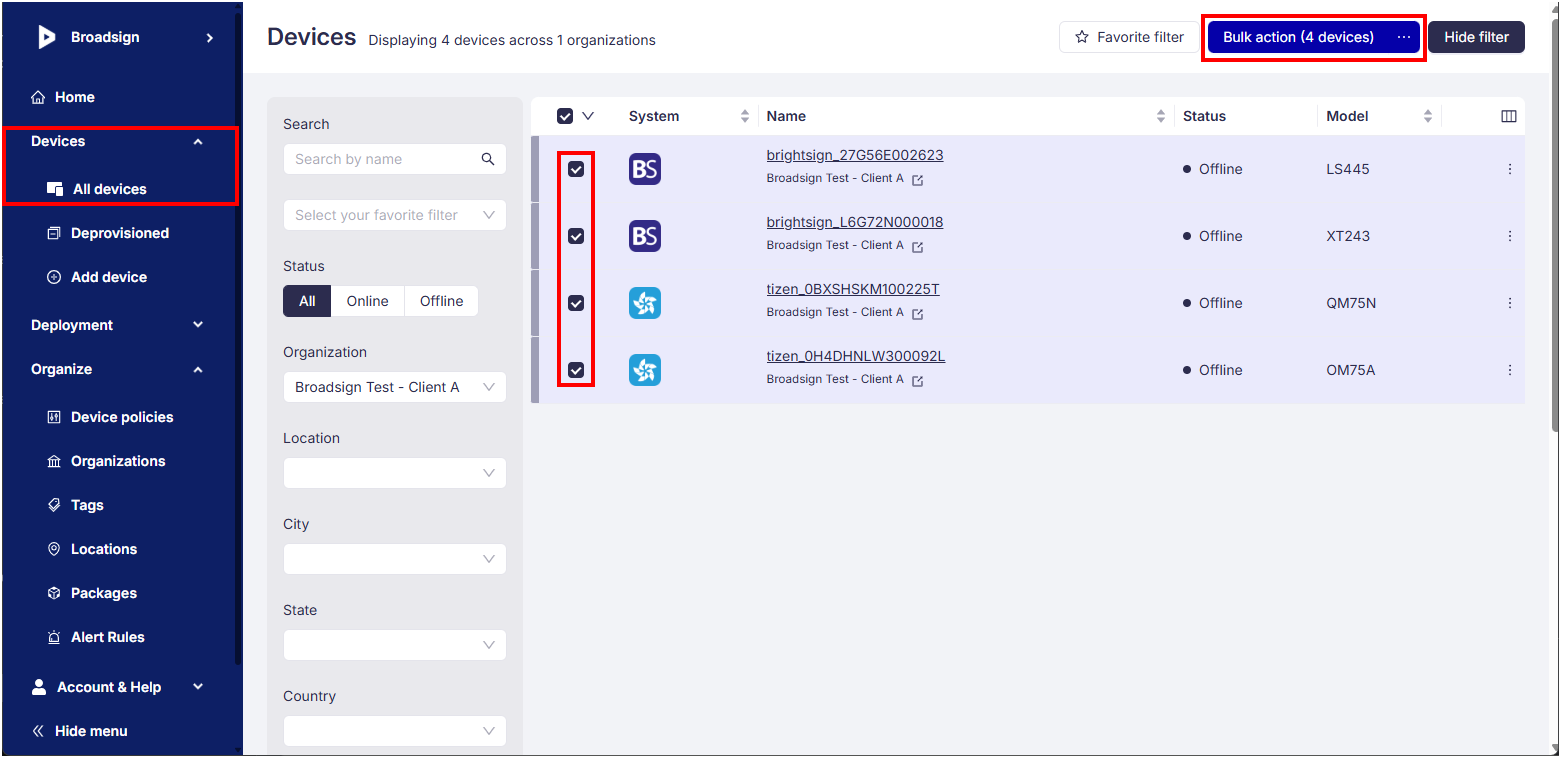
The Bulk action wizard pens.

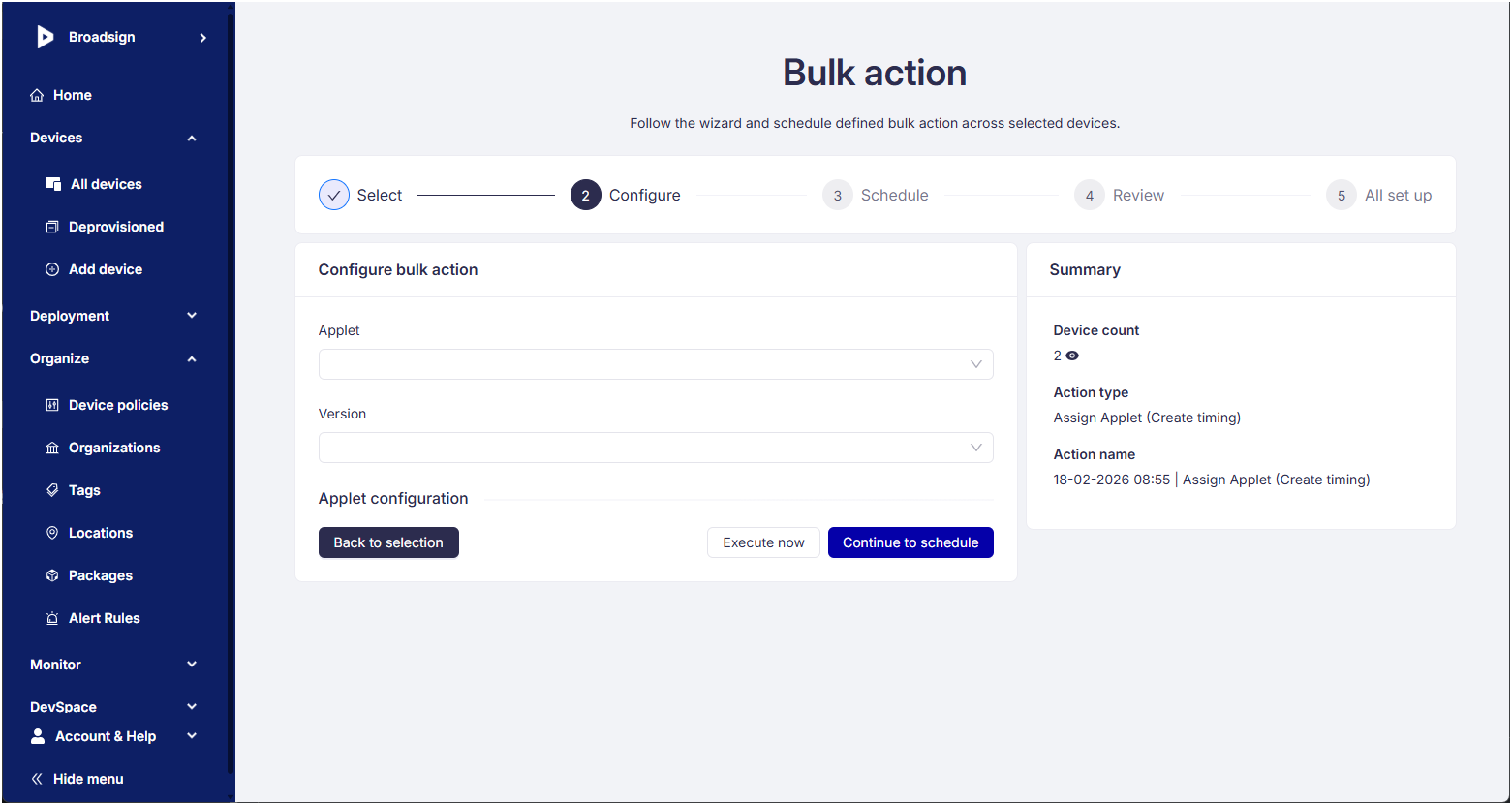
Tip: For large fleets, use Batches (percent-based groups) to roll out gradually.
