

Set up Broadsign Android Player
Note: This feature is in Beta version.
This page describes how to properly set up the Broadsign Android Player product in Broadsign Control Administrator.
Display Types ensure that the content is displayed correctly by matching the screen's characteristics. They help prevent performance issues that can arise from mismatched resolutions or orientations.
For more information, see Add a Display Type
Note: In the Add Display Type Wizard wizard, Specify Resolution page, ensure to set the maximum width and height in pixels that your display can support, for example, 1920 x 1080.
A loop policy sets the structure for content playback within a frame. It determines aspects such as:
- Loop Duration – The total time allocated for a complete cycle of content.
- Slot Duration – The length of individual content slots within the loop.
- Content Types – The types of content, such as ads or informational pieces, that can occupy slots.
For more information, see Add a Loop Policy
Note: In the Add Loop Policy Wizard, Policy Settings page, keep the default value for the Maximum loop playing time, Loop slot duration, and Loop slot duration type parameters.
Display units in Broadsign Control are analogous to programming channels on a television broadcast network.
Their layout and scheduling availability is determined by their assigned day parts, and any player assigned to a display unit will display the content scheduled to it.
For more information, see Add Display Units.
In the the Add Display Unit Wizard:
- Display Type page – Select the Display Type created in Step 1 – Create a Display Type.
- Loop Policy page – Select the Loop Policy created in Step 2 – Create a Loop Policy.
- Criteria Selection page – Leave as is.
- Player Selection page – Leave as is.
- Display Unit Location page – Leave as is.
You must register the Broadsign Android Player within Broadsign Control.
For more information, see Register a Player.
In the Add Registration Wizard:
- Registration Type page – Select Player
- Display Settings page – Select the Display Unit created in Step 3 – Create a Display Unit
- Device Identification page - Select Custom ID. The Custom ID serves as the Player Identifier within the Broadsign Android Player registration process. You will use this Custom ID during the installation procedure as <YOUR_PLAYER_ID>.
Ensure the Custom ID is unique across all your Broadsign players. For easier identification, we recommend using a prefix common to all your players, such as, "MyCompany-xyz".
The API token is required during the installation procedure as <YOUR_API_TOKEN>.
To generate the API token:
- Select the user on your domain that will use the REST API.
- To enable access, contact Broadsign Services. Provide them with your domain and the API user ID#.
-
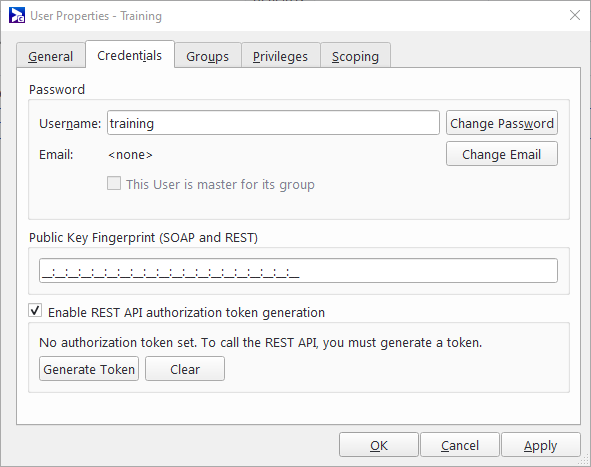
In Broadsign Control Administrator, open the User Properties (see Edit User Properties). Go to the Credentials tab.
-
To obtain a token, under REST API Authorization Token, click Generate Token. The REST API Token dialogue box opens.
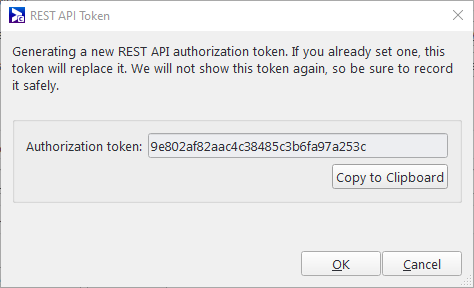
Note: When you generate the HTTP token you must copy it to your clipboard. Once you close the dialogue box, you will be unable to see the token again. To see it, you must generate a new one. Once copied to your clipboard, we recommend pasting it into a text editor right away.
- Click OK, and then click Apply.
Broadsign Services will confirm API access for that user ID#.