

Warning: Perform this step in-house before shipping your device to its installation location, if applicable, because you need physical access to it.
Installing the CoreApp and the Broadsign Control for SoC applet on a BrightSign device involves using an SD card.
This knowledge base article gives more information on how to select a SD card.
Note: We recommend formatting your SD card using FAT32. Formatting your card using NTFS allows you to play media files that are 4GB or larger in size, but the player will not be able to receive network updates or generate logs. Be sure to get a microSD card with room enough for your ad copies and FAT32 format.
To provision a BrightSign device:
- Use your web browser to download the zipped content from the Core App Deployment URL for your BrightSign device.
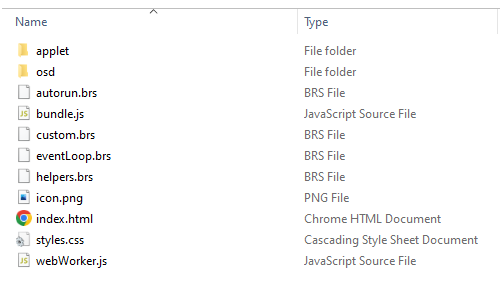
- Unpack the downloaded file as follows and visit the folder to copy all the files.
- Copy all the files (including any other files / sub-folders) to the formatted microSD card (format FAT32) plugged into your PC.
- Insert this microSD card into the BrightSign device.
- Plug in the Ethernet cable, the HDMI cable to connect the device to a monitor screen and lastly, the Power cable to boot up the device.
- Wait for 2–5 minutes, and then visit the Organization in the the SignageOS interface. If you see your device under the Devices tab, this means your device has been provisioned successfully.
The URL will look like: https://0099.io/7gK0949/0.zip.
This URL has been generated by Broadsign Services. If you need a new Core App Deployment URL, see Get New Core App URL for Broadsign Control for SoC Devices.
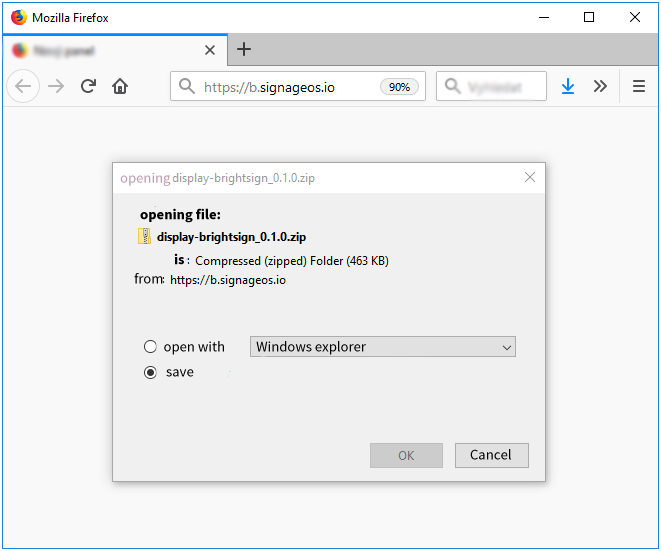
Your browser should automatically download the zipped content like below.

It is important to extract the files out of the parent folder onto the microSD card. All files must be in the root folder of the microSD card.


BrightSign will automatically boot up to complete the device provisioning.
If your device did not successfully provision and is not visible in the Devices tab of your organization, repeat the device provisioning steps carefully to identify and correct any errors in the setup.
