

Warning: Perform this step in-house before shipping your device to its installation location, if applicable, because you need physical access to it.
This process uses the Core App Deployment URL you received.
To provision a Samsung Tizen device:
- Turn ON the screen.
- Use the Network Settings option to connect to the internet.
- Go to the System Menu and select Start Setup.
- Select your Language to start the setup process.
- Choose the Display Orientation as Landscape whether you want to play contents in Landscape or Portrait mode.
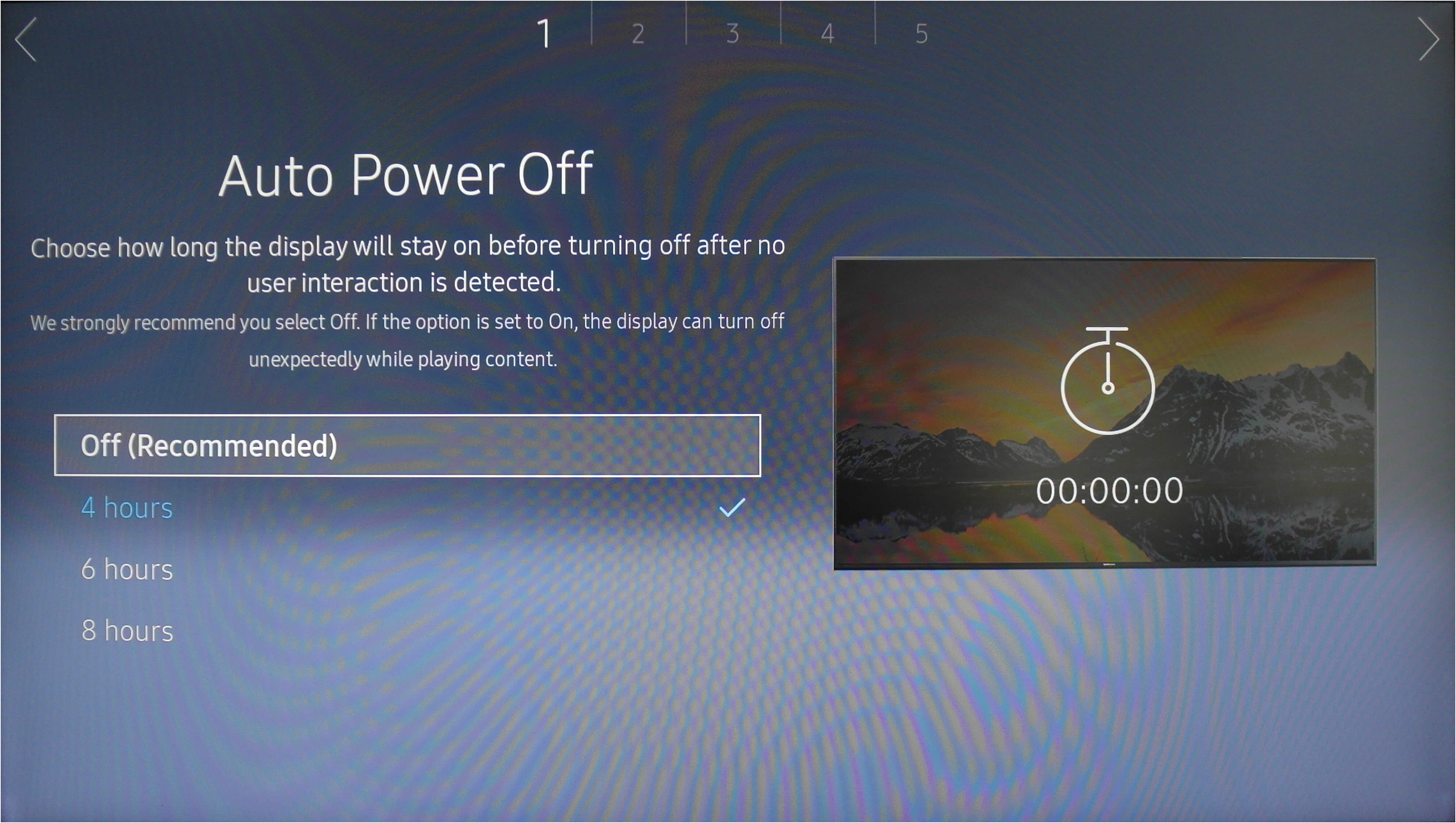
- Choose the Auto-Power off mode to OFF.
- Set the Wi-Fi Connection.
- Set the correct Date and Time.
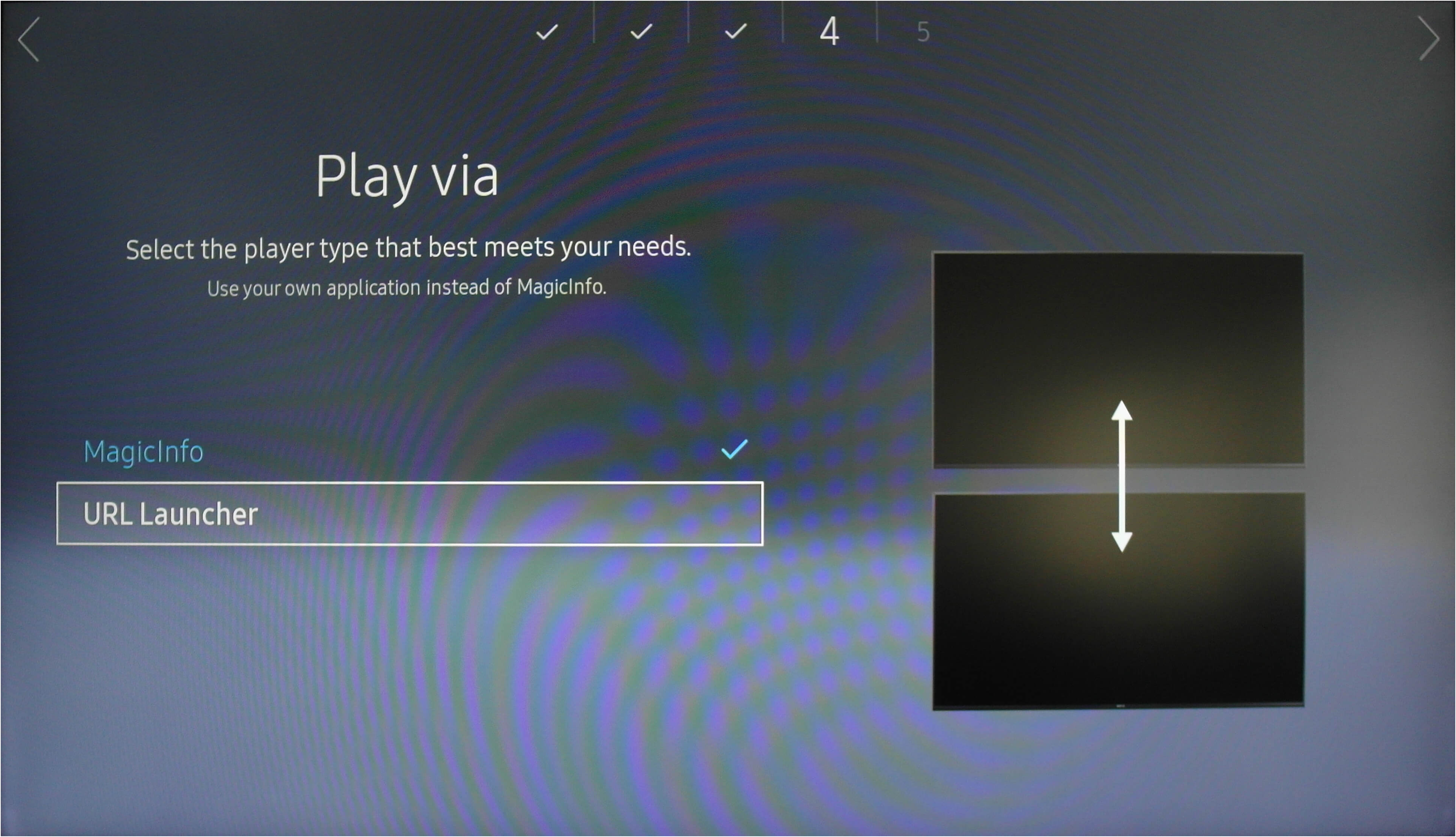
- In the Play Via option, choose URL Launcher.
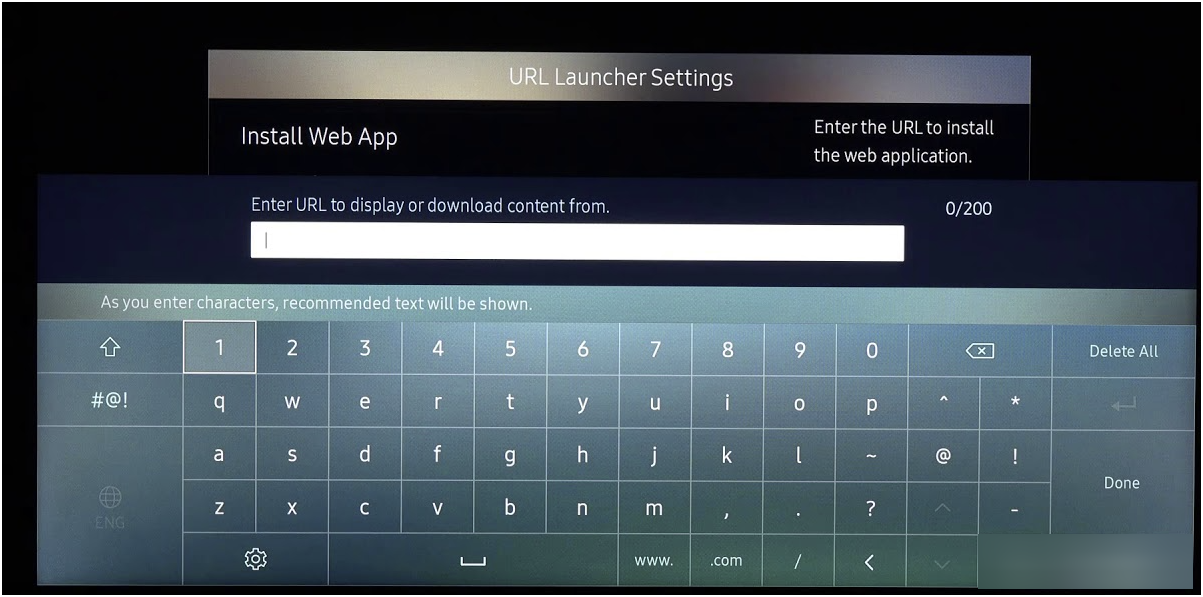
- Enter the Core App Deployment URL here that was generated for Tizen and press Done.
- Press the Home button to open the menu to access the Device ID.
- Select RJ-45 (LAN) / Wi-Fi Network for the PC Connection Cable.
- Press Done.
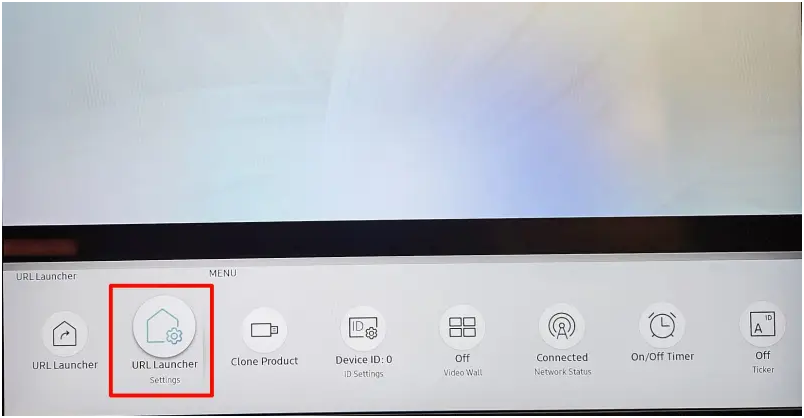
- Press the Home button to open URL Launcher settings option.
- Confirm and review the Core App Deployment URL to install the Web App then press OK.
- OPTIONAL: You can nUow also use the Home button to select and launch the URL Launcher to view the screen from the download Core App Deployment.
- Wait for 2–5 minutes, and then visit the Organization in the the SignageOS interface. If you see your device under the Devices tab, this means your device has been provisioned successfully.






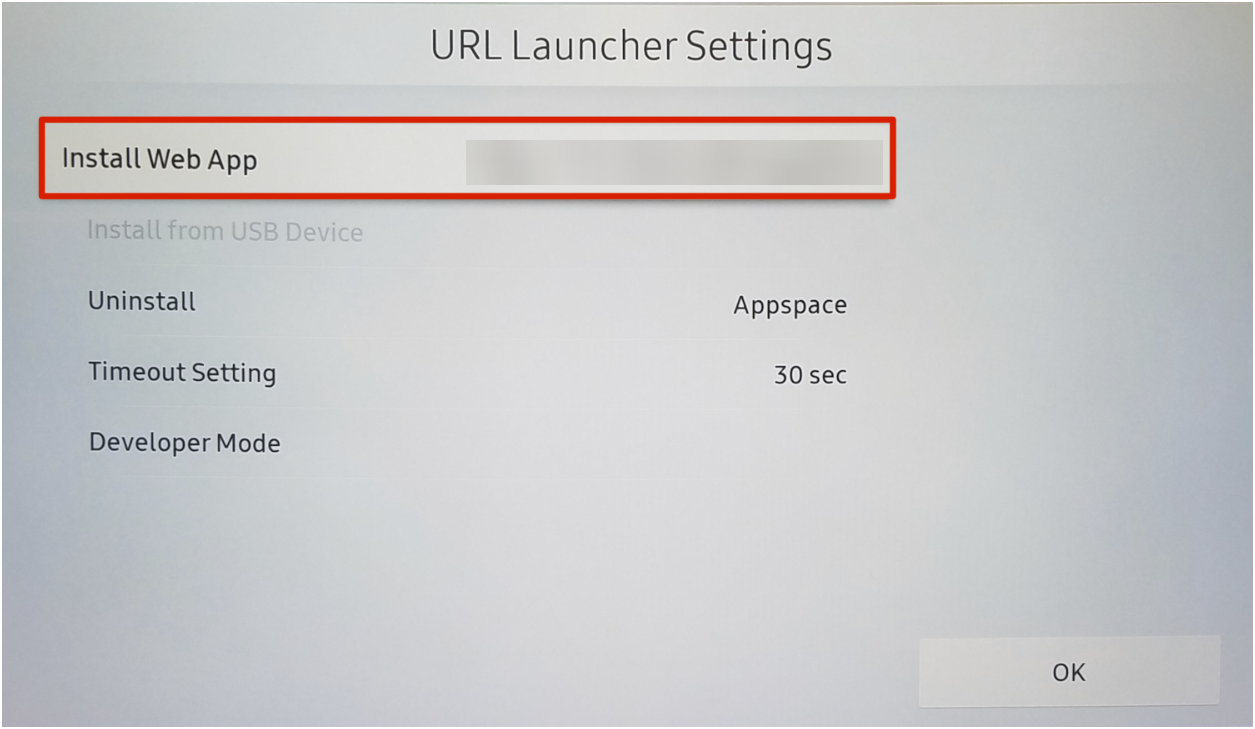
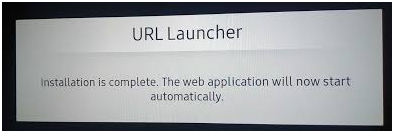
The screen automatically downloads the contents and confirms the successful download with a message.


If your device did not successfully provision and is not visible in the Devices tab of your organization, repeat the device provisioning steps carefully to identify and correct any errors in the setup.
