Broadsign Control for SoC devices have two important components:
- An Applet, which manages the player functionality, such as sending POPs to the server.
- The Core App, which represents the Player. It is specific to the Broadsign Control for SoC device brand
Note: You must update the Applet version before updating the Core App. See Update the Applet of Broadsign Control for SoC Devices.
Once the Applet version has been updated, you can update the Core App version if required.
Tip: Broadsign recommends to update Broadsign Control for SoC per Brand separately. For example, you can update the Core App version on all Brightsign devices.
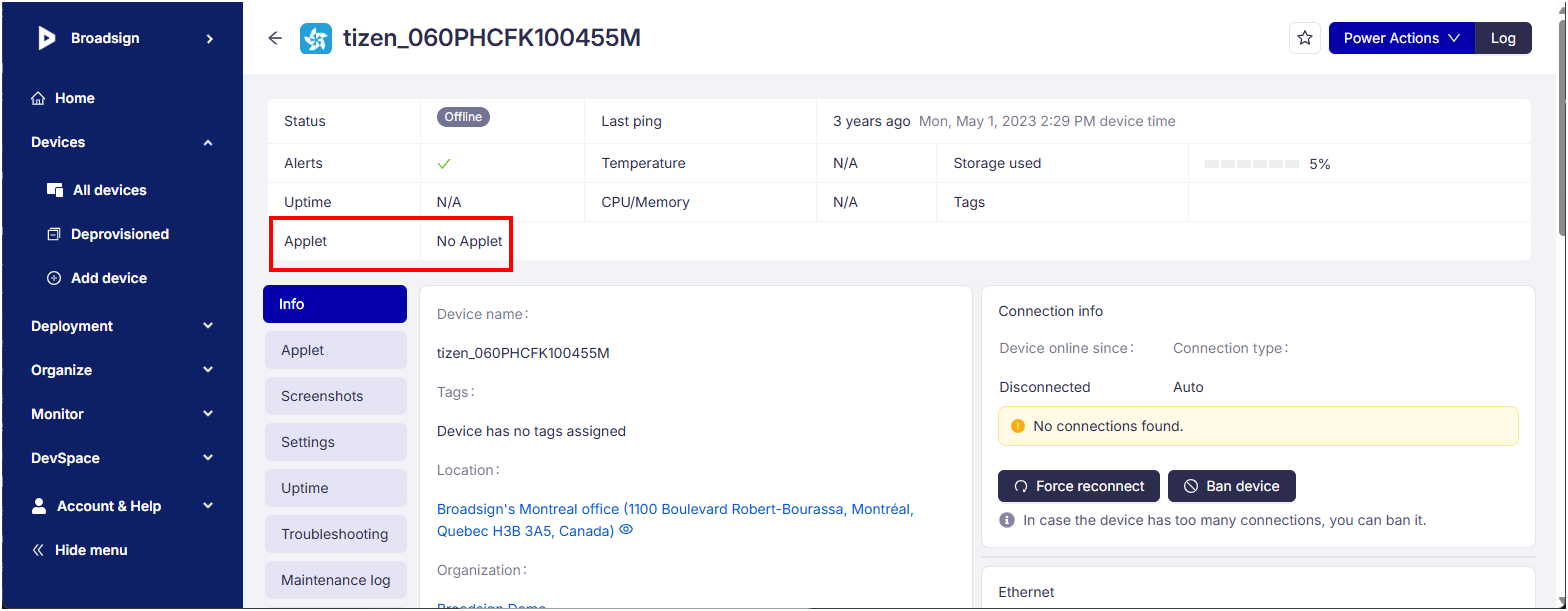
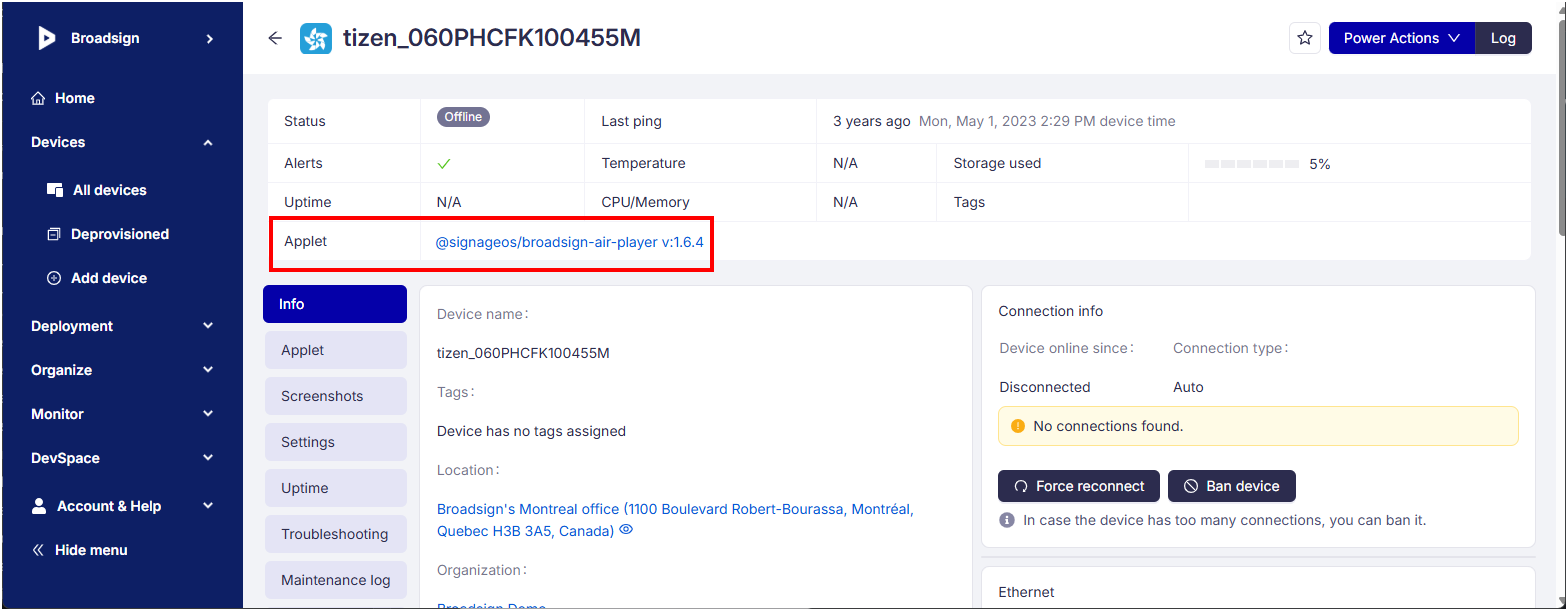
To verify if a device has an installed Applet, access the Device Information page.
- Devices Without Applets – When a device does not contain an Applet, the system displays a "No applet" status in the Applet field.
- Devices With Applets – When the system installs an Applet on a device, the Applet field displays the specific software details.
To update the Core App Applet on Broadsign Control for SoC devices:
- Access the SignageOS interface.
- Locate and select the devices of the same Brand for which you want to update the Core App version in the Devices > All devices menu.
- Click the Bulk action button.
- In Step 1- Select of the Bulk action wizard, scroll down top the Settings section and select Set application version).
- Click the Continue to Configuration button at the bottom of the page.
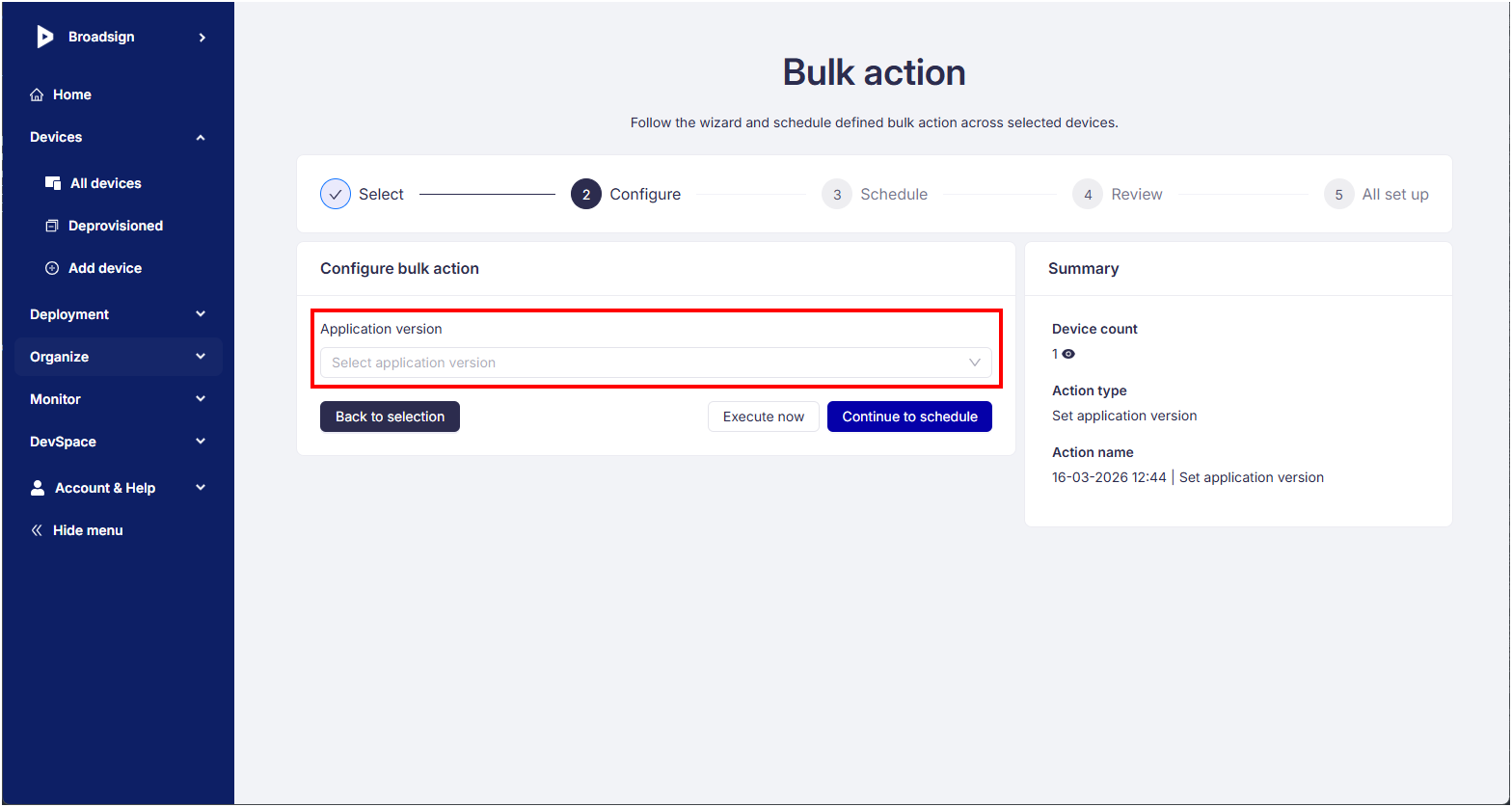
- In Step 2 - Configure, select the new Core App version to roll out, then choose whether to Execute now or Continue to schedule.
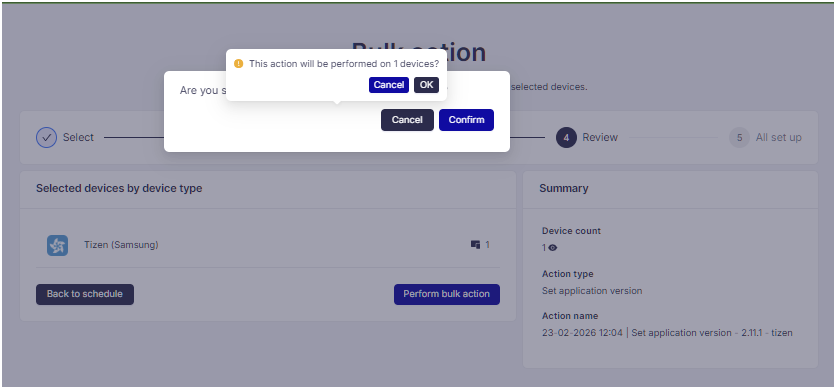
- Review that bulk action and confirm that it has been set as expected. Click Perform bulk action once you are ready.
- Click Confirm if everything is set as expected.
- Click OK if everything is correct.
- The upgrade usually takes 5 minutes.
- The devices will automatically restart once the Core App has been installed.
- Broadsign recommends to monitor the targeted devices to confirm everything is running as expected.
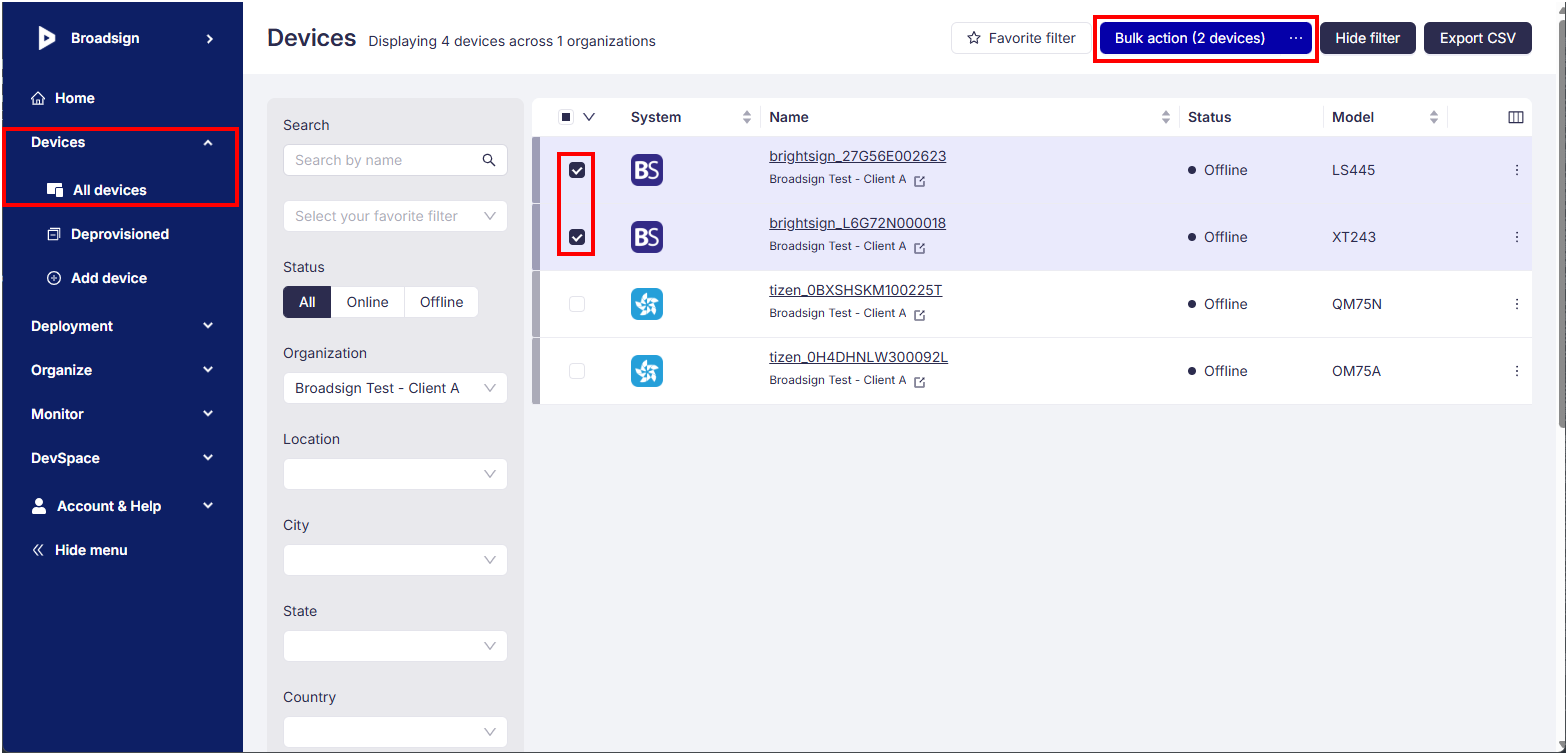
The Bulk action wizard opens.

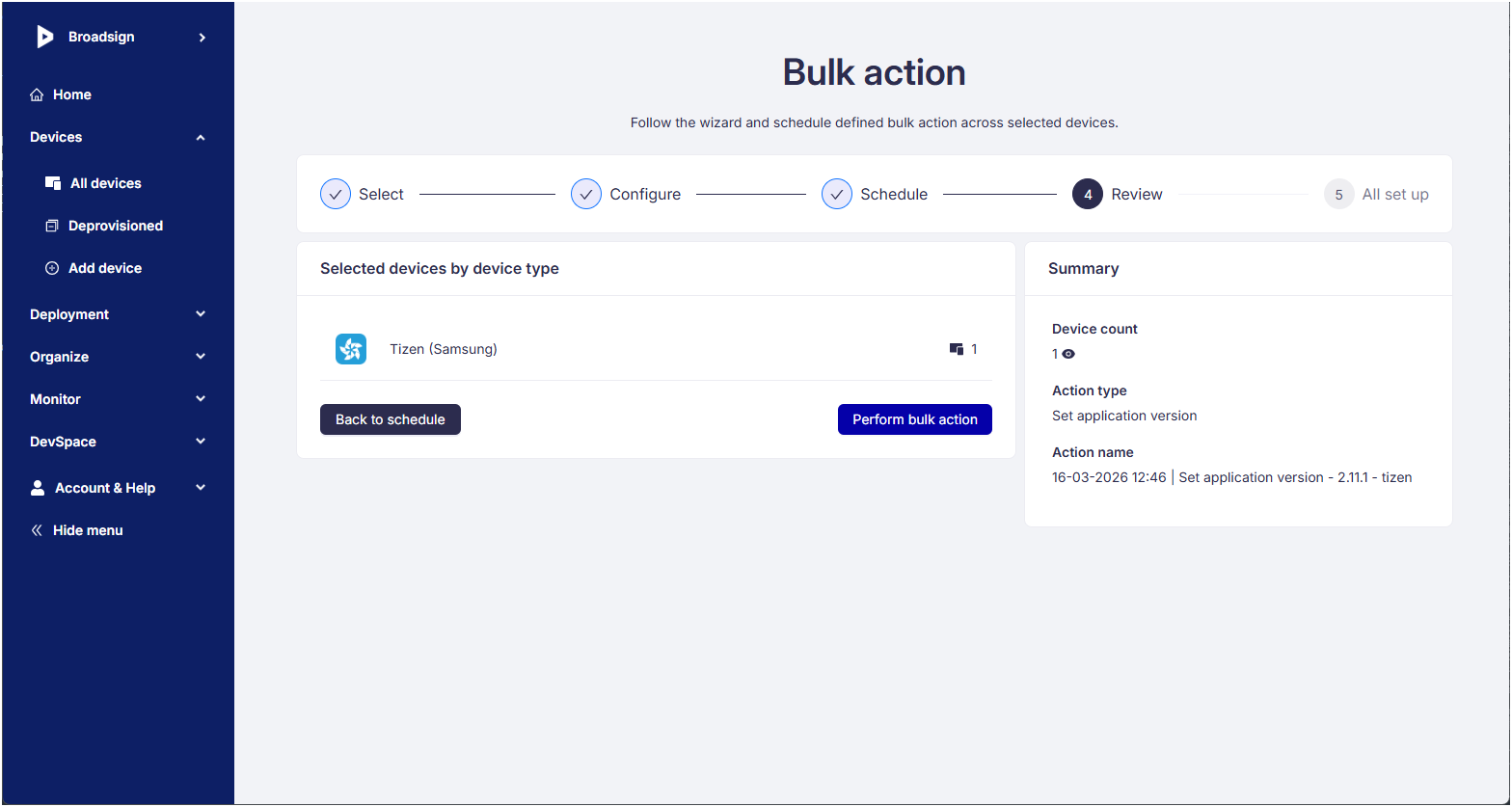
A message displays to confirm that everything is correct.
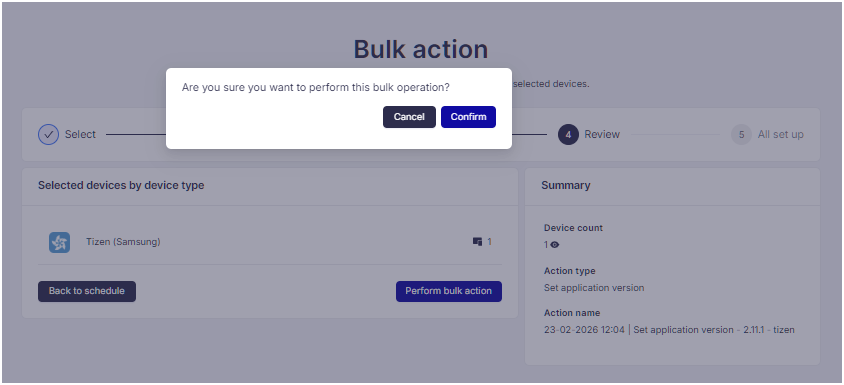
A second message displays to confirm the number of devices on which the action will be performed.
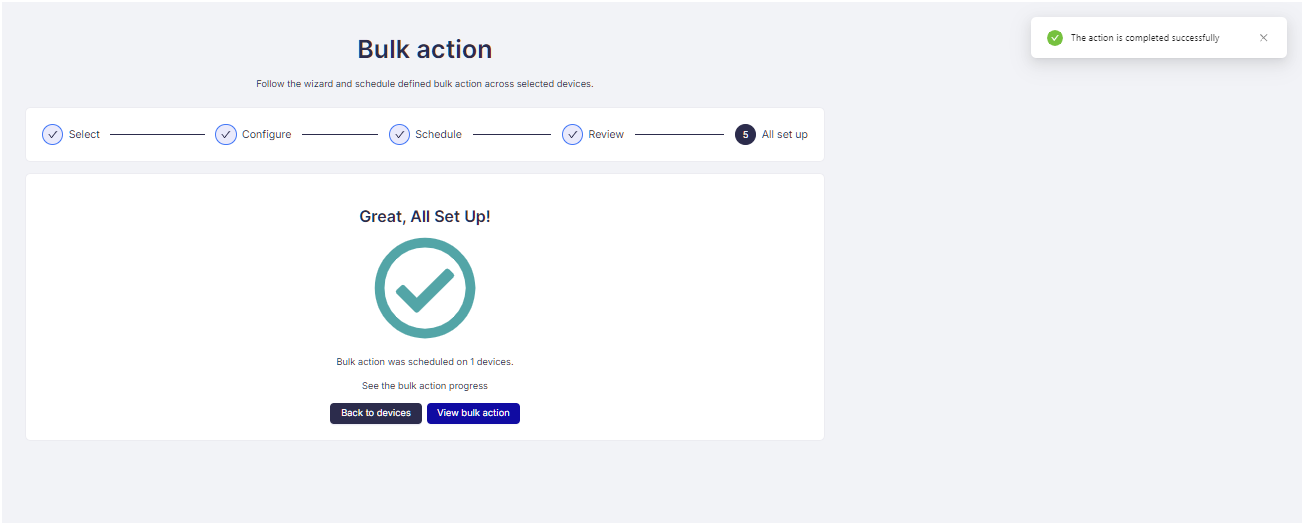
The bulk action is set and the following message displays.