You can include or exclude specific screens or faces by providing a list of IDs or Names.
To upload a list of Screens or Faces:
Guaranteed Campaigns
- Add a Contextual Filter or Update a Contextual Screen Filter.
- Do one of the following:
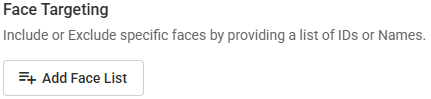
- Digital – Click the Add Screen List button under the Screen Targeting section.
- Static – Click the Add Face List button under the Face Targeting section.
- Select the list type:
- You can use a screen list by Screen IDs or Screen Names.
- You can use a face list by Face IDs or Face Names.
- Select a search method from the Match Type drop-down menu to locate specific Screen or Face names. You may choose an exact match for precise results or use partial name matching to find names containing specific strings. The system identifies and displays all entries that include the characters you provide.
- Copy and paste a list of Screen IDs, Screen Names, Face IDs, or Face Names in the input field.
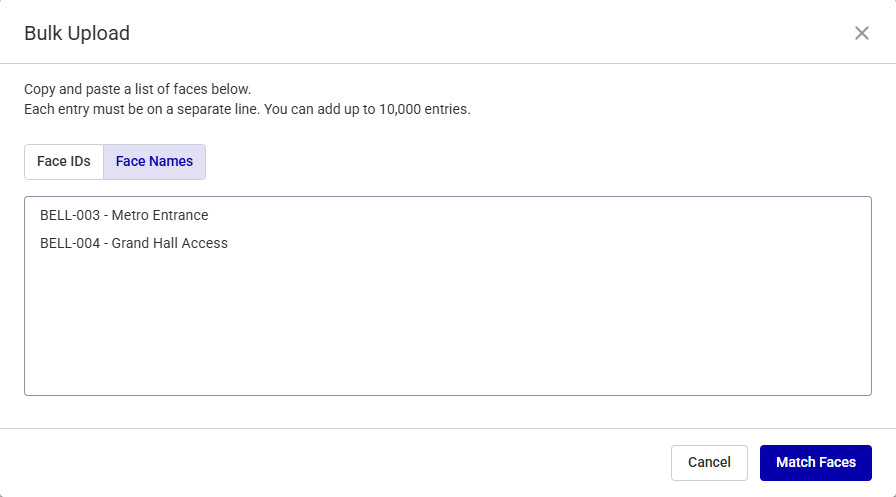
- Use only one Screen ID, Screen Name, Face ID, or Face Name per row, for example:
- Import a list of screens or faces by using the Import from CSV button.
- The file must be a CSV.
- The file must contain column headers.
- To successfully import data, ensure the column header names in your CSV file match one of the required values.
- Otherwise, the content of the first column is pasted.
- You can add up to 10,000 entries.
- Click Match Screens or Match Faces to match your Screens or Faces with the system data.
- Do one of the following:
- To include the matched Screens or Faces into your campaign, click Include Screens or Include Faces.
- To exclude the Screen or Face list, enable the Exclude screens or Exclude faces toggle, then click Exclude Screens or Exclude Faces.

The Screen List or Face List window is displayed.
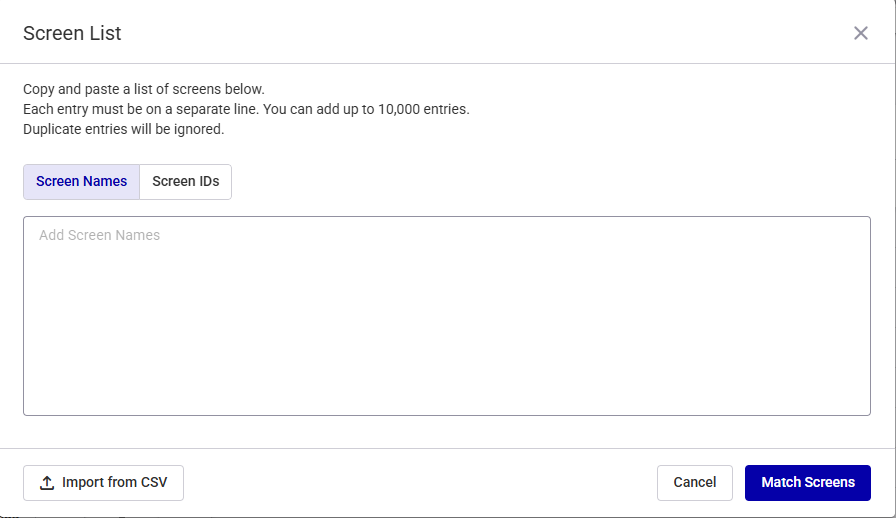
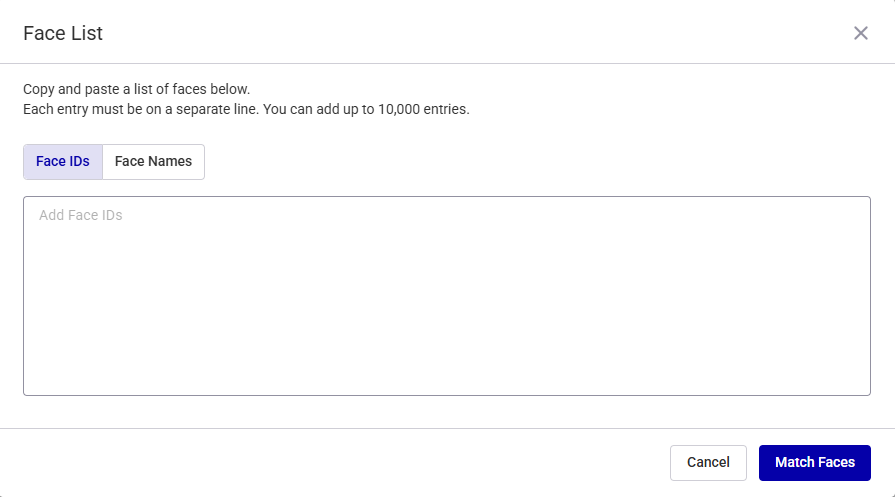
This window allows you to do the following:
For example, to import a list of face names, one of the columns in the CSV file must be named "Internal Name," "internal_name," "name," "Buyer Facing Name," or "buyer_facing_name".
The Screen List or Face List window displays the matching results.
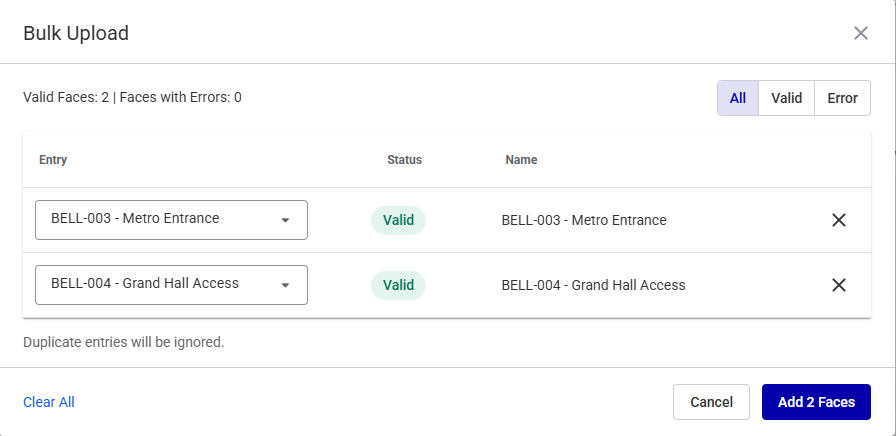
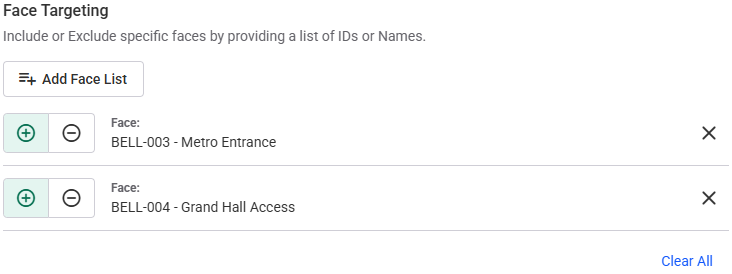
Valid matches are added. They appear beneath the Add Screen List or Add Face List button and the filter is applied to your inventory list.
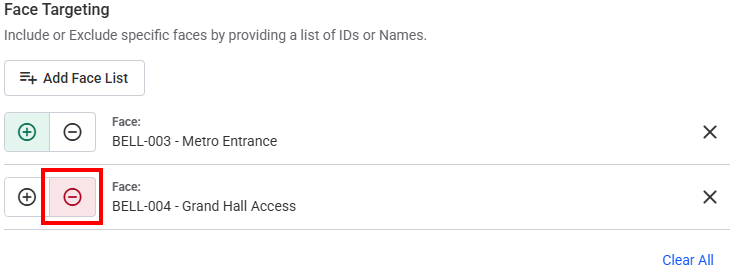
You can exclude certain Screens or Faces by clicking the  button and it will turn red, indicating it will exclude that Screen or Face.

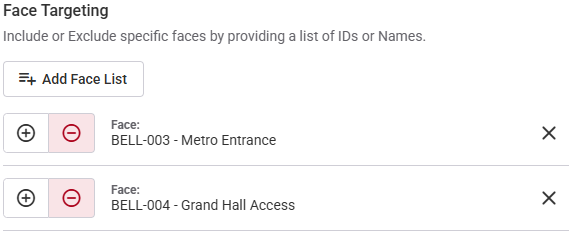
Valid matches are added. They appear beneath the Add Screen List or Add Face List button and the filter is applied to your inventory list.
This way, all targets will be added as exclusions.
You can include certain Screens or Faces by clicking the  button and it will turn green, indicating it will include that Screen or Face.

