 minute read
You can update certain Sites, Faces, or Vehicles characteristics in bulk.
To access the bulk edit feature:
Static Operations
- Locate Sites, Locate Faces, or Locate Vehicles.
- Select all the Sites, Faces, or Vehicles you want to bulk edit by clicking the check box next to them.
- Click the
 icon to trigger the bulk edit feature.
The icon appears.

The Bulk Edit window opens.
For example, for Sites:
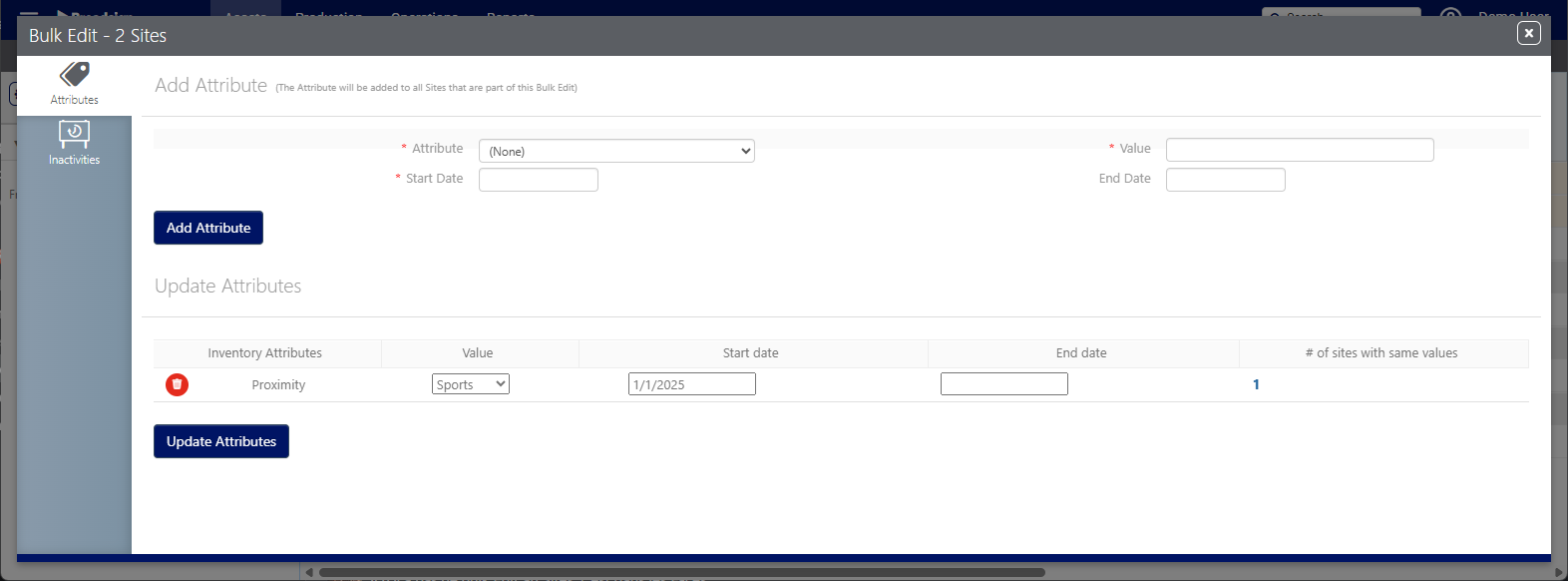
You can bulk edit the following Sites characteristics:
Attributes
You can perform the following bulk operations on Sites:
- Add attributes for the selected Sites. The new attribute is added to all selected Sites.
- Update existing attributes for the selected Sites.
- Delete existing attributes that are currently assigned to the selected Sites.
You only see the count of Sites that currently hold the value for the selected characteristic. Only those specific Sites receive the update, not all of the Sites you selected for bulk edit.
For more information, see Manage Attributes.
Inactivity
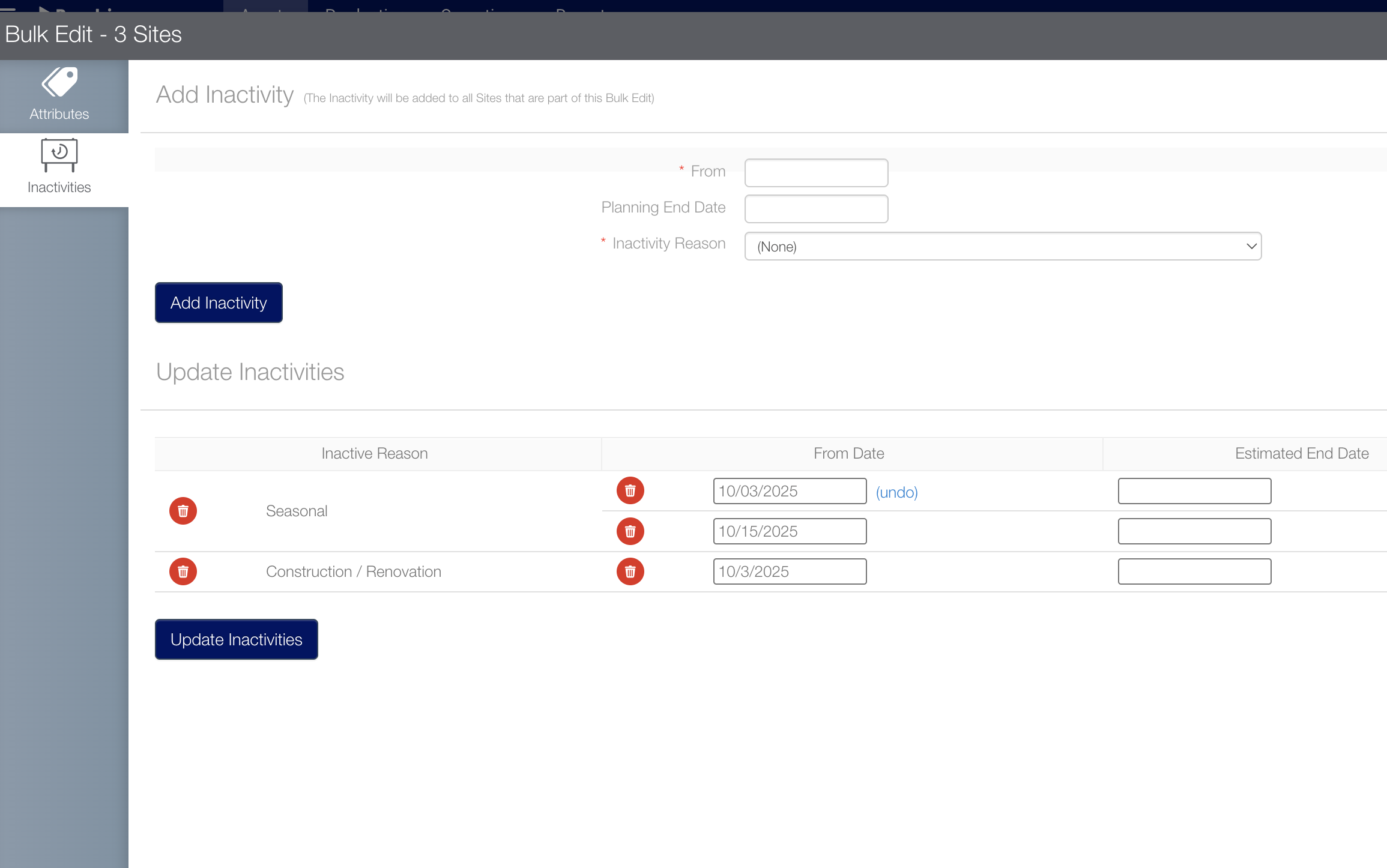
You can perform the following bulk operations on Sites:
- Add a new inactivity on the selected Sites.
- Update the current inactivity on the selected Sites.
- You can undo the changes as long as the update is not processed.
- You can see the number of Sites that will be impacted with this change.
- You cannot see which Site has which existing values. You can see the aggregate number of Sites and update.
- Delete existing inactivity on the selected Sites.
For more information, see Inactivity: Plan End Date, Expected and Actual.
You can bulk edit the following Faces characteristics:
Saleability

You can update the existing saleability of the selected Faces.
- Make Faces Saleable or Not Saleable.
- Add/Change the saleability Start Date for the selected Faces.
- Add/Change the Face Retired as of date and Face Retired Reason for the selected Faces.
This operation will override current saleability values for the selected Faces and update the newly provided values.
For more information, see Saleability and Retirement Dates.
Attributes
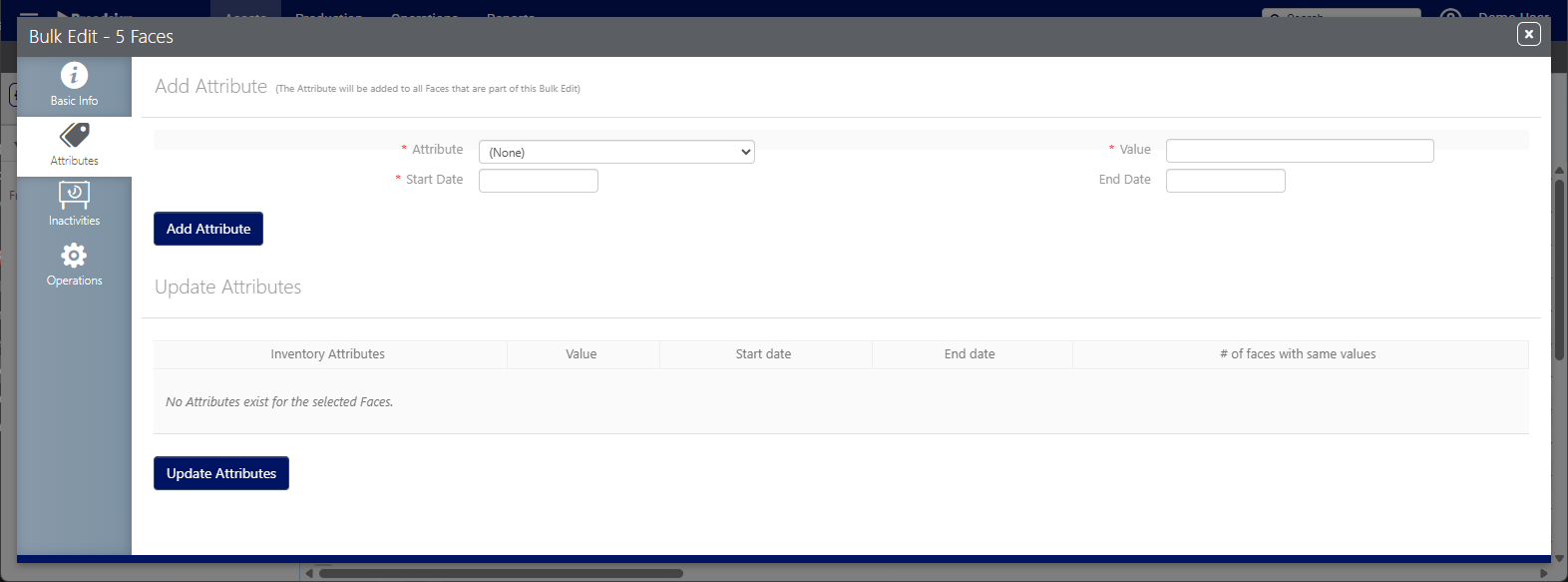
You can perform the following bulk operations on Faces:
- Add attributes for the selected Faces. The new attribute is added to all selected Faces.
- Update existing attributes for the selected Faces.
- Delete existing attributes that are currently assigned to the selected Faces.
You only see the count of Faces that currently hold the value for the selected characteristic. Only those specific Faces receive the update, not all of the Faces you selected for bulk edit.
For more information, see Manage Attributes.
Inactivity
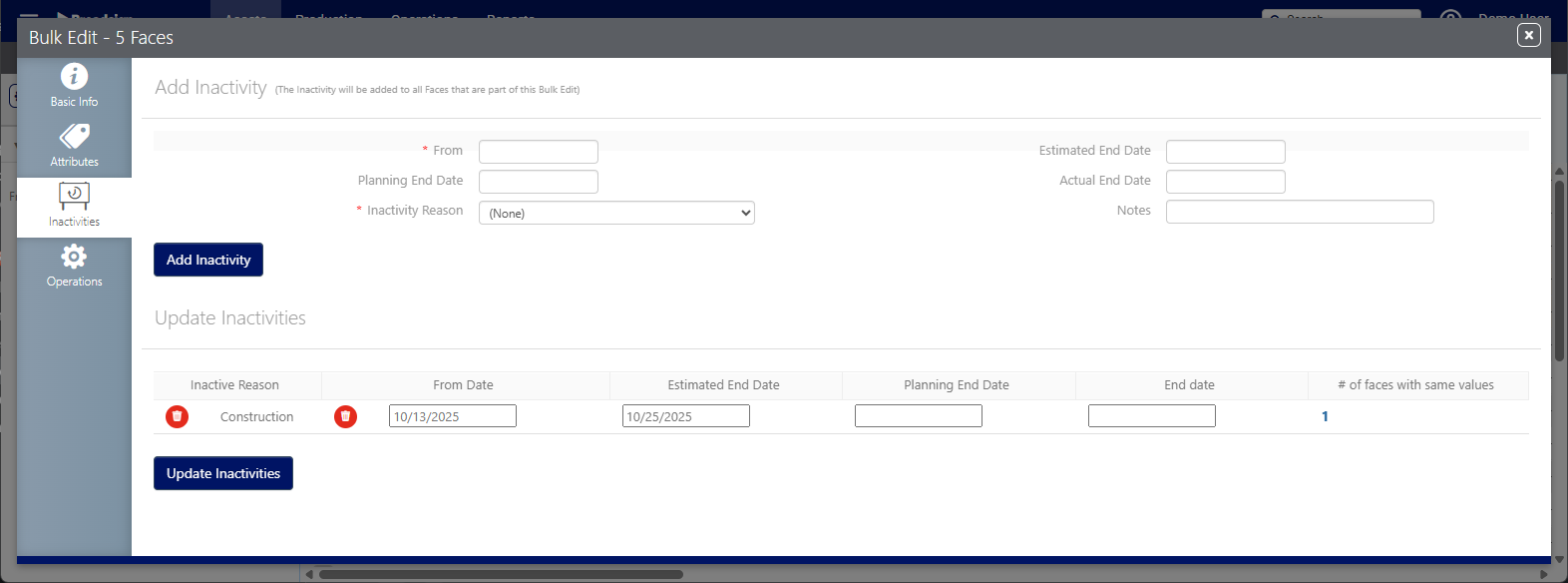
You can perform the following bulk operations on Faces:
- Add a new inactivity on the selected Faces.
- Update the current inactivity on the selected Faces.
- You can undo the changes as long as the update is not processed.
- You can see the number of Faces that will be impacted with this change.
- You cannot see which Face has which existing values. You can see the aggregate number of Faces and update.
- Delete existing inactivity on the selected Faces.
For more information, see Inactivity: Plan End Date, Expected and Actual.
Operations
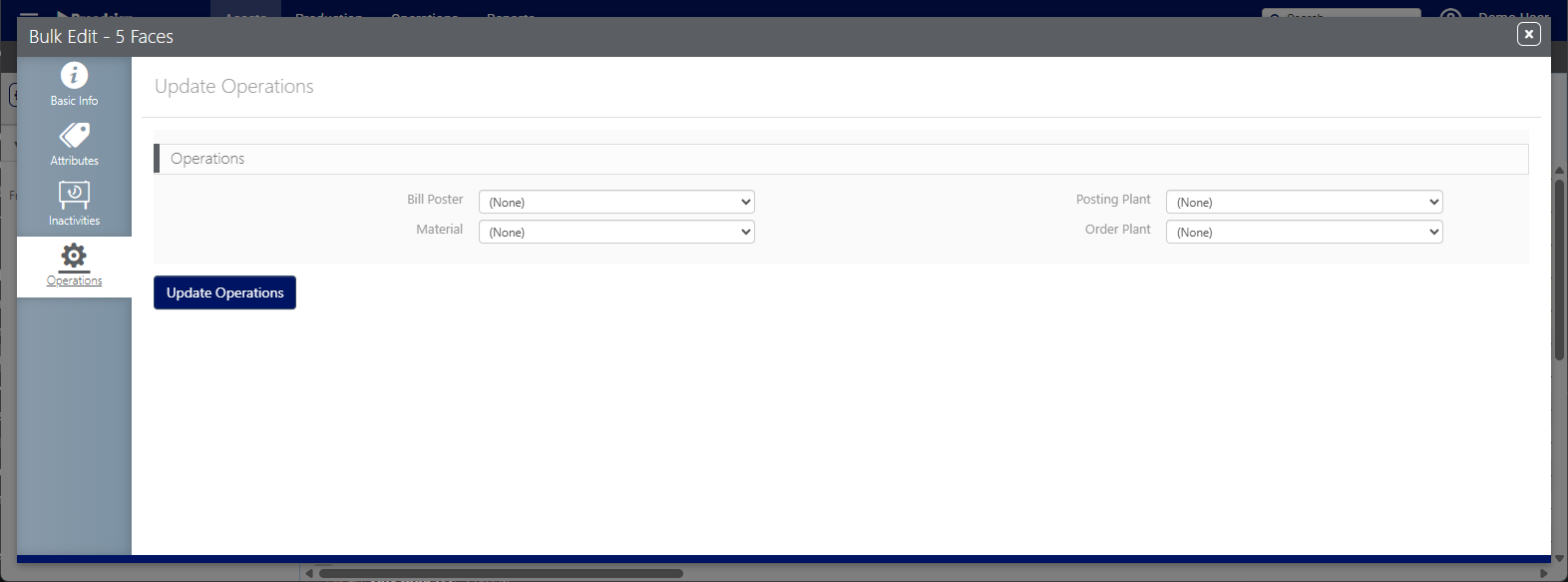
You can bulk edit the following information:
This operation will override and remove any existing values on the Faces and replace them with the selected values.
Tip: Be careful while using this bulk edit as it can remove existing data.
- If you do not want to update all four values, the system will remove the values for not populated fields on the selected Faces.
- In this example, the system will only update Bill Poster and clean up all other values from the selected Faces.
- If all the values are blank and you click on Update Operations, the system will remove all the values from the selected Faces.
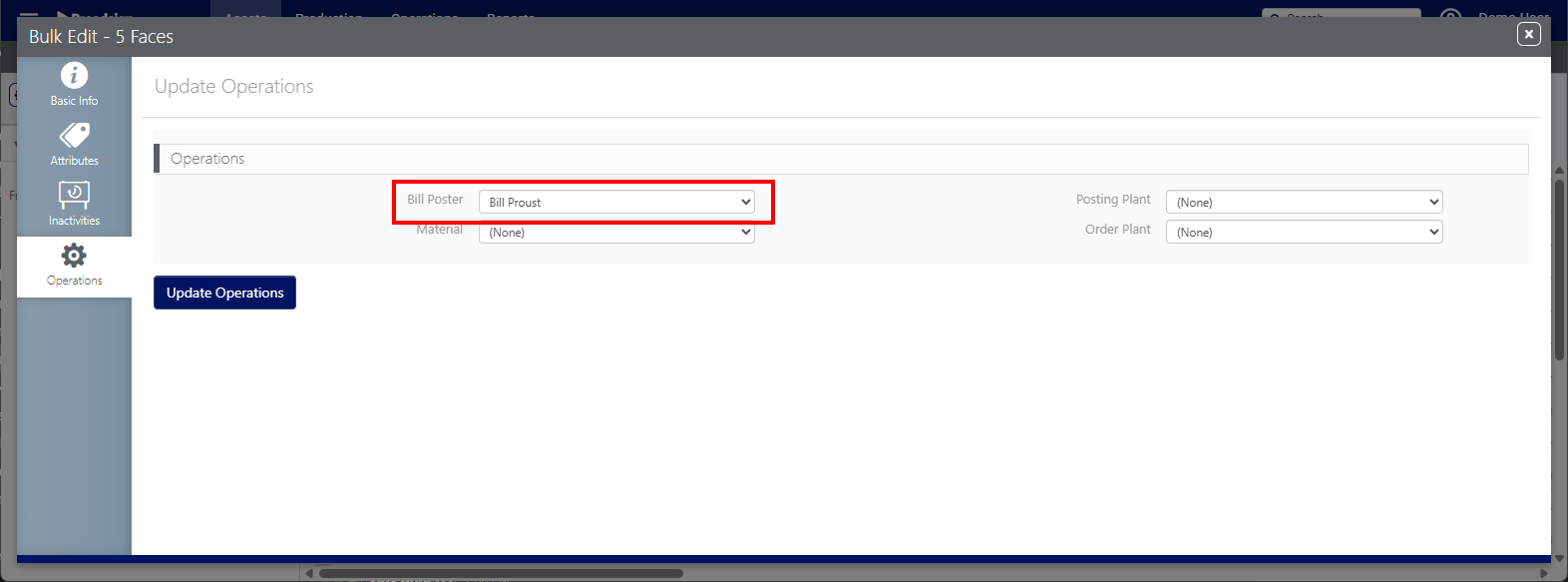
Tip: To delete all existing values, you can keep the form blank and click the Update Operations button.
You can bulk edit the following Vehicles characteristics:
Attributes
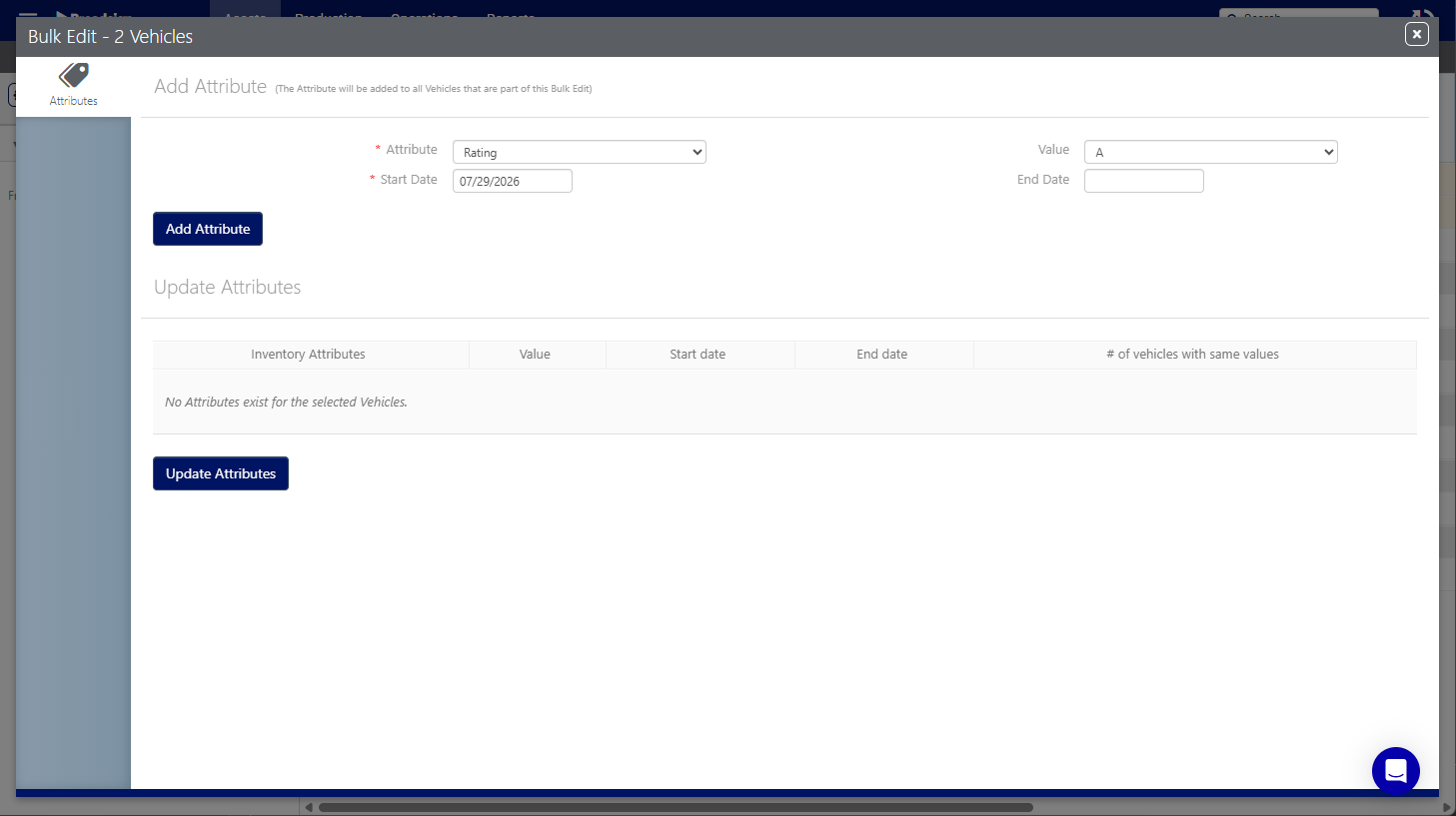
You can perform the following bulk operations on Vehicles:
- Add attributes for the selected Vehicles. The new attribute is added to all selected Vehicles.
- Update existing attributes for the selected Vehicles.
- Delete existing attributes that are currently assigned to the selected Vehicles.
You only see the count of Vehicles that currently hold the value for the selected characteristic. Only those specific Vehicles receive the update, not all of the Vehicles you selected for bulk edit.
For more information, see Manage Attributes.
