minute read
A Face represents the advertising surface. For example, a billboard may have one face. If the billboard has rotating images, there may be three faces.
A Face is one of two mandatory hierarchy levels for assets, the other one being a Site (see Asset Hierarchies).
You can batch import Face data by using the Static Operations Data Import tool. For more information, see Update Static Operations Data.
To locate Faces:
Static Operations
- Access Operations in the top-left menu, click the Assets tab, and then the Faces tile.
- Click Search.

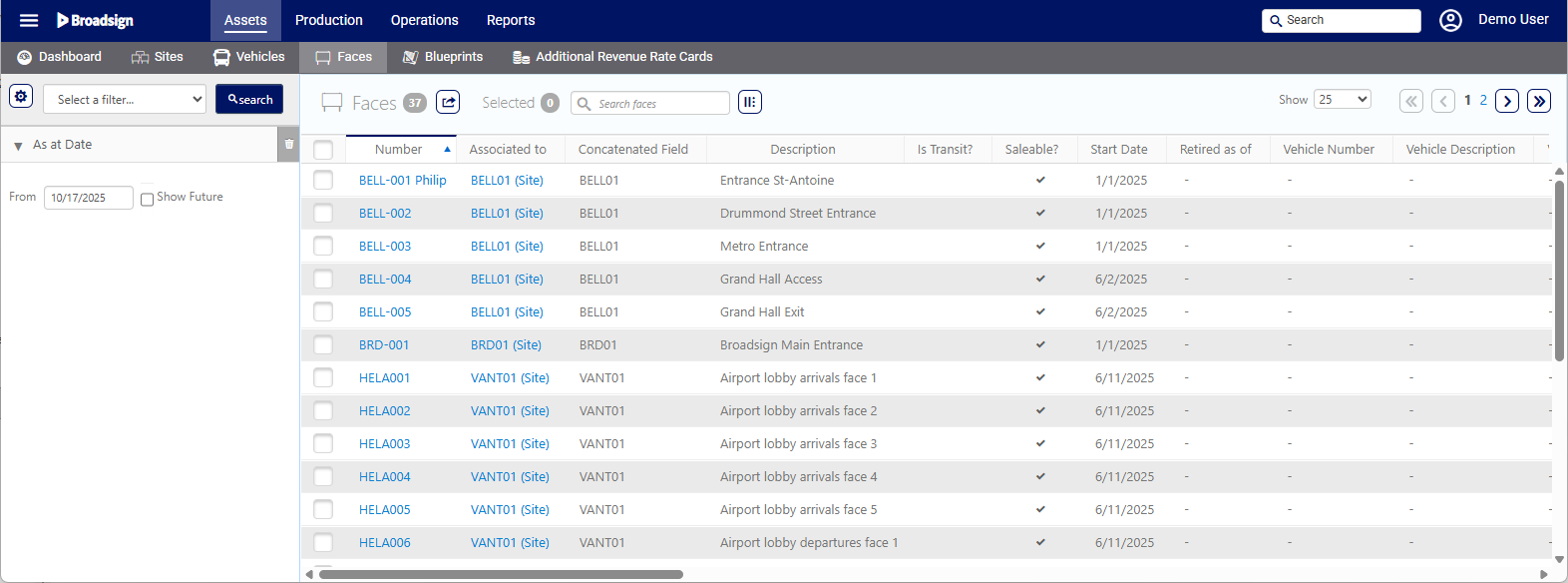
This presents the filter search window.
The screen will refresh to show the list of Faces available.
You can perform the following activities on a Face:
- Import Static Faces Data
- Add Faces to a Vehicle
- Add Faces to a Site
- Assign Bill Posters, Plants, Materials and Posting Days to Faces
- Set saleability and retirement dates
- Plan an end date
- Add an Advertiser Restriction to a Face
- Manage Attributes
- Link to Additional Revenue Rate Cards
- Add a Photo to a Face
- Assign a Barcode to a Face
- Assign Inventory Attributes to Faces
- Bulk Edit Faces
- Upload and Download a Production Sheet
- Link Real Faces to Virtual Faces
- Bulk Edit on Faces
You can create a new Face by copying an existing one. The copy will retain the same information, except for the Face Number and Description.
To copy a Face:
Static Operations
- Access Operations in the top-left menu, click the Assets tab, and then the Faces tile.
- Click Search. The search results are presented. Click the Face Number that you want to copy.
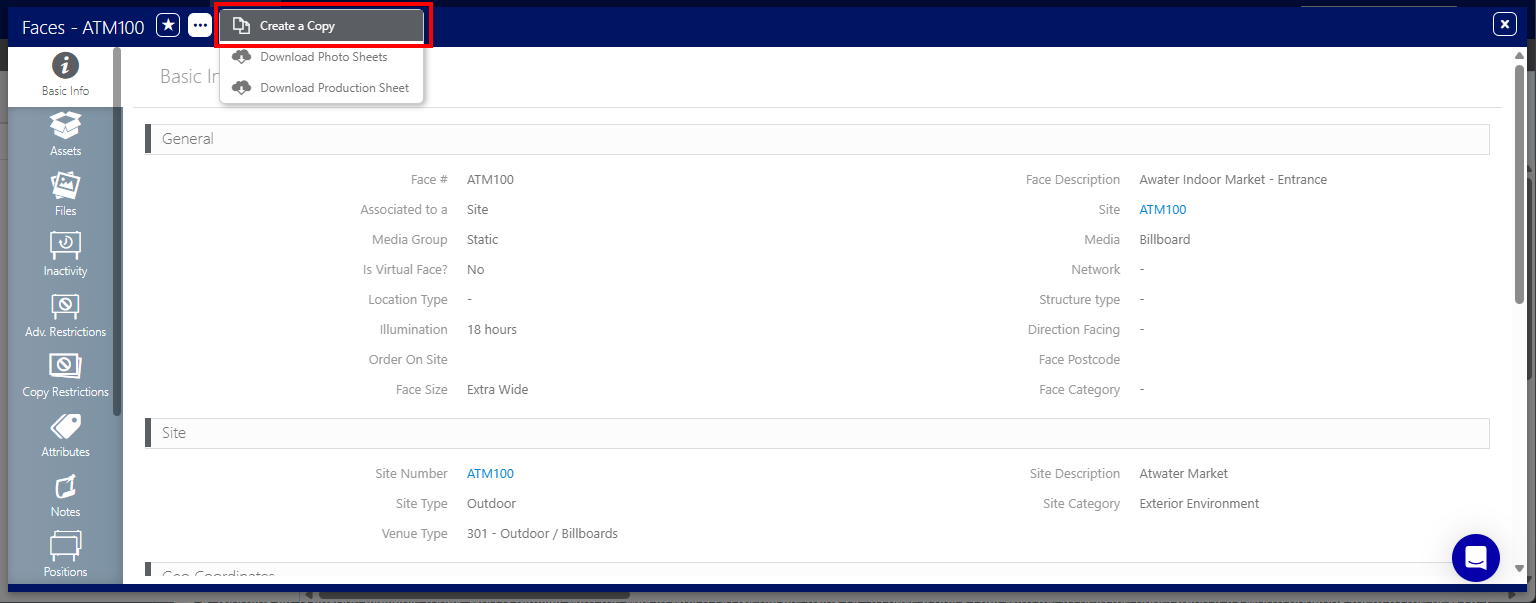
- Within the Face record, click the
 button at the top of the window, and then Create a Copy.
 - Select whether you want the copied Face to be associated with the same Site or to another Site by selecting Associate to the same Site or Associate to a different Site.
- Enter a new Face Number and Description.
- Click Submit.

This presents the filter search window.
This opens the Face record's Basic Info screen.
This presents the Create a Copy window.
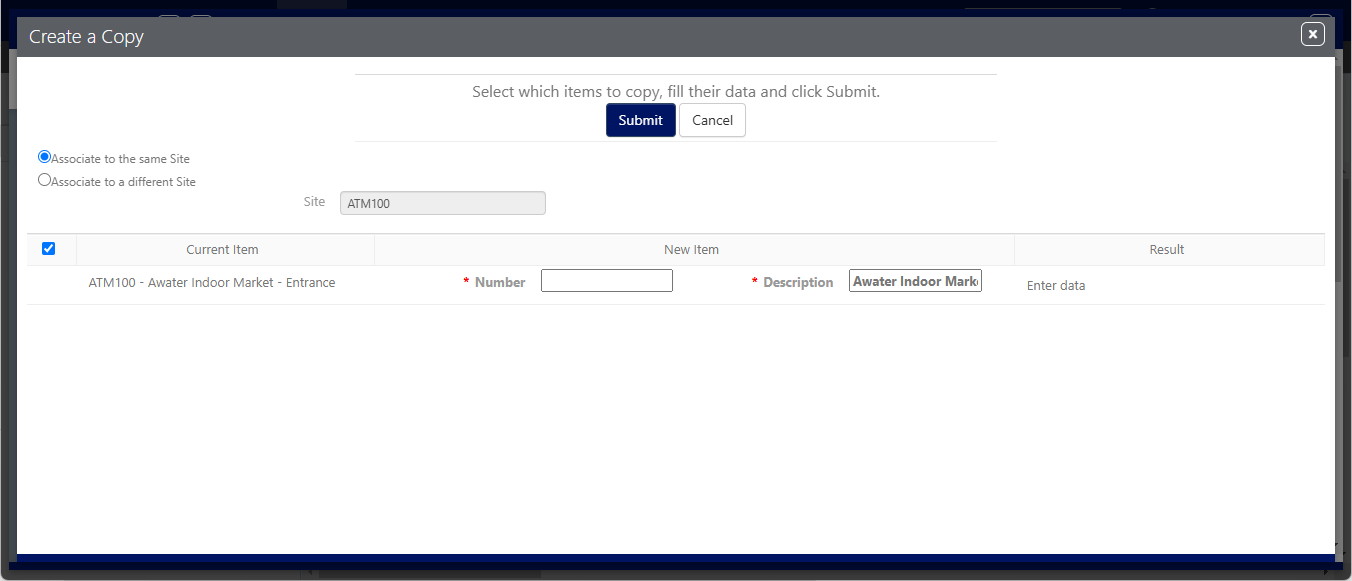
These fields cannot be empty. By default, the Description of the copied Face is used.
Delete a Face
Static Operations
The Static Operations module does not support deleting a Face. Instead, you must retire the Face and mark it as non-saleable.

-
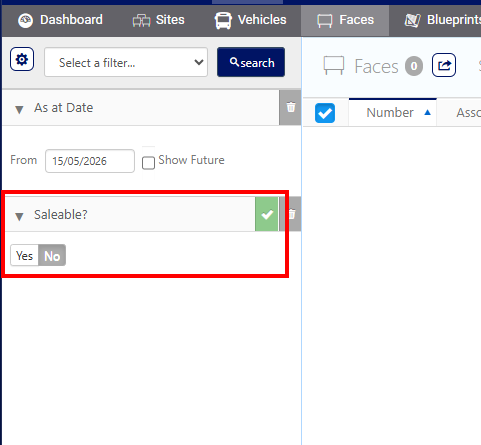
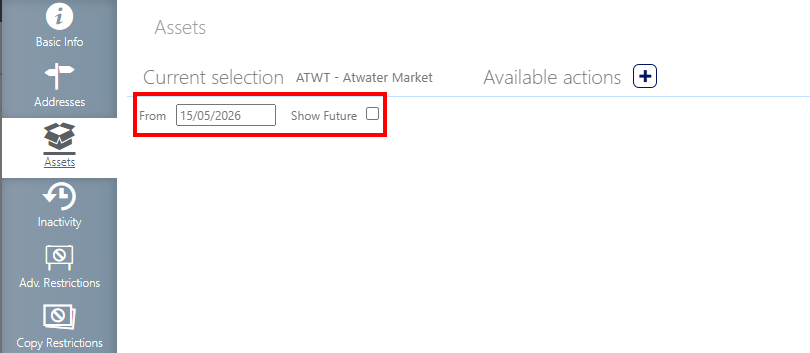
The system automatically hides retired Faces from default inventory views by applying an As at Date filter across the Assets module. You can adjust this filter manually if you need to view retired inventory.
-
You can apply the Saleable? filter.
- You can apply the From filter in the Sites and Vehicles Assets tab.

For more information, see Saleability and Retirement Dates.
Reference ID
Static Operations
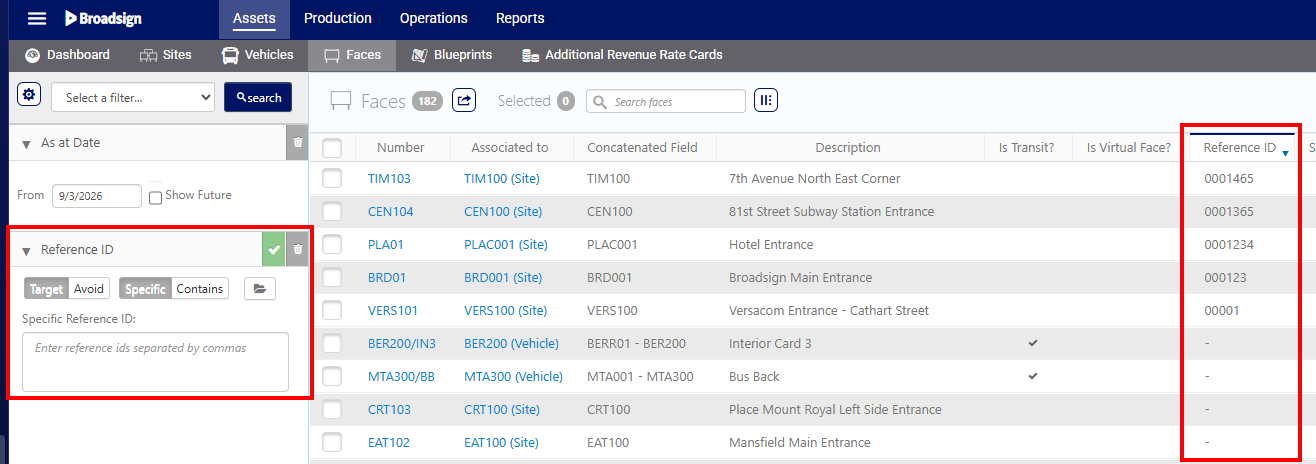
The Reference ID identifies a Face asset using an external number. Use this unique value to group multiple Faces together.
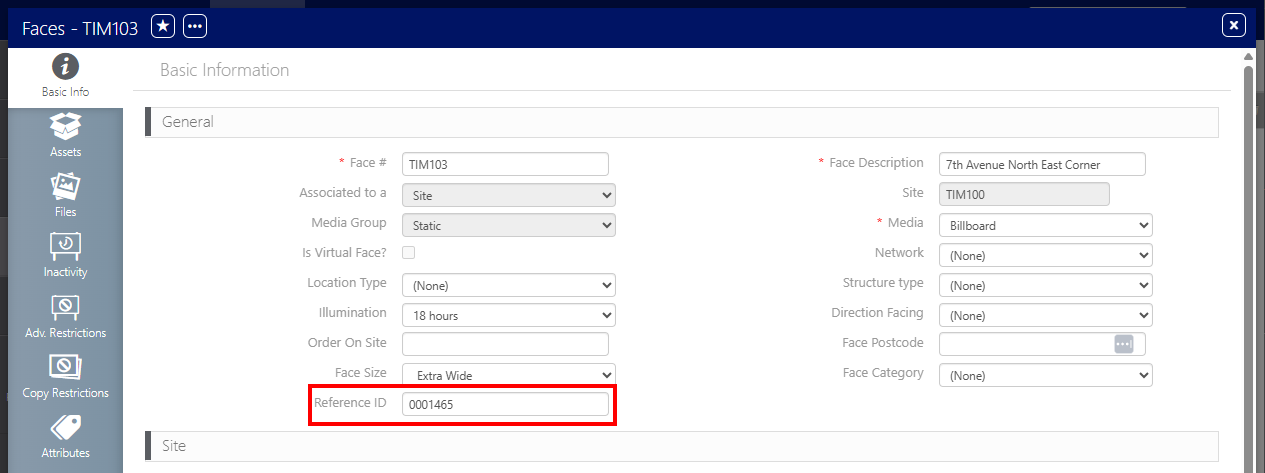
- Add or modify the Reference ID in the Basic Info tab of the Face record.
- The Reference ID is visible as a Reference ID column and as a Search filter in the Static Operations Faces list. You can import an Excel file of reference ids by clicking the folder icon next to the filter.
- The Reference ID is visible as a Reference Id column in the Guaranteed Campaigns module Face List.
- The Reference ID is included in the Static Data Import Tool and the API endpoints.