 minute read
Photo sheets contain face-level information and images of faces.
The report is generic and the same for all users.
The Photo Sheet report generates the Face details often used in media planning kits or used for marketing purposes.
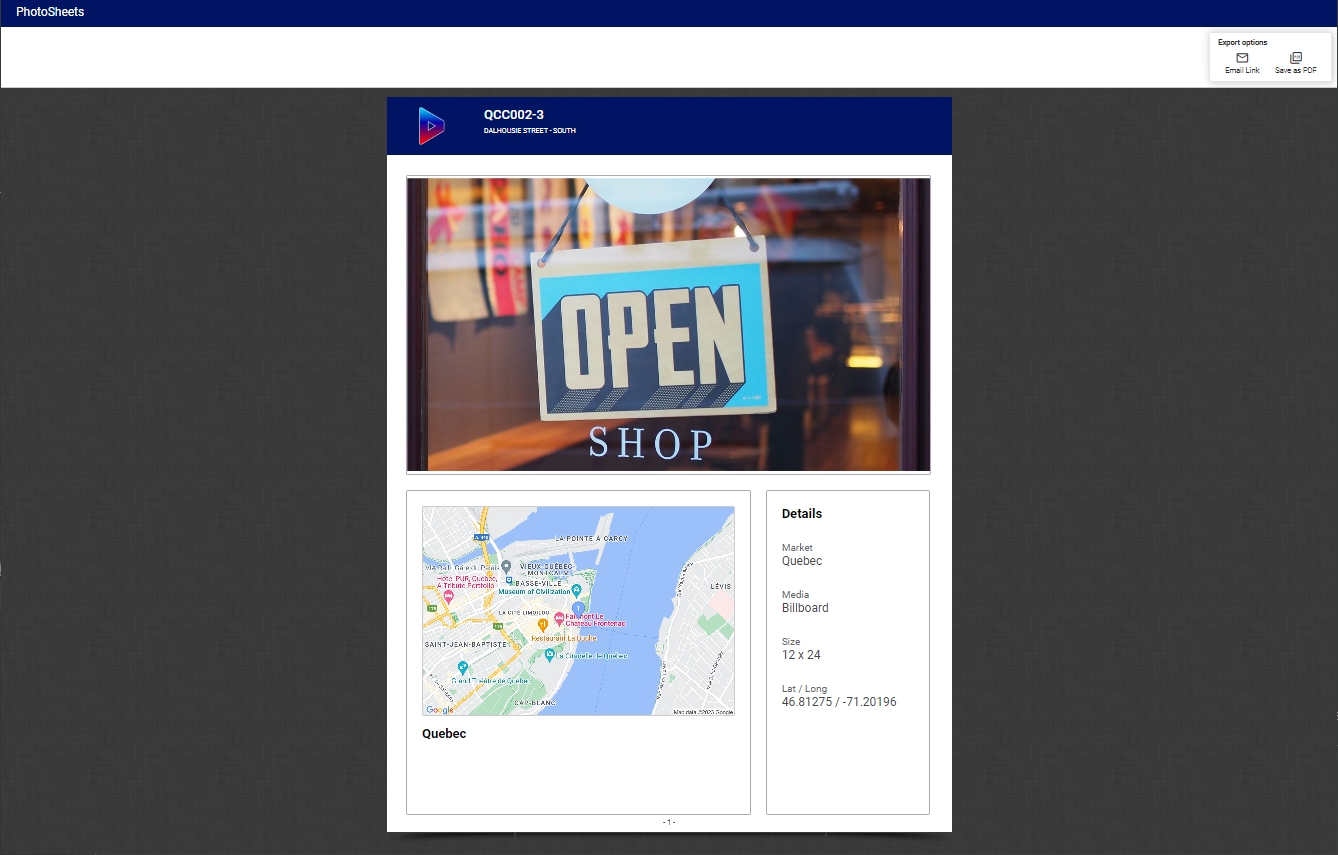
You can also use the Export options.
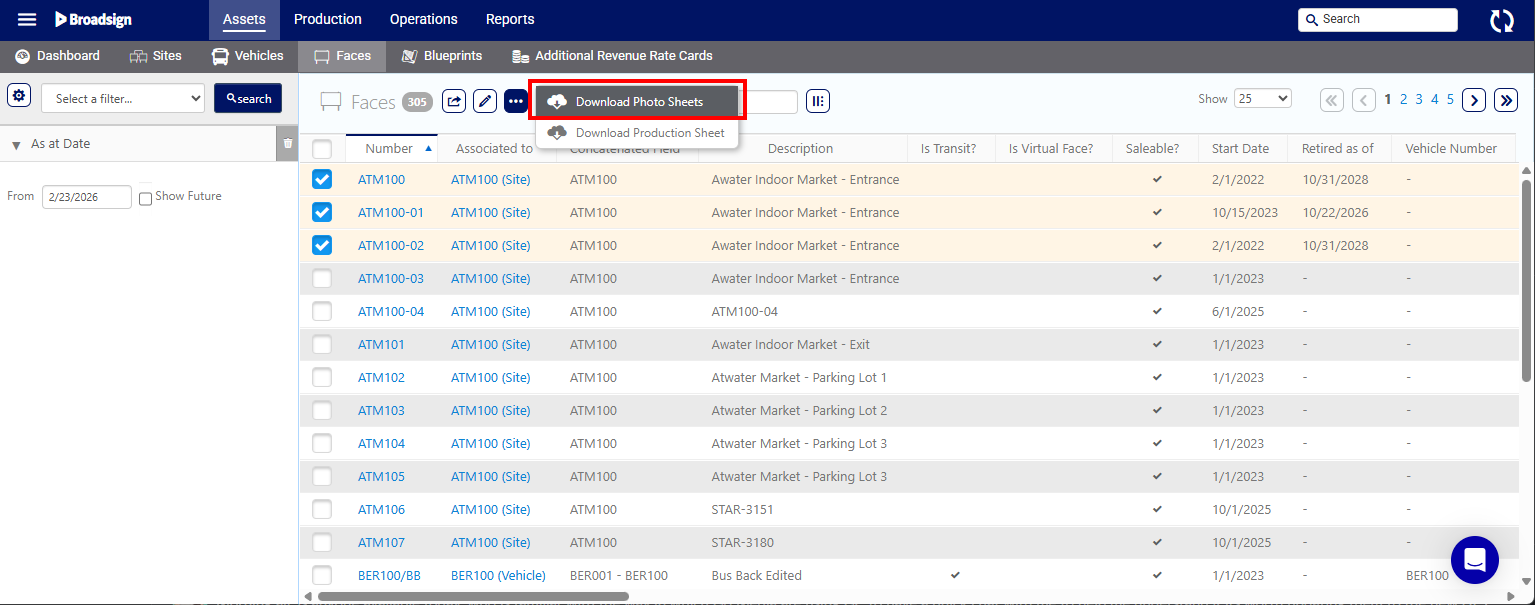
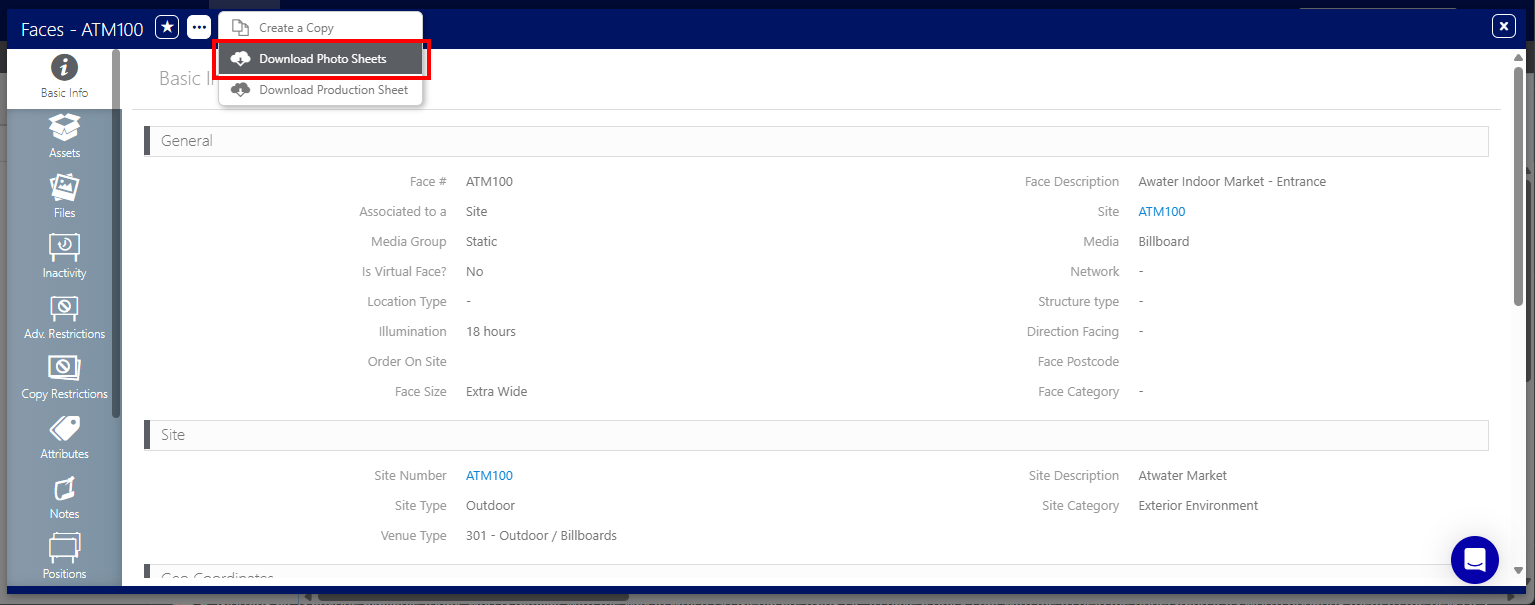
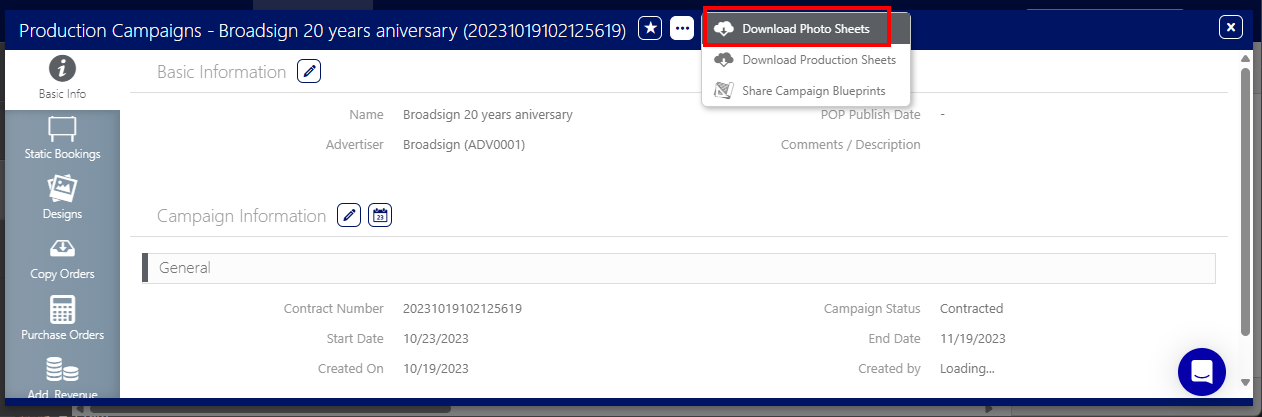
You can download the Photo Sheet report from the following locations:
- Faces List – Select one or more Faces and use the Download Photo Sheets option from the
 icon at the top.
 - Face Record – Use the Download Photo Sheets option from the
 icon at the top. This option is available from any of the tabs on the left.
 - Campaign Record – Use the Download Photo Sheet option from the icon at the top to download photo sheets for Faces selected in the Campaign.
The upload option is located at the same place.
You can add one or more photos to a Face. If you have more than one photo, you can define which one will be used to generate the Photo Sheet report.
The following is the behavior of the primary photo for the faces Photo Sheet report:
- A primary photo is set at all times.
- The first picture uploaded as a Photo Sheet is set as the primary photo.
- It is possible to change the Is primary photo? option set for a Face.
To add a photo to a Face:
Static Operations
- Access Operations in the top-left menu, click the Assets tab, and then the Faces tile.
- Use it to narrow search results to the required sites.
- Click Search. The search results are presented. Click the Face Number in the row to which add a photo.
- Select the Files tab in the left navigation bar.
- Click the
 icon, then select Upload Photo Sheet.
 - Select the photo that you want to use.
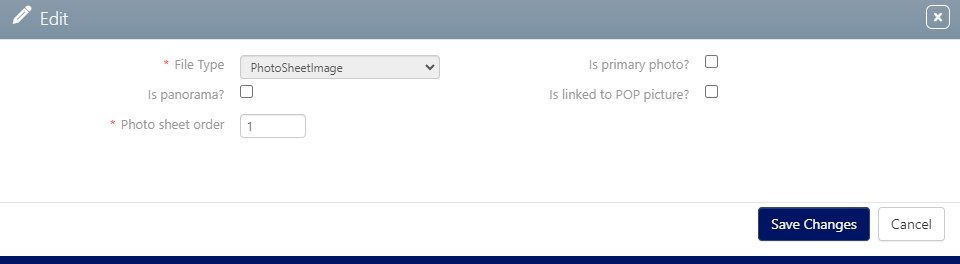
- If you want to give an order to that photo, click the
 button to edit the photo.
 - You have two choices:
- Check the Is primary photo? option. The Primary photo is used in the Photo Sheet report.
- Enter an order value in the Photo sheet order field. If there is no primary photo, the one with the lowest order is used in the Photo Sheet report.
- Click Save Changes.

This presents the filter search window.
This opens the Face record's Basic Info screen.


The photo is added to the Files list. It has the Photo SheetFile Type.

The Photo Sheet has the Photo SheetFile Type.
The Edit windows opens.
You can export the Photo Sheet as PDF or as an e-mail link for external review by your customers.
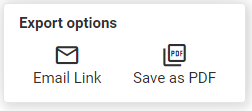
The following Export options are available:
- Email Link – Link for the Photo Sheet that you can send directly to clients.
- Save as PDF – Save the Photo Sheet as a PDF file.
When a campaign includes a linked primary contact, the system automatically populates the To field with its email address.
