 minute read
The Production Sheet is a document provided by the media owner that outlines every physical and digital requirement for a specific ad placement.
Production Sheet
Static Operations
The Production Sheet is a printing specification document that can be distributed, usually for printing purposes. It may include information such as:
- The actual size of the structure where to install the ad (e.g., 14' x 48').
- The "safe zone" where all critical text and logos must stay to avoid being hidden by frames or wrap-edges.
- The extra area (bleed) of the design that extends beyond the finished size, ensuring no white edges show when the material is installed.
- The material to be printed on (e.g., heavyweight vinyl, eco-poster paper, or adhesive film).

You can download a Production Sheet or use the Export options.
You can download Production Sheets from the following locations:
Face Level Production Sheets:
- Faces List – Select one or more Faces and use the Download Production Sheets option from the
 icon at the top.
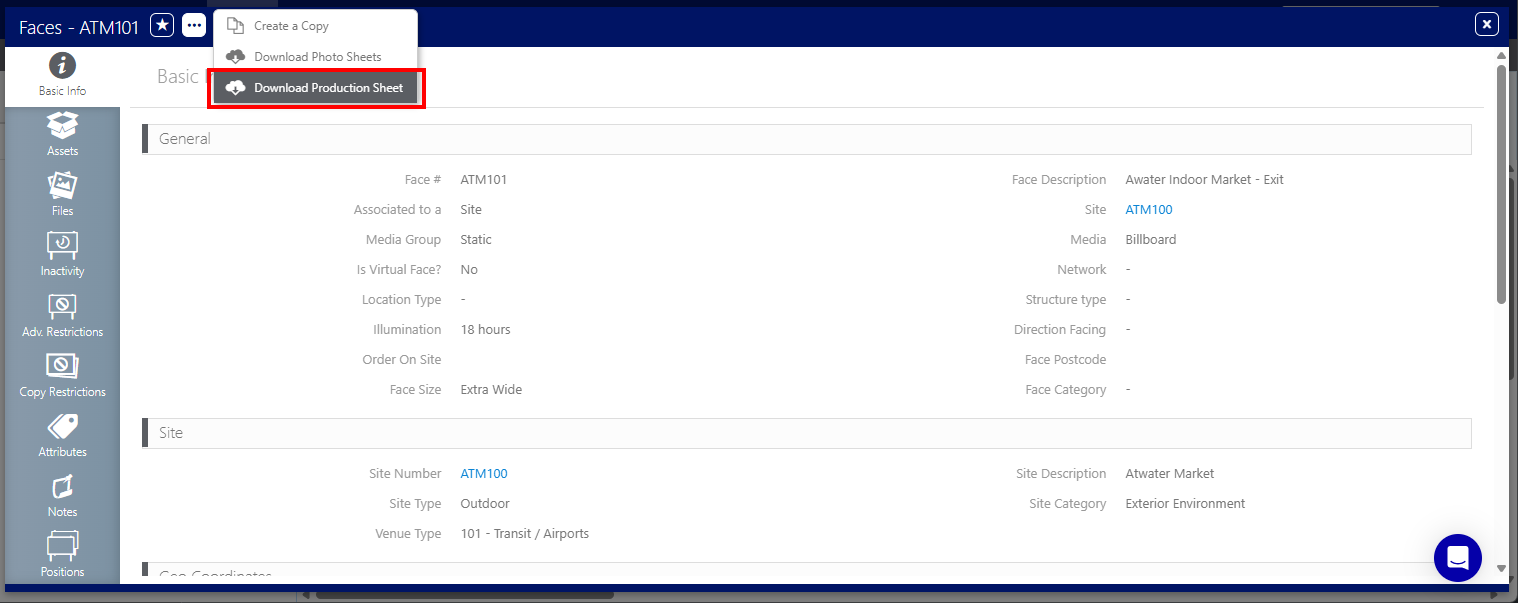
 - Face Record – Use the Download Production Sheet option from the
 icon at the top. This option is available from any of the tabs on the left.
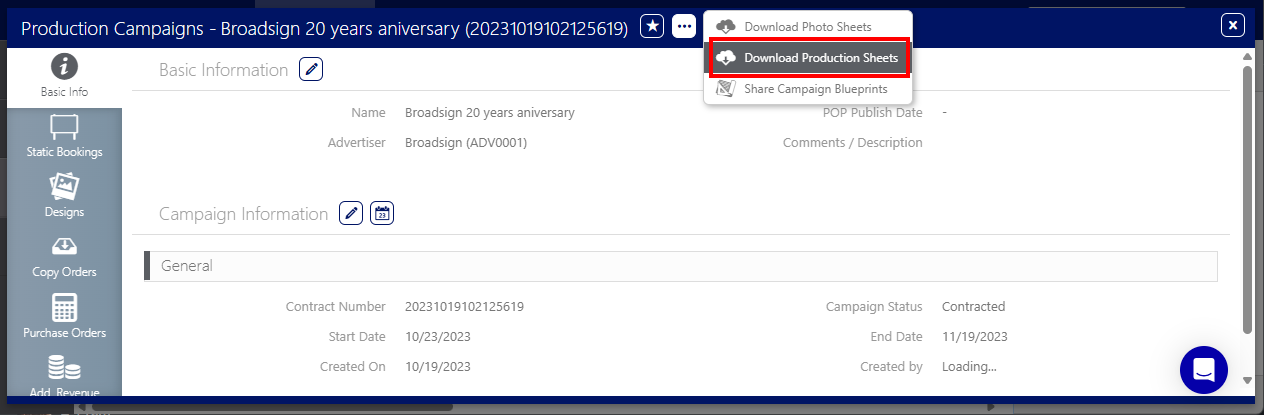
 - Campaign Record – Use the Download Production Sheet option from the icon at the top for Faces selected in the Campaign.

Vehicle Level Production Sheets:
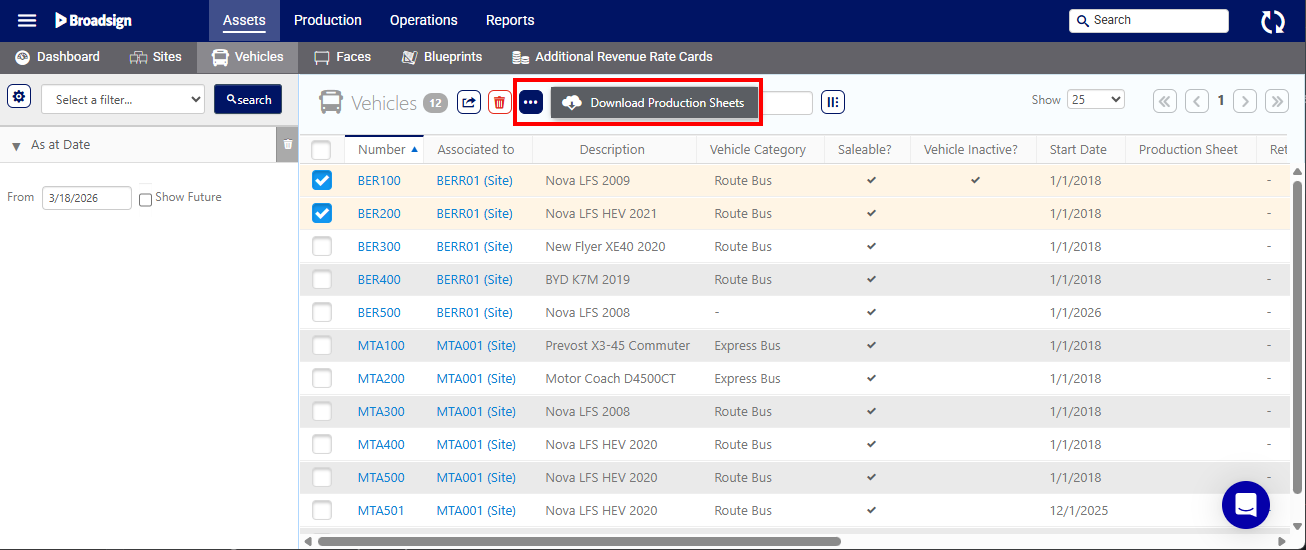
- Vehicles List – Select one or more Vehicles and use the Download Production Sheets option from the icon at the top.
- Vehicle Record – Use the Download Production Sheet option from the icon at the top. This option is available from any of the tabs on the left.

You can upload one picture that will represent the printing specifications of the specific Face or Vehicle.
- The Production Sheet for Face and Vehicle are independent from each other.
- You can have only one Production Sheet for a specific Face and one Production Sheet for a specific Vehicle at a time.
- The Production Sheet for a Vehicle is usually transit specific and is used to visually identify the ad space configurations on a bus, tram, train, or any other moving media format.

The process of uploading a Production Sheet from both locations is very similar, so the following example shows uploading a Production Sheet from a Face.
To upload a Production Sheet to a Face:
Static Operations
- Access Operations in the top-left menu, click the Assets tab, and then the Faces tile.
- Use it to narrow search results to the required sites.
- Click Search. The search results are presented. Click the Face Number in the row to which add a photo.
- Select the Files tab in the left navigation bar.
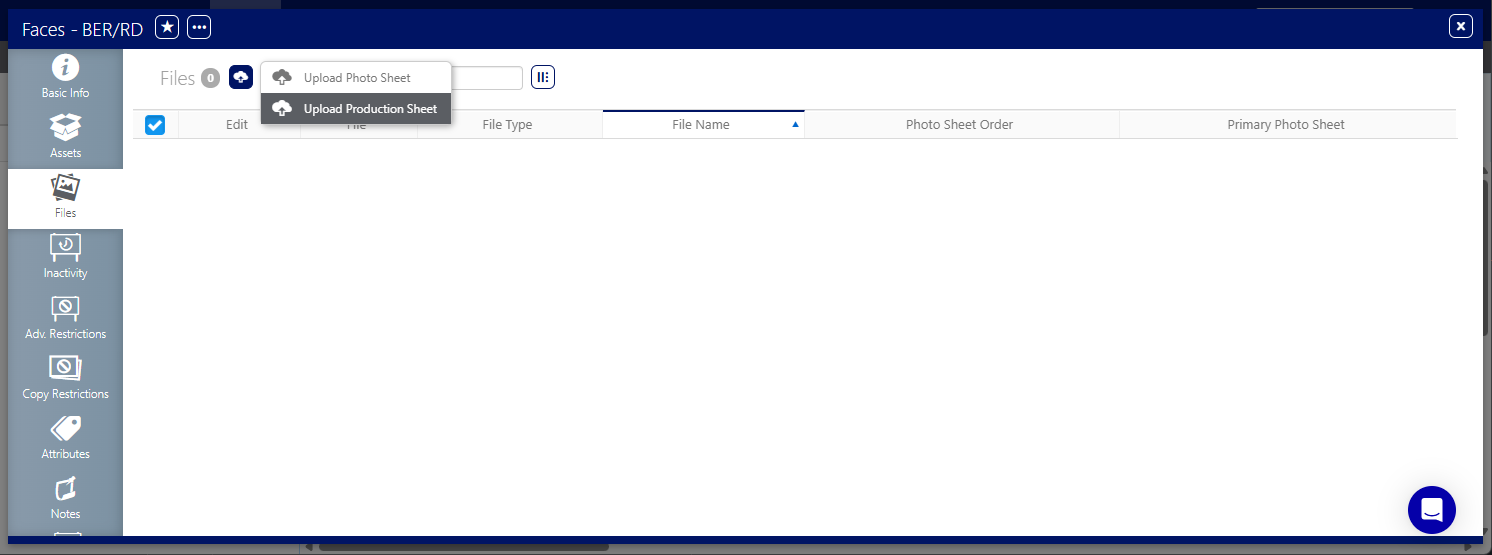
- Click the
 icon, then select Upload Production Sheet.
 - Select the Production Sheet that you want to use, then click Open.
- BMP
- GIF
- JPEG
- PNG
- Click Save Changes.

This presents the filter search window.
Tip: To upload a Production Sheet specific to a Vehicle, you can access the Files tab of the Vehicle record.
This opens the Face record's Basic Info screen.

The Production Sheet is added to the Files list. It has the Production SheetFile Type.

Supported Image Formats
Static Operations
The Static Operations module supports the following image formats:
Note: When uploading a PDF file that contains several pages, only the first page is rendered as an image.
You can export the Production Sheet as PDF or as an e-mail link for external review by your customers.
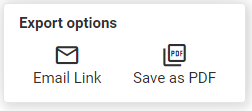
The following Export options are available:
- Email Link – Link for the Production Sheet that you can send directly to clients.
- Save as PDF – Save the Production Sheet as a PDF file.
When a campaign includes linked creative contacts, the system automatically populates the To field with their email addresses.
