 minute read
This page describes how virtual and child faces are structured in the Static Operations module on vehicles such as buses.
Virtual Faces
Static Operations
A Virtual Face is a conceptual entity that encompasses and unifies multiple distinct Faces or surfaces within a larger ad surface. Identifying Faces as Virtual Faces allows the system to manage several individual components as a single, consolidated unit.
A Virtual Face can also be explained as a Face that overlaps one or several other Faces.
The most common example of a Virtual Face is in the Transit ad space. For example, with a Full Bus Wrap, the wrap is installed over the existing faces of the bus, making those faces occupied and therefore unavailable as soon as the Full Wrap is sold.
- The covering Faces are tracked independently as Virtual Faces.
- The underlying Face, or child Face, is covered by the Virtual Face and becomes unavailable when the Virtual Face is booked (e.g., for advertising).
Key Terminology
The following terms define the relationship between the unified space and its components:
- Virtual Face (or Parent Face) – This entity represents the consolidated, sellable Ad Space.
- Child Face – A regular Face linked to the Virtual Face; it is referred to as a Child Face of the Virtual Face. It is the physical component covered by the Virtual Face.
Technical Functionality
- Virtual Faces and their linked children are used to calculate the Static Avails for each face, depending on their own availability in time.
- A Virtual Face can only be sold when all of its children are themselves available for sale.
- If one child face becomes not available, then the Virtual Face cannot be sold.
Example
- Advertiser #1 has an ad running on the Road Side ad space.
- Advertiser #2 wants to run an ad for the Full Wrap.
When checking avails, the Full Wrap will show as unavailable because the Full Wrap’s child face, the Road Side ad, is not available.
You designate a Virtual Face upon its creation in the system. You can create a Virtual Face using one of the following methods:
- Manually in the Static Operations module interface
- Using the Static Operations Data Import tool
- Via the Static API Portal.
You can create a Virtual Face from a Site or a Vehicle. The procedure you follow depends on the asset hierarchy defined.
Virtual Faces in the Guaranteed Campaigns Face List
In the Face List section of the Create Static Line Item page, virtual faces are represented with a blue chip icon that shows the number of faces in the virtual face.

For more information, see Virtual Faces.
Asset Data
When importing or creating the Asset data manually, it is very important to identify the Virtual Face right away. Once you have created or imported your inventory, the check box is not editable in the interface.
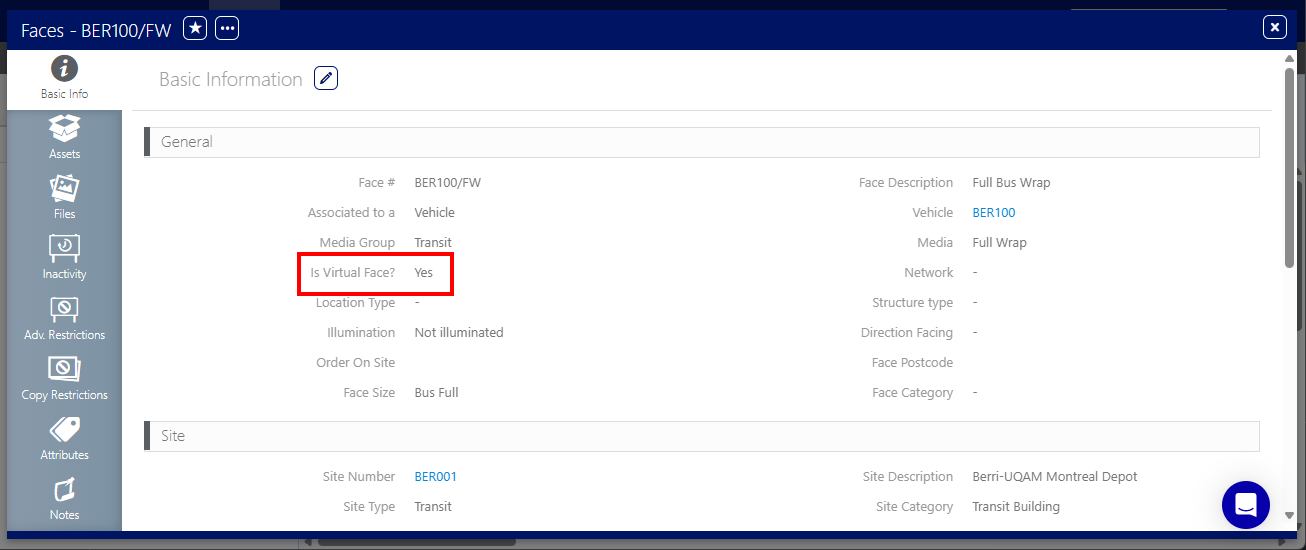
Manually Create a Virtual Face
You can manually create a Virtual Face in the Static Operations module interface.
To create a Virtual Face from a Site or Vehicle:
- Reference – Follow the steps described in Add Faces to a Site or Add Faces to a Vehicle.
- Action – During this process, select the Is Virtual Face? check box in the Add Face window.

To create a Virtual Face by copying:
You can create a new Virtual Face by copying an existing one.
- Reference – Follow the steps described in Copy a Face Asset.
- Result – When you copy a Virtual Face, the system automatically sets the new, copied Face as a Virtual Face.
When a Virtual Face is copied, the Face is identified with a [V] in the interface.

You can create a new Virtual Face by copying a Vehicle that contains a Virtual Face.
- Reference – Follow the steps described in Copy a Vehicle Asset.
- Result – When you copy a Vehicle containing a Virtual Face linked to child faces, the system copies the entire Vehicle entity and all associated Faces. This process preserves all existing relationships between the parent and child Faces.
To determine the relationship between Faces, you need to link the appropriate Faces together in the Related Faces tab of either the Parent or Child Face in the left navigation bar.

- You can link a Virtual Face to one or multiple Face(s) from within the same Vehicle when Transit is enabled, or within the same Site.
- You cannot link a Virtual Face to another Virtual Face.
- You can link a Face to one or multiple Virtual Faces.
To link a Face to a Virtual Face:
Static Operations
- Access Operations in the top-left menu, click the Assets tab, and then the Faces tile.
- Click Search. The search results are presented. Click the Virtual Face Number to which you want to link a Face.
- Within the Site record, click the Related Faces tab in the left navigation bar.
- Click the
 button.
 - Locate the needed Faces and click the Link button.

This presents the filter search window.
This opens the Virtual Face record's Basic Info screen.


This presents the Related Faces page.
This presents the filter search window.
The filter search window lists the real Faces that can be linked to the Virtual Face.
You can identify Virtual Faces in the following locations:
- New Faces Dashboard – Shows the Faces that were created, or imported, in the last 30 days
- Faces tile of the Assets tab – Virtual Faces are identified in the Face list in the Is Virtual Face? column. The list is searchable with a dedicated search filter.

Note: The same Face list is used across the interface. For example, when assigning Additional Revenue Rate Cards to a Face.

Within the Site record, click the Assets tab in the left navigation bar.

This presents the site's details. This includes a flowchart illustrating the parent child relationship between the site and any faces it contains.

The Face import of the Static Operations Data Import tool includes a column to explicitly identify Virtual Faces.
