Note: This page describes the new Digital Line Item flow. For the previous flow, see Use Contextual Filtering (Obsolete).
Include or exclude screens
You can enter up to 250 locations in the search field. These locations are listed under the search field. You can then define the radius around which to look for screens

Bulk Upload
Bulk Upload Locations
Guaranteed Campaigns
- Add a Contextual Filter or Update a Contextual Screen Filter.
-
To efficiently add multiple locations to target screens
 button in the search field.
 - Enter locations using one of the following identifiers:
- Addresses
- States
- Provinces
- Cities
- Zip Codes
- Postal Codes
- Lat/Long
- Import a list of locations by using the Import from CSV button.
- The file must be a CSV.
- The file must contain column headers.
- To successfully import data, ensure the column header names in your CSV file match one of the required values.
- Otherwise, the content of the first column is pasted.
- Once the list is complete, click Match Locations to match your locations with the system data.
- When available, specify a search radius around each location using the Radius drop-down menu.
- Do one of the following:
- To include the matched locations into your campaign, click Include Locations.
- To exclude the locations, enable the Exclude locations toggle, then click Exclude Locations.
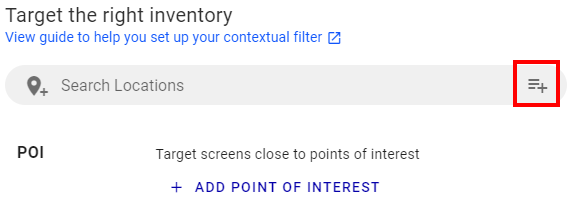
The Geolocation List window is displayed.

This window allows you to do the following:
Each location must be on a separate line, delimited by a line break.
You can enter up to 10,000 locations.
For example, to import a list of locations by addresses, one of the columns in the CSV file must be named "Address".
The Geolocation List window displays the matching results.

This expands the search area for relevant screens or faces.
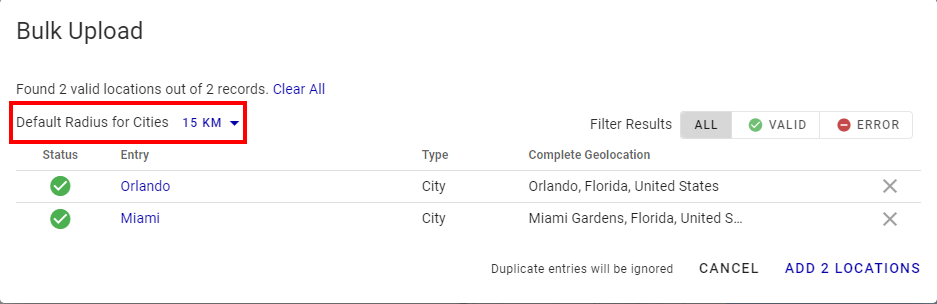
Valid matches are added. They appear beneath the search field and the filter is applied to your inventory list.

You can exclude certain locations by clicking the  button and it will turn red, indicating it will exclude that location.
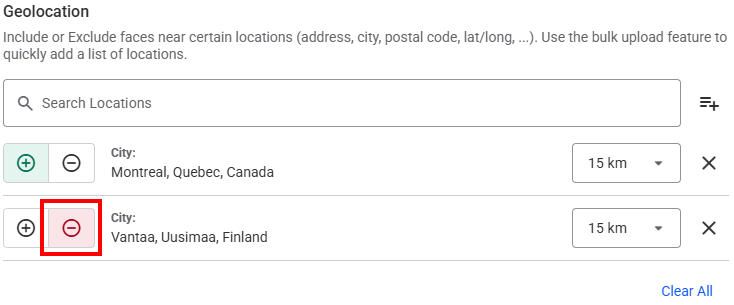

Valid matches are added. They appear beneath the search field and the filter is applied to your inventory list.
This way, all targets will be added as exclusions.

You can include certain locations by clicking the  button and it will turn green, indicating it will include that location.


