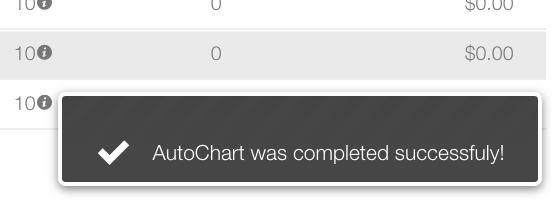
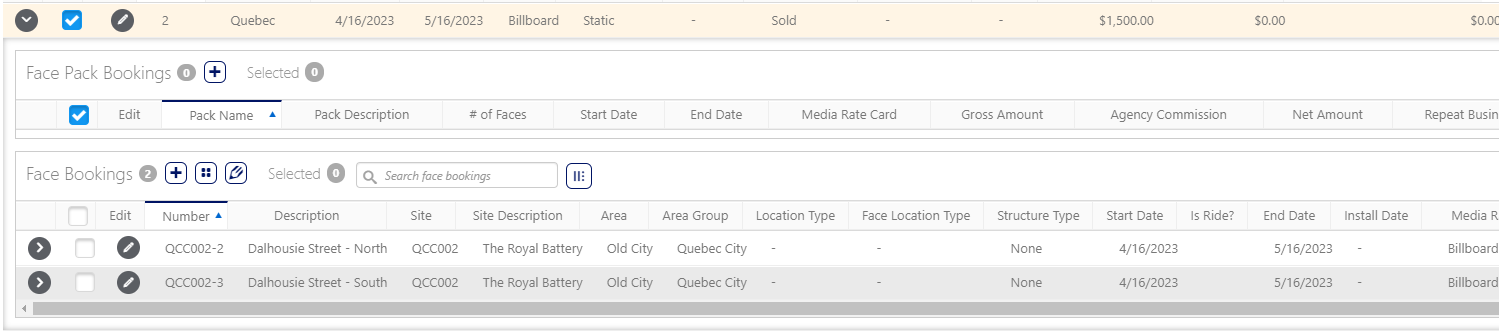
The AutoChart feature allows you to chart multiple faces to a segment based on what inventory attribute is assigned to the face and the segment that you are charting. AutoChart assigns one face per site.
To use AutoChart:
Static Campaigns
- Access Operations in the top-left menu, click the Charting tab, and then the Campaigns tile.
- Locate the needed campaign.
- Open the campaign record.
- Click the Segments tab in the left navigation bar.
- Select one or more segments.
- Click the
 button.
 - In the menu that is displayed, select Autochart.
- In the General Settings section, set the number of faces to AutoChart.
- You can put a number that is less than the target criteria value and it will pick the number that you asked.
- You can put a number much higher than the target criteria value and it will only chart up to the target criteria value.
- In the Attributes section, select the inventory attribute(s) that you want to chart.
- Click the AutoChart button.
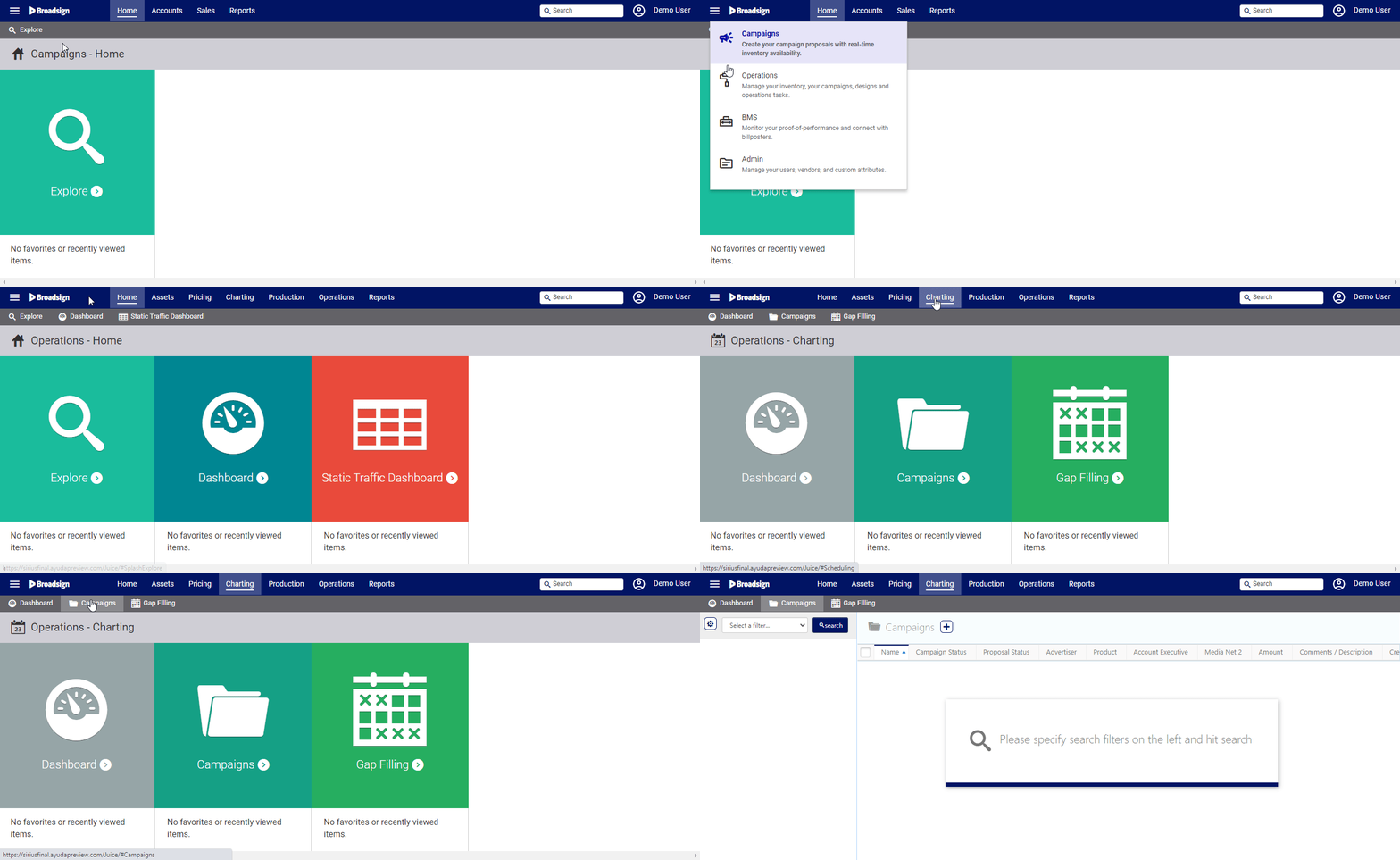
If you viewed the campaign recently, it might be in the recently viewed entries beneath the Campaigns tile.
This presents the filter search window.

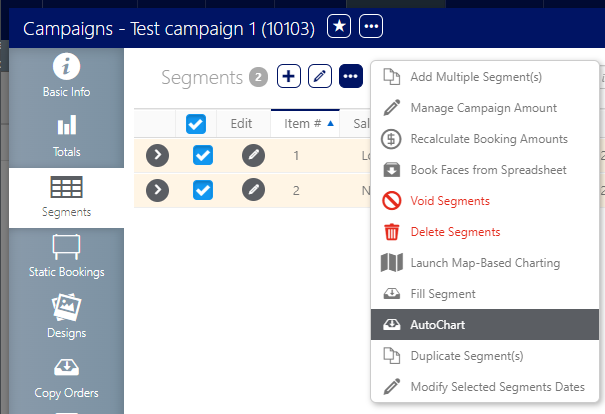
The AutoChart window is displayed.
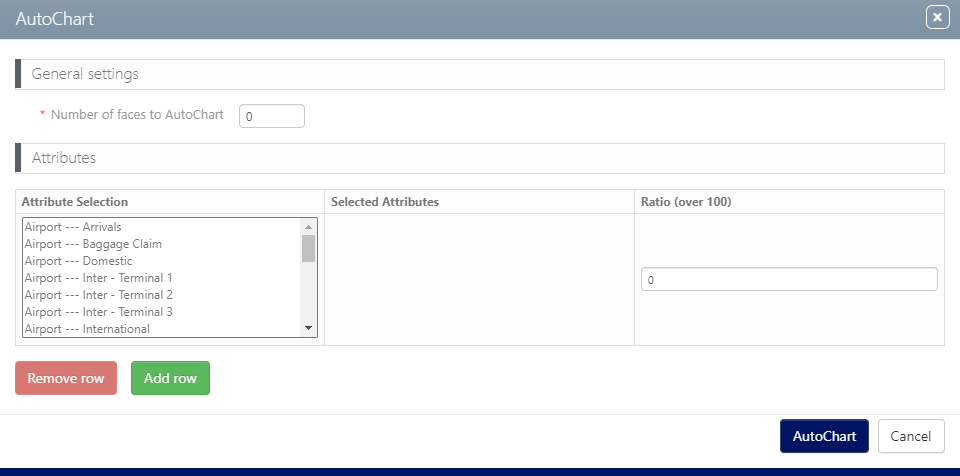
If you have a target criteria value set at the segment levels:
You can add a mixture of different attributes with different percentages, as long as all the percentages add up to a total of 100%.
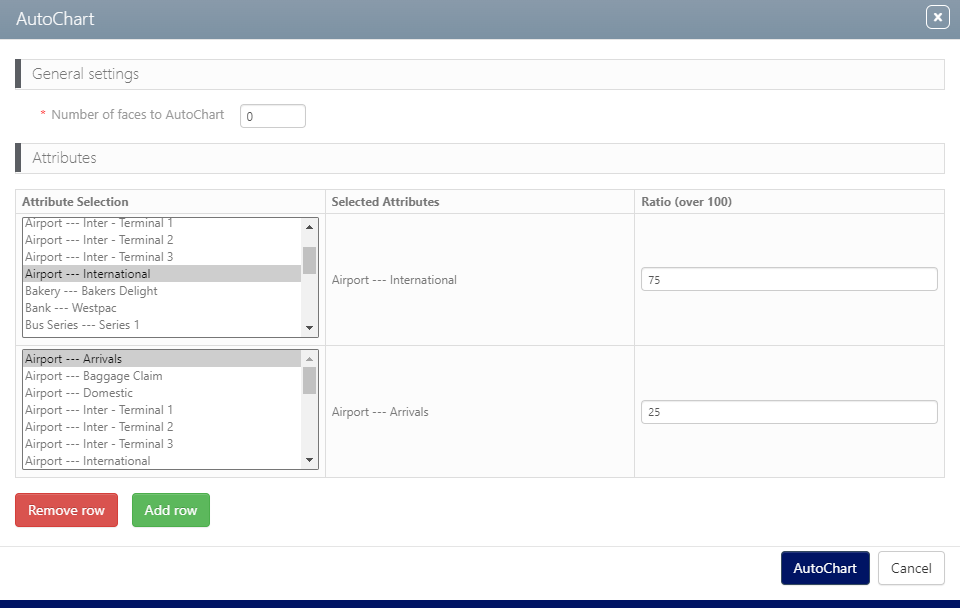
The AutoChart feature adds the face bookings, one per site.