 minute read
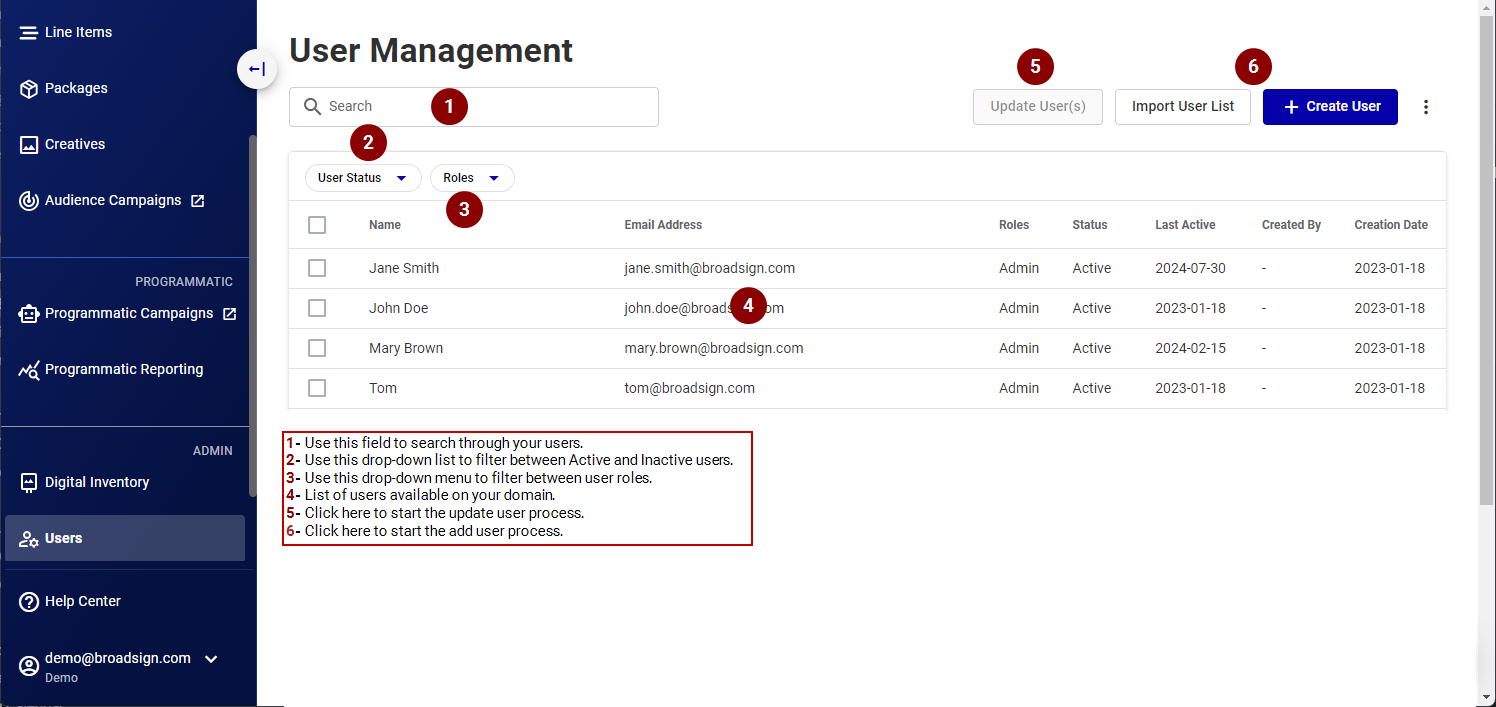
The User Management page lists the users that are currently part of your instance of the Broadsign Platform, along with their roles and status.
Note: The User Management page is available to users with the Admin role. See User Permissions for more information.
Roles at a Glance
| Role name | Primary Responsibility |
|---|---|
| Admin |
This user forges the connection with the Content and Network Management solution and sets up the domain. This user has access to all modules and settings that are enabled for your organization. This role is always available. |
| Direct Sales Admin |
This user has total control over all functions related to Direct Sales. This includes both Guaranteed and Audience campaigns, the Settings, Inventory management, and Creative management. This role is only available if either the Guaranteed Campaigns or Audience Campaigns modules are enabled. |
| Static Admin |
This user has total control over all functions related to the Static type of buy and the associated Settings. This role is only available if the Static Operations module is enabled. |
| Programmatic Admin |
This user has total control over all functions related to the Programmatic type of buy (Programmatic Campaigns and Programmatic Reporting sections), the Inventory, and the associated Settings. This role is only available if the Programmatic Campaigns module is enabled. |
| Creative Manager |
This user has access to the Creative Management section of the Broadsign Platform. This user can create, edit, and assign delivering creative bundles in the Guaranteed Campaigns module. |
| Direct Sales |
This user has access to the Guaranteed Campaigns module of the Broadsign Platform. This user is in charge of booking campaigns and making proposals. |
| Static Campaign Manager |
This user has access to the Static Operations and Guaranteed Campaigns modules of the Broadsign Platform. For more information, see the static Roles Overview. |
| Programmatic Sales Manager |
This user has access to the Programmatic Campaigns and Programmatic Reporting sections of the Broadsign Platform. This user is in charge of managing PMP deals and approving creatives received from DSPs. |
For a complete list of all roles and permissions, see the full User Permissions page.
The following are the features of the User Management section interface.
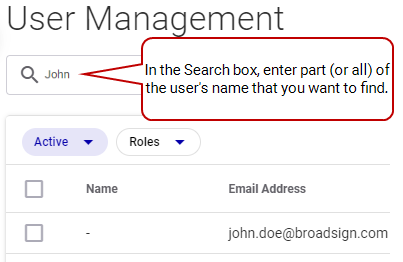
In the Search box, enter part (or all) of the user's name that you want to find.
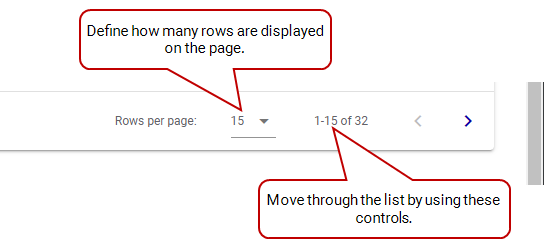
You can define how many users are displayed at a time on the page.
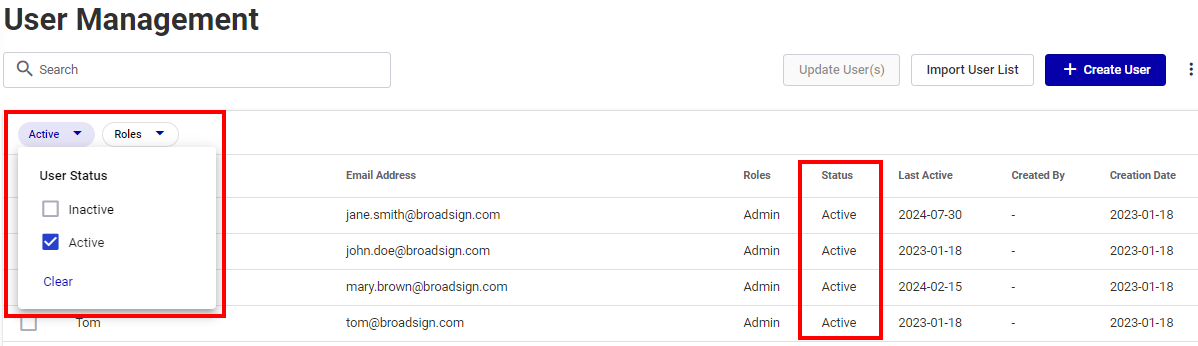
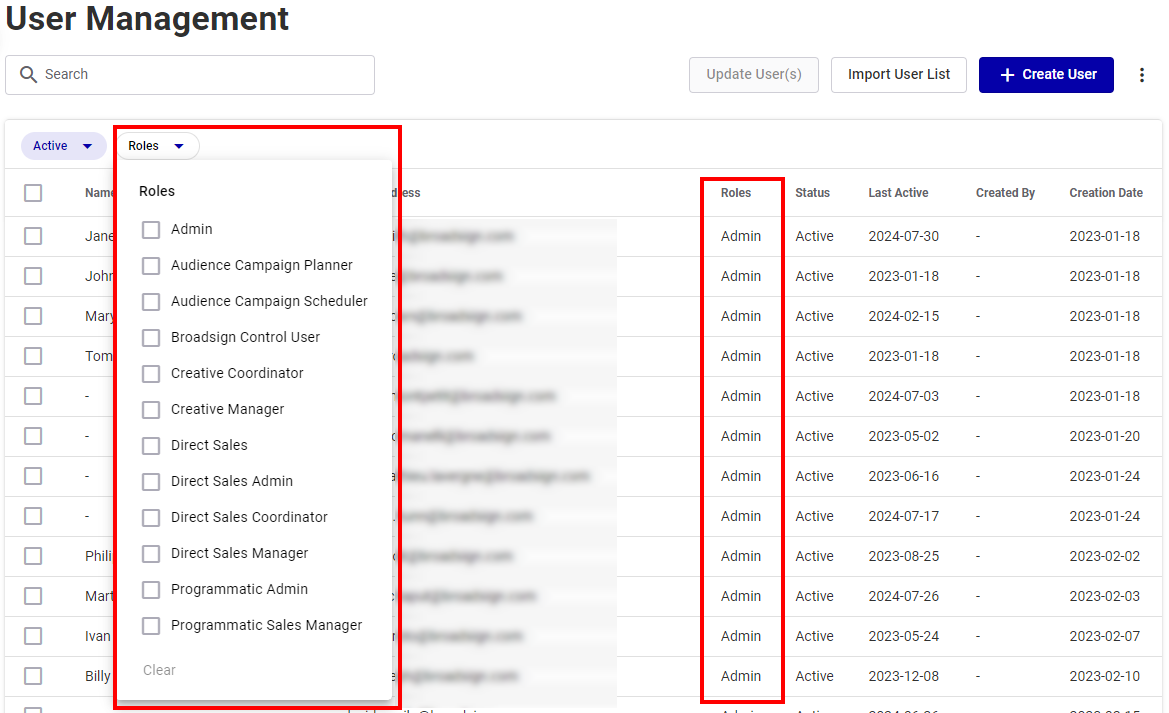
You can update your list of users:
- Create a user from scratch by clicking the Create User button. For more details, see Create a New User.
- Import an existing list of users from a file by clicking the Import User List button. For more details, see Import a List of Users.
Update the information for one or more users by clicking the Update User(s) button. See Edit an Existing User.
Export the list of users in your domain to a .csv file. The exported .csv will include all users, both active and inactive, as well as their Role. See Export a List of Users.
You can access the list of users by either clicking the User Management module in the navigation bar, or the User Management navigation widget in the workspace. The users list is displayed.

Note: The User Management page is available to users with the Admin role. See User Permissions for more information.
Now that you are familiar with the User Management page, you can do the following:


