 minute read
You can update your inventory that includes all of the screens Refers to a single screen, a single frame on a screen, or a group of screens (for example, a video wall). and faces The advertising surface. For example, a billboard may have one face. If the billboard has rotating images, there may be three faces. Face is one of two mandatory hierarchy levels for assets (see Sites and Hierarchy). in your network.
Note: You can update up to 10,000 screens or faces at the same time.
Note: The Inventory page is available to users with the Admin, Direct Sales Admin, Programmatic Admin, and Static Admin roles.
Digital Screens vs. Static Faces Update
Inventory
Clicking the Update Inventory button opens two different flows depending on whether you are on the Digital or Static tab of the Inventory page.
- Digital tab of the Inventory page – You can update your screen inventory with our without a
.csvfile. See Update the Screen Inventory. - Static tab of the Inventory page – You are redirected to the Static Operations module, where you will be able to update your static assets. See Operations.
Updating the screen inventory is the same process regardless on whether you have Broadsign Digital Screen Inventory vs. Third-Party Players.
Update the Inventory
Update the Inventory
Inventory
The screens inventory is synchronized with our Content and Network Management solution. Some of the information is already pre-filled when accessing the inventory for the first time. See Screen Information Origin (Broadsign Inventory).
The system automatically propagates any screens that support programmatic transactions directly to our Programmatic Campaigns solution.
You must properly define specific parameters to make your screen programmatically transactable. See Screens Programmatic Transactability Status.
For missing or wrong information, two update flows are available once you have selected the screens that you want to update:
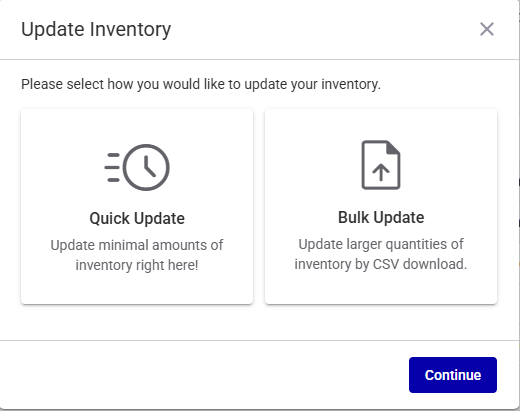
- Quick Update – Useful to quickly update a limited number of screens. This flow does not use an external data file. You can view the status of the screen information and update the required data. See Quick Screens Inventory Update.
- Bulk Update – Useful to update a large number of screens. This flow allows you to update the information of all of the screens in your network by using a
.csvdata file. We provide a screen data template for you. See Bulk Screens Inventory Update.
Add Screens to Third-Party Players Inventory
When using Third-Party Players, you can add new screens by clicking the Add Inventory button. For more details, see Upload Several Screens to Third-Party Players Inventory.
The following screen information comes from our Content and Network Management solution – it cannot be updated in the Broadsign Platform:
- Address
- Criteria
- Display Unit ID
- Internal Screen name
- Lat/Long
- Resolution
- Timezone
If any of this information is not accurate, it must be updated in our Content and Network Management solution.
Screen Naming (Broadsign Inventory)
Screen Naming (Broadsign Inventory)
Digital Inventory
In the Broadsign Platform, a screen can be a single screen, a specific frame on a screen, or a group of screens, such as a video wall.
You cannot directly define a screen within the Broadsign Platform; instead, the system imports screen definitions.
When importing Display Units, Frames, and Day Parts from our Content and Network Management solution, the system translates them into screens within the Broadsign Platform. For more information on this process, see On-Board Screens in the Guaranteed Campaigns Module.
Screen Naming Rules (Broadsign Inventory)
The Broadsign Platform generates screen names based on the information provided in our Content and Network Management solution. The platform applies the following rules:
- If there is one Frame, or if there is more than one Frame but only one is sellable:
- Broadsign Platform Screen Name = Display Unit Name
- If there is more than one Frame:
- Broadsign Platform Screen Name = Display Unit Name _ Frame Name
You cannot edit screen names directly in the Broadsign Platform. You must make all name changes within our Content and Network Management solution.
Screen Naming Scenarios (Broadsign Inventory)
For more specific examples of screen naming, refer to these detailed scenarios:
You can download your selected screen inventory in .csv format.
Since the .csv file provides the allowable columns and correct format, you can edit this file and upload it to update your inventory, as described in Bulk Screens Inventory Update.
If your publisher has no screens created yet, the columns will be empty.
Note: The Inventory page is available to users with the Admin, Direct Sales Admin, Programmatic Admin, and Static Admin roles.
To download the selected screens:
Digital Inventory
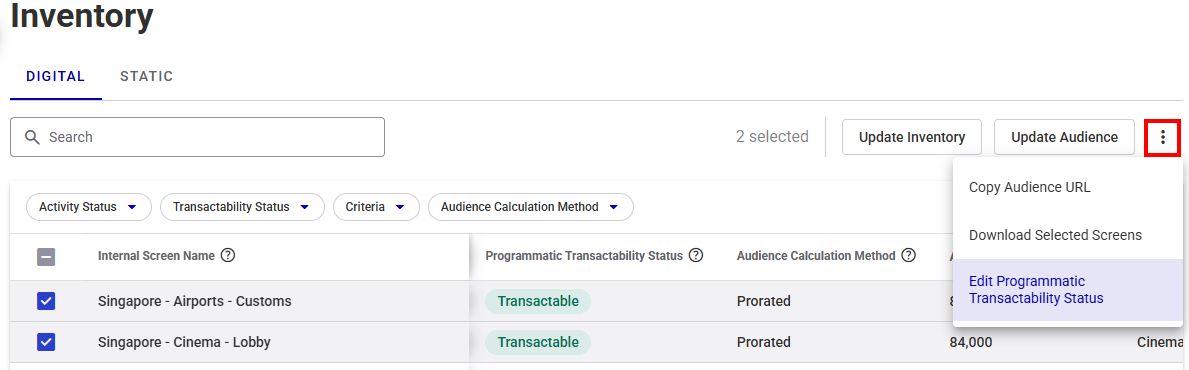
- In the Digital tab of the Inventory page, select the screens that you want to download.
- Click the
 button.
 - Click Download Selected Screens to download a
.csvfile of your selected inventory. - Your system will download a
.csvfile. - The file name is screen_export.csv.

Edit the Screen Activity Status
Digital Inventory
You can enable or disable programmatic transactions for transactable screens. When programmatic transactions are disabled on a screen, it cannot be transacted programmatically, even if it has all the required information.
This capability gives you control over the programmatic availability of screens, allowing you to manage their status according to your operational needs and circumstances.
The system automatically propagates any screens that support programmatic transactions directly to our Programmatic Campaigns solution.
Example: Here's a common scenario for making programmatic transactions disabled on a screen: Let's say a screen will be out of commission for an extended period, perhaps due to maintenance or repairs. In this case, you might choose to disable programmatic transactions on that screen to prevent any programmatic transactions during its downtime.
This feature is not applicable to screens that are marked as "Not Transactable." In other words, you can't enable programmatic transactions on screens that are inherently "Not Transactable" through this process.
Note: The Inventory page is available to users with the Admin, Direct Sales Admin, Programmatic Admin, and Static Admin roles.
To disable programmatic transactions for a single Transactable screen:
Digital Inventory
- In the Digital tab of the Inventory page, click the
 icon of the Transactable screen for which you want to disable programmatic transactions.

The Activity Status of the selected screen is updated in the Digital tab of the Inventory page.
To disable or enable programmatic transactions in bulk on selected Transactable screens:
Digital Inventory
- In the Digital tab of the Inventory page, select the Transactable screens for which you want to disable or enable programmatic transactions.
- Click the button.
- Click Edit Screen Activity Status.
- If you want to set the Activity Status for all the selected screens, toggle the Edit status for all screens switch to on.
- Toggle the Activity Status switch of individual screens to Active or Inactive.
- Click OK to apply the changes.
The Edit Screen Activity Status window opens.

Note: If a selected screen is Not Transactable, then it will have an N/A value and no interaction with this screen is possible.
This forces any change to be applied to all the selected screens in the window. For example, if one screen is made "active", then all the selected screens are made "active". By default, this setting is off.
The Activity Status of the selected screens is updated in the Digital tab of the Inventory page.
If your inventory contains screens from the Place Exchange module, you must edit the following screen inventory fields in Place Exchange because the Broadsign Platform does not support them.
| Place Exchange Field | Description |
|---|---|
| content.cat | Array of IAB content categories that describe the content. |
| content.language | Content language using ISO-639-1-alpha-2. |
| content.keywords | Comma-separated list of keywords describing the content. |
| content.genre | Genre that best describes the content (for example, rock, pop). |
| content.channel.name | Channel on which the content is (for example, a local channel like "WABC-TV"). |
| content.len | Length of content in seconds; appropriate for video or audio. |
| content.id | ID uniquely identifying the content. |
| content.url | URL of the content for buy-side contextualization or review. |
| content.title | Content title. Examples: 'Search Committee' (TV), 'A New Hope' (movie). |
| content.producer.name | Content producer or originator name (for example, "Warner Bros"). |
| network_id |
The unique system-generated identifier for the network to which the ad unit belongs, assigned by Place Exchange. You can find the |
| auction.alt_bidfloor.banner |
Additional Values are expected CPM rates represented in full currency units, as defined in If empty or null, the value is assumed to be equal to In the event that multiple floors apply, the system matches each |
| auction.alt_bidfloor.video |
Additional Values are expected CPM rates represented in full currency units, as defined in If empty or null, the value is assumed to be equal to In the event that multiple floors apply, the system matches each |
| asset.mimes |
Types supported for playback on a given asset. If empty, all values are assumed to be supported. Supported Values:
|
| asset.category |
Represents the physical and/or technical profile of the asset itself and may be used to indicate the size, placement and/or capabilities of the display on which an ad will be shown. Correct values in this field ensure the data can be properly used for planning purposes. |
| measurement.segment |
Name of the segment for which geosegment hourly numbers are calculated. Supported Values:
Note: If no segment is specified during ad unit registration, it defaults to "A18+" for both geopath and PerView providers. |
| measurement_config.ads_per_hours | Average number of ads per hour. |
| location.dma |
Designated market area (DMA) only needed for US screens. Derived from |
| location.method | GPS |
| location.vertical_accuracy |
Accuracy of the altitude value measured in meters. Correct values in this field ensure the system can properly use data for measurement purposes. |
| location.altitude | Height of the screen from the ground, in meters. |
| location.speed |
Average speed, in miles per hour. Note: For moving assets only, such as taxis. |
| restrictions.bcat |
Restricted Content Categories. Note: Blocking a parent category blocks the child categories. For example, registering Tier-1 IAB1 blocks all Tier-2 sub-categories IAB1-* Correct values in this field ensure the system can properly use the data for transaction and planning purposes. |
| restrictions.badomain | Restricted advertiser domains (adomains). |
| restrictions.bbundle | Restricted bundle identifier for app-based ads. |
| restrictions.bbuyer |
Restricted DSPs. Correct values in this field ensure the system can properly use the data for transaction and planning purposes. |
| restrictions.bseat |
Restricted buyer seats. Correct values in this field ensure the system can properly use the data for transaction purposes. |
| restrictions.bcid |
Buyer campaigns that are excluded from participation in auctions identified by their Correct values in this field ensure the system can properly use the data for transaction purposes. |
| restrictions.bcrid |
Buyer creatives that are excluded from participation in auctions identified by their Correct values in this field ensure the system can properly use the data for transaction purposes. |
| restrictions.bkeywords | Restrictions keywords on the inventory (Organization, Network, Ad Unit, or Ad Request level). |
| restrictions.btype |
Restricted Banner Ad Types. Please refer to section 5.2 Banner Ad Types of this document. Common restrictions include:
Correct values in this field ensure the system can properly use the data for transaction purposes. |
| restrictions.wbuyer | Buyers (DSPs) that are explicitely included in auctions. If this field is set, only the listed buyers will be included, all other buyers will be excluded from auctions. |
| restrictions.wlang |
Language of the creative using ISO-639-1-alpha-2 (2 letter ISO code). Refer to this document. Correct values in this field ensure the system can properly use the data for transaction and planning purposes. |
| restrictions.battr |
Restricted creative attributes. |
| network_name |
A high-level grouping of multiple ad units within the Place Exchange hierarchy (structured as Organization → Network → Ad Unit). A network serves several important functions:
The Publisher can create the network name or locate it in the Place Exchange Dashboard under Inventory → Network. |
| notes |
Optional free-text field used by the publisher to provide additional context about the ad unit. This may include details such as hours of operation, special formatting requirements, sales packaging notes, content restrictions, or other operational considerations. This field is not used for targeting or delivery logic but can help internal teams and Place Exchange better understand unique characteristics of the inventory. |
| ext | System-generated custom setting. |
Perform one of the inventory update flows:


