 minutes de lecture
This section describes how to select screens dynamically in the Campaign Builder, which allows you to create guaranteed campaigns Une campagne représente le niveau le plus élevé et est établie entre vous et l'annonceur. La Plateforme Broadsign vous permet de créer les types de campagnes suivants : Audience, Garantie, Programmatique et Statique. with one or more Line items Dans le module Guaranteed Campaigns, les lignes de diffusion se trouvent au sein de chaque campagne. Ce sont les directives que vous donnez au module Guaranteed Campaigns. Vous pouvez avoir plusieurs lignes de diffusion par campagne. and creatives Les contenus créatifs constituent l'aspect visuel de la publicité. Vous pouvez avoir plusieurs contenus créatifs par ligne de diffusion..
As an option enabled by your admin in the domain settings, Dynamic screen selection selects available space from a targeted pool of screens while respecting the campaign criteria.
Dynamic screen selection offers the ability to automatically move campaigns between screens within a prescribed pool. This can help free up space allowing you to accept more campaigns that would previously have been blocked.
A pool of screens is created using one or more criteria (for example, airports). Each screen in the pool has the same qualitative characteristics. A screen goal is set such that the campaign will play out on that number of screens from the pool every day of the campaign. The Guaranteed Campaigns module selects the screens based on availability. However, because each of the screens in the pool is interchangeable, while the screen goal is maintained every day of the campaign, the selection of screens from the pool the campaign plays out on can vary each day. This allows the campaign to be automatically reallocated between screens when required helping free up space for other campaigns.
Conseil : Broadsign recommends that screens in the pool have the same opening duration.
Dynamic screen selection offers the following benefits:
- It promotes inventory flexibility: Rather than blocking new campaigns by locking up screens or space, the system dynamically selects screens based on what’s available while adhering to the parameters established at the time of building the campaign.
- It reduces the need to manually reschedule: Another benefit is that you’ll no longer have to scour your inventory from A to Z to find another screen if one is at occupancy. Dynamic screen selection does this automatically for you—seamlessly, might we add.
- It allows media owners to say yes to more campaigns more regularly: This feature means campaigns can move between screens, freeing up space to make room for any new incoming activity.
Note : Dynamic screen selection cannot be used in conjunction with Shared Goal.
Note : Dynamic screen selection is available for the Frequency and Share of Voice types of buy.
Note : Dynamic Screen Selection line items cannot be amended.
Clicking Select Screens Dynamically opens the Line Item window, where you can choose which screens or screen groups to include in your campaign.

For more information on the Line Item window, see Create a Digital Line Item (Obsolete).
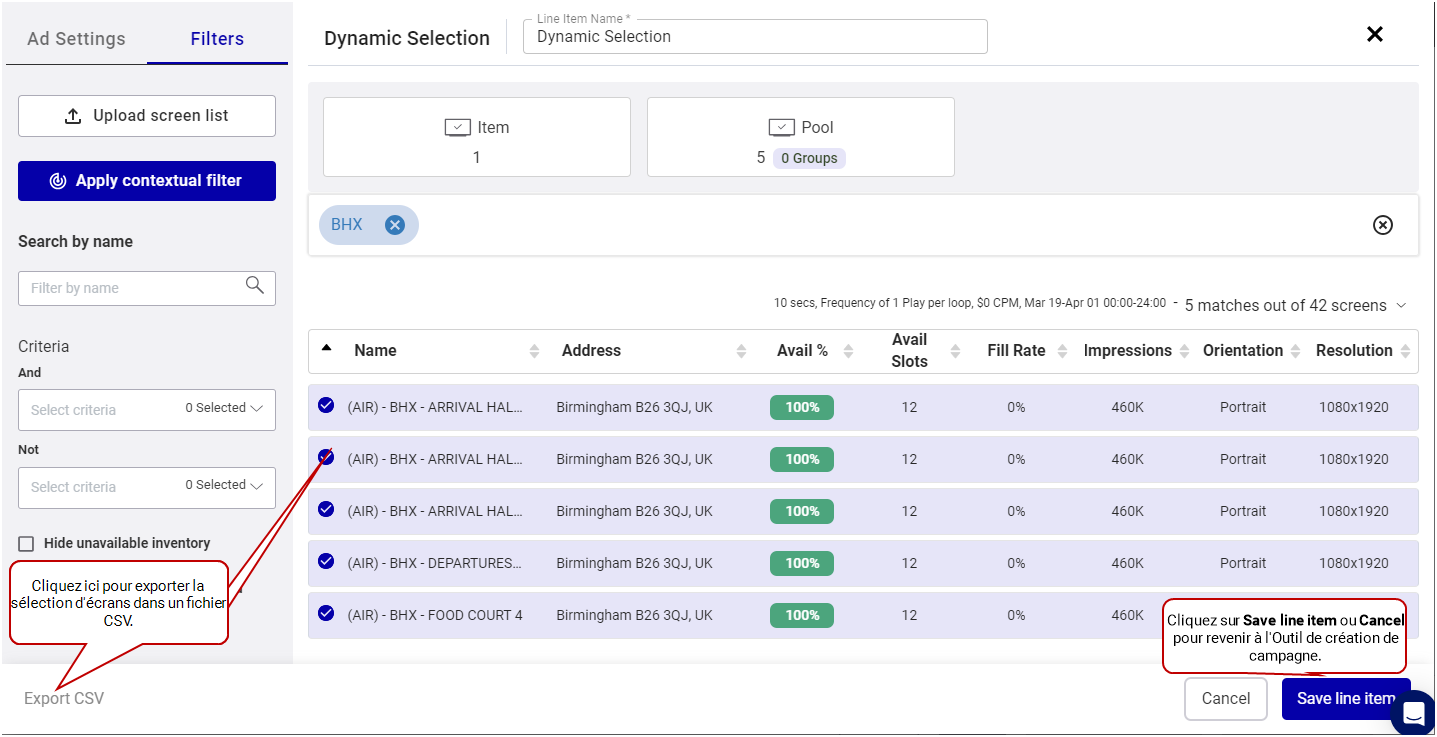
The Line Item window allows you to manage the screens and settings associated with your advertising campaigns. Here's what you can do:
- Specify Screen Count – Use the Screens drop-down menu to determine the number of screens to allocate from the available Pool.
- Define the Screen Pool – Select individual screens or screen groups to include in the Pool of potential screens for automatic allocation. This involves using filter criteria and manual selection.
- Name the Line Item – Provide a clear and descriptive name for your line item.
- Configure Parameters – Adjust the settings of the line item to meet your campaign requirements.
- Save the Line Item – Save the selected screen pool and screen goal as a new line item.
- Export screen selection – Download a CSV file of your screen selection. The Export as CSV button becomes available after saving the line item at least once.
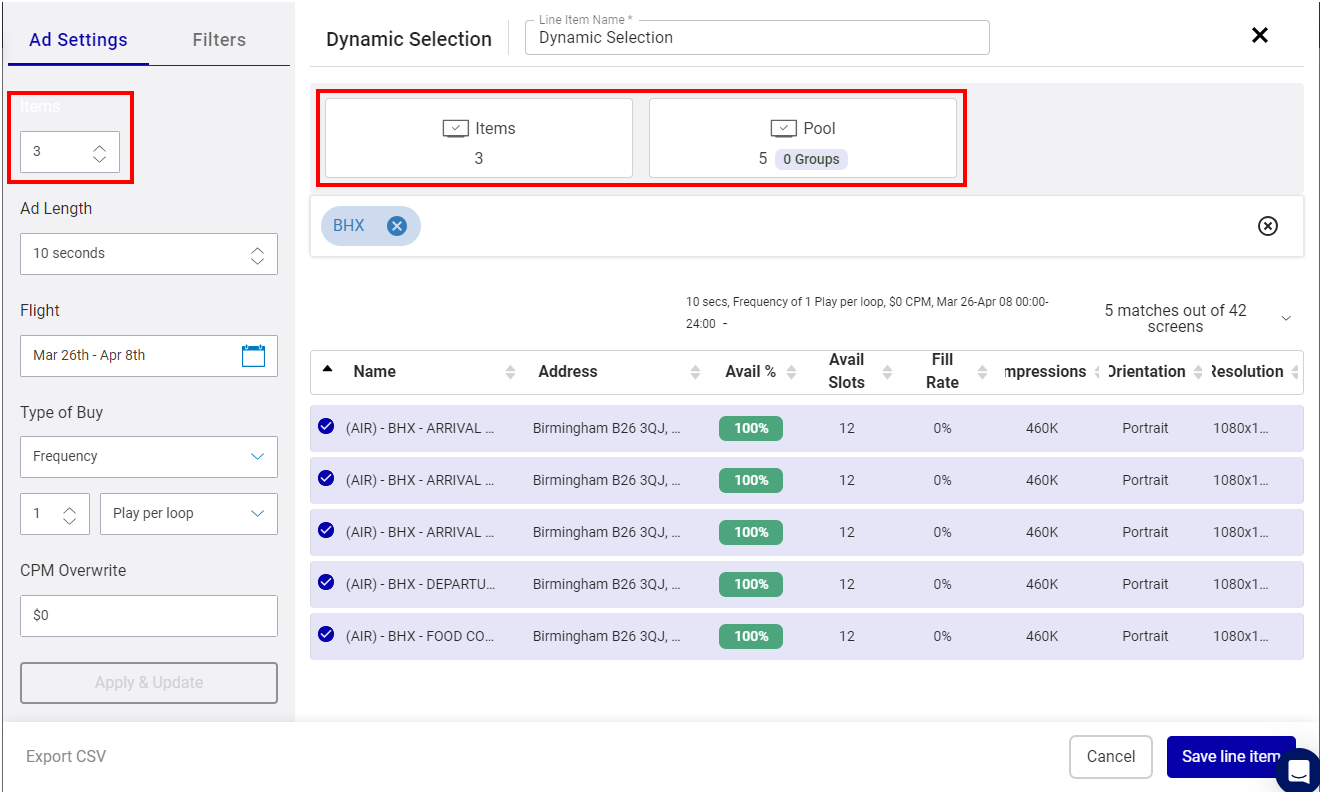
Once these steps are complete, the selected screens appear in a list format within the Campaign Builder, with each row representing a line item.
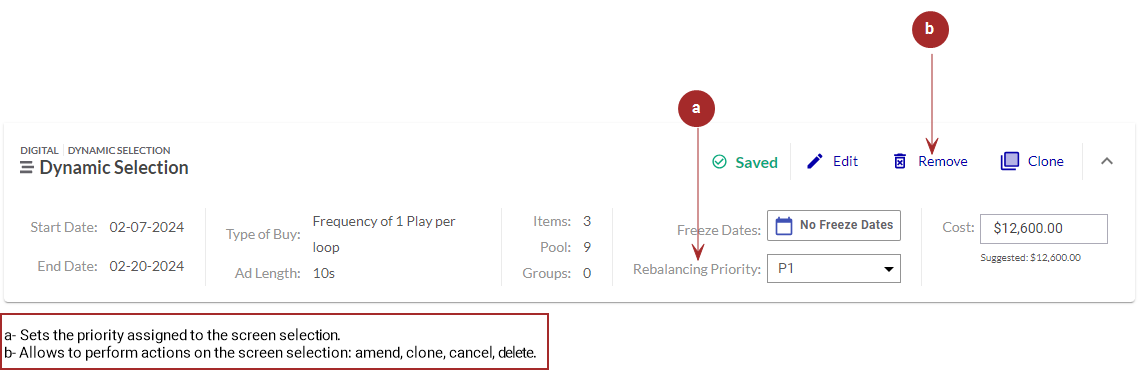
Once you have created a line item, you can perform the following tasks in the Campaign Builder:
Edit a Digital Line Item
Modifiez une ligne de diffusion existante en cliquant sur le bouton  . Cela ouvrira la fenêtre
Set the Priority of Digital Line Items

Attribuez une priorité à une ligne de diffusion numérique existante dans le champ Rebalancing Priority. Ceci détermine l'ordre dans lequel les lignes de diffusion numériques sont diffusées. Pour plus d'informations, consulter Utiliser la fonctionnalité de rééquilibrage.
Les lignes de diffusion préemptibles ne peuvent pas être priorisées.
Remove Line Items
Pour supprimer une ligne de diffusion qui a été enregistrée mais pas encore soumise, cliquez sur le bouton  .
.
Une ligne ayant le statut Held ne peut pas être supprimé.
Cancel Line Items
Annulez une ligne de diffusion qui est soit Submitted, Booked ou Live en cliquant sur le bouton  . Voir Annuler une ligne de diffusion.
Clone a Line Item
Créez une copie d'une ligne de diffusion existante en cliquant sur le bouton  . Voir Cloner une ligne de diffusion.
Amend a Line Item
Modifiez une ligne de diffusion  . Ceci ouvrira la fenêtre
