 minutes de lecture
This page details Étape 4 – Créer une ligne de diffusion of the new campaign creation process.
Note : Le module Guaranteed Campaigns est accessible aux utilisateurs disposant du rôle Admin, Direct Sales Admin, Direct Sales Manager, Direct Sales Coordinator ou Direct Sales.
Creating a digital line item in the Campaign Builder involves the following steps:
- Step 1 – Select Your Line Type
- Step 2 – Set the Ad Length and Flight Information
- Step 3 – Choose Your Line Goal
- Step 4 – Apply Filters (Optional)
- Step 5 – Select Your Screen Inventory
- Step 6 – Review Your Line Item
- Step 7 – Create the Digital Line Item
- Step 8 – Adjust the Priority and Budget
Your Admin must add digital inventory that includes the location of all of the screens in your network before you can proceed with creating a digital line item. Pour plus d'informations, consulter Mettre à jour l'inventaire des écrans ou des faces.
Add content to your campaign by creating one or more line item.
Line items are created and managed in the Select Inventory section of the Campaign Builder.
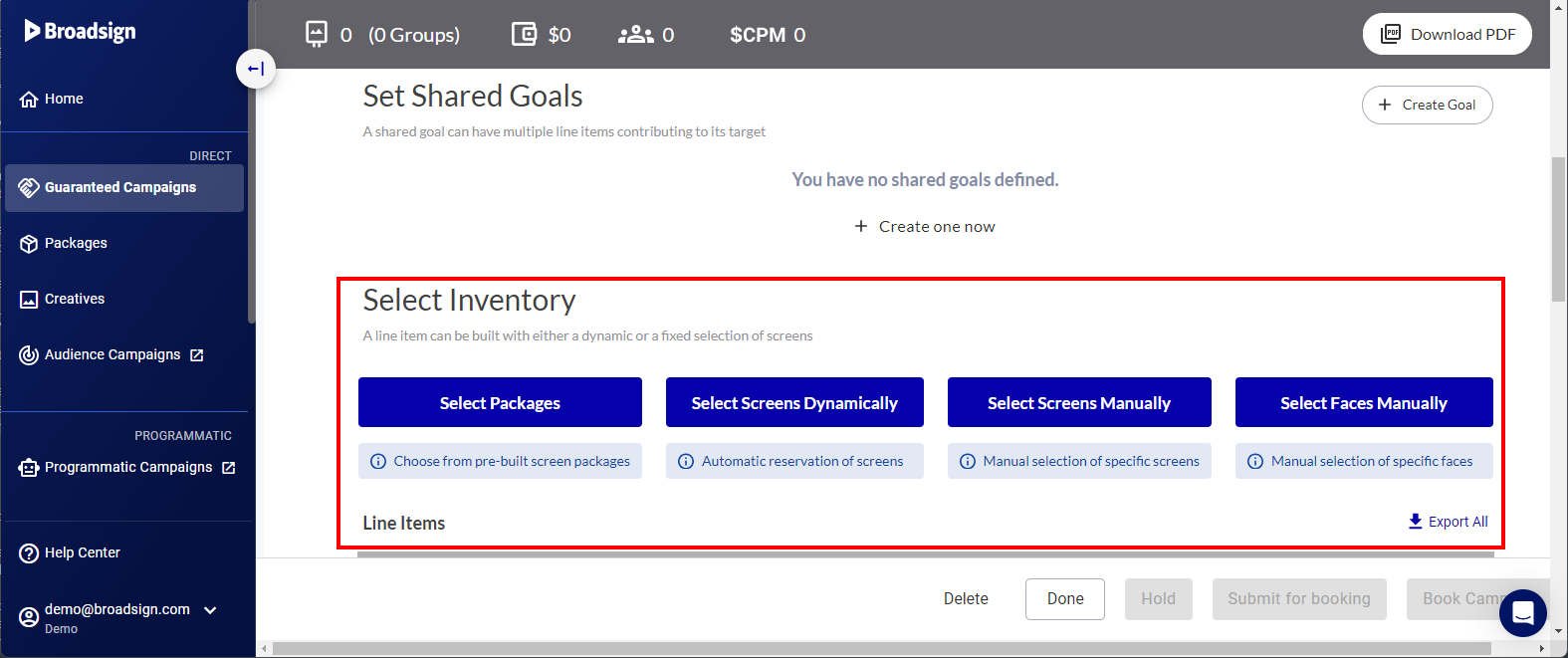
To create a digital line item, select individual digital screens or screen groups by selecting either one of the following options:
- Select Screens Dynamically (Obsolete) – Dynamic screen selection involves choosing available space from a targeted pool of screens while respecting the campaign criteria. The selected screens are displayed in list form on the builder, each row representing a line item.
- Select Screens Manually (Obsolete) – Manual screen selection allows you to select the screens that you want in your campaign. The selected screens are displayed in list form on the builder, each row representing a line item.
- Sélectionner des packages – A package is a ready-to-sell bundle of screens. You can select packages that contain digital screens. The selected packages are displayed in list form on the builder, each row representing a line item.
The Line Item page is displayed.

Set the information when you want your line item to run.
To set the Ad Length and Flight information:
- In the Ad Settings panel, set the ad duration to calculate the screen availability in the Ad Length field.
- Set the date range to calculate the screen availability in the Flight field. Click the dates to open the calendar dialogue box.

The valid range is 1-3600 seconds.

Select the type of buy.
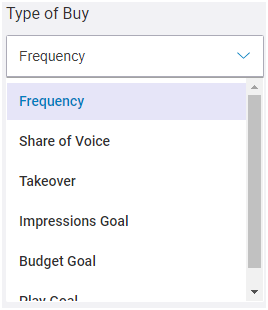
- Frequency – The number of times that an ad will play during the ad flight. Used in conjunction with the Saturation. Pour plus d'informations, consulter Type d'achat Fréquence.
- Share of Voice (SoV) – The Share of Voice (SoV) is a type of ad revenue model that focuses on the percentage of activities for one specific brand. If an advertiser wants to increase the chances of their content to be seen, they can increase their SoV. When selecting Share of Voice (SoV), a second drop-down menu offers you a choice of SoV types:
- Fixed – Modèle de revenus publicitaires SoV qui garantit une SoV fixe en tout temps. Il offre la possibilité de s'engager sur une part de voix spécifique à chaque boucle, si disponible. C'est le type de part de voix le plus rigide car il n'implique aucune répartition.
- Daily Average – Modèle de revenus publicitaires SoV qui garantit que les campagnes contractées maintiennent la part de voix spécifiée chaque jour de la durée de diffusion, quels que soient les écrans où la part de voix est allouée. Vous pouvez ainsi vendre une SoV qui sera répartie aussi uniformément que possible sur tous les écrans tout en respectant la moyenne souhaitée.
- Daily Average per screen – Modèle de revenus publicitaires SoV qui permet la réservation d'une SoV moyenne pour atteindre une SoV quotidienne spécifique sur chaque écran, quelles que soient les heures de diffusion de la publicité. Vous pouvez ainsi vendre une SoV quotidienne sur chaque écran qui sera répartie aussi uniformément que possible sur toutes les heures de la journée.
- Campaign Average – Modèle de revenus publicitaires SoV qui garantit que la part de voix demandée est atteinte en moyenne sur toute la durée de la campagne.
- Takeover – Used for "domination" campaigns that take over a set of screens for a specific point in time.
- Impressions Goal – The total number of times that people are likely to notice an ad. Pour plus d'informations, consulter Objectif d'impressions.
- Budget Goal – The amount that you are prepared to pay for the ad flight. Pour plus d'informations, consulter Objectif de budget.
-
Play Goal – The total number of times that an ad will play. Pour plus d'informations, consulter Type d'achat avec objectif de diffusions.
Pour plus d'informations, consulter Types d'achat par part de voix (SoV).
This step applies if you have selected Select Screens Manually.
If you want to use associated overall shared goals for your selection, enable the Use Shared Goal option. Then, select one of the predefined shared goals in the Use Shared Goal drop-down menu.
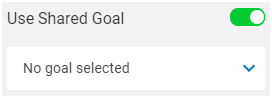
Voir Utiliser les objectifs partagés pour plus d'informations.
Your Administrator may have defined which types of buy you can use. In that case, some of the types of buy listed in the drop-down menu may not be available for you. For more information, see Colonne Rebalancing in the Platform Settings.
Your Administrator may have set a maximum saturation value, which prevents you from having a saturation that is too high. The maximum saturation value applies to the Impressions Goal, Budget Goal, and Play Goal types of buy. For more information, see Section Digital Inventory in the Platform Settings.
Campaigns can be categorized in two primary campaign types: Fixed and Flexible, each offering distinct approaches to advertising.
- Fixed Campaign Types – These campaigns offer a more rigid structure, focusing on guaranteed placements and frequency:
- Flexible Campaign Types – These campaigns offer more adaptability and focus on achieving specific goals:
Les filtres fonctionnent comme des étiquettes. Ils comporteront des détails importés tels que les adresses des écrans, les critères, les informations sur l'audience et d'autres éléments similaires. Sélectionnez une « étiquette » pour affiner votre inventaire d'écrans. Votre administrateur aura importé des critères à partir de la solution Content and Network Management. Pour plus d'informations, consultez l'administrateur de votre domaine.
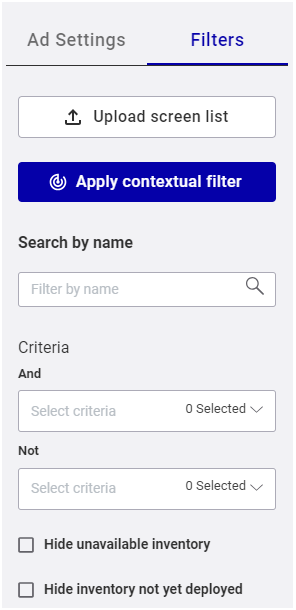
The Line Item page offers different filtering options to filter your inventory:
| Filter | Description |
|---|---|
|
|
Upload a list of screens or screen groups to filter the digital inventory. Voir Upload a Screen List (Obsolete). |
|
|
Use contextual screen filtering to filter your screens based on geographic and demographic data. Voir Use Contextual Filtering (Obsolete). |
|
|
Enter part (or all) of a screen name. Press Enter or click away from the box to apply the filter. |
|
|
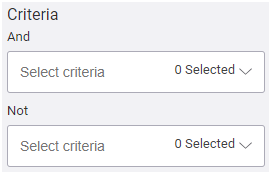
Use criteria to filter the list of available screens. Voir Search Digital Screens by Criteria (Obsolete). |
|
|
Select Hide unavailable screens to narrow your screen list to only those that are available. Note : This feature works within the date range that you set in the Ad Settings. Voir Step 2 – Set the Ad Length and Flight Information. |
|
|
Sélectionnez Hide screens not yet deployed pour limiter votre liste d'écrans uniquement à ceux que vous avez déployés. Par exemple, avec ce filtre, vous pourriez masquer les écrans qui sont en mode bêta ou en mode test. Pour masquer un écran qui n'est pas encore déployé, modifiez la part de jour de l'unité d'affichage dans la solution Content and Network Management et définissez la date de début à la valeur de la date réelle à laquelle l'écran sera déployé. Pour plus d'informations, voir Parts de jour dans la documentation Content and Network Management. |




You can use one or more of these options at the same time.
Select the screen inventory that you want from the screen inventory list. Pour plus d'informations, consulter Screen Inventory (Obsolete).
You can:
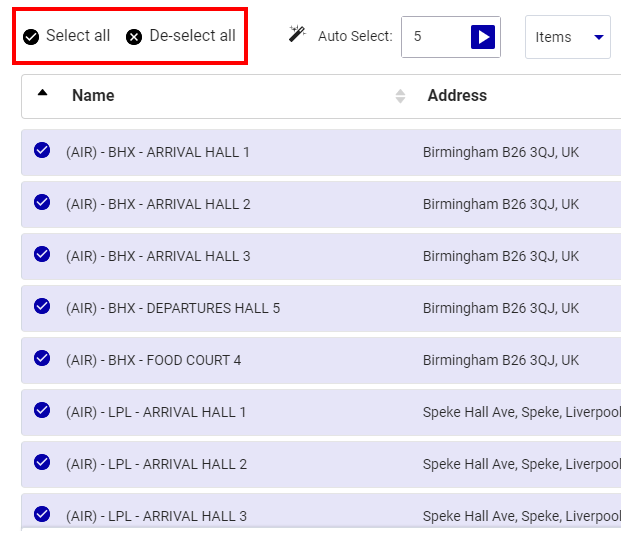
- Select all screens in your inventory by clicking Select all. You can also deselect all screens by clicking Deselect all.
- Select specific screens by clicking the circle next to them.
- Make an automatic selection of inventory that allows you to sell inventory based on a specified quantity of targeted inventory. It is used to spread out the selection on the most available inventory. Pour plus d'informations, consulter Automatic Selection of Inventory.
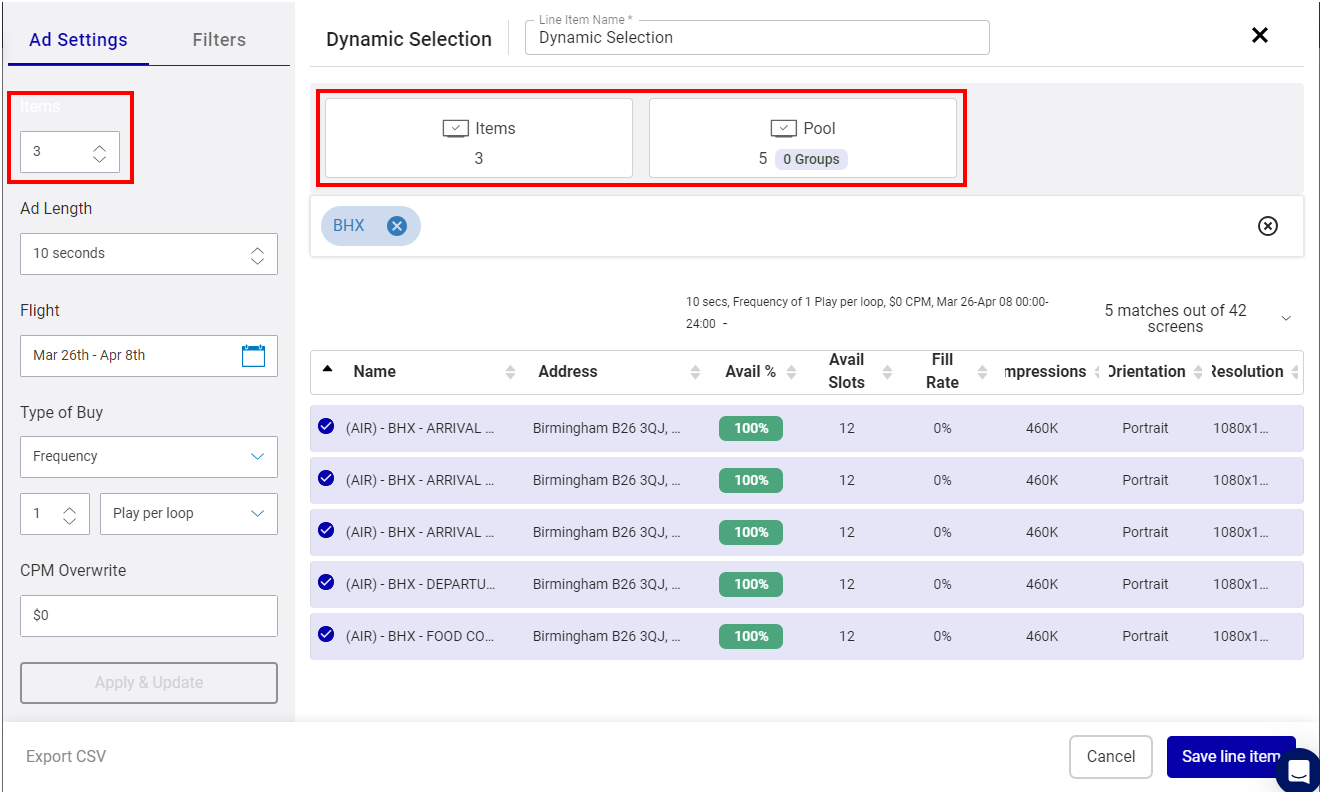
- if you have selected Select Screens Dynamically, specify the number of screens to use from the Pool of available screens via the Screens drop-down menu. This defines the Pool of screens the campaign can be automatically allocated to. Select or deselect screens to include in the Pool of screens via a combination of filtering criteria and/or manual selection.


It is now time to review your line item.
Use the Summary panel of the Line Item page to review the summary of the information for your selections:

The following information is available, depending on your screen selection:
- Screens – Total number of screens and screen groups selected.
- Budget – Approximate price for a campaign made up of your selection.
- Impressions – Total number of people that your selection can target.
- CPM – "Cost per Thousand" (CPM) information for your selection.
- Total Plays –Total plays that your selection can provide for the Play Goal type of buy.
- Share of Voice – Average Share of Voice for the Impressions Goal and Budget Goal types of buy.
For more information on each tile, see Summary Panel (Obsolete).
When everything is ready, you can select an action to perform with the current filters and screen selection.
| Section | Description |
|---|---|

|
Export your filtered screens or your selected screens in CSV format.
|
|
Save your screens selection and the ad flight information you have entered. You can go back to the remaining steps of Créer une campagne garantie. |

|
Cancel line item creation or editing. |
Once the line item is created, it is listed in the Campaign Builder.

There are a number of information that you can adjust:
- Rebalancing Priority level – You can change the priority level of the line item if the line item status and Type of Buy allows it, and if you have the necessary privileges. Pour plus d'informations, consulter Utiliser la fonctionnalité de rééquilibrage.
- Saturation Freeze – If Saturation Freeze is enabled on a line item, you can freeze the saturation on all the screens selected from the date that you pick in the calendar. This item will not be rebalanced or reallocated. Pour plus d'informations, consulter Utiliser la fonctionnalité de gel de la saturation.
- Preemptible status – You can set a line item as preemptible. Pour plus d'informations, consulter À propos des lignes de diffusion préemptibles.
- Cost – You can change the Cost if:
- The line item status allows it
- You have the necessary privileges
- You are the owner
- Submitted
- Booked
- Live
- Ended
- Cancelled
Attribuez une valeur Priority à cette campagne, en gardant à l'esprit que les campagnes ayant les valeurs les plus élevées seront les premières à être retirées de la liste de lecture.
Les valeurs de priorité peuvent aller de +999 à -999, à l'exclusion de 0.
Si la campagne est réservée ou gérée par le module Guaranteed Campaigns, la valeur de priorité est synchronisée entre la Plateforme Broadsign et notre solution Content and Network Management.
Your Admin can prevent the cost of a line item from being updated if that line item is modified and thus changes the Suggested price. This can be done by checking the Prevent Price Change option in the Guaranteed Campaigns Settings.
In that case, the Cost of the line item cannot be updated after it has been submitted for booking and has one of the following statuses:


