 minutes de lecture
Vous pouvez utiliser le flux de téléversement en masse pour ajouter un grand nombre d'écrans à votre inventaire Lecteurs tiers au moyen d'un fichier de données .csv.
Vous devez définir correctement des paramètres spécifiques pour rendre votre écran transactable par programmation. Voir Statut de transactabilité programmatique des écrans.
Note : La page Inventory est accessible aux utilisateurs disposant des rôles Admin, Direct Sales Admin, Programmatic Adminet Static Admin.
Vous pouvez ajouter un grand nombre d'écrans à votre inventaire Lecteurs tiers en utilisant un fichier .csv. Nous vous fournissons un modèle de données d'écrans.
Pour téléverser des écrans en lot dans votre inventaire Lecteurs tiers :
Inventaire numérique
La création du fichier .csv nécessite trois étapes générales :
- Sélectionnez et exportez le modèle de données d'écran de la liste d'inventaire.
Ce modèle contient toutes les informations actuelles sur l'écran. Voir Étape 1 – Exporter le modèle de données d'écran.
- Ajoutez les informations de données d'écrans en respectant le format.
Vous n'avez pas besoin de saisir toutes les informations en une seule fois. Vous pouvez saisir une partie des informations et saisir le reste plus tard. Voir Étape 2 – Saisir vos données d'écran.
-
Importez le fichier, contenant désormais vos données d'écran, dans votre réseau. Voir Étape 3 – Importer le fichier dans votre domaine.
Note : Vous devez suivre le format du modèle de données d'écran. Sinon, Broadsign considérera le fichier comme invalide.
Le modèle de données d'écrans fournit les colonnes autorisées et le format correct.
Pour exporter le modèle de données d'écran :
Inventaire numérique
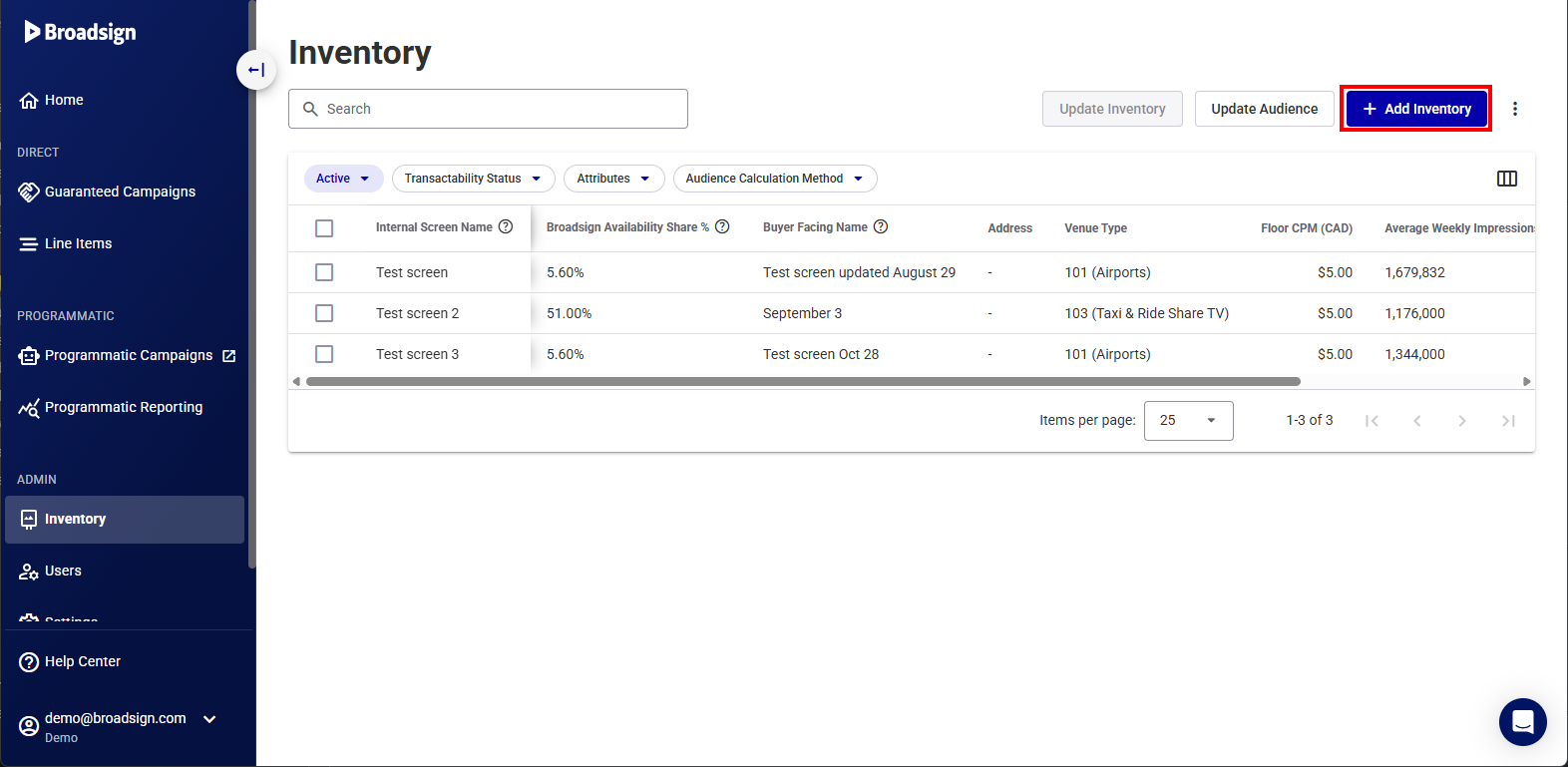
- Depuis la liste Inventory, cliquez sur Add Inventory.
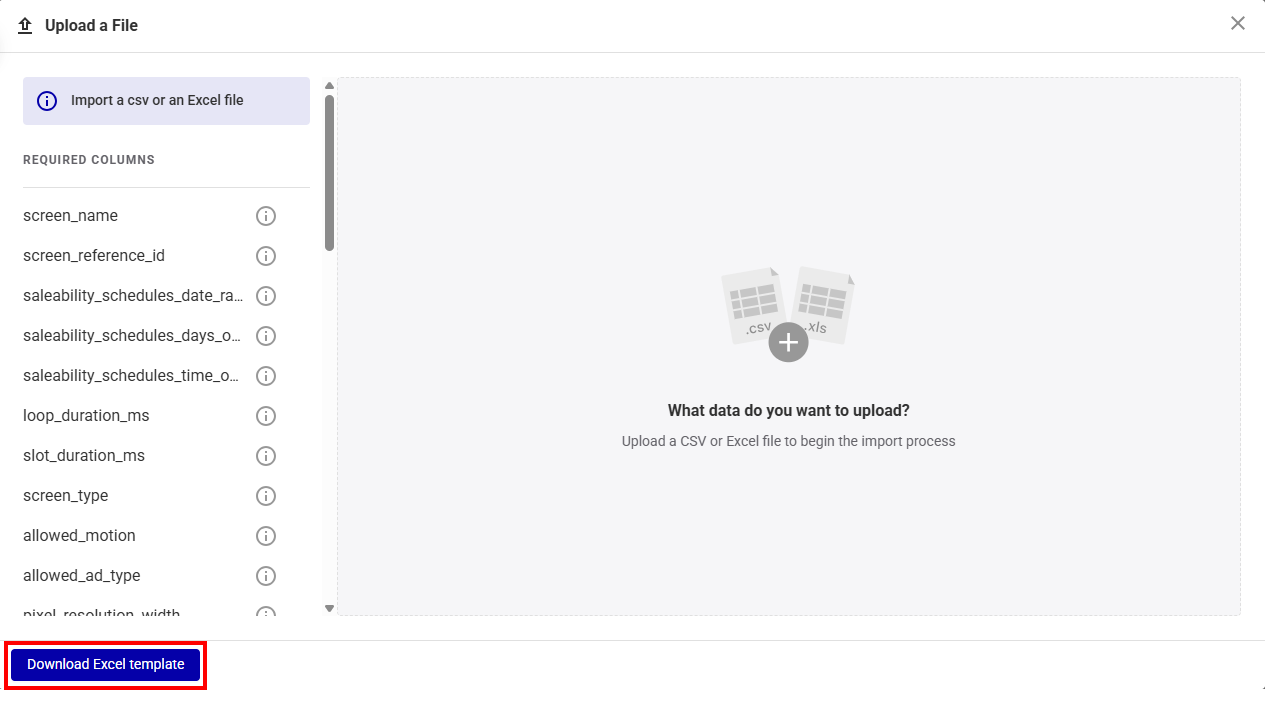
- Dans la fenêtre Update a File, cliquez sur Download Excel template pour télécharger le modèle de données d'écrans.
Votre système téléchargera un fichier .csv.
Le nom du fichier est inventory-sideloaded-template.xlsx.
Note : Vous devez suivre le format du modèle de données d'écran. Sinon, Broadsign considérera le fichier comme invalide.
Vous devez définir correctement des paramètres spécifiques pour rendre votre écran transactable par programmation. Voir Statut de transactabilité programmatique des écrans.
Pour ouvrir le fichier de données d'écran :
- Ouvrez le fichier de données d'écran
.csvque vous avez téléchargé (Broadsign recommande Microsoft Excel ou un tableur similaire). - Saisissez vos données d'écran comme décrit dans Étape 2B – Formater le fichier des écrans.
Le fichier de données d'écrans comprend plusieurs colonnes.
| Lettre de la colonne | Nom de la colonne | Description |
|---|---|---|
| A | unified_inventory_id |
Identifiant utilisé pour représenter le panneau dans l'inventaire unifié. Il est en lecture seule. |
| B | programmatic_device_id |
Identifiant de l'appareil utilisé dans les campagnes programmatiques. |
| C | screen_reference_id |
Identifiant de référence externe à la disposition du client pour identifier l'écran. Cet identifiant sera utilisé pour faire correspondre l'écran et le mettre à jour s'il existe déjà. Ce champ est limité à 255 caractères. C'est obligatoire. |
| D | screen_name | Le nom de l'écran. Il doit être unique. Ce champ est limité à 150 caractères. C'est obligatoire. |
| E | screen_buyer_facing_name |
Nom court et descriptif de l'écran ou de la face (emplacement, spécialité, etc.). Il doit être unique. Exemple : Écran Times Square |
| F | orientation |
Orientation cardinale de l'écran. Sélectionnez entre UNKNOWN, NORTH, NORTH_EAST, EAST, SOUTH_EAST, SOUTH, SOUTH_WEST, WEST et NORTH_WEST. Exemple : NORTH_EAST |
| G | image_urls |
URL pour récupérer une image à afficher sur l'écran. L'URL doit pointer vers une URL d'image directement hébergée et non vers un lien menant à la page web contenant l'image. Vous pouvez ajouter plusieurs URL en les séparant par un point-virgule (« ; »). Exemples d'URL valides :
Exemples d'URL non-valides :
|
| H | size_diagonal_value |
Taille diagonale de l'écran dans l'unité de mesure définie dans Diagonal Size Unit. Il doit s'agir d'une valeur supérieure à 0. Exemple : 20 |
| I | size_diagonal_unit |
Unité de mesure pour la taille diagonale de l'écran. Choisissez entre :
Exemple : in |
| J | screen_inactivity_schedules |
Liste des horaires qui déterminent quand l'écran est inactif. Chaque horaire doit être séparé par le caractère « | ». Le champ utilise la structure suivante :
|
| K | screen_attached_attributes |
Liste des attributs non-Broadsign associés à l'écran. Le champ utilise la structure suivante :
Exemple : couleur:jaune;taille:large |
| P | loop_duration_ms |
Durée de la boucle de l'horaire, en millisecondes. C'est obligatoire. Exemple : 10000 |
| Q | slot_duration_ms |
Durée du créneau publicitaire par défaut en millisecondes. Il doit s'agir d'une valeur supérieure à 0. C'est obligatoire. Exemple : 10000 |
| R | minimum_slot_duration_ms |
Durée minimale de l'espace publicitaire en millisecondes. Il doit s'agir d'une valeur supérieure à 0. Exemple : 10000 |
| S | maximum_slot_duration_ms |
Durée maximale de l'espace publicitaire en millisecondes. Elle ne doit pas être inférieure à la valeur Min Ad Duration. Exemple : 30000 |
| T | hivestack_id | Identifiant d'écran dans Hivestack. |
| U | vistar_id | Identifiant d'écran dans Vistar. |
| V | place_exchange_id | Identifiant d'écran dans Place Exchange. |
| W | floor_cpms |
Plancher CPM de l'écran dans les devises suivantes, séparées par des points-virgules :
C'est un champ d'information dans lequel l'éditeur doit ajouter un CPM moyen pour l'écran. La tarification réelle sera définie au niveau du « Deal ID ». Exemple : USD:5;CAD:5;EUR:5;AUD:5;GBP:5 |
| X | screen_type |
Type de l'écran utilisé. Le type d'écran est utilisé pour soutenir les efforts de durabilité de Broadsign. Les valeurs acceptées sont :
Exemple : 101 C'est obligatoire. |
| Y | allowed_motion |
Si les contenus de type motion sont autorisés ou non à être diffusés sur cet écran. C'est obligatoire. Exemple : true |
| Z | allow_deal_creation_on_users_behalf |
Indique si Broadsign peut créer des transactions programmatiques qui incluent cet écran sans autorisation préalable. |
| AA | allowed_ad_type |
Types de publicités pris en charge par la Plateforme Broadsign. Si plusieurs types sont pris en charge, utilisez un « ; » pour les séparer.
Exemple : static;video;html C'est obligatoire. |
| AB | pixel_resolution_width |
La largeur de l'écran en pixels. C'est obligatoire. Exemple : 1920 |
| AC | pixel_resolution_height |
La hauteur de l'écran en pixels. C'est obligatoire. Exemple : 1080 |
| AD | audience_data_sources |
Nom de la source de données d'audience, séparé par des « ; ». Consultez Sources d'audience pour connaître les sources prises en charge. Exemple : ACI;Blimp C'est obligatoire. |
| AE | audience_calculation_method |
Méthode de calcul de l'audience.
Chaque publicité au sein d'une boucle reçoit le même nombre d'impressions diffusées.
L'audience par heure doit être calculée au prorata de la durée réelle de l'emplacement. En d'autres termes, une formule au prorata tient compte des durées de créneau variables et de leur impact sur le calcul des impressions. C'est obligatoire. |
| AF | venue_name |
Nom ou description du lieu. C'est obligatoire. |
| AG | venue_reference_id |
Un identifiant de référence externe fourni par le client pour identifier le lieu. Si aucun identifiant n'est fourni, il sera généré automatiquement. |
| AH | venue_type |
Venue type ID. Consultez les options dans Types de lieux. Exemple : 80701 C'est obligatoire. |
| AI | venue_address |
Adresse du lieu où se trouve l'écran. Exemple : 21 Greens Road RD 2 |
| AJ | venue_city |
Ville du lieu où se trouve l'écran. Exemple : Boston |
| AK | venue_state |
État du lieu où se trouve l'écran. Exemple : Massachusetts |
| AL | venue_country |
Pays du lieu où se trouve l'écran. Exemple : United States |
| AM | venue_postal_code |
Code postal du lieu où se trouve l'écran. Exemple : 90210 |
| AN | venue_latitude |
Coordonnées de latitude du lieu où se trouve l'écran, en degrés décimaux. C'est obligatoire. Exemple : 48.829268 |
| AO | venue_longitude |
Coordonnées de longitude du lieu où se trouve l'écran, en degrés décimaux. C'est obligatoire. Exemple : 2.355219 |
| AP | timezone |
Fuseau horaire du lieu où se trouve l'écran. C'est obligatoire. Exemple : America/New_York |
| AQ | dma |
Designated Market Area (mesure Nielsen). Applicable uniquement aux réseaux des États-Unis. Exemple : 501 |
| AR | availability_share |
La part en pourcentage de la durée de la boucle pour un écran donné. Exemple : 0.51 |
| AS | private_auction_only |
Si l'écran est limité aux enchères privées uniquement. |
| AT | auction_type |
Type d'enchère pour l'écran :
Pour plus d'informations, consulter Comprendre les deals sur Place Exchange. |
| AU | unit_count |
Nombre d'unités pour l'écran. |
| AV | external_ids |
Identifiants externes associés à l'écran. Le champ utilise la structure suivante :
|
| AW | asset_type |
Type de ressource pour l'écran. Il est automatiquement défini sur « Digital ». |
| AX | impression_four_weeks |
Nombre total d'impressions sur une période de quatre semaines. |
| AY | impression_multiplier |
Multiplicateur d'impressions moyen pour l'écran, soit le nombre moyen d'impressions visibles par espace publicitaire. |
| AZ | open_exchange_enabled |
Si cet écran est transactionnel ou non sur l'Open Exchange de notre solution Campagnes programmatiques. Si activé, les prix plancher sont directement extraits de l'objet écran, les écrans seront visibles pour les DSP intégrées et transactionnels sans « Deal ID ». Les valeurs d'activation prises en charge sont :
Les valeurs de désactivation prises en charge sont :
|
Une fois le fichier de données d'écran correctement rempli, vous pouvez l'importer dans la Plateforme Broadsign. Si vous rencontrez des problèmes lors de l'importation du fichier, contactez Broadsign Services.
L'écran Upload a File vous permet de sélectionner votre fichier de données d'écrans et de le téléverser dans le système.
Pour téléverser le fichier de données d'écran :
- Dans la fenêtre Upload a File, cliquez n'importe où dans la partie grise de droite de la fenêtre.
- Naviguez jusqu'à votre fichier de données et sélectionnez-le.

Vous pouvez téléverser n'importe quel fichier .csv, .xls ou .xlsx comportant n'importe quel ensemble de colonnes, à condition qu'il contienne un enregistrement par ligne.
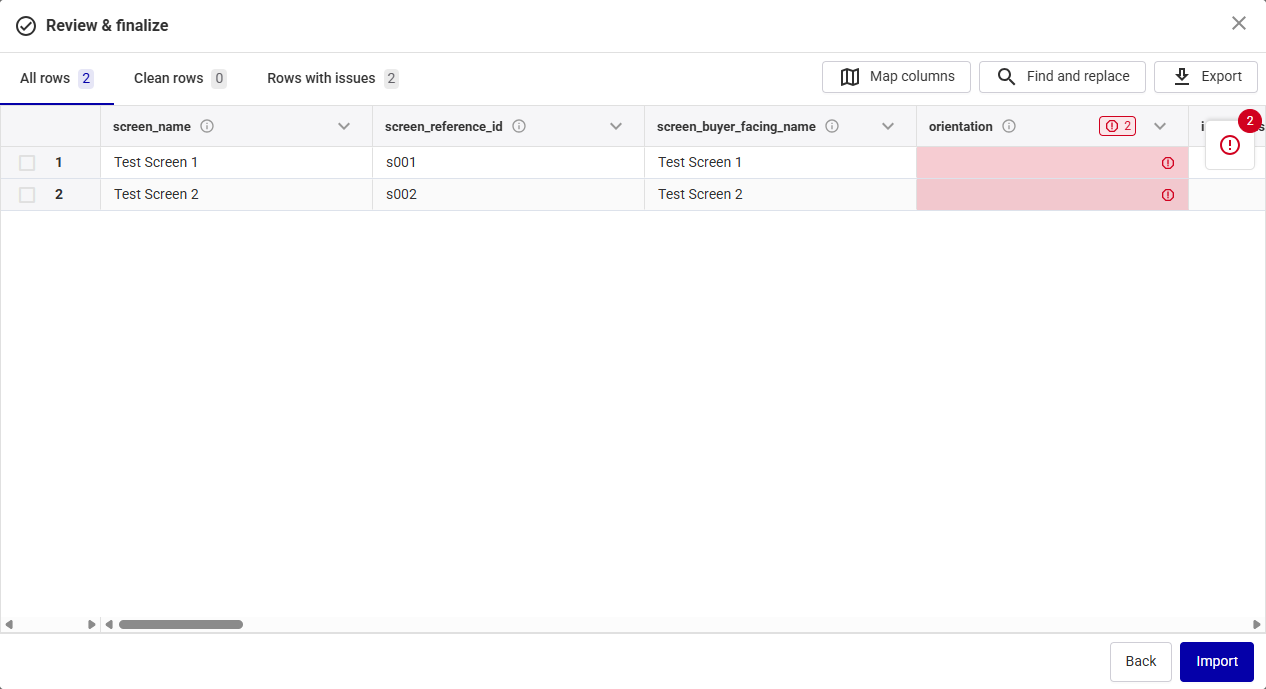
L'écran Review & Finalize vous permet de vérifier l'exactitude des données d'écran importées
Examiner et modifier les données
Vous pouvez effectuer les opérations suivantes sur l'écran Review & Finalize :
- Modifier les données d'écran – Modifiez les données d'écran dans le tableau en double-cliquant sur la cellule à éditer. Pour plus d'informations sur les valeurs acceptées pour chaque cellule, voir Étape 2B – Formater le fichier des écrans.
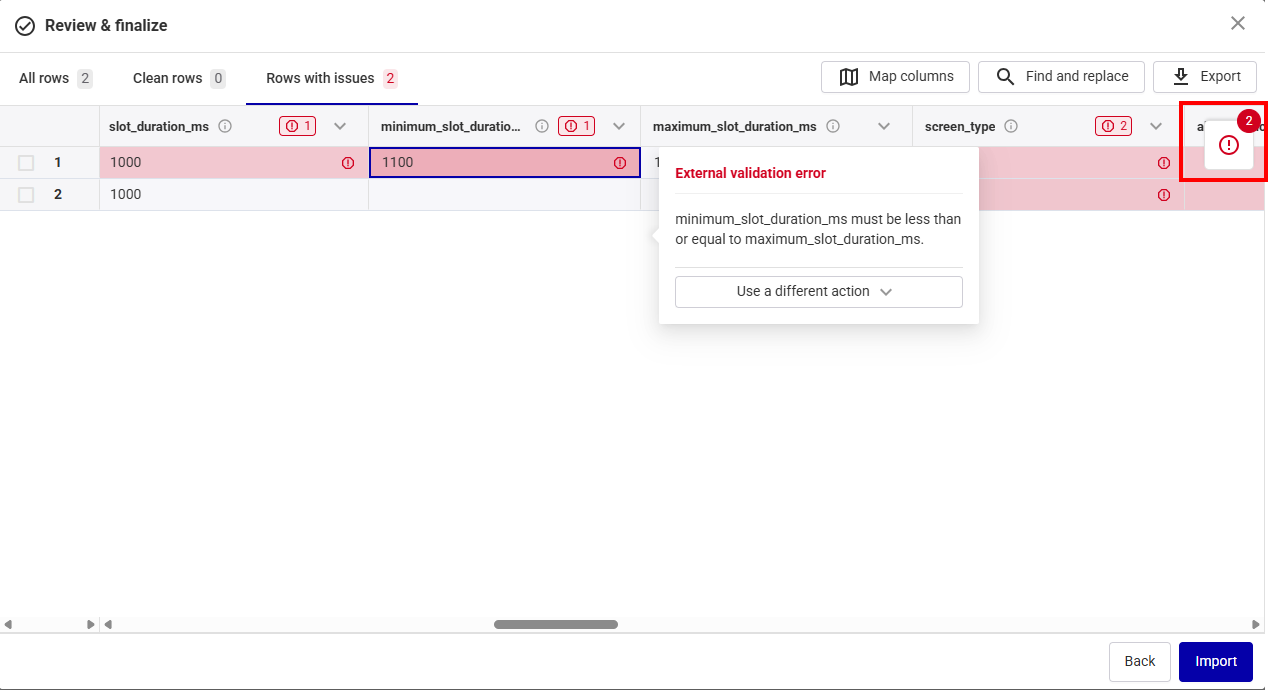
- Afficher les problèmes – Affichez uniquement les lignes présentant des problèmes en cliquant sur Rows with issues.
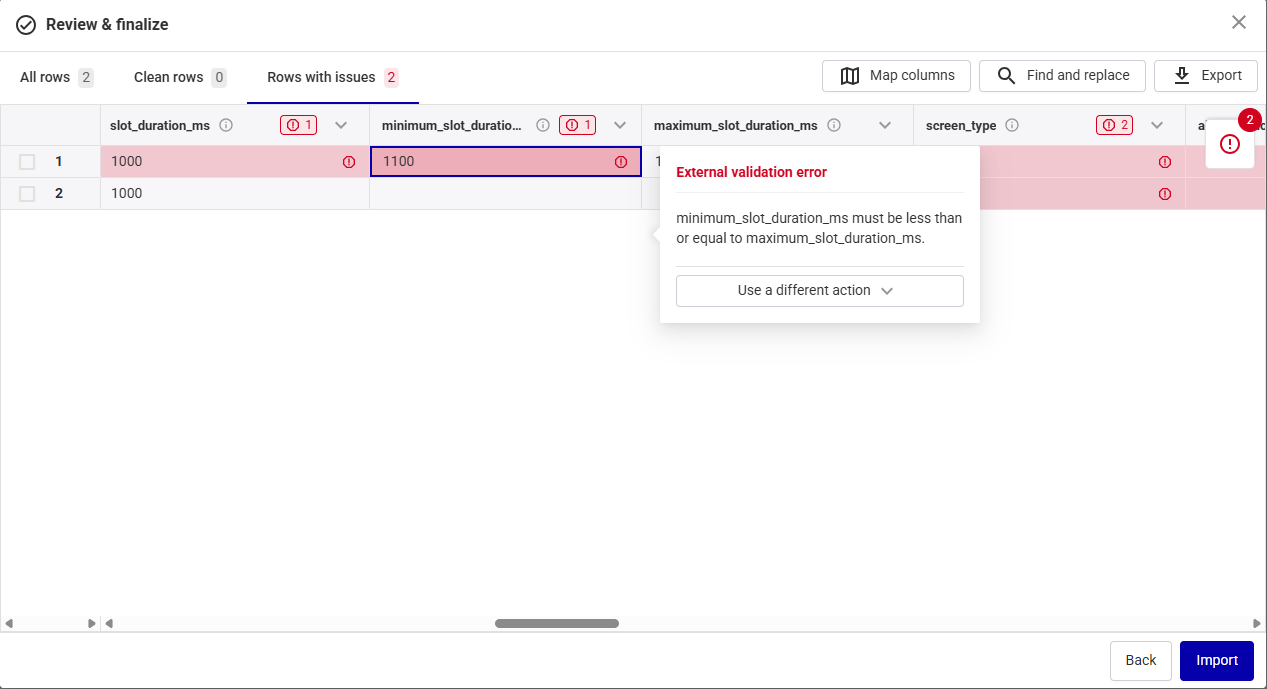
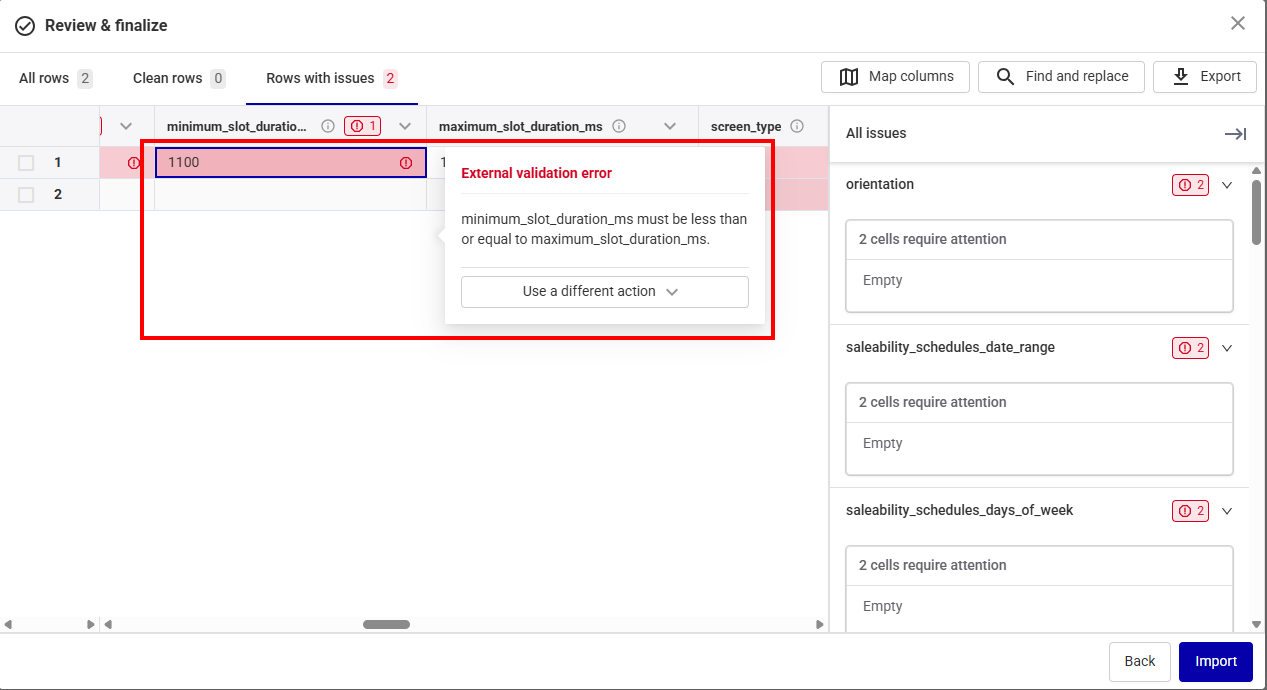
- Dans la partie principale de l'écran Review & Finalize, où les cellules problématiques sont mises en évidence.
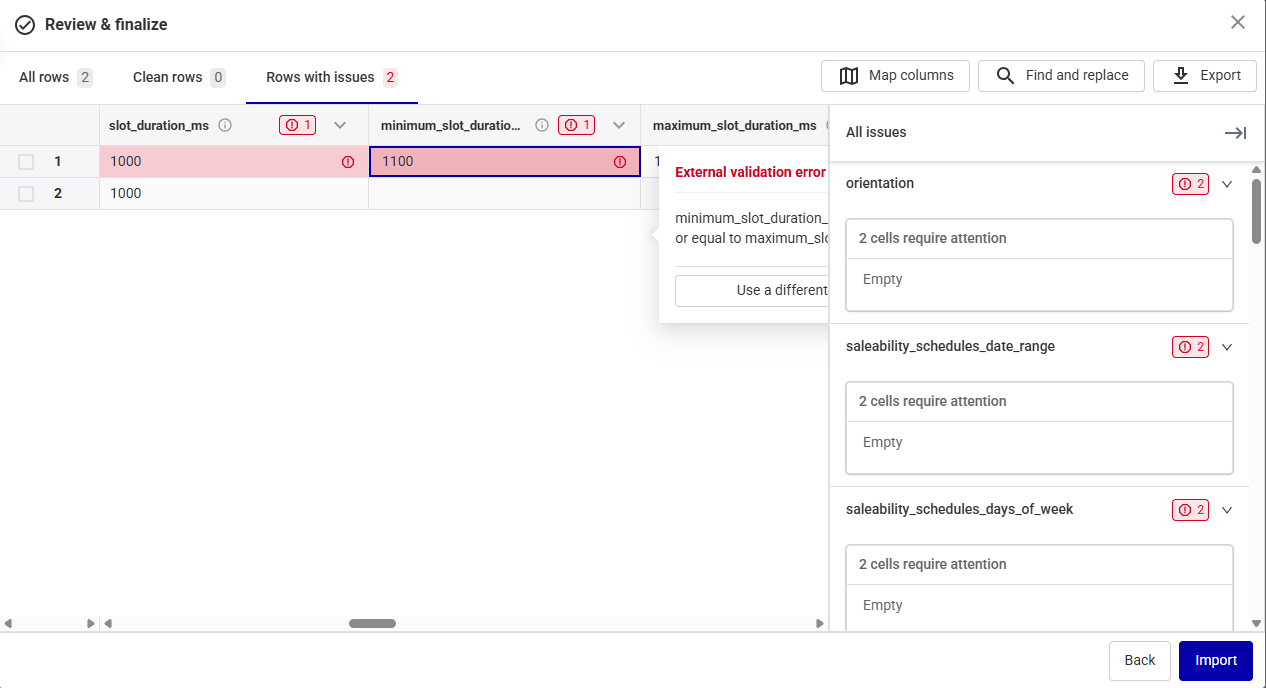
- Dans le volet All issues après avoir cliqué sur l'icône du cercle rouge, qui répertorie tous les problèmes. Cliquer sur un problème vous amène automatiquement à la cellule correspondante dans le fichier importé pour le corriger.
- Corriger les erreurs – Corrigez une cellule problématique :
- Cliquez sur une cellule présentant un problème pour obtenir des informations sur celui-ci et le corriger.
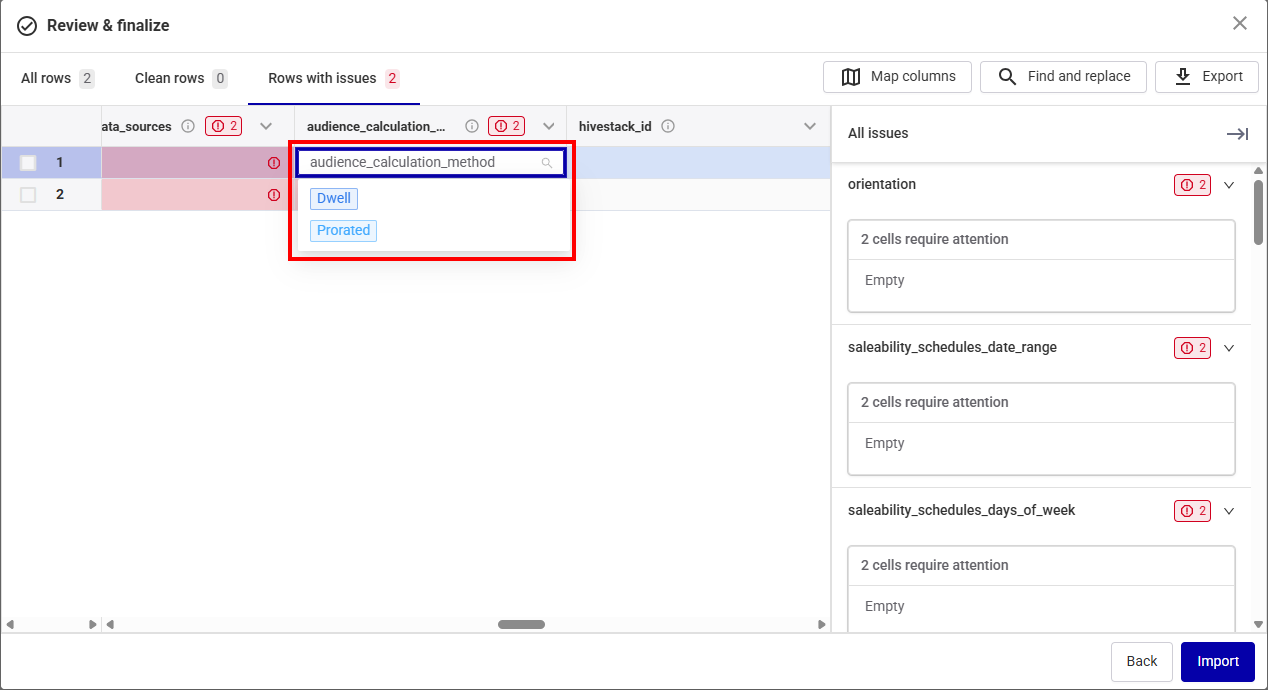
- Double-cliquez sur une cellule problématique pour l'éditer. La cellule affiche les valeurs possibles.
- Saisir les données manquantes – Si des informations sont manquantes, saisissez la valeur correcte dans la cellule correspondante. La cellule s'affiche en rouge si vous saisissez un format incorrect. Une fenêtre contextuelle expliquant le problème apparaît. Utilisez la fenêtre contextuelle pour corriger l'erreur.
- Mapper les colonnes – Si une ou plusieurs colonnes ne sont pas correctement mappées, voir Mapper les colonnes.

Les problèmes dans votre fichier importé sont affichés en rouge à deux endroits :
Mapper les colonnes
Si les colonnes ne sont pas mappées correctement, utilisez le bouton Map columns. Le volet Map columns indique si vos colonnes de données correspondent aux colonnes du modèle requises.
- Si toutes les colonnes correspondent, cliquez sur le bouton Apply mappings en bas de l'écran.
- Si les colonnes ne correspondent pas, sélectionnez la colonne correspondante dans le menu déroulant Template Columns et cliquez sur Apply mappings.
- Pour exclure une colonne de votre fichier, cliquez sur l'icône Delete à côté de celle-ci, puis cliquez sur Apply mappings.

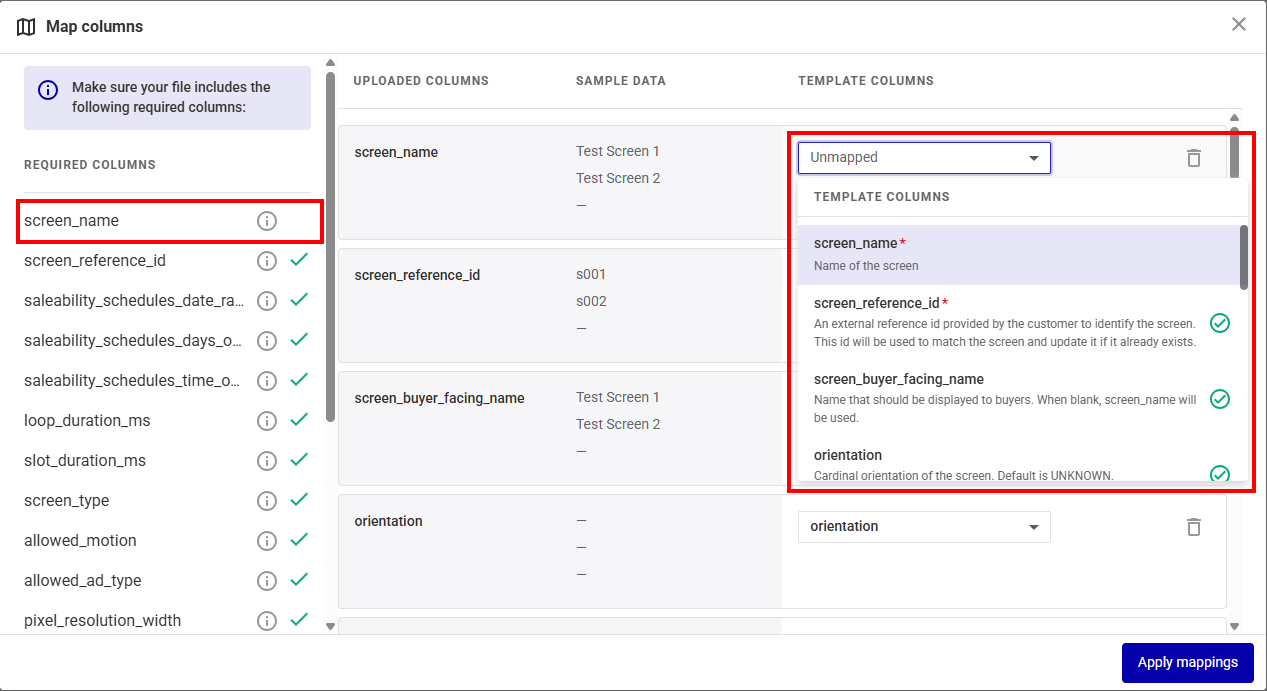
Ceci est utile pour les modèles comportant des colonnes supplémentaires non fournies par Broadsign.
Importer les données
Une fois terminé, cliquez sur le bouton Import.
Si vos données présentent encore des problèmes, la fenêtre suivante s'affiche :

- Cliquez sur Fix remaining errors pour revenir à la page Review & Finalize et résoudre le problème.
- Cliquez sur Import rows pour poursuivre le processus d'importation. La ligne contenant les données problématiques sera ignorée et ne sera pas importée. Les lignes valides seront importées.
La Plateforme Broadsign termine le processus d'importation et affiche votre inventaire d'écrans mis à jour.
Maintenant que vous avez mis à jour votre inventaire d'écrans, vous pouvez effectuer les opérations suivantes :


