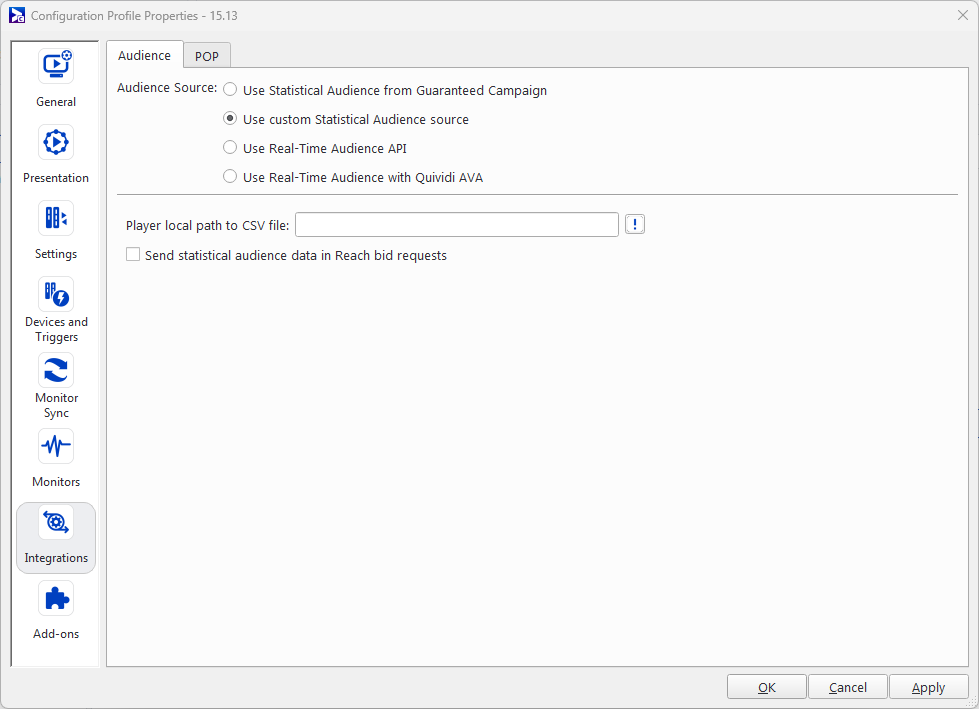
Custom Statistical Audience
The Custom Statistical Audience source allows you to import data from statistics audience modeling (for example, Route, Geopath, etc.). Each playback statistic is then compared against your audience data. As a result, you can generate reports that reflect delivered impressions.
Note: The total number of impressions is cumulative when the players are configured with the statistical audience files per time range. This also applies for the gender and age ranges. See Broadsign POP Log.
Note: The Statistical Audience source is ideal for users of Guaranteed Campaigns (Broadsign Direct) or Broadsign Reach.
The Custom Statistical Audience source is an advanced feature of Broadsign Control Administrator.
Before configuring this feature, ensure that you are familiar with the following:
Your audience file must be in .csv format.
Note: You must follow the format of the audience data file. Otherwise, Broadsign Control Player will consider the file to be invalid.
To open the audience data file:
- Open the audience data .csv (we recommend Microsoft Excel or similar spreadsheet program) or create one from scratch.
- Enter your first-party data.

The .csv file can include up to 30 columns and has the following rules:
- Columns A-N are mandatory (Mandatory Columns) – You can leave columns C-F empty to represent fallback data.
- Columns M-AD are optional (Optional Columns) – You can omit these columns or leave them blank.
- The Header row must be present in the .csv file or Broadsign Control Player will consider the file to be invalid.
- Do not add blank rows between rows with data or Broadsign Control Player will consider the file to be invalid.
- Numbers must not contain spaces.
- Numbers must use the dot "." decimal format.
- Escaping (with quotes) is not supported.
- The column separator is the comma ",".
Note: The .csv file must use the ASCII encoding format.
Mandatory Columns
The following columns are mandatory. They must be in the .csv file and contain relevant data.
Columns C-F contain scheduling information for your screens. It is possible to have more than one schedule per screen.
Note: You can leave columns C-F empty to represent fallback data. If you supply data to columns C-F, they will take precedence.
If using a schedule per screen (you have audience tied to a schedule):
- Keep the default row that does not have any schedule information (the C-F columns must be empty). This row helps to fall back if your start or end date expired or if you forgot a breakdown.
- Create another row with all the schedule columns C-F filled. The Start Date, End Date, Start Time, and End Time fields are mandatory.
| Column Letter | Column Name | Content |
|---|---|---|
| A | Display Unit Id | The unique ID# of the display unit (see Display Units). |
| B | Frame Id | The unique ID# of the frame (see Frames). Enables you to specify different audiences for each frame. |
| C | Start Date |
The date from which the audience data schedule begins. Note: Date format is "yyyy-mm-dd". |
| D | End Date |
The date from which the audience data schedule ends. Note: Date format is "yyyy-mm-dd". |
| E | Start Time |
The time from which the audience data schedule begins. Note: Time format is "hh:mm:ss". |
| F | End Time |
The time from which the audience data schedule ends. Note: Time format is "hh:mm:ss". |
| G | Monday |
Enter "1" if the schedule is active for this day of the week; enter "0" if the schedule is inactive for this day of the week. |
| H | Tuesday |
Enter "1" if the schedule is active for this day of the week; enter "0" if the schedule is inactive for this day of the week. |
| I | Wednesday |
Enter "1" if the schedule is active for this day of the week; enter "0" if the schedule is inactive for this day of the week. |
| J | Thursday |
Enter "1" if the schedule is active for this day of the week; enter "0" if the schedule is inactive for this day of the week. |
| K | Friday |
Enter "1" if the schedule is active for this day of the week; enter "0" if the schedule is inactive for this day of the week. |
| L | Saturday |
Enter "1" if the schedule is active for this day of the week; enter "0" if the schedule is inactive for this day of the week. |
| M | Sunday |
Enter "1" if the schedule is active for this day of the week; enter "0" if the schedule is inactive for this day of the week. |
| N | Total impressions per hour |
Total impressions per hour. Note: You cannot enter the value "0". You cannot enter the character "-" or any other special character. |
Optional Columns
The following columns contain the audience impression data for your screens. You may omit these columns or leave them blank.
A few things to consider:
- The total cannot be "0", but at least "0.01".
- You cannot enter the character "-" or any other special character.
- Numbers must not contain spaces.
- Numbers must use the dot "." decimal format.
- Make sure that the sum of the breakdown matches the audience total and the female/male total.
Note: We do not map the "child" age group.
| Column Letter | Column Name |
|---|---|
| O | Total male impressions per hour |
| P | Total female impressions per hour |
| Q | Total 12-17 Male impressions per hour |
| R | Total 18-24 Male impressions per hour |
| S | Total 25-34 Male impressions per hour |
| T | Total 35-44 Male impressions per hour |
| U | Total 45-54 Male impressions per hour |
| V | Total 55-64 Male impressions per hour |
| W | Total 65+ Male impressions per hour |
| X | Total 12-17 Female impressions per hour |
| Y | Total 18-24 Female impressions per hour |
| Z | Total 25-34 Female impressions per hour |
| AA | Total 35-44 Female impressions per hour |
| AB | Total 45-54 Female impressions per hour |
| AC | Total 55-64 Female impressions per hour |
| AD | Total 65+ Female impressions per hour |
To include audience data in your reports, you must and select the Use Custom Statistical Audience source.
To configure the Statistical Audience source:
- Create a configuration (see Configurations).
- Create a player configuration profile (see Configuration Profiles - Players).
- Open the Configuration Profile Properties, and go to Integrations > Audience (see The Audience Tab).
- Select Use Custom Statistical Audience Source.
- Click OK or Apply.