This page describes how to create a campaign by using the campaign creation wizard.
Note: The Audience Campaigns module is available to users with the Audience Campaign Planner and Audience Campaign Scheduler role.
To create a campaign:
Audience Campaigns
Creating a campaign in the Audience Campaigns module involves the following steps:
- Step 1 – Start the Campaign Creation Process
- Step 2 – Name your Line Order
- Step 3 – Select an Inventory Market
- Step 4 – Set your Audience Targets
- Step 5 – Give your Campaign more Contextual Relevance with Moments (Optional)
- Step 6 – Set a Campaign Schedule and Budget
- Step 7 – Set Line Order Goals
- Step 8 – Set a Line Order Priority
- Step 9 – Upload Your Creatives
When accessing the Audience Campaigns module, you are first directed to the Campaigns tab. You can start a new campaign from there.
To create an Audience campaign:
- Click the New Campaign button at the top right corner of the Campaigns page.
- Select an existing Advertiser (buyer) from the drop-down list, or create a new one.
- The Advertiser drop-down lists the advertisers for which you have created a campaign before. As you type the name of the advertiser, the list filters to that advertiser’s name.
- If this is the first time that you create a campaign for that advertiser, the name does not appear and the Audience Campaigns module informs you that you are creating a new advertiser. This advertiser will be saved and will appear in the drop-down for future campaign creation.
- Enter a Campaign Name. You can optionally enter an External ID for that name.

The campaign creation wizard is displayed.
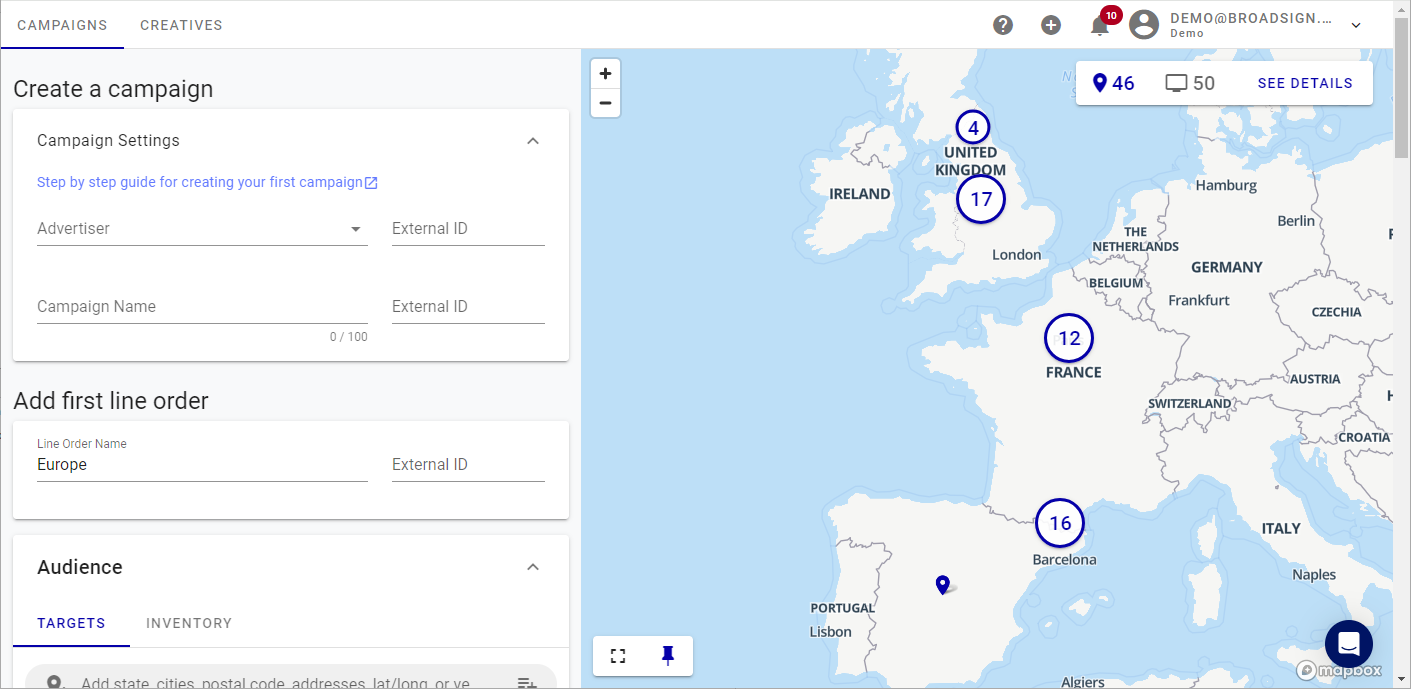
The wizard contains several sections that will allow you to create the campaign. The map on the right will display the screens that you have selected.
You can optionally enter an External ID for that advertiser.
The external ID is any ID that you might use outside the Audience Campaigns module to identify items in internal reports.
Note: The external ID is not generated by the Audience Campaigns module.
You can apply the same external ID to any combination of campaigns or placements, or use a unique ID for every campaign and every placement.
The external ID is any ID that you might use outside the Audience Campaigns module to identify items in internal reports.
Note: The external ID is not generated by the Audience Campaigns module.
Ideally, choose a relevant campaign title and adhere to a naming convention. Doing so will help you search through your campaigns quickly.
The campaign name will appear on your invoice alongside the advertiser name, so you may want to add a contract, insertion order, or reference number.
Here's a good naming example: #IO45364 - Travel Awareness - Q1 2022.
When creating a campaign, you are automatically creating a first line order In the Audience Campaigns module, line orders are within each campaign. These are the guidelines that you give the Audience Campaigns module. You can have multiple line orders per campaign. for that campaign. You can customize this line order by providing a Line Order Name.

You can optionally enter an External ID for that name.
The external ID is any ID that you might use outside the Audience Campaigns module to identify items in internal reports.
Note: The external ID is not generated by the Audience Campaigns module.
You can add multiple line orders for each campaign. For example, you might want a line order by city, region in the country, or day part, all with different settings.
If you need more than one line order, see Add Line Orders to a Created Campaign.
Tip: We suggest that line order names be unique within the campaign.
You can target inventory between five geographical zones:
- Australia
- Canada
- Europe
- United States
- Rest of the world
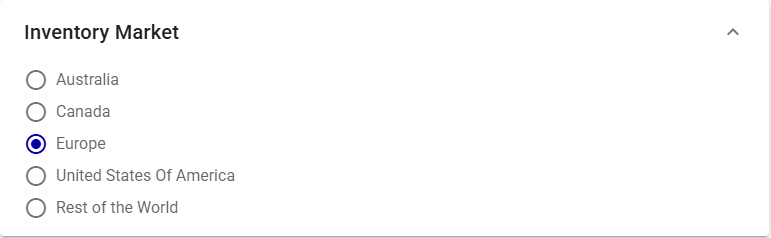
This feature is useful if you have inventory in several geographical zones. For instance, if you have inventory in both Canada and the USA, you would create two line orders, one for each market.
When you select an inventory market, the map view automatically moves to that market and displays the available inventory.
It's time to define who you want to target with your campaign.
Create your audience by refining the location, environment, points of interest (POI), and screen parameters.
The campaign creation wizard offers many ways to define your audience targets. They are all optional. Let's explore them.
The Targets tab allows you to target your audience with all the different ways available.
The Inventory tab displays the screens within the selected publisher's inventory that meet those targeted filters.
For example, if you access the Inventory tab without setting targets, you will see the whole screens inventory. If you have targeted a specific city, you will see the screens inventory available in that city.
You can select specific screens or exclude some screens.
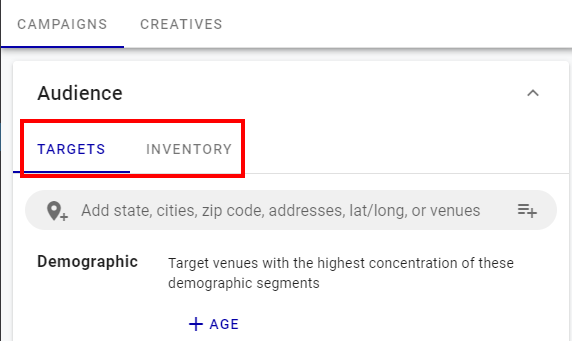
Include or exclude screens near certain locations such as states, cities, zip codes, addresses,
You can enter up to 250 locations in the search field. These locations are listed under the search field. You can then define the radius around which to look for screens.

Bulk Upload Locations
Audience Campaigns
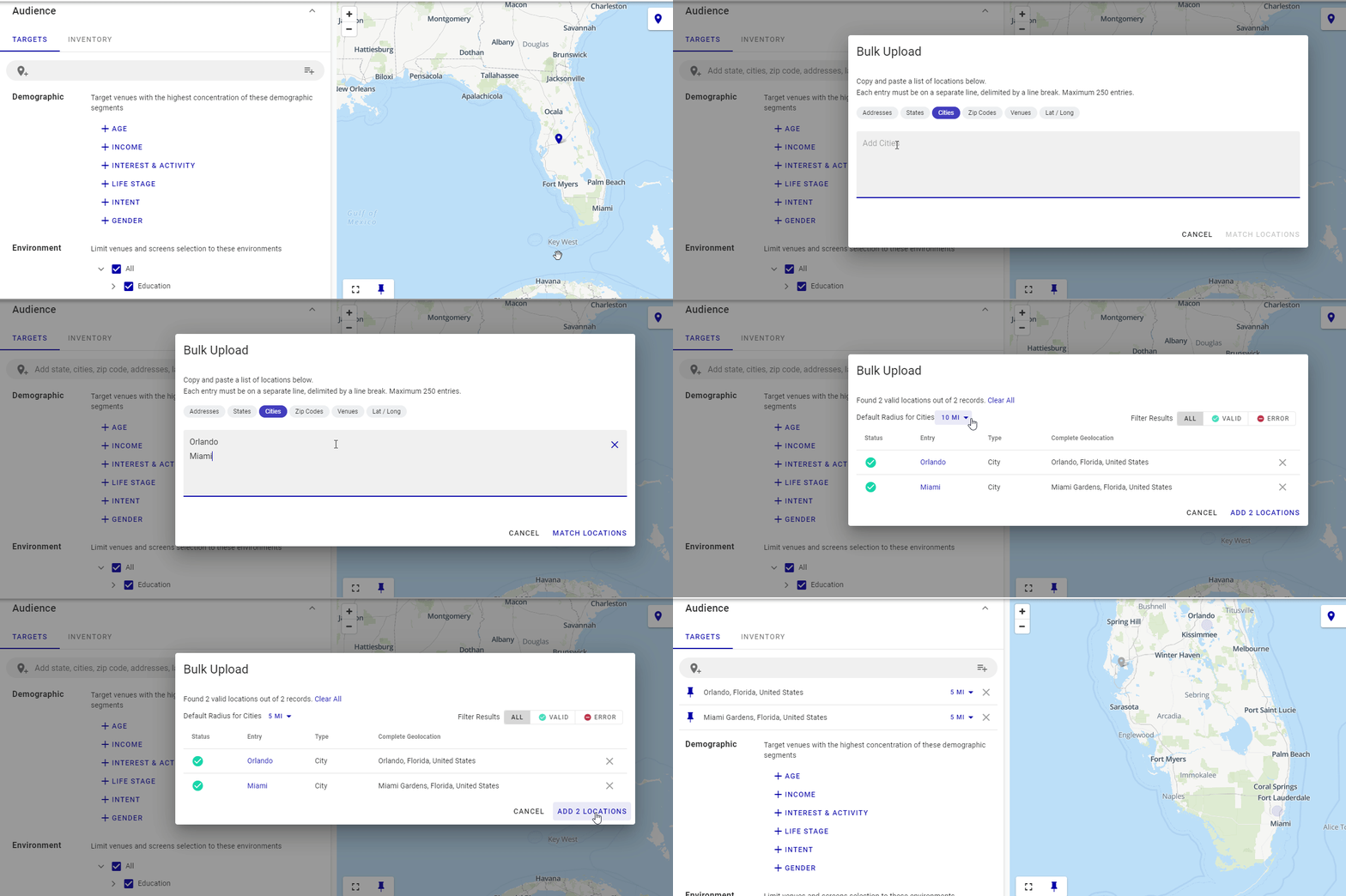
To efficiently add multiple locations to target screens, click the  button in the search field.

The Bulk Upload window is displayed.

- Enter locations using one of the following identifiers:
- Addresses
- States
- Provinces
- Cities
- Zip Codes
- Postal Codes
- Venues
- Screen IDs
- Screen Names
- Lat/Long
- Each location must be on a separate line, delimited by a line break.
- You can enter up to 10,000 locations.
- Once the list is complete, click Match Locations to match your locations with the system data. The Bulk Upload window will display the matching results.
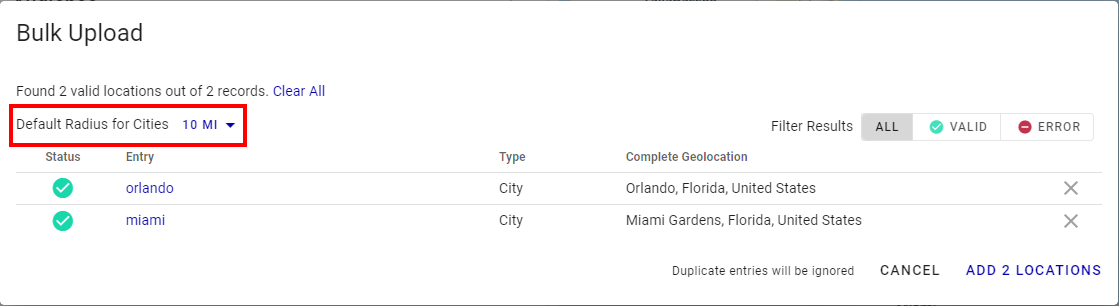
- When available, specify a search radius around each location using the Radius drop-down menu. This expands the search area for relevant screens.
-
Click Add Locations to incorporate the matched locations into your campaign. They will appear beneath the search field.
Export Targeted Inventory
Audience Campaigns
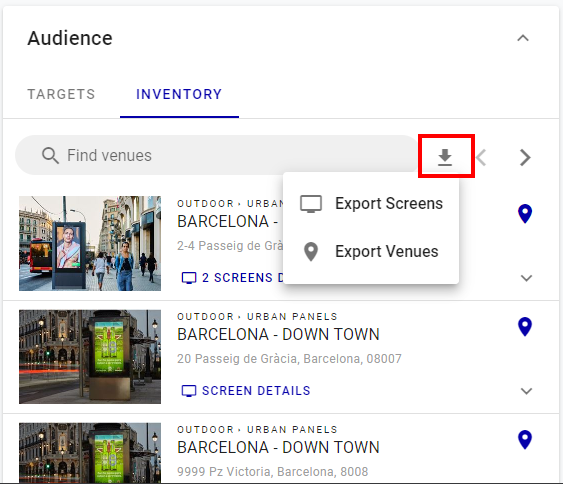
In the Inventory tab of the Audience targeting, you can export the targeted inventory according to the targets that you have set.
You can then use the .csv file to create a programmatic deal via Programmatic Campaigns.
Environment
Audience Campaigns
You can limit venues and screens selection to selected environments. Broadsign offers a wide number of environments. See Campaign Environments.

For example, you could:
- Advertise low interest credit cards to students in campuses.
- Advertise suitcases to travellers in airports.
- Advertise shoes to consumers in malls.
Points of Interest - POI
Audience Campaigns
Points of interest are landmarks or well-known buildings, such as banks, museums, or hospitals. You can include or exclude venues close to points of interest by defining a radius around them.

For example, you could:
- Advertise sunscreen to young families nearby parks.
- Advertise construction material to contractors nearby renovation centers.
- Advertise city attractions to tourists nearby museums.
- Exclude certain venues, for example, when you have an ad for alcohol and want to exclude primary and secondary schools. You do this by clicking the
 button and it will turn red, indicating it will exclude that environment.

You can narrow down the inventory selection by using the following screen parameters:
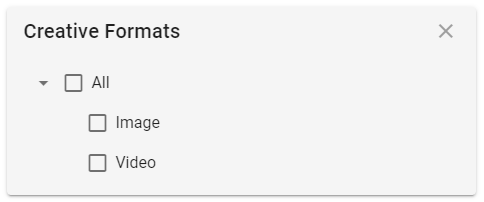
- Creative Format – You can select screens that support only images, only videos, or both formats.
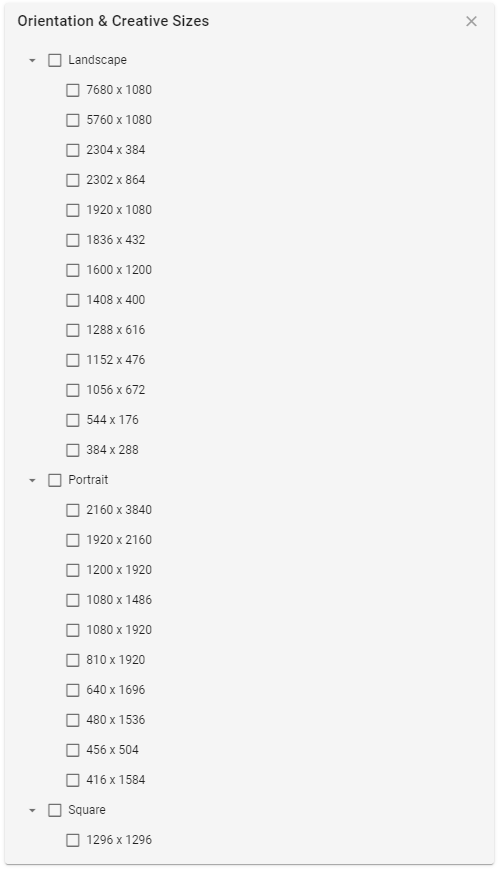
- Orientation & Creative Sizes – You can select screens based on the creative Orientation (Landscape, Portrait, Square) and Size. See Creative Formats.
Moments
Audience Campaigns
Broadsign enables advanced dynamic triggers to sync and adapt your campaign. They are called Moments. When using Moments, you can sync the delivery of your campaigns to these specific triggers. Combining Moments with audience segmentation and environment targeting creates a highly contextual and compelling story.
You can use weather conditions or financial triggers to drive your message home.
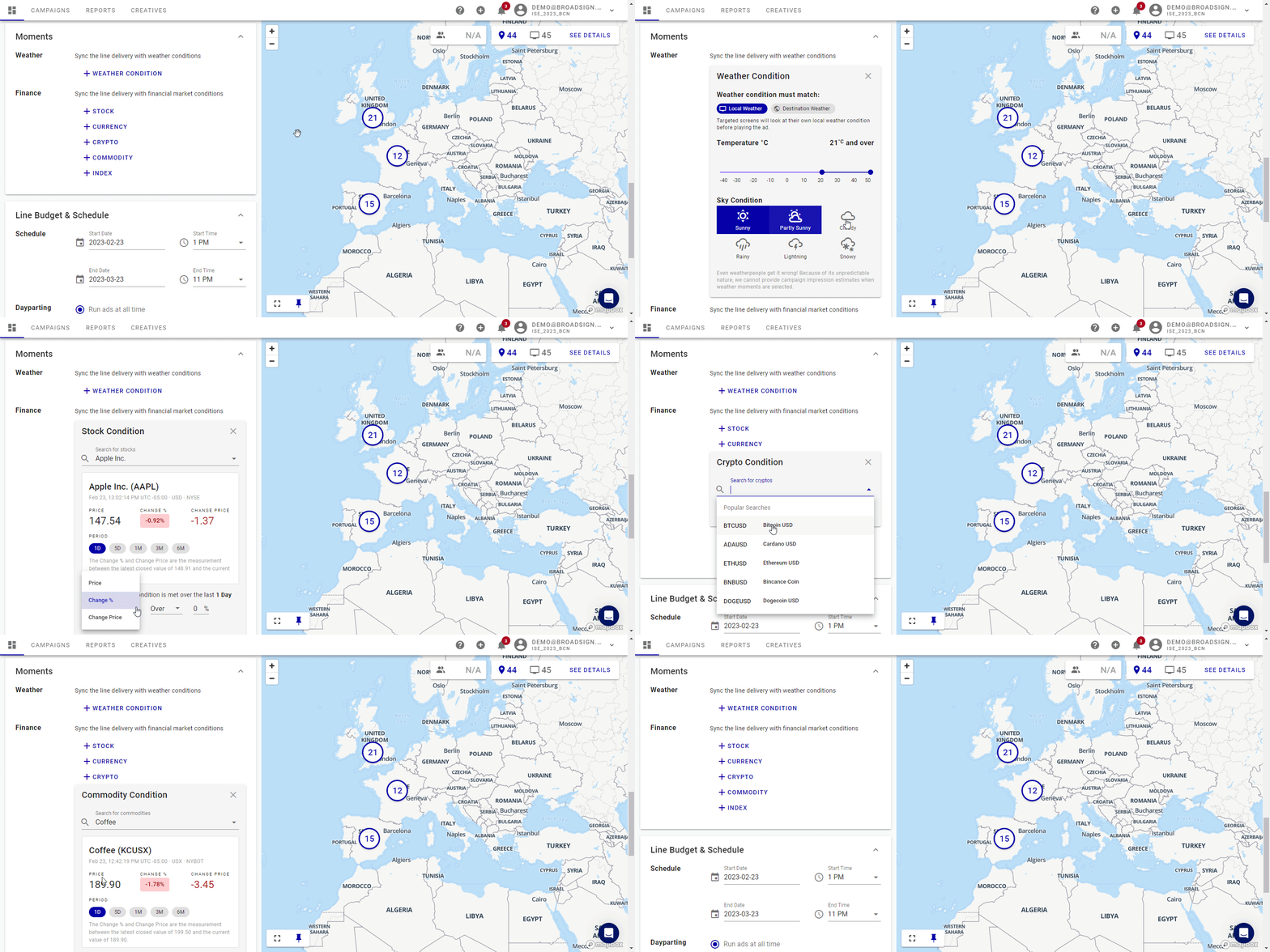
Weather Conditions
You can target screens according to Local Weather or Destination Weather conditions. The targeted screens will check the weather conditions before playing the ad. Parameters include temperature and sky conditions.
Note: Even weatherpeople get it wrong! Because of its unpredictable nature, we cannot provide campaign impression estimates when weather moments are selected.
For example, you could set a Weather Moment to advertise sunscreen to young families nearby parks when the outside temperature is above 20 degrees Celsius on a sunny day.
Finance
You can use the following conditions to set a Finance Moment:
- Stock – Select one of the popular stocks or enter your own. Then define the specific commodity price change when to bid.
- Currency – Select a currency and define the specific currency change when to bid.
- Crypto – Select one of the popular commodities or enter your own. Then define the specific crypto price change when to bid.
- Commodity – Select one of the popular stocks or enter your own. Then define the specific commodity price change when to bid.
- Index – Select one of the popular stock exchange indexes or enter your own. Then define the specific index value change when to bid.
For example, you could set a Finance Moment to advertise trading products to investors when the market is favorable.
Now that you have set your audience and venue targets, the budget and schedule section is the next step.

To set the schedule and budget:
Audience Campaigns
- Enter a start and end date/time.
- Schedule your ads to run all the time or during a specific range using Dayparting.
If you select a range, you can select specific days.
- Set the Budget for your campaign.
- The Budget field represents the total amount of budget for the campaign. Broadsign will try to pace the spending every day evenly.
- The corresponding Fixed CPM value is calculated by using the number of impressions that you indicate in Step 7 – Set Line Order Goals:
- The CPM field is the amount you want to charge for 1000 impressions.
- The corresponding Budget value is calculated to achieve the impression goal you wish to have:
Your impression results will update accordingly by adding your max budget spend or CPM.
You can set your budget two ways.
If you select Specify CPM by budget:
Fixed CPM = (total budget / targeted impressions) * 1000
If you select Specify budget by CPM:
Total budget = (CPM * targeted impressions) / 1000
The Audience Campaigns module currently supports Impressions campaigns. However, you still need to add a target number of impressions for each line order.
Note: The campaign will stop delivering once the number of impressions is achieved.

When creating a campaign, you can specify the priority level of each line order.

When Broadsign receives bid requests, it analyzes the request and identifies eligible campaigns to include in the bid response. Broadsign selects campaigns that are sent in a bid response according to the following criteria:
- Pacing. Only underpacing campaigns are considered.
- Priority level assigned to the campaign.
- Campaign CPM price. Campaigns are ordered according to their CPM price, from highest to lowest.
You can assign three different priority levels to Audience Campaigns Line Order. We recommend to use the Standard priority for most of your campaigns, except when necessary.
- Standard – Use the Standard priority if:
- The campaign is not time-sensitive.
- You plan on revisiting the budget and targeting of the campaign.
- High – Use the High priority if:
- It is a time-sensitive campaign.
- The overall budget is high and the Advertiser is a high-profile customer.
- The campaign is under-pacing.
- Low – Use the Low priority if:
- The campaign is over-pacing.
- The campaign is an “add-on” to an overall campaign.
Last but not least, it's time to upload your creatives to finalize your campaign.
Each line order within a campaign must have at least one associated creative.
A line order can have multiple creatives associated with it. If multiple creatives meet the criteria for a given screen (language, resolution, etc.), the system will randomly select one for display.
See Creative Formats for information on the creative types and formats supported.
Broadsign will automatically generate a list of the formats you need based on your chosen criteria. See Upload Creatives for more details.
You can also save your campaign as a proposal, as described in Create a Proposal.
That's about it. Try it out and see how quick and easy it can be to create your digital out-of-home campaign!
If you are creating a campaign for an existing advertiser with previously uploaded creatives, you can reuse those creatives in your new campaign.
To use existing creatives for a different advertiser, you must re-upload them under the new advertiser's account.
Yes, it is. The reason is that a 30-second creative takes twice the amount of inventory time on the supplier's screen. Therefore, it costs twice as much as a 15-second one.
By default, Broadsign's user interface bids on inventory for a 15-second spot. In the backend, Broadsign converts that number to a max bid per second and then multiplies it by the spot length in seconds needed by your campaign's creative.
Example: A max bid of $10.00 CPM for a 15-second spot will get automatically adjusted to a max bid of $20.00 CPM for a 30-second spot or a max bid of $6.67 CPM for a 10-second spot.
As Audience campaigns need to collect a large amount of data regarding new screens, it can take up to three days for a new screen to appear. If your screen is still not there after that period, please contact Broadsign Services.

