 minute read
Frequently Asked Questions
If you are creating a campaign for an existing advertiser with previously uploaded creatives, you can reuse those creatives in your new campaign.
To use existing creatives for a different advertiser, you must re-upload them under the new advertiser's account.
Yes, it is. The reason is that a 30-second creative takes twice the amount of inventory time on the supplier's screen. Therefore, it costs twice as much as a 15-second one.
By default, Broadsign's user interface bids on inventory for a 15-second spot. In the backend, Broadsign converts that number to a max bid per second and then multiplies it by the spot length in seconds needed by your campaign's creative.
Example: A max bid of $10.00 CPM for a 15-second spot will get automatically adjusted to a max bid of $20.00 CPM for a 30-second spot or a max bid of $6.67 CPM for a 10-second spot.
As Audience campaigns need to collect a large amount of data regarding new screens, it can take up to three days for a new screen to appear. If your screen is still not there after that period, please contact Broadsign Services.
Yes.
In the Broadsign Platform, a screen can be a single screen, a specific frame on a screen, or a group of screens, such as a video wall.
You cannot directly define a screen within the Broadsign Platform; instead, the system imports screen definitions.
When importing Display Units, Frames, and Day Parts from our Content and Network Management solution, the system translates them into screens within the Broadsign Platform. For more information on this process, see On-Board Screens in the Guaranteed Campaigns Module.
Screen Naming Rules (Broadsign Inventory)
The Broadsign Platform generates screen names based on the information provided in our Content and Network Management solution. The platform applies the following rules:
- If there is one Frame, or if there is more than one Frame but only one is sellable:
- Broadsign Platform Screen Name = Display Unit Name
- If there is more than one Frame:
- Broadsign Platform Screen Name = Display Unit Name _ Frame Name
You cannot edit screen names directly in the Broadsign Platform. You must make all name changes within our Content and Network Management solution.
Screen Naming Scenarios (Broadsign Inventory)
For more specific examples of screen naming, refer to these detailed scenarios:
Screen groups allow you to sell multiple screens as a single entity rather than individually. This enables selling based on quantity over specific screens and selling inventory as groups.
- Screen groups cannot be created in the Guaranteed Campaigns module. They are created in and imported from our Content and Network Management solution.
- A screen group consists of display units (screens) assigned the Grouping display unit criteria type. All other criteria types are not supported for creating screen groups.
Note: If a screen is assigned to a Grouping Criteria, it will stop appearing as an individual screen in the Guaranteed Campaigns module.
For more information on how to create a screen group, see the Screen Groups tutorial in the Content and Network Management documentation.
Multiple Screens
- All screens must be associated with the same Grouping display unit criteria type in our Content and Network Management solution.
- The screens are named using the convention: Display Unit Name.
For example, the grouping criteria could be called Car 12345.
Grouping with Multiple Frames – Single Screen
A Display Unit in our Content and Network Management solution can have one or more Frames (different content areas within a single physical display). It is possible to group these frames as one group.
- If all frames have identical Opening Hours and Loop Length settings:
- The Guaranteed Campaigns module treats them as separate screens in the screen group.
- The frames can be grouped together as one group.
- The screens are named using the convention: Display Unit Name _ Frame Name. This helps maintain clarity and traceability.
- For more information, see Scenario with a Screen Group.
Grouping with Multiple Frames – Multiple Screens
A Display Unit in our Content and Network Management solution can have one or more Frames (different content areas within a single physical display). It is possible to group the frames of several screens as one group.
- All screens must be associated with the same Grouping display unit criteria type in our Content and Network Management solution.
- If all frames and all screens have identical Opening Hours and Loop Length settings:
- The Guaranteed Campaigns module treats the frames as separate screens in the screen group.
- The frames and screens can be grouped together as one group.
- The screens are named using the convention: Display Unit Name _ Frame Name. This helps maintain clarity and traceability.
- For more information, see Scenario with a Screen Group.
For example, the grouping criteria could be called Car 12345.
The price of a line item depends on the type of buy used.
The Suggested Price calculation for a Budget Goal-based line item is given by the budget value and calculates the possible achievable impressions using the CPM (Cost per thousand impressions) value set at the rate card level of each screen. For more information, see Add and Edit Rate Cards.
See Budget Goal.
The Suggested Price calculation for Frequency-based line items uses the screen rate card price value, and prorates it based on the Ad Settings and the rate card specification. For more information, see Add and Edit Rate Cards.
Example 1:
Given the following rate card attributes for Screen A:
- Ad flight = 14 Days
- Ad duration = 10s
- Price = $100
The estimated price for a Screen A, for an ad with the following attributes, is $50:
- Ad flight = 7 Days
- Ad duration = 10s
- Frequency = 1 Play per loop
Example 2:
Given the following rate card attributes for Screen A:
- Ad flight = 14 Days
- Ad duration = 10s
- Price = $100
The estimated price for a Screen A, for an ad with the following attributes, is $150:
- Ad flight = 14 Days
- Ad duration = 15s
- Frequency = 1 Play per loop
Example 3:
Given the following rate card attributes for Screen A:
- Ad flight = 14 Days
- Ad duration = 10s
- Price = $100
The estimated price for a Screen A, for an ad with the following attributes, is $200:
- Ad flight = 14 Days
- Ad duration = 10s
- Frequency = 2 Plays per loop
The Suggested Price calculation for an Impressions Goal-based line item uses the CPM (Cost per thousand impressions) value set at the rate card level of each screen. For more information, see Add and Edit Rate Cards.
For example, given the following information:
- Screen A CPM = $5
- Screen B CPM = $7
When the impression goal that you set is 500,000 impressions and it is distributed 300,000 on screen A and 200,000 on screen B, based on the available impressions, the total suggested price would be $2,900 ($1,500 for screen A + $1,400 for screen B ).
See Impressions Goal.
The Suggested Price calculation for the Play Goal uses the fixed price of the rate card associated with the screen selection.
To calculate the price, the system calculates the price of a single play using the following information:
- fixed price
- flight duration
- ad duration on the rate card
- loop duration set on the screen
Let’s take for example a screen with a loop length of 180s, and a rate card with the following information:
- Ad flight = 1 day
- Ad duration = 10s
- Price = $100
For a loop length of 180s, 1 play per loop for 1 day totals 480 plays.
The Suggested Price for a single play for that screen is thus $100 / 480 = $0,21.
The Suggested Price calculation for Fixed SoV-based line items uses the screen rate card price value, and prorates it based on the Ad Settings and the rate card specification. For more information, see Add and Edit Rate Cards.
Example:
Given the following rate card attributes for Screen A:
- Ad flight = 1 Day
- Ad duration = 10s
- Price = $100
The estimated price for a Screen A, for an ad with the following attributes, is $100:
- Ad flight = 30 Days
- Ad duration = 10s
- Share = 16.67% (1 Play per loop)
See Fixed SoV.
The Suggested Price calculation for Average SoV-based line items uses the screen rate card price value, and prorates it based on the Ad Settings and the rate card specification. For more information, see Add and Edit Rate Cards.
Example:
Given the following rate card attributes for Screen A:
- Ad flight = 1 Day
- Ad duration = 10s
- Price = $200
- Screen has a 60s loop length
Given the following rate card attributes for Screen B:
- Ad flight = 1 Day
- Ad duration = 10s
- Price = $100
- Screen has a 60s loop length
By booking a 50% Share of Voice with 10 seconds ad duration, the result is 3 Plays per Loop (PPL).
- Screen A – 3PPL x $200 = $600
- Screen B – 3PPL x $100 = $300
This gives a total of 900$.
Note: Availability and distribution are not taken into account when calculating the Suggested Price for one day.
See Daily Average SoV, Daily Average Per Screen SoV, and Campaign Average SoV.
The Create/Edit Digital Line Item and Create/Edit Static Line Item pages provide clear indicators that your current settings and screen or face selection cannot meet the desired goal.
- Look for the alert in the upper-right corner of the screen, which explicitly states the percentage of your goal that is actually reachable (for instance, 75% of your goal is attainable for each type of buy). For more information, see Goal Achievability Chip.
- Review the summary panel, which will present the maximum number of impressions or reach that the current configuration allows. For more information, see Summary Panel.
- For digital line items, a clear visual warning is present via the availability bar on the left side of the screen, which is also designed to alert you to an insufficient setup. The availability bar differs depending on the type of buy selected. For more information, see Step 4 – Choose Your Line Goal.

To request access to the platform, contact your Partnership Manager or email help@placeexchange.com.
Refer to Logging in to the Place Exchange Portal.
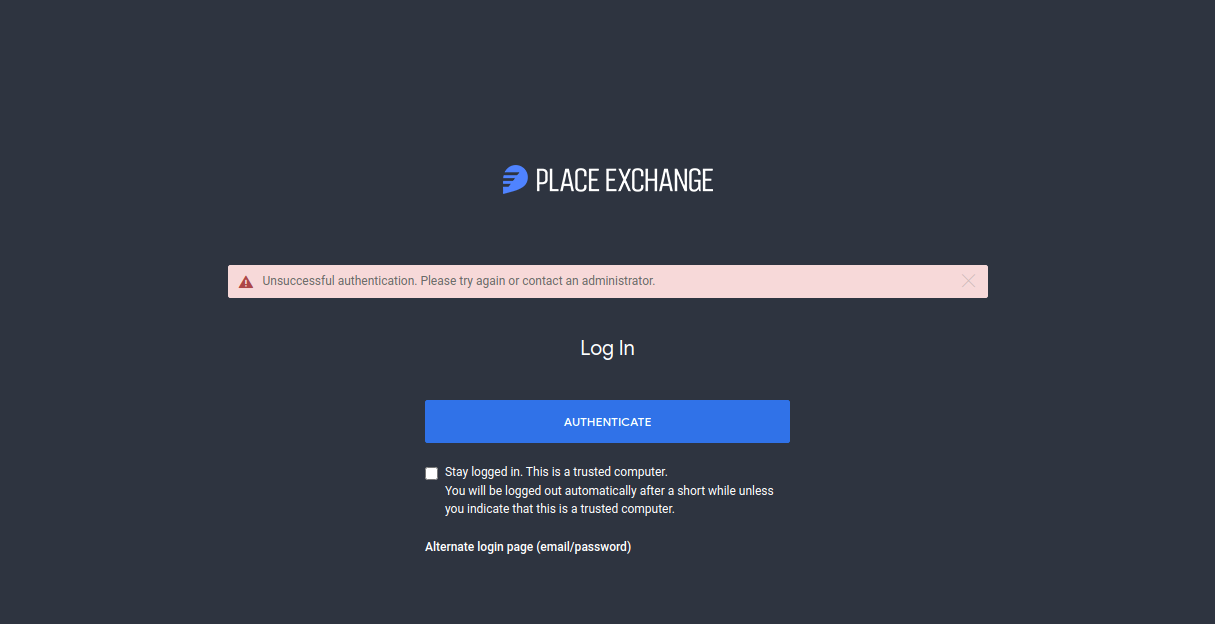
If the system displays the error message shown above after you click Log In, contact your Partnership Manager or email help@placeexchange.com for assistance.
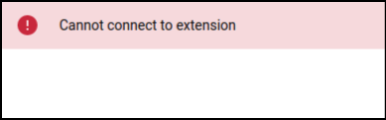
If you have an "Allow CORS" extension enabled on your browser, make sure it is turned off.
Enabling inventory on the Portal automatically synchronizes that inventory with Place Exchange-AODs.
At the moment, the only way to opt out of Place Exchange-AODs is to opt out of Open Auction.
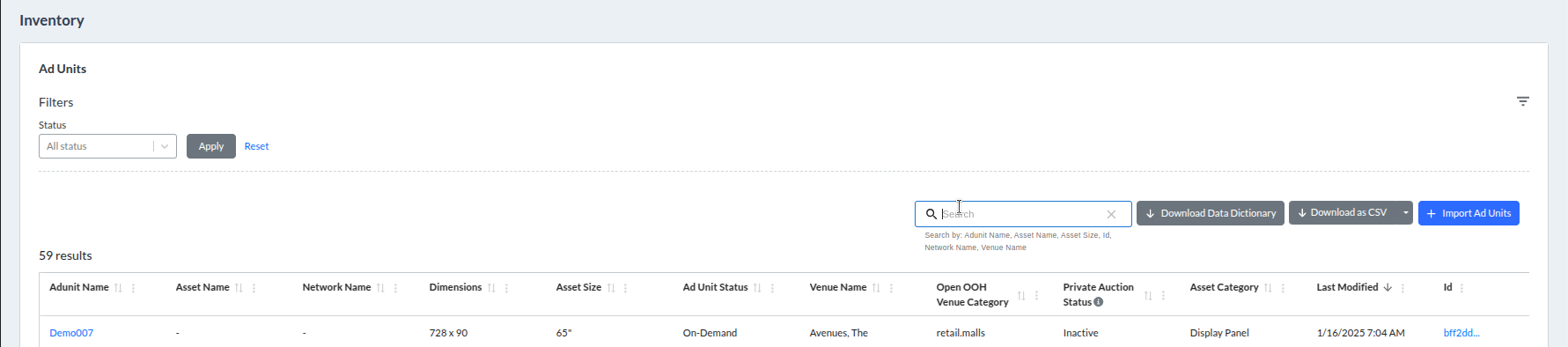
Place Exchange generates Place Exchange-AODs based on the venue categories and asset categories set on your inventory. You can view the Asset Categories and Venue Categories in the Inventory Management section of the Publisher Portal. The system appends the category values with "PLACEEXCHANGE_DOOH_" and "PLACEEXCHANGE_DOOH_".
In the following example, "Demo007" is eligible for Open Auction, and as a result available on Place Exchange-AODs as well. The deals relevant to that adunit are "PLACEEXCHANGE_DOOH_DISPLAY_PANEL" and "PLACEEXCHANGE_DOOH_RETAIL_MALLS".
The Revenue By Day report in the Portal displays the deal name, advertiser, and buyer information for all inventory purchased via Place Exchange-AODs.
Place Exchange uses the auction bid floor set on the ad unit. Publishers can adjust pricing as needed by updating the floor price on the inventory.
Note: Any changes to floor pricing will affect Open Auction as well as Place Exchange-AODs.
Place Exchange sends availability requests to all DSPs enabled for Publishers. However, the buyer's ability to leverage this curation depends entirely on the planning and purchasing tools integrated within each specific DSP.
The following DSPs currently prioritize Place Exchange-AODs for supply access: Adomni, MediaMath, Outmoove, and TTD. Among these partners, Adomni and Outmoove analyze bidstream data to extract planning insights for their buyers, providing a more detailed view of available inventory.
TTD has a "Contract Catalog" that lists a subset of the Place Exchange-AODs, including:
- PLACEEXCHANGE_DOOH_HIGHWAYS_ROADSIDE
- PLACEEXCHANGE_DOOH_HOTELS
- PLACEEXCHANGE_DOOH_MALLS
- PLACEEXCHANGE_DOOH_OFFICE_BUILDINGS
- PLACEEXCHANGE_DOOH_SPORTS_GYMS
- PLACEEXCHANGE_DOOH_STATIONS_SUBWAY
- PLACEEXCHANGE_DOOH_SUPERMARKETS_CHECKOUT
- PLACEEXCHANGE_DOOH_UNIVERSITY
- PLACEEXCHANGE_DOOH_BILLBOARD
- PLACEEXCHANGE_DOOH_DISPLAY_PANEL
- PLACEEXCHANGE_DOOH_KIOSK
- PLACEEXCHANGE_DOOH_SCREEN_TV_MONITOR
- PLACEEXCHANGE_DOOH_VENDING_MACHINE
Note: The venue-based deals in this list are DMI based. The platform will transition these deals to the Open OOH standard via Place Exchange-AODs in a future update.

If the system does not display the expected interface during your initial login, an administrator must configure your account permissions. Contact your Partnership Manager or email help@placeexchange.com to request access.

This generally means that you or your group do not have access to the shared folder. Contact your Partnership Manager, or email help@placeexchange.com and our staff can assist you.
If you want to share specific reports, you can move those reports to your org's shared folder. If you wish to grant access to your personal folder to the group, you can do so by navigating to your folder and clicking on the gear icon in the top right. Click on Manage access and select the user or group to which you wish to grant access.
This generally means that some configuration is missing for your org. Contact your Partnership Manager or email help@placeexchange.com and our staff can assist you.
Share the Deal Token (DSP Deal ID), which is the unique identifier for your Deal on the buy side/DSP.
Ad approval will continue to be available through the standard process, even for deals created in the portal.
Check that:
- You are not logged in to your Sandbox organization.
- You are not using an AdBlocker in your browser.
If upload errors persist after you validate your data, retry the upload in a private browsing window. This action prevents cached cookies and active browser extensions from interfering with the upload process.
Buyers may want to activate a campaign through a single variable-priced deal in the DSP, but target inventory across multiple price tiers. To support this requirement, Place Exchange creates one deal for each price tier and maps it to the same DSP deal ID (deal token). To align internal campaign monitoring perfectly with the buyer's external reporting, the Portal generates all performance reports based on this shared Deal Token.
No. Adding keywords does not change the Approved / Rejected / Pending status of the record. Keywords are a separate metadata field.
Saving with an empty selection will clear all existing keywords from the selected record(s).
No. Keywords only affect bids from the moment they are saved onwards.
Place Exchange now features an auto-mapping tool that simplifies the bulk upload process. The system automatically maps columns and drop-downs in the background and redirects you to the Data Review page immediately after file extraction.
If the system completes the file extraction but fails to redirect you to the Data Review page, verify your file structure. The platform does not support Excel files with multiple sheets. To ensure a successful upload and proper redirection, follow these requirements:
- Use the downloaded Excel/CSV format for uploads without adding or removing columns.
- Ensure the uploaded Excel file contains only a single sheet. You must remove any additional sheets before uploading.
Following these steps ensures a smooth upload process and proper redirection to the Data Review page.
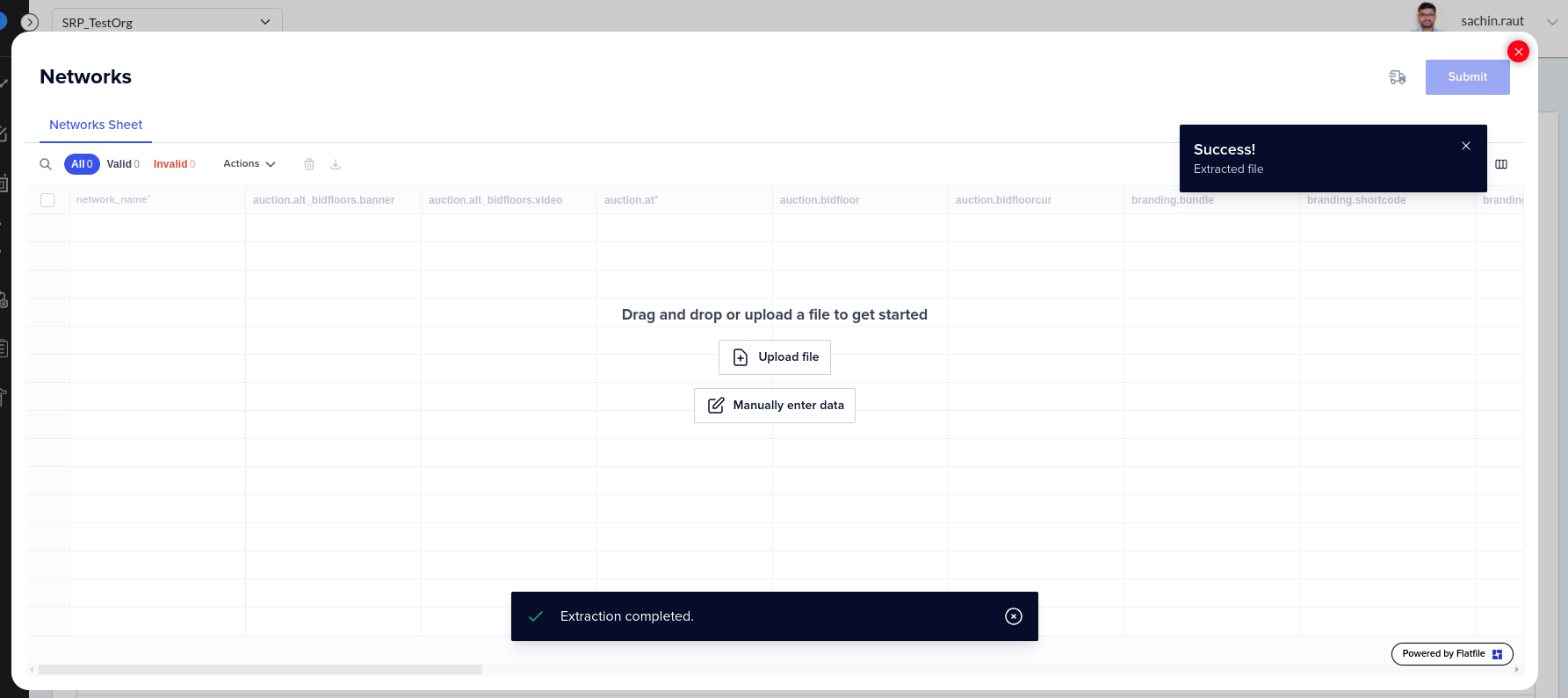
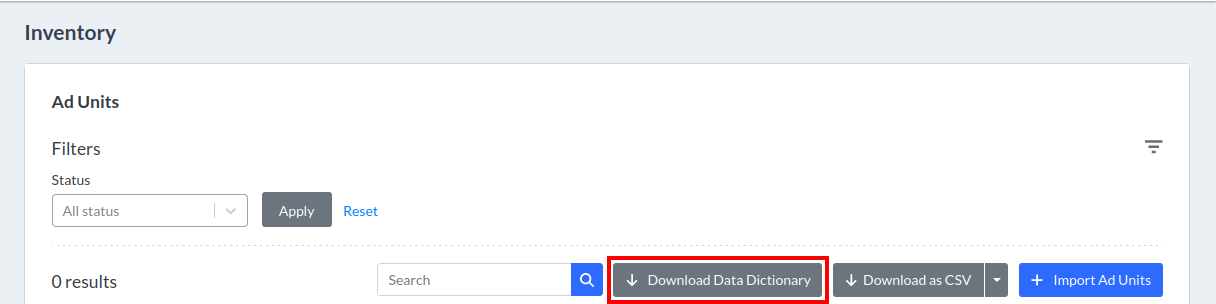
Attributes listed in the table view of this section are ad unit metadata provided to Place Exchange by the media owner. You can access column descriptions and possible values by clicking the Download Data Dictionary button.
Place Exchange now features an auto-mapping tool that simplifies the bulk upload process. The system automatically maps columns and drop-downs in the background and redirects you to the Data Review page immediately after file extraction.
The "Multiple Sheets Found - Showing data from first sheet" pop-up appears after the file extraction process when the uploaded Excel file contains multiple sheets. This message indicates that the system has detected more than one sheet in the file. By default, the data from the first sheet is automatically used for the upload process, and users do not have the option to select or process data from other sheets.
Follow these guidelines for Excel uploads:
- Use the downloaded Excel/CSV format for uploads without adding or removing columns.
- Ensure the uploaded Excel file contains only a single sheet. You must remove any additional sheets before uploading.
- Ensure the uploaded Excel file is in .xlsx or .xls format.
Following these steps ensures a smooth upload process and proper redirection to the Data Review page.
The status field manages the deletion and deactivation of ad units.
- To temporarily deactivate ad units, set them to Inactive (status = 4). This status allows the Sales team to keep these units in active proposals, ensuring you do not miss future revenue opportunities.
- To permanently "delete" ad units, set them to Decommissioned (status = 5). This action effectively removes the units from the system.
Note: Adrequests originating from these adunits will be rejected.
Place Exchange support uses the In-Review status to notify users if incorrect Metadata is registered either:
- On the adunit
- When sent on the adrequest
Note: Once an adunit has the In-Review status, the system rejects all adrequests originating through those adunits until Place Exchange Support updates the status.
For more details, see How The "In-Review" Adunit Status is Used.
The ability to set or reset the In-Review status on an adunit is restricted to Place Exchange support.
Updating the status from In-Review to any other status (such as Pending or Live) or from any other status to In-Review is not permitted.
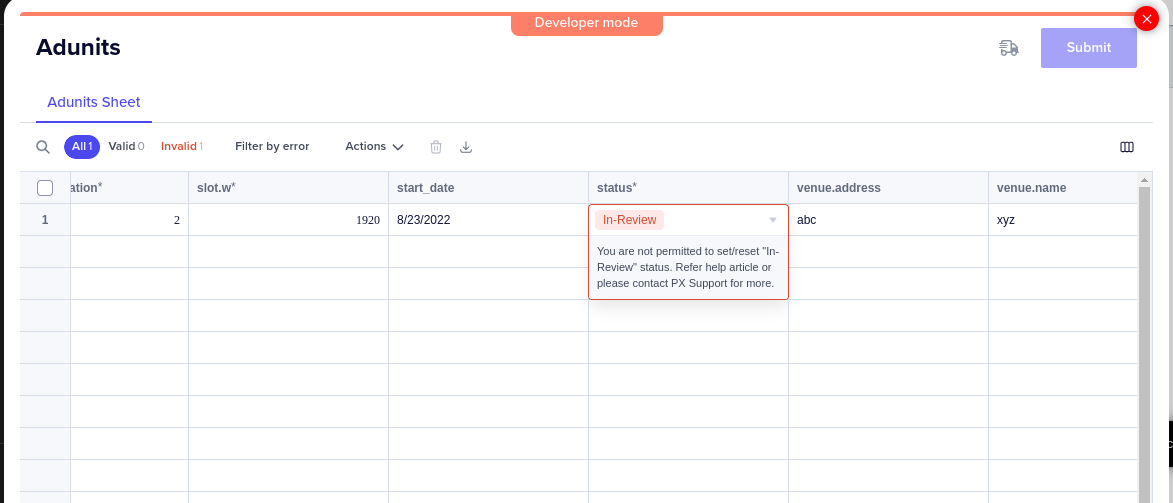
For additional details, see How The "In-Review" Adunit Status is Used.
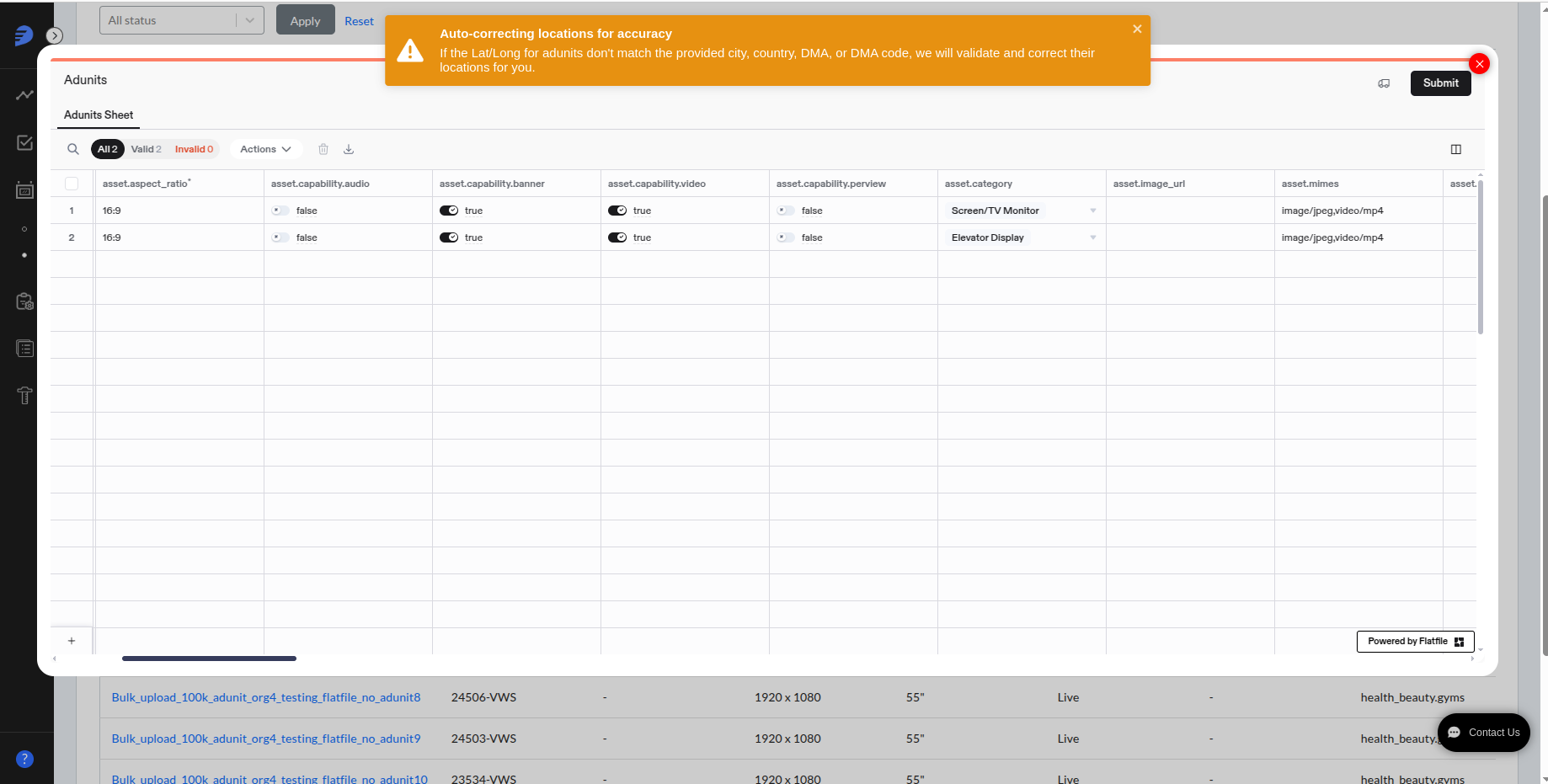
This notification appears only once when a user logs in for the first time from the browser and uploads the adunits. If the latitude and longitude for the adunit do not match the provided city, country, DMA, or DMA code, Place Exchange will validate and correct their location and store it in the system. This notification serves to inform the user about this feature.
The system determines the asset.aspect_ratio by dividing the width of a given slot by its height:
asset.aspect_ratio = slot.width / slot.height
After calculating this ratio, the system applies a ±10% margin. The platform validates the asset if its ratio falls within this specific range; otherwise, the system triggers a validation error and rejects the upload.
Example:
- Let's say that we have a slot with the following values:
- slot.width = 448
- slot.height = 768
- The system calculates the
asset.aspect_ratio:- Actual Aspect Ratio=768/448=0.58
- The system calculates the
asset.aspect_ratiomargin:- 10% of 0.58 = 0.058
- The acceptable range is thus:
- Minimum: 0.58 - 0.058 = 0.522
- Maximum: 0.58 + 0.058 = 0.638
- Valid
asset.aspect_ratioexamples:- 7:12 : 7/12 = 0.583 (falls within the acceptable range)
- 9:16 : 9/16 = 0.5625 (falls within the acceptable range)
- 5:9 : 5/9 = 0.555 (falls within the acceptable range)
- Invalid
asset.aspect_ratioexample:- 1:5 : 1/5 = 0.20 (not within the acceptable range of 0.522 to 0.638)
The system displays the following validation message for the invalid asset.aspect_ratio : "1:5: Aspect ratio should match slot width/height. Provide correct values for width, height, and aspect_ratio. The nearest ratio is 7:12."

The asset.dynamic_creative field identifies inventory suitable for dynamic creative campaigns.
The field can have one of the following values:
- Certified – Place Exchange has verified that the inventory supports dynamic creatives.
- Not Certified – Place Exchange has not verified support for dynamic creatives.
- Blank – This is the default value when no data is provided.
Access to asset.dynamic_creative is restricted by user role. Only Super Users can edit the asset.dynamic_creative column during import.

A Geo Segment functions as a unique technical object that integrates four key data points to enable Reach, Frequency, and Impression (RFI) measurement:
- an Ad Unit ID
- a measurement provider (for example, PerView)
- an audience segment (for example, adults age 16+)
- a geographic region (for example, Atlanta DMA).
The system automatically generates the "name" for each segment by concatenating these four fields.
Currently, the platform generates Geo Segments exclusively for Place ExchangePerView clients and assigns "PerView" as the Provider value. Future updates will expand this capability to include segments imported from other measurement service providers.
For detailed field specifications, consult the Geo Segment API Documentation.
Contact your Place Exchange Partner Manager if you have questions regarding the PerView product or wish to enroll as a PerView customer.
Yes. A given Ad Unit can have more than one Geo Segment associated with it, even from a single measurement provider.
For example, Ad Unit 123 can have the following Geo Segments:
- for PerView for the Adults 16+ segment in the Atlanta DMA
- for PerView for the Adults 16+ segment in the state of Georgia
- for the Men 16+ segment in the Atlanta DMA
No. A Geo Segment is a technical object designed for RFI measurement. It integrates four specific data points: an Ad Unit ID, a measurement provider, an audience segment, and a geographic region.
While PerView currently serves as the primary RFI measurement provider for creating these segments, the system architecture allows for additional RFI measurement providers. Future updates will expand support to include other RFI measurement partners, enabling them to generate Geo Segments within the same framework.
Geo Segments include values for hourly impression multipliers, which measure the number of impressions generated if an ad is served during a particular hour of a given day of the week. Previously, the Place Exchange platform used a publisher-provided fixed value for the impression multiplier. We are now in the process of extending the support for real-time values to also include pre-configured variable hourly impression multipliers, including from PerView. Check back soon for updates.
To download Geo Segments effectively, your system must have at least a dual-core processor and a minimum of 8GB of RAM, with at least 4GB free for optimal performance.
Insufficient hardware can lead to slower download times, system freezes, or crashes, especially if other applications are running.
If you meet the system requirements and are still facing issues with the downloads, contact our support team for assistance.
The inventory and avails data is refreshed on a nightly basis.
Place Exchange uses data coming from the bidstream that has a lookback window of 4 weeks.
- Four_week_impressions = Estimated number of people who are exposed to a play over 4 weeks based on registered values from publishers.
- Bidstream_impressions (recommended) = Actual analyzed data from the last 28 days worth of impressions.
- United States – The platform sources premium segments data from Claritas.
- United Kingdom and Canada – GoldfishAds supplies the segments for other countries.
The data from our Search POI Database comes from Open Street Map.
The following export options are available:
- Preferred Ad Format – The most effective format based on the top 12 global formats. The system determines this preference by analyzing Impression volume, slot dimensions, and ad format usage over the previous 12 months.
- Slot Dimensions – The specific size and dimensions of ad placements or ad units on a screen.
- Ad Formats – The specific layout or presentation style of an advertisement. It defines how the ad is designed and displayed to the audience on the screen.
If you have an address list, you can convert it into latitude and longitudes in one of two ways:
- Use a bulk geocoding service to convert addresses to latitude and longitude, such as geocode.io.
- Search the address in Google Maps, right-click on the pin on the map, and grab the latitude and longitude from there.
This generally means that either you are trying to pull a lot of data at once, or there are multiple users from your organization accessing reports at the same time. To resolve this issue, either update the Date filter to a smaller range, or retry after some time. If the issue still persists, contact your Partnership Manager or email help@placeexchange.com.
The Play Return Rate measures the percentage of winning bids that successfully return a confirmed play notification from the publisher. This calculation includes only the bids that win the Place Exchange auction and which the system subsequently passes to the publisher as ad responses.
After publishers win a Place Exchange auction and receive an ad response, they must play the ad and send a play notification to the platform. The system uses these play notifications to process and issue publisher payouts for the displayed ads.
This simplified illustration demonstrates the interactions between publisher systems, the Place Exchange platform, and the Demand-Side Platform (DSP).
| Term | Description |
|---|---|
| Adrequest | A request from the Publisher that signals an opportunity to play an ad on that ad unit. |
| Bidrequest | A request to the DSP with details of the inventory and deals (when applicable) on which they can bid. |
| Bidresponse | A response from the DSP that indicates that the bidrequest meets an advertiser’s criteria for an ad campaign, and includes details about the campaign. |
| Adresponse | The system sends this response to the Publisher to indicate that an auction resulted in a winning bid. This response contains the ad creative that the Publisher displays on their screens. |
| Play | See above. |
| Win | The system sends this notification to the DSP to indicate that they have a winning bid and that the ad has been played. |
When Publishers unify demand from multiple sources or run internal campaigns that compete with Place Exchange programmatic ad responses, the play return rate naturally falls below 100%.
Conversely, Publishers relying exclusively on Place Exchange demand should maintain a play return rate at or near 100%. Occasional network issues might cause minor, temporary drops to approximately 99%. These minor fluctuations require no administrative action unless the degradation persists.
During troubleshooting, administrators can evaluate the Week Over Week (WoW) change in the play return rate to identify potential system issues quickly.
Publishers must check a few areas within their internal systems:
- Demand Unification/Secondary auction – If they are participating in another SSP’s mediation solution, or running a secondary auction, a winning Place Exchange deal might lose the downstream auction. As a result, the play return rates within Place Exchange drops. While this explains the lower play return rate, it is important that the Publisher aligns the drop with wins downstream to ensure no other issue is causing the drop. In addition, if there is a large drop or Place Exchange is consistently losing, there is an opportunity to have the buyer increase their bid prices to ensure a competitive bid.
- Secondary ad approvals – If a Publisher has approved the ad in Place Exchange but is still waiting for secondary approvals in their system, the winning creative will not be played. It is best to ensure secondary approvals can be completed as quickly as possible.
- Creative separation – Some publishers ensure there is a time delay before the same ad is played again. If the same creative wins an auction in Place Exchange within that time window but the Publisher chooses to not play it, the play return will drop as expected.
- Publisher enforced timeouts – If a publisher enforces a hard time out for SSPs to return a response, it is possible that Place Exchange sends an ad response that is disregarded. This can cause a drop in play return rates from Place Exchange's perspective. In these cases, we need to investigate the source of the latency. Contact help@placeexchange.com.
- Place Exchange timeouts – Depending on the Publishers’ tech stacks, the play notifications sent to Place Exchange might be delayed beyond the expected time windows set for certain Buyers. This requires further investigation into the Publishers’ systems to see whether these were one off delays, or require tech upgrades on the Publisher’s side. Contact help@placeexchange.com.
- Network/API Issues – Play notifications sent by the Publisher can be delayed due to network issues, or rejected due to errors in the API requests. Contact help@placeexchange.com for further assistance troubleshooting.
Publishers only get paid for play notifications that Place Exchange receives. Depending on the DSP, a campaign with a low play return rate can run into:
- Pacing issues – Some DSPs have issues pacing campaigns if they do not see a response back to their bid response.
- Drop in bids – Some DSPs automatically stop bidding on supply that they have a low chance of winning.
If the low play return rate is due to the Publisher running secondary auctions or participating in demand unification with another SSP, they are not losing revenue. But in all other cases, that Publisher is likely losing out on spend.
Yes, it is possible to see a play return rate of more than 100% in the following cases:
- When a user filters the reporting data to include the current date, the play return rate may exceed 100% until the system completely processes the hourly data. This temporary anomaly lasts only a few hours. To prevent this confusion, users should exclude the current date from their filters.
- If a past date displays a play return rate exceeding 100%, duplicate play records caused the inflation. This rare occurrence remains within the standard 3% discrepancy threshold.
Many of our drill down views contain a column for the Buy Side Fees Amount. When you come across a view where you see the Buysidefees Amount, you can drill into it to get more details about the underlying data.

You can also use the BuySideFees Records explore in the Advanced Analytics to get detailed insights into the Buy Side Fees data.
Check the Reports > Custom Reports from the left side navigation menus. You can also try searching the dashboard or look name in the Custom Reports table view.
Yes, if you have the right permissions. Click the three-dot menu next to the report in Custom Reports.
If it has been a long time since you logged in, some custom reports may have been archived. Contact help@placeexchange.com and we can help you restore them.
Most Demand-Side Platform (DSP) partners, including TTD, Ubimo, Yahoo, Outmoove, and TPS Engage, plan or target campaigns using the OpenOOH Taxonomy. Place Exchange notified all DSPs and Publishers regarding the transition from DMI to OpenOOH venue categories.
The following list details the available categories in the latest version of the Place Exchange-supported standard. The Portal's Data Dictionary and the official API documentation also provide this information.