 minute read
This page describes how to properly use the Publisher Portal of the Place Exchange platform.
The sidebar on the left allows navigating through different sections of the portal.
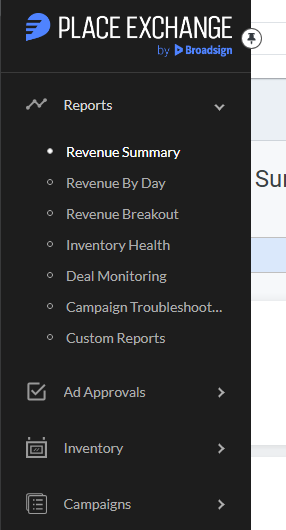
The sections allow you to access the following information:
- Reports
Available reports include:
- Revenue-related reports:
- Inventory-related report:
- Campaign-related reports:
- Placement-related report:
- Ad Approvals
- Inventory
- Campaigns
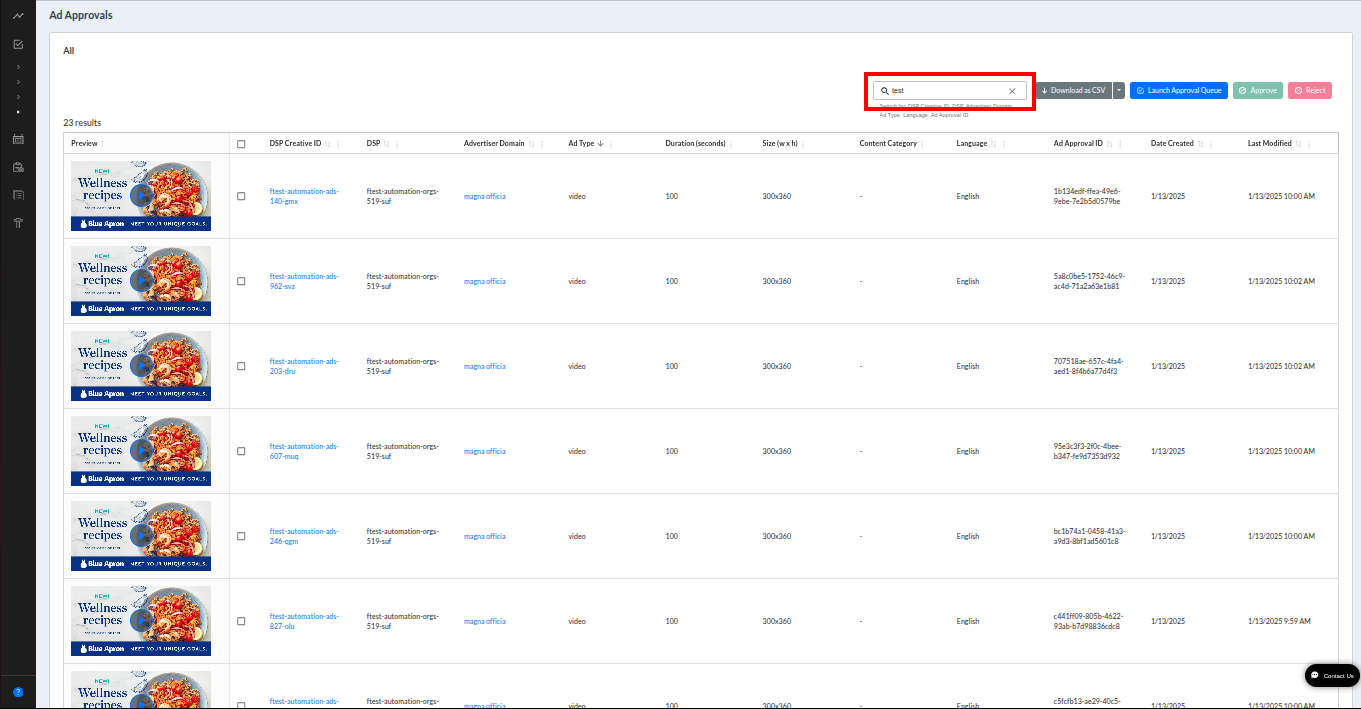
Most pages in the portal contain tables that provide a search bar to filter records. For example, the Ad Approvals page provides a search bar above the table.
Sorting
You can sort most table columns by clicking the column heading. Arrows located to the right of each heading indicate the current sort status:
- Upward arrow: Ascending order
- Downward arrow: Descending order
- Bidirectional or dimmed arrow: Unsorted
Each click on the heading toggles the sort direction or clears the sort entirely.

Pagination
The system paginates tables containing large data sets to improve load times and readability. Use the navigation controls located below the table to move between results pages or skip to a specific page number.
Searching
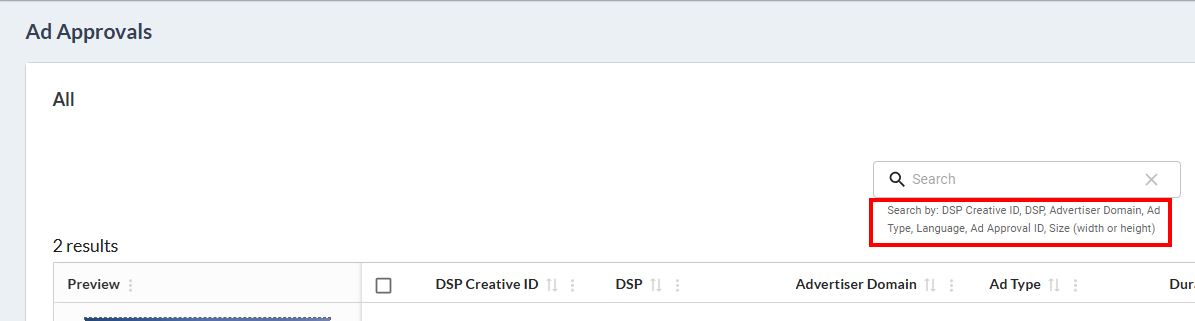
The search engine identifies records that contain your search term, regardless of capitalization. For example, the system finds a record with the identifier "XRBVrytsjF" if you search for either "RBV" or "rbv." The Portal displays a list of searchable fields directly below the search bar to help you narrow your query.
The Portal also embeds your search term directly into the browser URL. If you enter "1080" in the Ad Approvals search bar, the URL updates to include that term:
https://app.placeexchange.com/orgs/2bd89f12-2073-4426-9e8b-86366e097b68/adapprovals/summary?audit__status=all&search=1080
This URL persistence allows you to perform the following actions:
- Bookmark the URL in your browser for quick access to specific search results.
- Share the URL with team members so they can view the exact same filtered page state.
Download Data Dictionary
Place Exchange
The table view for the Inventory sections of the Publisher Portal lists attributes, which serve as metadata provided to Place Exchange by the media owner. You can access column descriptions and possible values by clicking the Download Data Dictionary button.
When you click this button, the system downloads an Excel sheet that describes all available columns. This Excel sheet specifically covers the data on your current page.
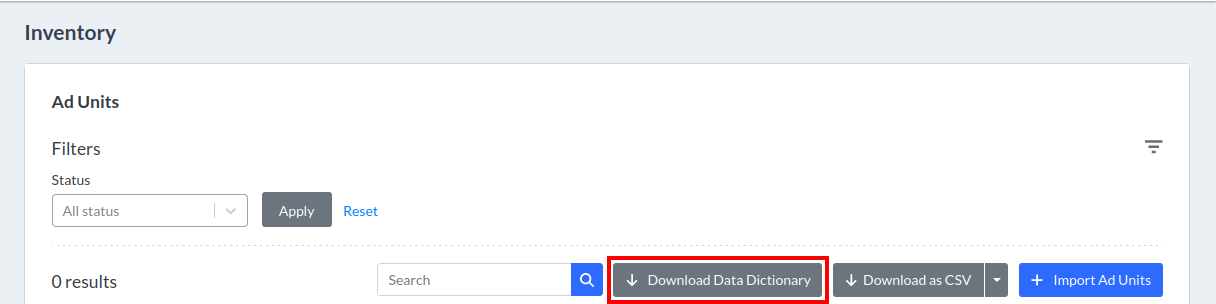
You can also download the Data Dictionary.
Two primary support features assist you within the Portal:
- The Help icon (?) in the bottom-left corner opens a help article in a new browser tab. This feature provides documentation contextually relevant to the page you are currently viewing.
- The Contact Us chat bubble in the lower-right corner lets you submit specific requests or questions directly to the Place Exchange Support team.
