 minute read
This page provides a step-by-step guide for Publishers to manage deals one at a time in the Portal. For an overview of deals in Place Exchange, refer to Deal Management.
Publishers can create deals one at a time or in bulk by entering the following information:
| Field | Description |
|---|---|
| Deal Type |
Use this field to specify the campaign type when you create a Deal.
Default value: Custom Note: Deal types cannot be altered after deal creation. |
| Name |
This identifier references the deal and routes traffic within your system. Create a descriptive deal name so you can easily recognize its purpose and application. For example, you can name deals dedicated to a specific campaign directly after that campaign. For evergreen deals that span multiple campaigns, include the buyer or a specific pricing tier in the name. Tip: Keep the name descriptive. Do not use spaces or special characters. Sample value: Note: The Place Exchange sales team reserves the |
| Auction Type |
This setting determines how the system calculates the final clearing price. The system currently supports the following types:
To understand how the auction type affects the auction, see Auction Logic. Sample value: |
| Floor Price |
The minimum price (expressed as a CPM) at which the publisher is willing to sell an impression. In the case of Fixed-Price deals ( Sample value: 3.50 |
| Field | Description |
|---|---|
| Allowed Domains (wadomain) |
This setting defines the subset of buyer landing pages permitted to bid on a deal. Sample value: |
| Allowed Buyers (wbuyer) |
This setting defines the subset of DSPs that receive the deal and can bid on it. Although this field remains optional, we highly recommend using it when you need to protect confidential pricing or business terms. Through the portal, you can only configure deals for non-sandbox buyers. To set up deals for a sandbox buyer organization, use the API or contact help@placeexchange.com. Sample value: Default value: |
| Allowed Seats (wseat) |
This setting specifies the subset of "seats" within a DSP that can access a deal. Typically, a "seat" represents a customer who holds a contract with a DSP. However, very large agencies and holding companies might control multiple seats. Furthermore, not all DSPs use the concept of seats or make their seat assignments public. Fortunately, most agency and brand buyers can provide their seat assignment upon request. Apply seats only when you select a single DSP, because seat names might collide across different platforms. Sample value: 1234 Default value: |
| Priority |
You can set a deal's priority to determine the auction outcome. This field provides five integer-based priority levels. To simplify the experience, the portal displays these underlying integers as human-readable values.
Sample value: High Default value: Medium For API documentation and usage, see Deal API documentation. For more information on deals, see Understanding Deal Prioritization. |
| Currency |
The currency of the bid floor used when processing the transaction. Sample value: Default value: Based on organization |
| Floor Price Buffer Percentage |
Due to fluctuations in foreign exchange rates between Place Exchange and DSPs, bids may occasionally fall below the floor, leading Place Exchange to exclude them from the auction. Publishers can set up a Floor Price Buffer Percentage to allow bids within a certain margin of error of the bid floor to participate in the auction. The Floor Price Buffer Percentage is the percentage below the bid floor that bids will be let through:
If you want to configure Floor Price Buffer Percentage across all Deals at organization level, contact your account manager. If Floor Price Buffer Percentage are set both at the organization and deal level, then the Floor Price Buffer Percentage on the Deal overrides the one on the Org. Sample value: 5.00 |
| Status |
Use this setting to classify the type of contract. Sample value: Default value: |
| Notes |
Free form text field for adding notes related to the deal. Sample value: https://placeexchange.my.salesforce.com/Deal_C |
To create a single deal:
Place Exchange
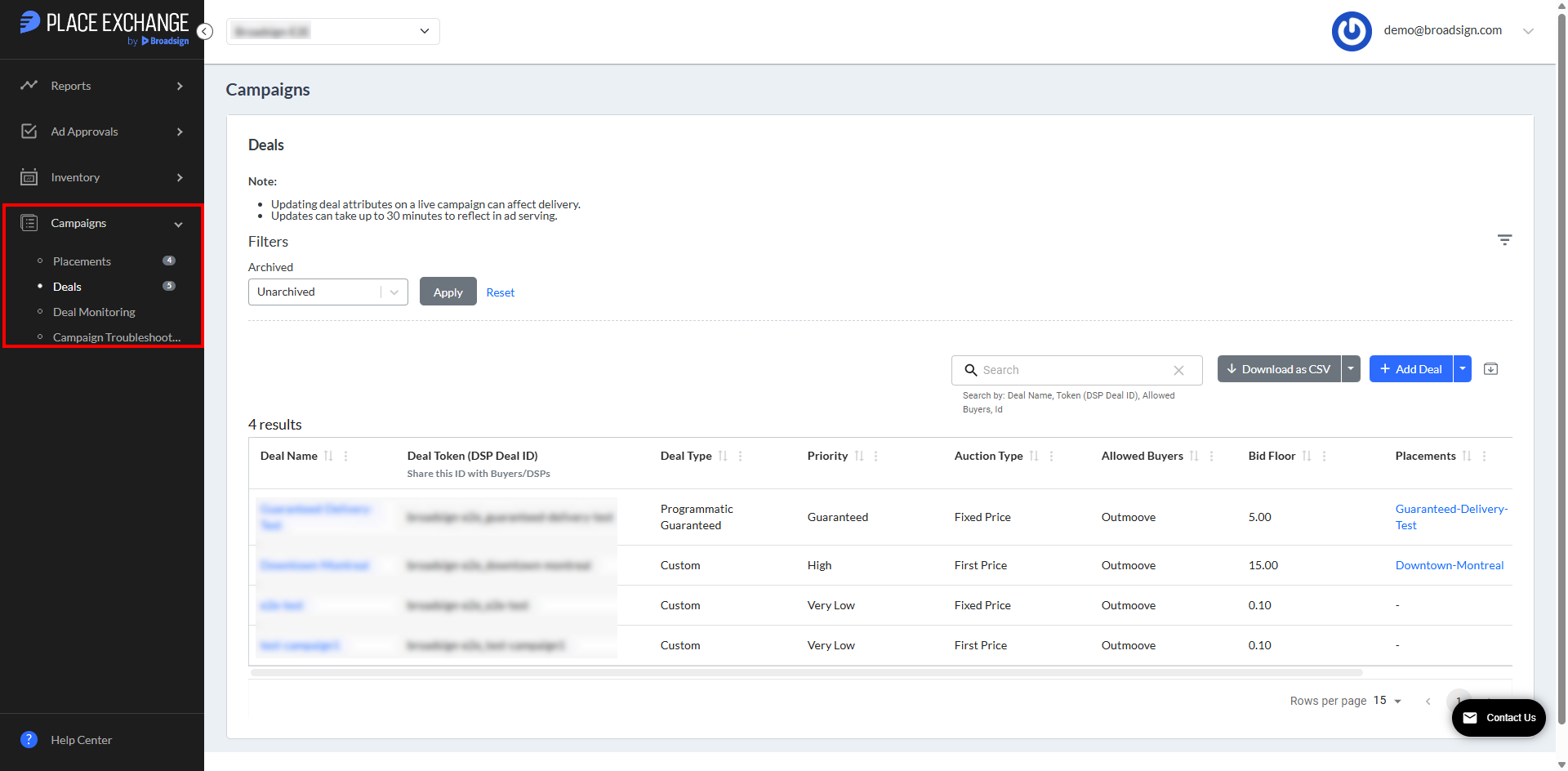
- Access the Place Exchange Publisher Portal and select Deals under the Campaigns menu on the left.
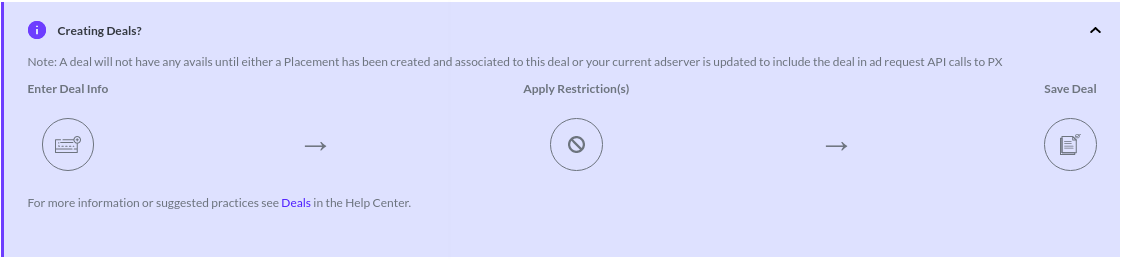
- Click the Add Deal button to open the Add Deal page.
- Select a Deal Type.
- Set the Deal Information.
- Define the Price Floor information.
- Select Restrictions.
Deal Type
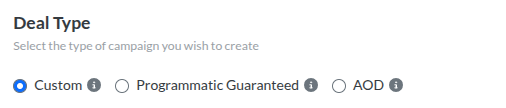
Use this field to specify the campaign type when you create a Deal.
- Custom – A non-guaranteed deal tailored for a specific campaign's terms, not intended for reuse.
- AOD – A non-guaranteed, reusable deal for buyers to run multiple campaigns.
- Programmatic Guaranteed – A guaranteed deal with predefined terms. The publisher ensures inventory availability, the buyer commits to a total budget, and the DSP is required to bid on 95% or more of bid requests for that deal.
Default value: Custom
Note: Deal types cannot be altered after deal creation.
Deal Information
| Field | Description |
|---|---|
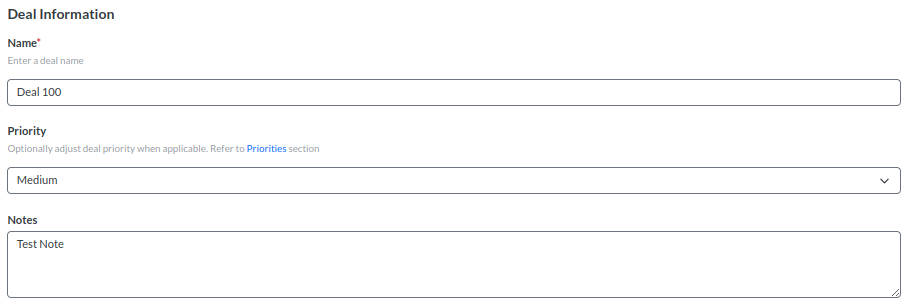
| Name |
This identifier references the deal and routes traffic within your system. Create a descriptive deal name so you can easily recognize its purpose and application. For example, you can name deals dedicated to a specific campaign directly after that campaign. For evergreen deals that span multiple campaigns, include the buyer or a specific pricing tier in the name. Tip: Keep the name descriptive. Do not use spaces or special characters. Sample value: Note: The Place Exchange sales team reserves the |
| Priority |
You can set a deal's priority to determine the auction outcome. This field provides five integer-based priority levels. To simplify the experience, the portal displays these underlying integers as human-readable values.
Sample value: High Default value: Medium For API documentation and usage, see Deal API documentation. For more information on deals, see Understanding Deal Prioritization. |
| Notes |
Free form text field for adding notes related to the deal. Sample value: https://placeexchange.my.salesforce.com/Deal_C |
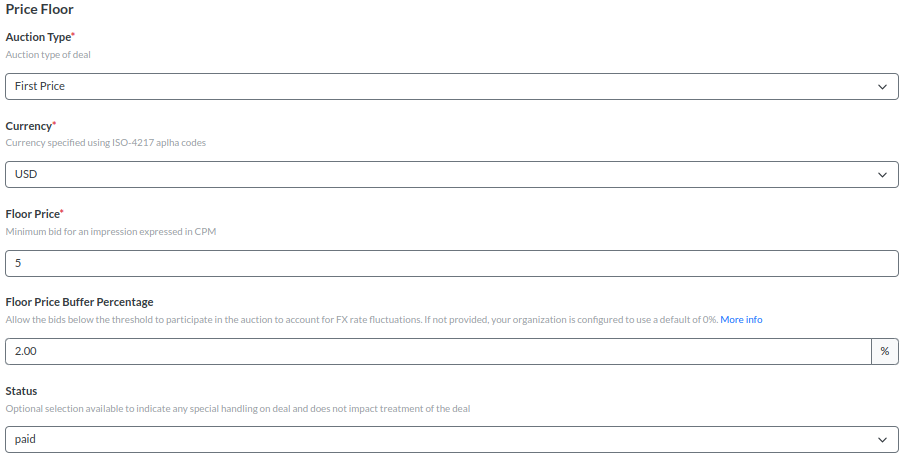
Price Floor
| Field | Description |
|---|---|
| Auction Type |
This setting determines how the system calculates the final clearing price. The system currently supports the following types:
To understand how the auction type affects the auction, see Auction Logic. Sample value: |
| Currency |
The currency of the bid floor used when processing the transaction. Sample value: Default value: Based on organization |
| Floor Price |
The minimum price (expressed as a CPM) at which the publisher is willing to sell an impression. In the case of Fixed-Price deals ( Sample value: 3.50 |
| Floor Price Buffer Percentage |
Due to fluctuations in foreign exchange rates between Place Exchange and DSPs, bids may occasionally fall below the floor, leading Place Exchange to exclude them from the auction. Publishers can set up a Floor Price Buffer Percentage to allow bids within a certain margin of error of the bid floor to participate in the auction. The Floor Price Buffer Percentage is the percentage below the bid floor that bids will be let through:
If you want to configure Floor Price Buffer Percentage across all Deals at organization level, contact your account manager. If Floor Price Buffer Percentage are set both at the organization and deal level, then the Floor Price Buffer Percentage on the Deal overrides the one on the Org. Sample value: 5.00 |
| Status |
Use this setting to classify the type of contract. Sample value: Default value: |
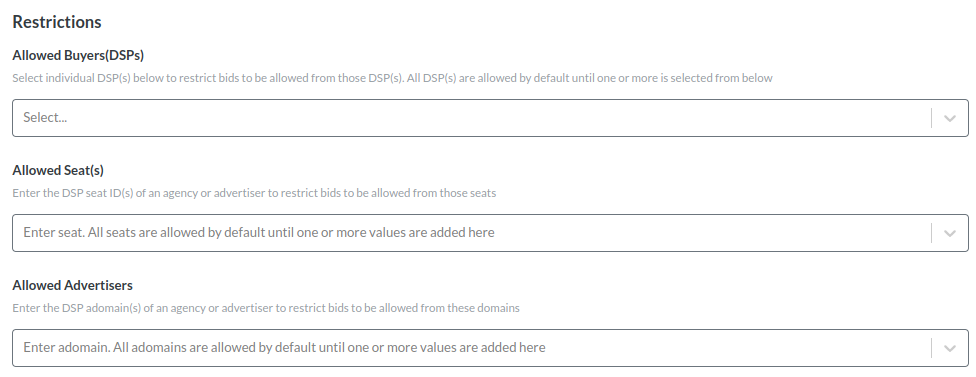
Restrictions
| Field | Description |
|---|---|
| Allowed Buyers (DSPs) |
This setting defines the subset of DSPs that receive the deal and can bid on it. Although this field remains optional, we highly recommend using it when you need to protect confidential pricing or business terms. Through the portal, you can only configure deals for non-sandbox buyers. To set up deals for a sandbox buyer organization, use the API or contact help@placeexchange.com. Sample value: Default value: |
| Allowed Seats (wseat) |
This setting specifies the subset of "seats" within a DSP that can access a deal. Typically, a "seat" represents a customer who holds a contract with a DSP. However, very large agencies and holding companies might control multiple seats. Furthermore, not all DSPs use the concept of seats or make their seat assignments public. Fortunately, most agency and brand buyers can provide their seat assignment upon request. Apply seats only when you select a single DSP, because seat names might collide across different platforms. Sample value: 1234 Default value: |
| Allowed Advertisers |
This setting defines the subset of buyer landing pages permitted to bid on a deal. Sample value: |
Set Restrictions For A Deal
Select Multiple DSPs
You can allowlist a single deal for multiple buyers. To do this, select the buyers from the drop-down menu.
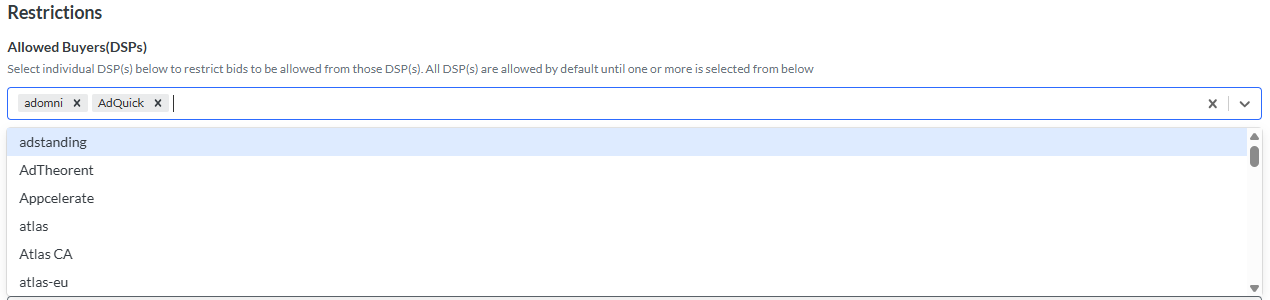
If you do not configure allowlisted buyers, the system sends publisher-configured deals to all integrated DSP partners.
Clear the Selection
Use the 'x' icons next to the specific selection to clear a DSP.
Use the 'X' icon at the extreme right of the input box beside the caret icon to clear all selections.
Search
You can search from the drop-down options.

Troubleshooting
To validate your deal and placement setup, confirm that you see requests for the newly configured or edited deals.
Tip: Take a look at Reporting for Publishers in the portal to see how your setup deals are performing.
Error Scenarios
Field is required
If you try to create a deal without the required fields (those marked with a red asterisk * next to them), you will see the error "is a required field".
Duplicate deal name is not allowed
You must assign a unique deal name within your organization. The system evaluates this uniqueness using case-insensitive validation. If you enter a deal name that already exists, the system displays the following error message: “Deal exists for organization <org_id> with name <deal_name> (maybe with different case)”. For example, if you submit "dealname1" when "DealName1" already exists, the system rejects your submission. To resolve this error, enter a completely unique deal name and resubmit your request.
Deal terms, prices, or restrictions can change over time. You can manage these changes by editing the deal. To enter edit mode, click the deal name within the Summary View.
You can update the following information:
- Deal Information
- Restrictions

After clicking on that deal, the system redirects you to the Edit Deal page, where you can update the above mentioned information by clicking the Update Deal button.

Error Scenarios
Read only user not able to update deal
A user with read only permission cannot update a deal. The Update Deal button is disabled.
If you need to create and edit deals or perform similar functions in other parts of the portal, email help@placeexchange.com to request the appropriate permissions.
Deals with sandbox buyers created outside the Portal
Through the portal, you can only configure deals for non-sandbox buyers.
If an existing deal contains only sandbox buyers, it still appears in your Deals Summary view and downloaded CSV or Excel exports. However, if you attempt to update this deal, the system displays the Select DSP option and prevents you from saving changes until you select a non-sandbox buyer.
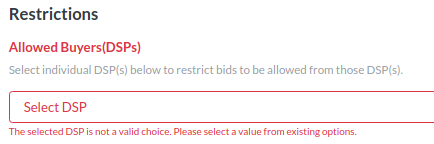
Note: This restriction changes if the deal contains a mix of sandbox and non-sandbox organizations.
For example, if the wbuyer field includes Amobee, Mediamath, and Mediamath Testing, the interface only displays the non-sandbox DSPs (Amobee and Mediamath) in the input box. You can successfully update this deal without encountering errors.
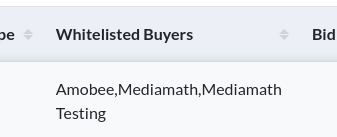
Upon saving, the system automatically removes the sandbox buyer, updating the wbuyer field to include only Amobee and Mediamath.
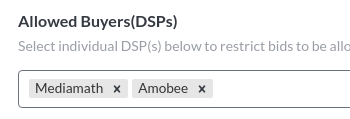
Note: When you save deal changes, these modifications immediately impact active campaigns but can take up to 30 minutes to fully take effect across the system.
To create multiple deals:
Place Exchange
- Access the Place Exchange Publisher Portal and select Deals under the Campaigns menu on the left.
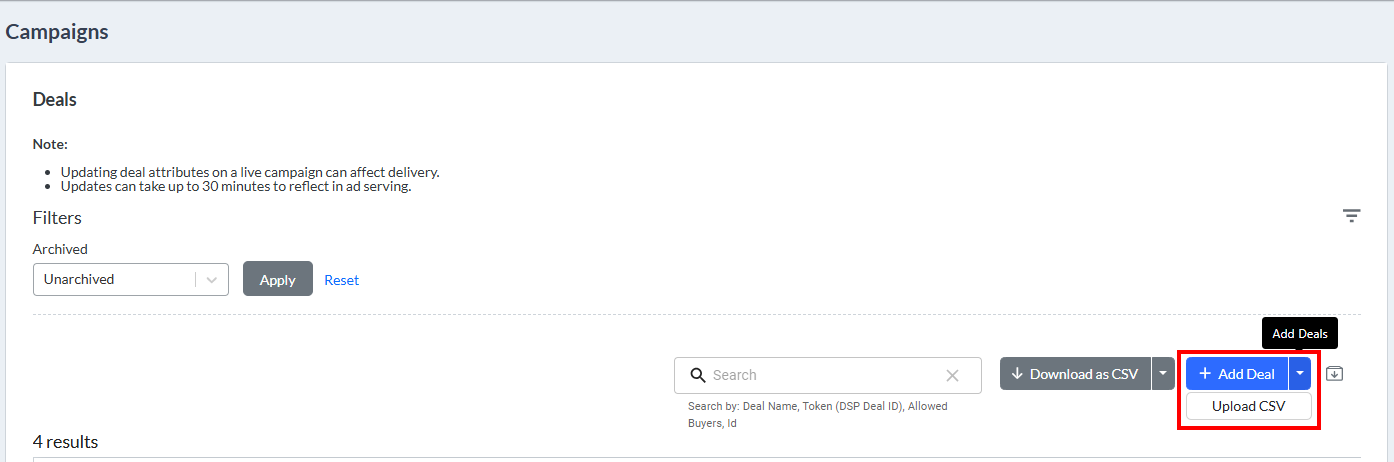
- Click on the split button beside Add Deals and then click on Upload CSV.
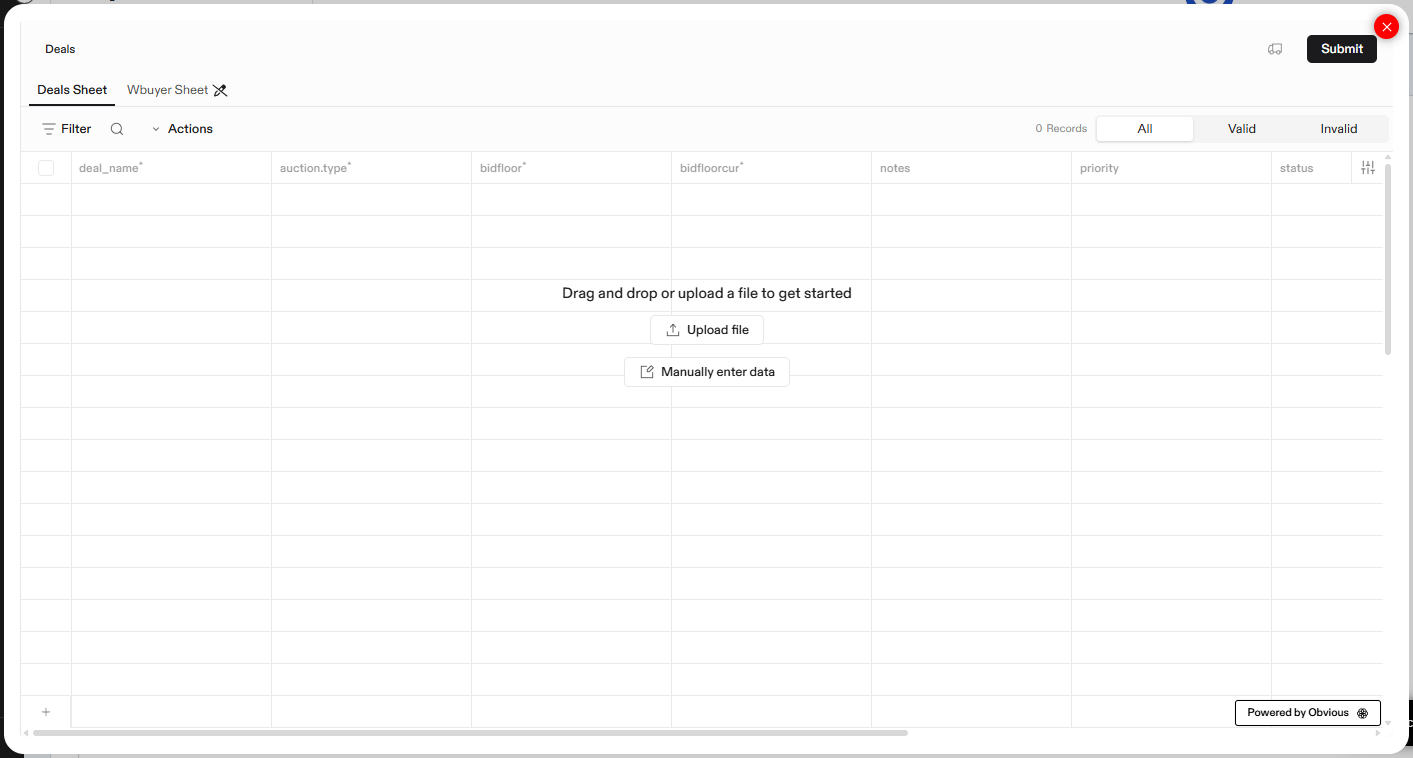
- Upload a CSV file containing all the required deal information or enter the data manually.
-
The uploader ignores auto-generated fields by the system such as: deal_token (dsp deal id), created_by, ext, id, owned_by and ts.
-
The Place Exchange AdOps team uses Allowed_pct internally to manage Programmatic Guaranteed deals and buyer DSPs who are unable to pace DOOH. The system considers factors considered such as volume of impressions needed to pace evenly daily, daily volume of ad requests eligible for that deal, and impression multipliers of the targeted inventory.
-
Placements are linked to deals via the Order Management view in the portal.
-
These fields would be visible in mapping page with a warning symbol and a text ‘Unable to automatically match’, which is ignored once the user clicks the Review button.
- If you typed in the data manually, you can skip all the instructions below and directly go to Step 6.
- If you are creating multiple deals at the same time, use the Upload file button and attach the CSV/Excel file with all the deals.
- Cross-check all entries and edit the values directly in the view if you identify any discrepancies.
- Hover over any highlighted cell to view the specific error message and corrective instructions.
- After all highlighted issues are fixed and the data looks correct, click on Submit.
- You must associate new deals with inventory to start sending bid requests. In case you have any error in column fields, all the validation errors are displayed in the review columns section.
- Check the summary view to make sure everything looks correct for the deals you just created.
Note: Refer to Inventory Management FAQs and Tips for commonly asked questions and resolutions.
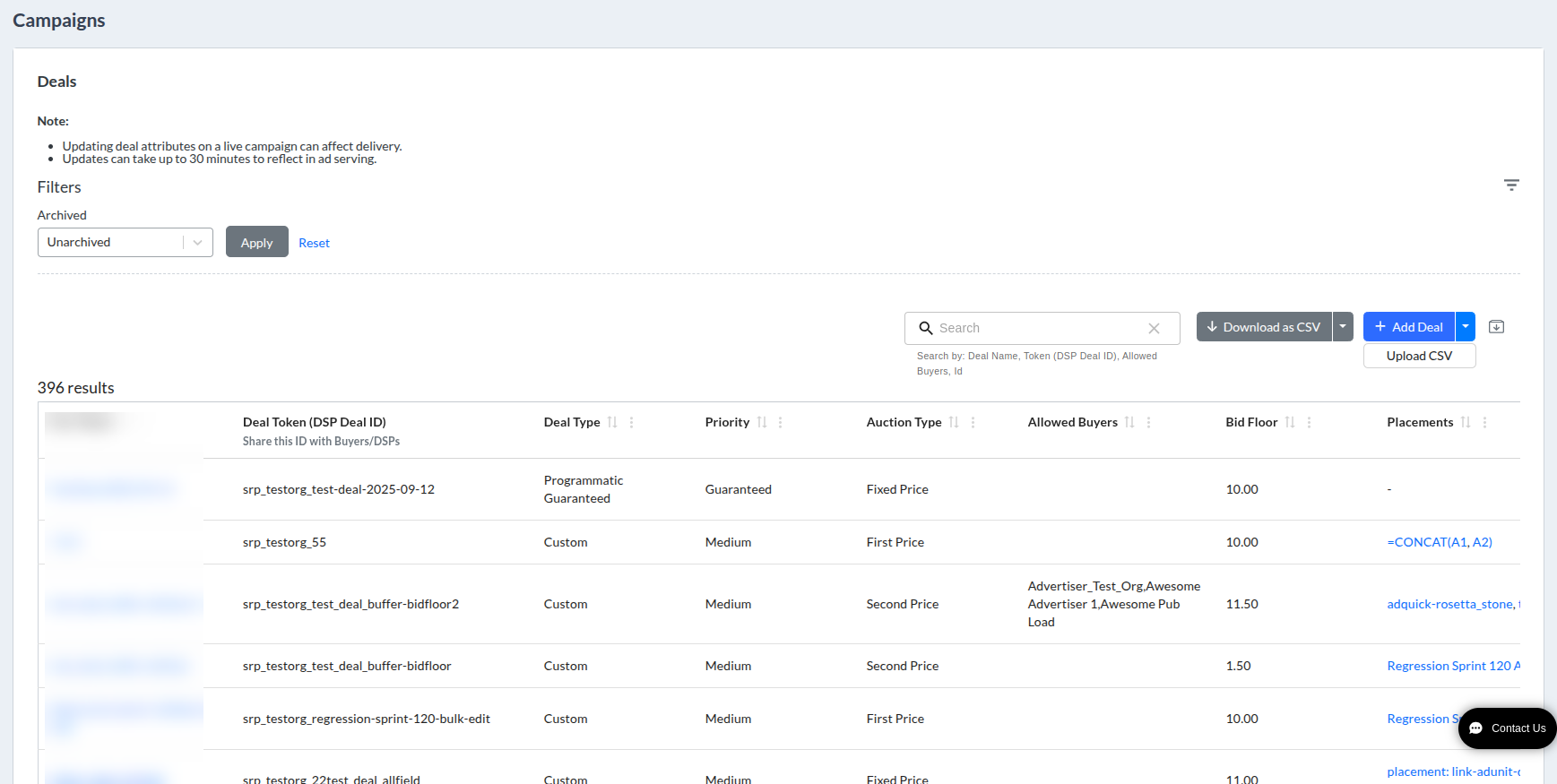
Some caveats about fields in the bulk upload view:

The Flatfile Auto-Mapping feature automatically maps columns and drop-down values in the background. Once the system completes the mapping, it directs you to the Review section.
The Review section displays the data from your uploaded file for final verification. The system highlights cells containing invalid values with a red border. Use this view to perform the following actions:

The Submit button will be enabled only if all the data entered is valid.
On upload, the system displays a pop message "Successfully uploaded Deals" with the deals count.
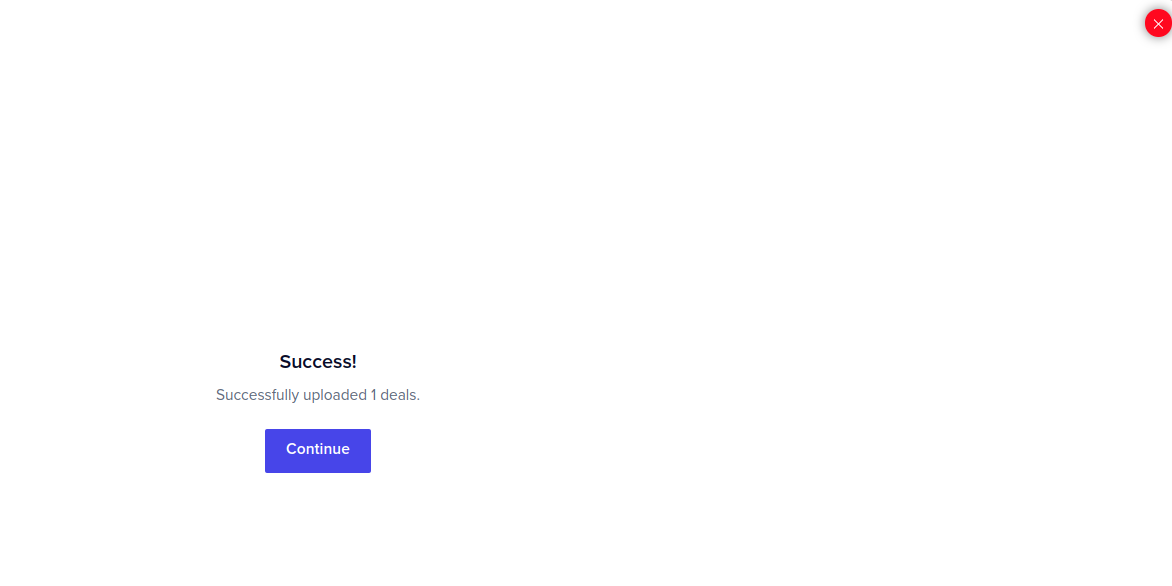
Clicking on ok will reload the deal view with the newly uploaded or updated data.
Note: In most cases, if you already sent a deal to a buyer, we recommend creating a new replacement deal rather than modifying the existing terms or name. However, to change the available inventory for an existing deal, you can simply modify the Placements.
To update previously created deals:
- Click the Download CSV button to export your deals from the portal.
- In a spreadsheet editor, remove all but the entries for the deals you want to change. Apply your changes and save the file.
- Click on the drop-down icon besides the Add Deal button, and then click on Upload CSV to upload your changes.
- The remainder of this process is the same as in Add Multiple Deals.
Note: If you modify the deal name, the system treats it as a new deal.
Troubleshooting
Deals with multiple buyers or sandbox buyers created outside the Portal
Through the portal, you can only configure deals for non-sandbox buyers.
Through FlatFile interaction, you can only configure deals for a single buyer.
If an existing deal contains only sandbox buyers, it still appears in your Deals Summary view and downloaded CSV or Excel exports. However, if you attempt to update this deal, the system displays the Select DSP option and prevents you from saving changes until you select a non-sandbox buyer.
- If an existing deal is associated with either multiple buyers or a sandbox buyer:
- It appears in the Deals Summary view and downloaded CSV or Excel exports.
- However, if you attempt to update this deal, the system displays the
wbuyercell as Blank with an error message on the Review page. The system prevents you from saving changes until you select an appropriate buyer.
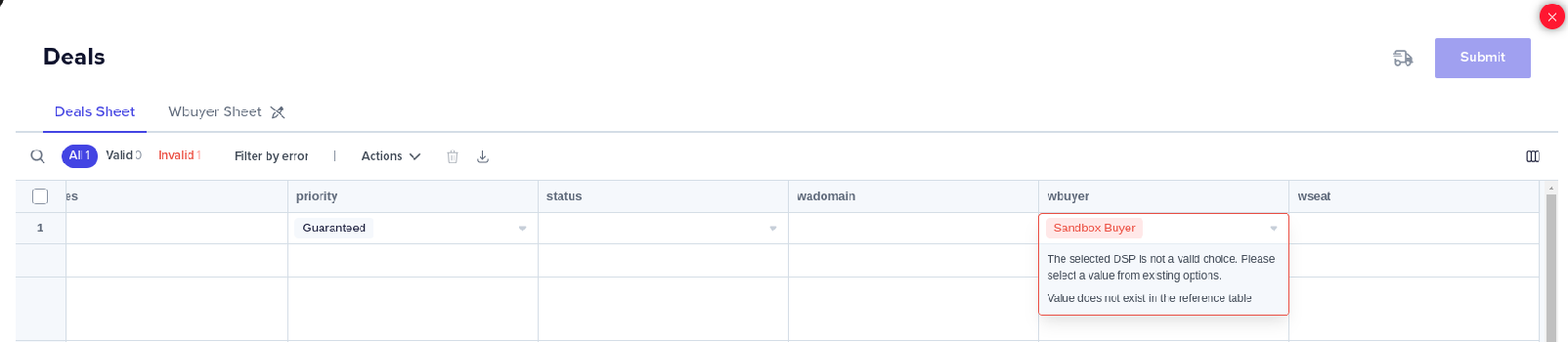
Notes:
- If you want to configure a deal against a sandbox buyer, either:
- Email help@placeexchange.com and Place Exchange staff can help you configure multiple allowed buyers/sandbox buyer.
- Update the deal via the API.
- If you want to configure a deal against multiple buyers, either:
- Refer to Set Restrictions For A Deal.
- Email help@placeexchange.com and Place Exchange staff can help you configure multiple allowed buyers/sandbox buyer.
- Update the deal via the API.
Chrome became unresponsive, forcing the publisher to exit the page

The hardware configuration of your machine directly impacts the performance of the Flatfile import tool.
- This issue is caused by the processor Clock Speed of your machine.
- Use a machine that meets the following minimum specifications:
- Processor: Intel Core i5 or i7
- Clock Speed: 2.0 GHz or higher
- Using a more powerful processor significantly improves data processing speeds.
- If you meet these hardware requirements and the issue persists, contact your Partnership Manager or email help@placeexchange.com. Include your specific machine configurations in your message to help our team troubleshoot the issue effectively.
