 minute read
Have additional questions? Use the chat icon on the right side to submit more questions!
For a full overview of managing your inventory through Place Exchange, see Managing Inventory in the Portal.
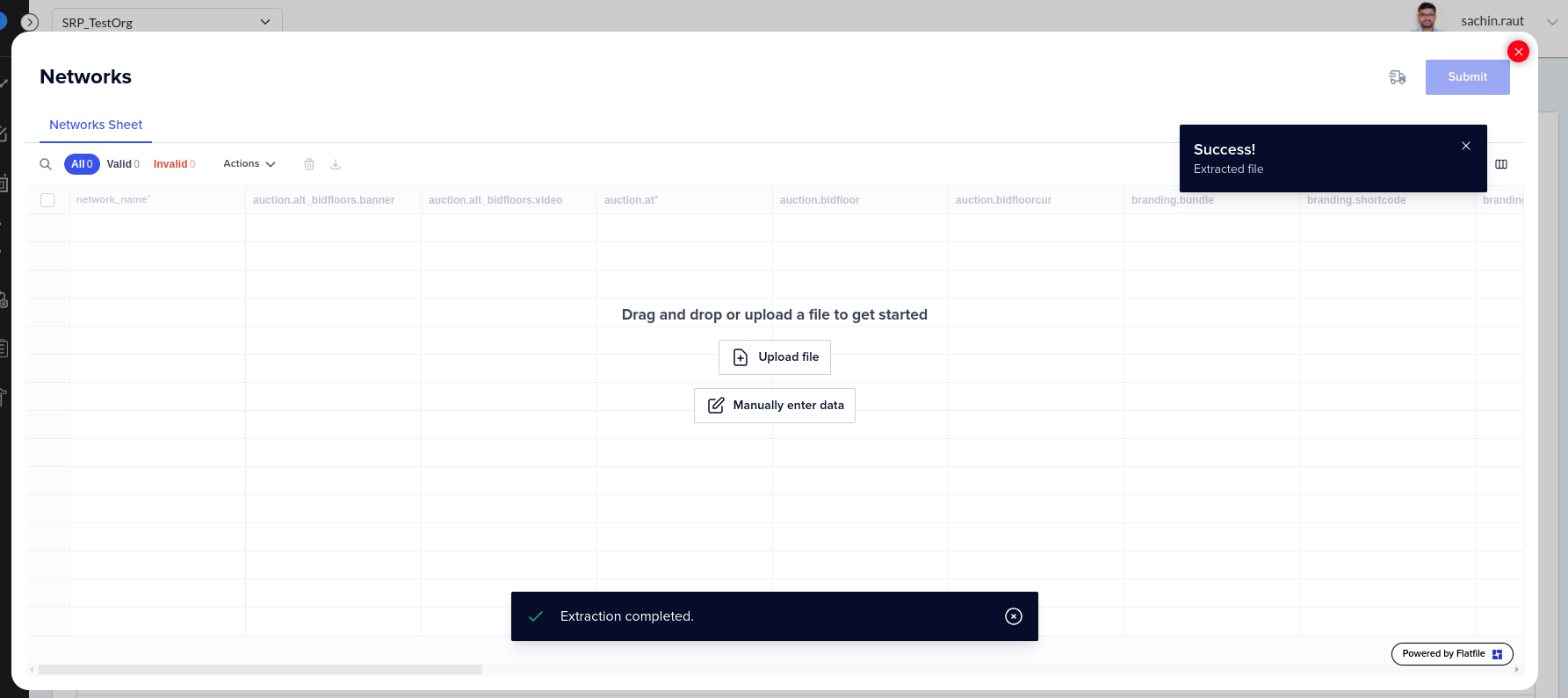
Place Exchange now features an auto-mapping tool that simplifies the bulk upload process. The system automatically maps columns and drop-downs in the background and redirects you to the Data Review page immediately after file extraction.
If the system completes the file extraction but fails to redirect you to the Data Review page, verify your file structure. The platform does not support Excel files with multiple sheets. To ensure a successful upload and proper redirection, follow these requirements:
- Use the downloaded Excel/CSV format for uploads without adding or removing columns.
- Ensure the uploaded Excel file contains only a single sheet. You must remove any additional sheets before uploading.
Following these steps ensures a smooth upload process and proper redirection to the Data Review page.
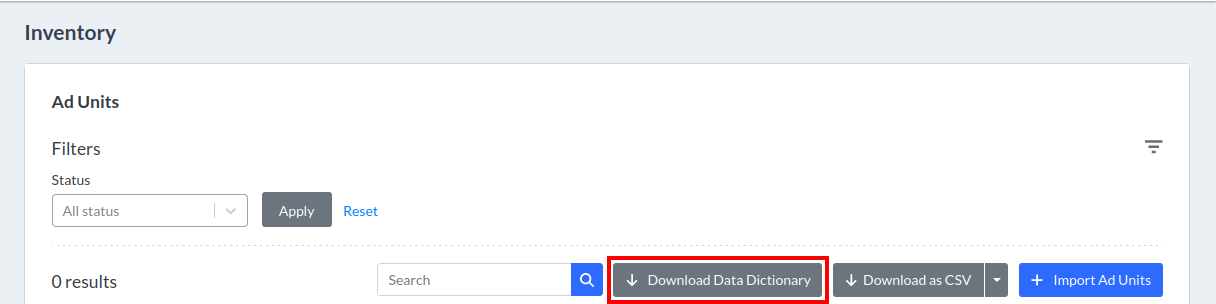
Attributes listed in the table view of this section are ad unit metadata provided to Place Exchange by the media owner. You can access column descriptions and possible values by clicking the Download Data Dictionary button.
Place Exchange now features an auto-mapping tool that simplifies the bulk upload process. The system automatically maps columns and drop-downs in the background and redirects you to the Data Review page immediately after file extraction.
The "Multiple Sheets Found - Showing data from first sheet" pop-up appears after the file extraction process when the uploaded Excel file contains multiple sheets. This message indicates that the system has detected more than one sheet in the file. By default, the data from the first sheet is automatically used for the upload process, and users do not have the option to select or process data from other sheets.
Follow these guidelines for Excel uploads:
- Use the downloaded Excel/CSV format for uploads without adding or removing columns.
- Ensure the uploaded Excel file contains only a single sheet. You must remove any additional sheets before uploading.
- Ensure the uploaded Excel file is in .xlsx or .xls format.
Following these steps ensures a smooth upload process and proper redirection to the Data Review page.
The status field manages the deletion and deactivation of ad units.
- To temporarily deactivate ad units, set them to Inactive (status = 4). This status allows the Sales team to keep these units in active proposals, ensuring you do not miss future revenue opportunities.
- To permanently "delete" ad units, set them to Decommissioned (status = 5). This action effectively removes the units from the system.
Note: Adrequests originating from these adunits will be rejected.
Place Exchange support uses the In-Review status to notify users if incorrect Metadata is registered either:
- On the adunit
- When sent on the adrequest
Note: Once an adunit has the In-Review status, the system rejects all adrequests originating through those adunits until Place Exchange Support updates the status.
For more details, see How The "In-Review" Adunit Status is Used.
The ability to set or reset the In-Review status on an adunit is restricted to Place Exchange support.
Updating the status from In-Review to any other status (such as Pending or Live) or from any other status to In-Review is not permitted.
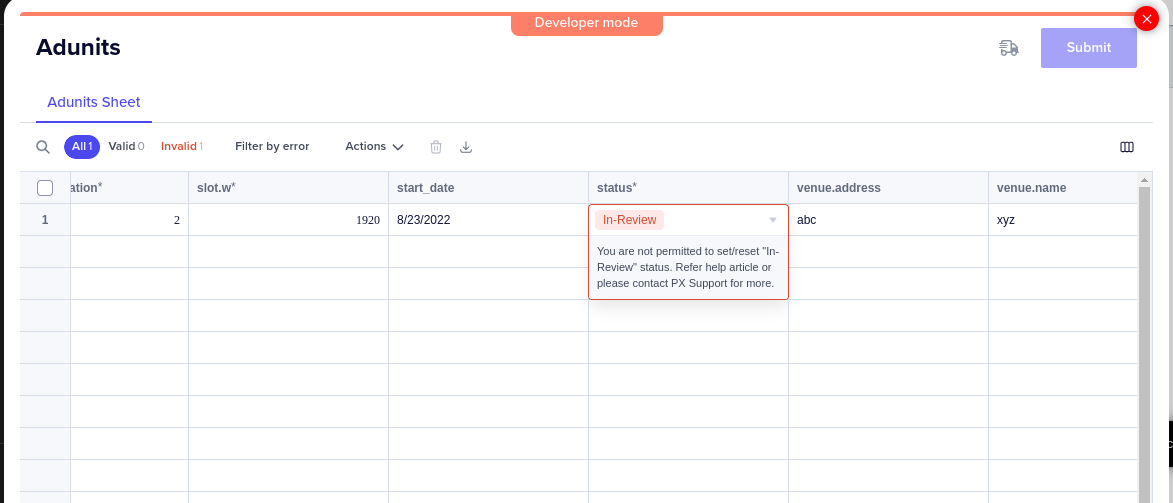
For additional details, see How The "In-Review" Adunit Status is Used.
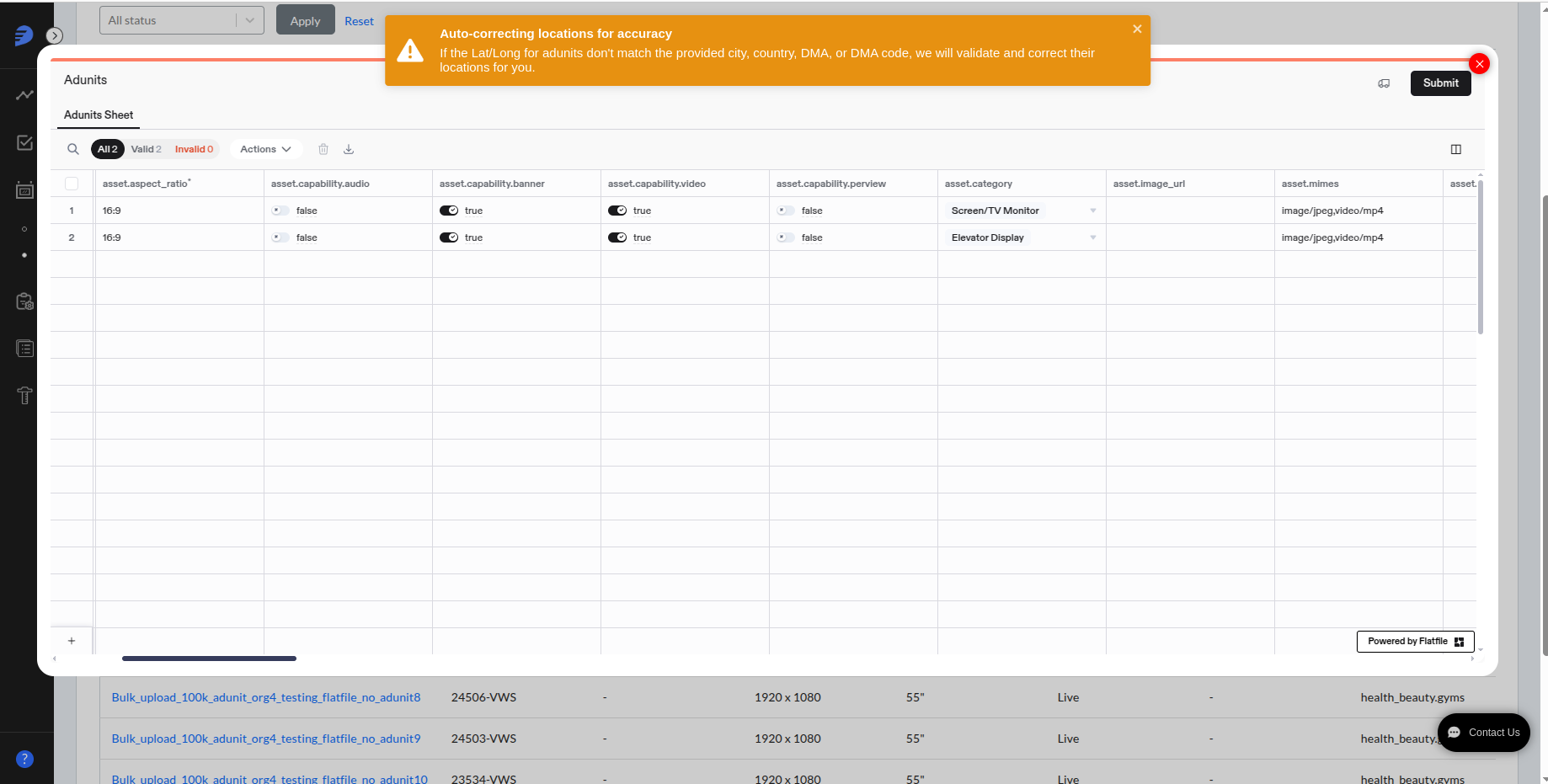
This notification appears only once when a user logs in for the first time from the browser and uploads the adunits. If the latitude and longitude for the adunit do not match the provided city, country, DMA, or DMA code, Place Exchange will validate and correct their location and store it in the system. This notification serves to inform the user about this feature.
The system determines the asset.aspect_ratio by dividing the width of a given slot by its height:
asset.aspect_ratio = slot.width / slot.height
After calculating this ratio, the system applies a ±10% margin. The platform validates the asset if its ratio falls within this specific range; otherwise, the system triggers a validation error and rejects the upload.
Example:
- Let's say that we have a slot with the following values:
- slot.width = 448
- slot.height = 768
- The system calculates the
asset.aspect_ratio:- Actual Aspect Ratio=768/448=0.58
- The system calculates the
asset.aspect_ratiomargin:- 10% of 0.58 = 0.058
- The acceptable range is thus:
- Minimum: 0.58 - 0.058 = 0.522
- Maximum: 0.58 + 0.058 = 0.638
- Valid
asset.aspect_ratioexamples:- 7:12 : 7/12 = 0.583 (falls within the acceptable range)
- 9:16 : 9/16 = 0.5625 (falls within the acceptable range)
- 5:9 : 5/9 = 0.555 (falls within the acceptable range)
- Invalid
asset.aspect_ratioexample:- 1:5 : 1/5 = 0.20 (not within the acceptable range of 0.522 to 0.638)
The system displays the following validation message for the invalid asset.aspect_ratio : "1:5: Aspect ratio should match slot width/height. Provide correct values for width, height, and aspect_ratio. The nearest ratio is 7:12."

The asset.dynamic_creative field identifies inventory suitable for dynamic creative campaigns.
The field can have one of the following values:
- Certified – Place Exchange has verified that the inventory supports dynamic creatives.
- Not Certified – Place Exchange has not verified support for dynamic creatives.
- Blank – This is the default value when no data is provided.
Access to asset.dynamic_creative is restricted by user role. Only Super Users can edit the asset.dynamic_creative column during import.

