 minute read
Through our integration with DV360 Seller API and TTD Proposal API, Place Exchange can push deals into the DV360 and TTD platforms, making them available to buyers and eliminating their need to create deals themselves. This feature aims to reduce buyer friction when it comes to deal management in both DV360 and TTD platforms.
Note: Place Exchange cannot push deals to other DSPs. You can leverage the existing deal setup workflows in the Place Exchange Portal to trigger deal syncing.
To sync a deal to a seat in DV360/TTD:
Place Exchange
- Create a deal in the Place Exchange Portal.
- Name – Enter the Deal Name. For DV360, we recommend including the creative type and screen size in the name to prevent buyer bidding mismatches (for example, campaign name_creative type_dimensions).
- Priority – Enter the level if the default "Medium" priority is not accurate (Very Low, Low, Medium, High) for Non Guaranteed or Guaranteed for PMP.
- Notes – Enter either "Display" or "Video".
- Allowed Buyers(DSPs) – Select "tradedesk" or "dv360".
- Allowed Seat(s) – Select the advertiser Seat ID.
- Click Add Deal.
- Create a placement in the Place Exchange Portal.
- Name – Enter the Deal Name. For DV360, we recommend including the creative type and screen size in the name to prevent buyer bidding mismatches (for example, campaign name_creative type_dimensions).
- Notes – Enter the Dates and Times for always-on deals that will be pushed to DV360.
- Start Date & Time (UTC) – Select Dates and Times (optional for always-on deals).
- Associated Deals – Click Select Deal(s) to associate deals.
- Networks – Enter the Network Name(s) if Ad Units will not be mapped.
- Ad Units – Click Select Adunit(s) to import Ad Units if Network(s) will not be mapped.
- Click Add Placement.
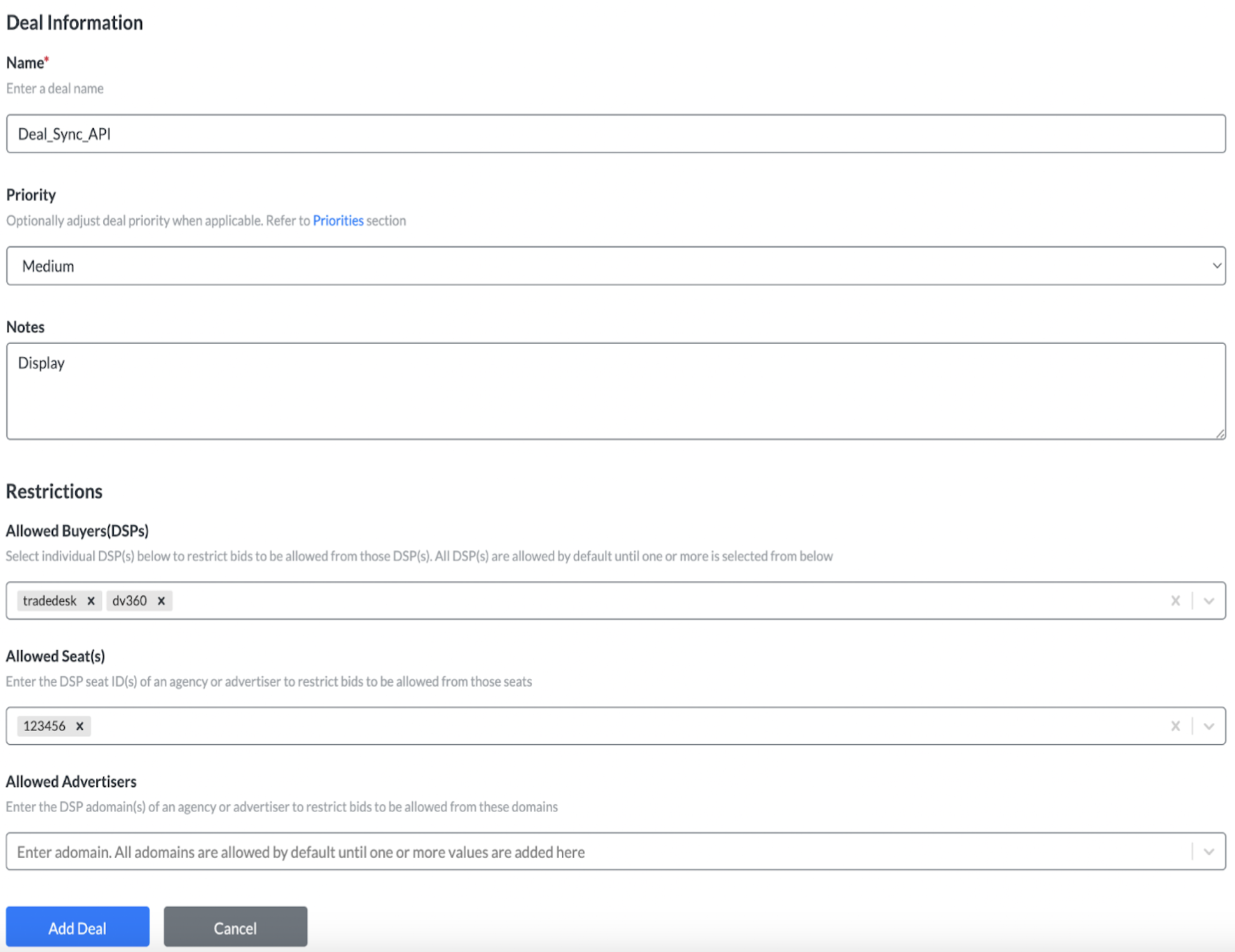
The following fields are required for a successful deal push:
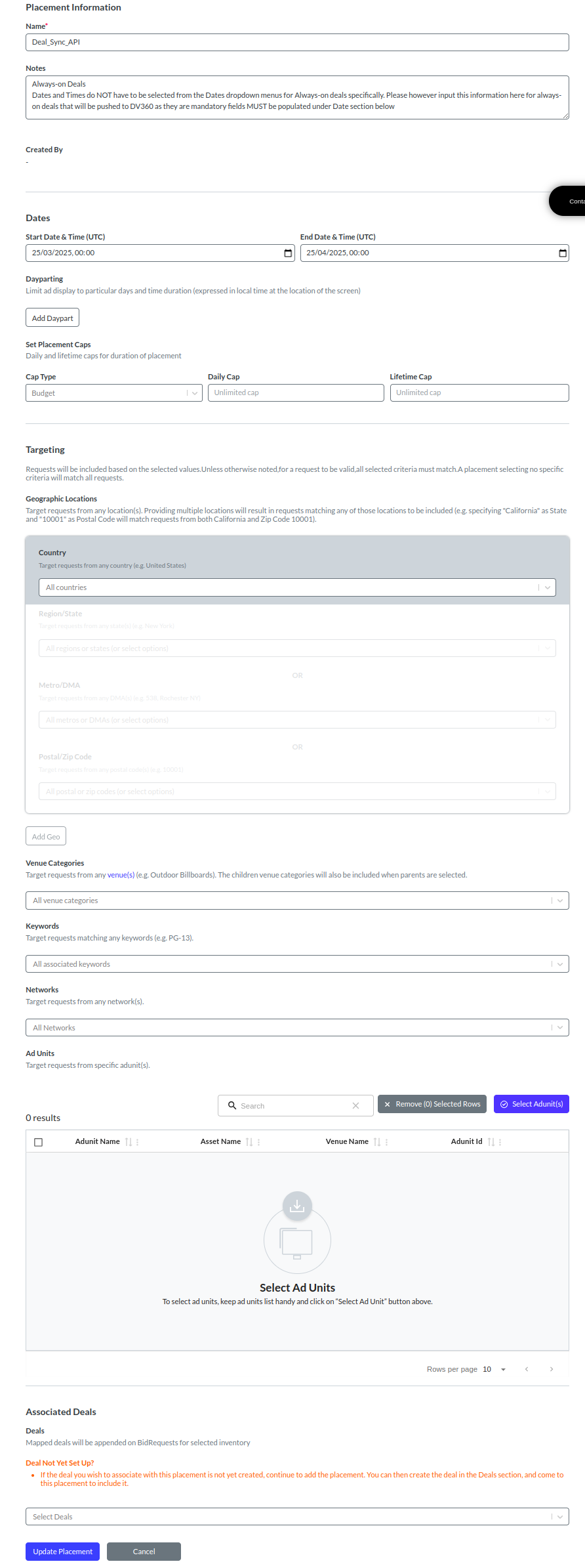
The following are the required and recommended fields to map screens to a deal and allow for a successful deal push:
Required Fields:
Recommended Fields:
If both the Networks and Ad Units fields are left blank, the deal will target all screens in your inventory.
By the end of the next business day, a notification will be sent to the user where the request was made to either confirm the deal was successfully pushed or gather missing details to successfully push the deal before sending over a confirmation.
Note: There is a 60-minute grace period post deal submission. During this time, we recommend reviewing all fields of submitted deals to ensure the details provided are correct. Once this 60-minute window closes, deals will become eligible for pushing and updates will therefore NOT be accepted. Contact adops-help@placeexchange.com for additional guidance.
