 minute read
This guide helps Publisher partners manage their inventory through Place Exchange. By regularly updating inventory attributes, Publishers ensure Place Exchange accurately represents their supply for sales, troubleshooting, and operations.
Place Exchange has a number of constructs to allow OOH publishers to represent their available inventory. In particular:
- Networks – Group related screens to manage, report, and present to buyers.
- AdUnits – Represent “sellable units” of inventory (typically screens or locations).
- Venues – Represent locations where screens are placed, such as a doctor's office or a train station.
- Assets – Represent the specific site or installation on which advertising will appear.
Note: For more details on inventory constructs available, see Organizing Inventory.
You can view and manage inventory within the Portal or through the APIs. The Inventory page displays an overview of the various AdUnits registered to your organization. By default, the system sorts this data based on the Last Modified column.

The multi-select AdUnit status filter enables you to view a specific subset of your inventory, such as displaying only Live inventory. By default, the table displays all inventory.
To view filtered results, select your desired statuses from the drop-down menu and click Apply.

To go back to seeing 'All' status data, click Reset, which defaults the filter to the empty option.
To collapse the filter section, click on the reverse triangle Hide filter icon on the extreme right.

To download a CSV version of your inventory, which includes the complete set of fields that the system stores, click Download as CSV.
You can also export your inventory as an Excel file. This option resolves specific formatting issues that occur when you open a CSV file in Excel.
For example, if an adunit contains an asset.aspect_ratio of 9:16, opening the CSV version in Excel automatically converts the value into a time format, displaying it as 09:16:00. Exporting the data directly to Excel preserves the correct 9:16 format.

To initiate an Excel download, click the arrow next to the Download as CSV button and select the Download as Excel option.
Note: If your export exceeds 40,000 records, the system splits the download into multiple Excel files, capping each file at 40,000 records. For example, if you export 100,000 Adunits, the system generates three separate Excel files using a sequential naming convention, such as "Inventory_Ad_Units_1_of_3_2021-12-14_21-45-43", "Inventory_Ad_Units_2_of_3_2021-12-14_21-45-43", and "Inventory_Ad_Units_3_of_3_2021-12-14_21-45-43".
Downloading and filters
- By default, if you apply no
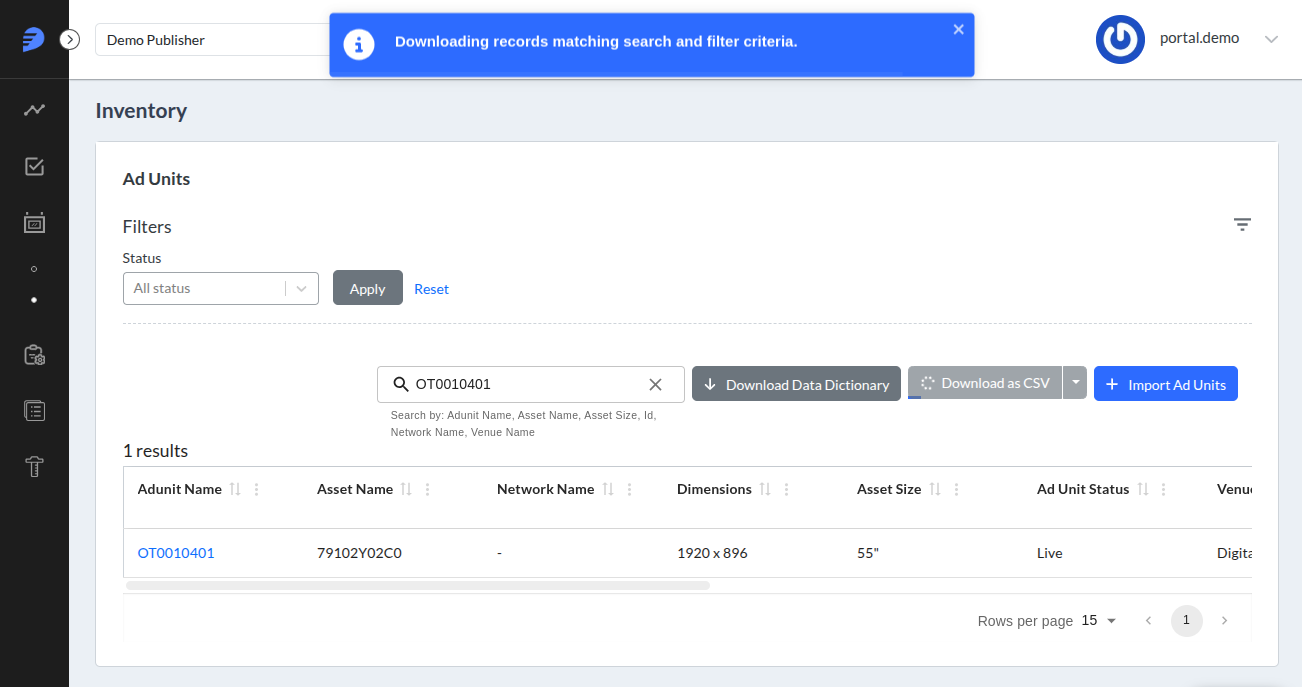
statusfilter, the system downloads all adunits. - If you apply a status filter, the system downloads only the adunits that match your selected statuses. When you initiate the download, the interface displays a notification confirming your selection.
- If you update the filters while a download is already in progress, the system continues processing the original download request based on your previous selection. The on-screen table will update to reflect the newly filtered results, but the active file download remains unaffected.
Search Inventory - Adunits
For an overview of how contain-based search works, see Using the Publisher Portal.
The contain-based search applies to the following columns, as displayed directly below the Search box:
- Id
- Adunit Name
- Asset Name
- Asset Size
- Network Name
- Venue Name
The search function evaluates numeric characters only and ignores special symbols. For example, to locate an adunit with an Asset Size of 56", you must use a purely numeric search term such as 56 or 6. The system will not return results if your search term includes the inch symbol, such as 56".
For example, if you name Adunits "Test_adunit" and "Adunit_test", and you search for the substring "test", the system returns both results.

Downloading and search
- By default, if there is no search term or you apply no
statusfilter, the system downloads all adunits. - When you apply a search term, the system downloads only the Adunits that match your search criteria. When you initiate the download, the interface displays a notification confirming this action.
- If you update the search term while a download is already in progress, the system continues processing the original download request based on your previous search criteria. The on-screen table updates to show results matching the new search term, but the active file download remains unaffected.
For questions, or assistance creating complex adunits, email help@placeexchange.com. To speed the application of changes, download your current inventory and maintain the same format.
See Adding and Updating Adunits for a step-by-step process.
Note: The system matches updates for existing AdUnits against the adunit.name attribute. Because the platform uses this name as the primary matching identifier, you cannot manually rename an Adunit. To request a name change, email help@placeexchange.com.
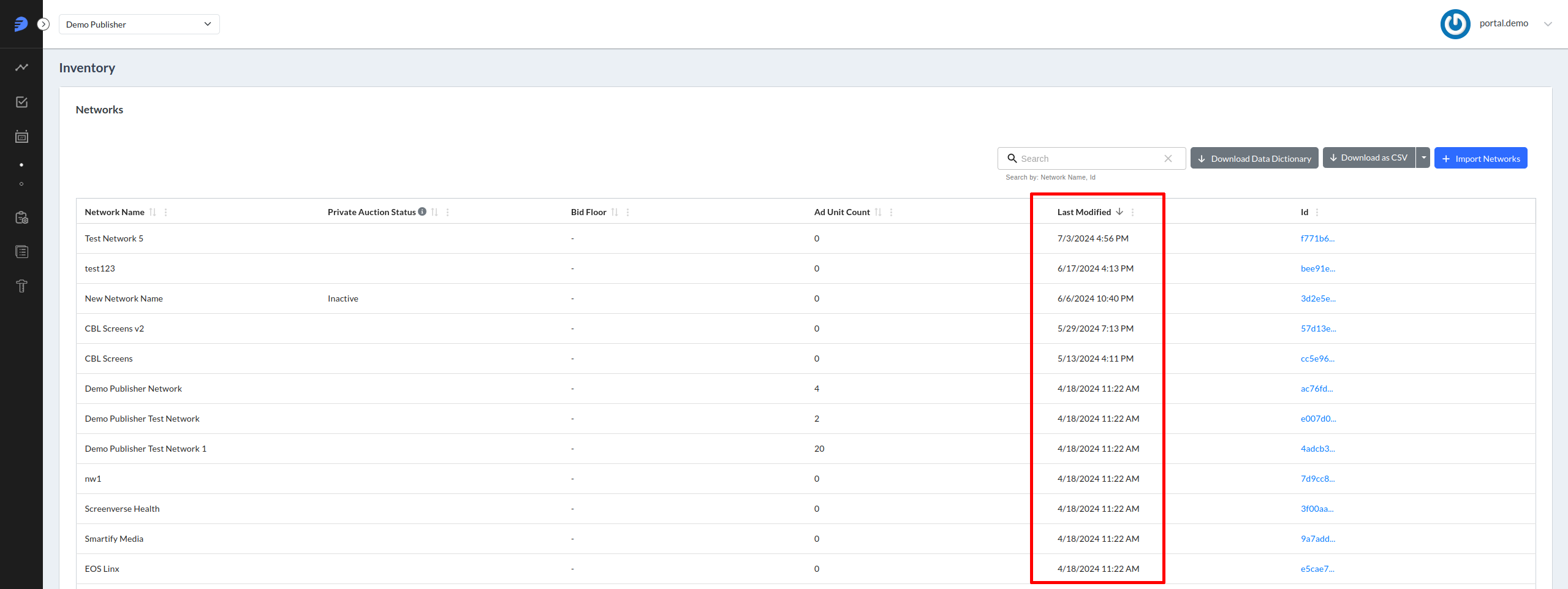
You can view and manage inventory within the Portal. The Inventory page displays an overview of the various Networks for your organization. By default, the system sorts this data based on the Last Modified column.
Search Inventory - Networks
For an overview of how contain-based search works, see Using the Publisher Portal.
The contain-based search applies to the following columns, as displayed directly below the Search box:
- Id
- Network Name
For example, if you name Networks "Test_network" and "Network_test", and you search for the substring "test", the system returns both results.
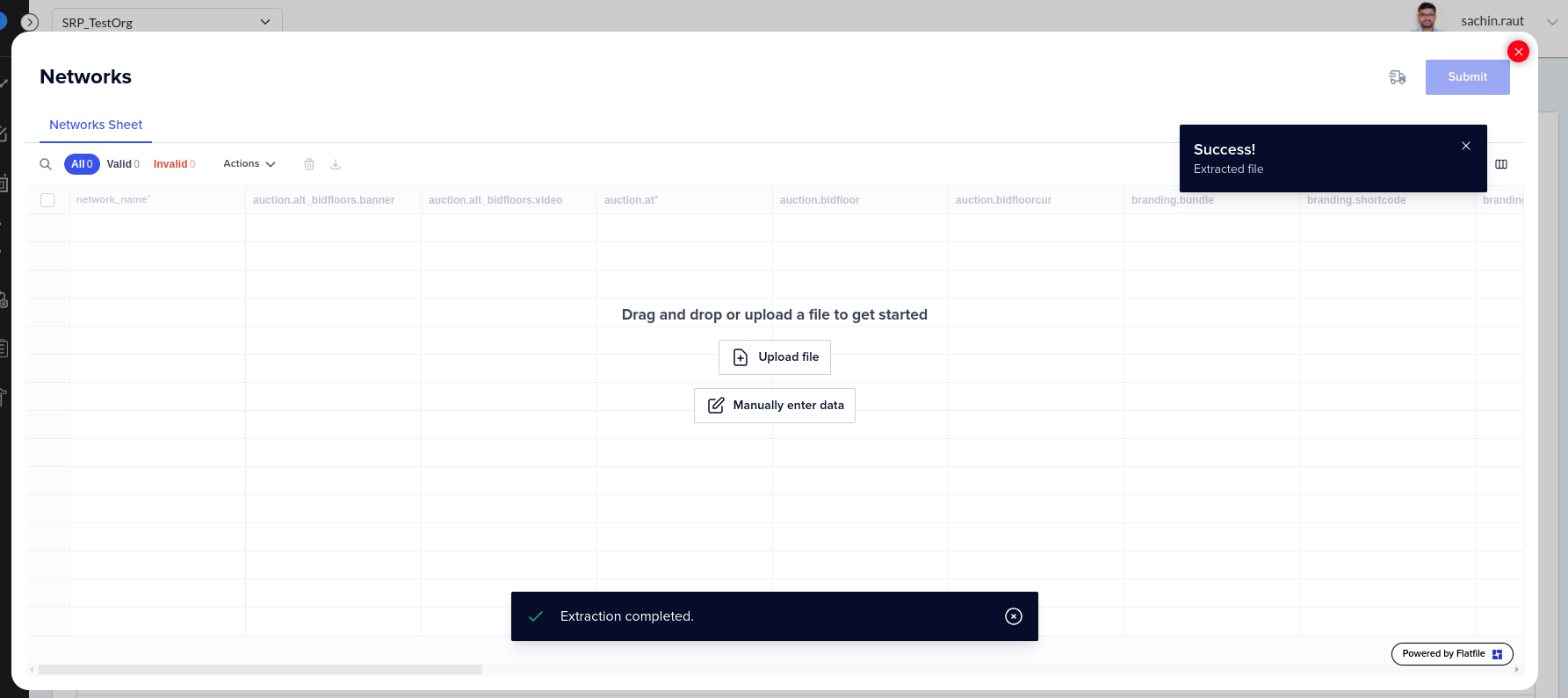
Place Exchange now features an auto-mapping tool that simplifies the bulk upload process. The system automatically maps columns and drop-downs in the background and redirects you to the Data Review page immediately after file extraction.
If the system completes the file extraction but fails to redirect you to the Data Review page, verify your file structure. The platform does not support Excel files with multiple sheets. To ensure a successful upload and proper redirection, follow these requirements:
- Use the downloaded Excel/CSV format for uploads without adding or removing columns.
- Ensure the uploaded Excel file contains only a single sheet. You must remove any additional sheets before uploading.
Following these steps ensures a smooth upload process and proper redirection to the Data Review page.
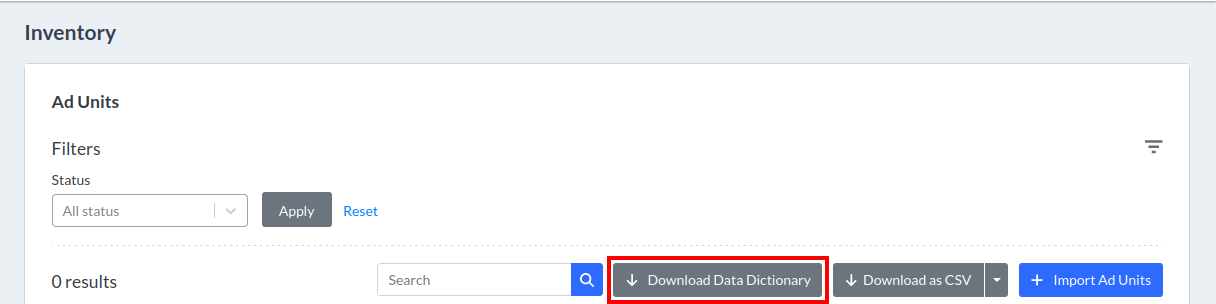
Attributes listed in the table view of this section are ad unit metadata provided to Place Exchange by the media owner. You can access column descriptions and possible values by clicking the Download Data Dictionary button.
Place Exchange now features an auto-mapping tool that simplifies the bulk upload process. The system automatically maps columns and drop-downs in the background and redirects you to the Data Review page immediately after file extraction.
The "Multiple Sheets Found - Showing data from first sheet" pop-up appears after the file extraction process when the uploaded Excel file contains multiple sheets. This message indicates that the system has detected more than one sheet in the file. By default, the data from the first sheet is automatically used for the upload process, and users do not have the option to select or process data from other sheets.
Follow these guidelines for Excel uploads:
- Use the downloaded Excel/CSV format for uploads without adding or removing columns.
- Ensure the uploaded Excel file contains only a single sheet. You must remove any additional sheets before uploading.
- Ensure the uploaded Excel file is in .xlsx or .xls format.
Following these steps ensures a smooth upload process and proper redirection to the Data Review page.
The status field manages the deletion and deactivation of ad units.
- To temporarily deactivate ad units, set them to Inactive (status = 4). This status allows the Sales team to keep these units in active proposals, ensuring you do not miss future revenue opportunities.
- To permanently "delete" ad units, set them to Decommissioned (status = 5). This action effectively removes the units from the system.
Note: Adrequests originating from these adunits will be rejected.
Place Exchange support uses the In-Review status to notify users if incorrect Metadata is registered either:
- On the adunit
- When sent on the adrequest
Note: Once an adunit has the In-Review status, the system rejects all adrequests originating through those adunits until Place Exchange Support updates the status.
For more details, see How The "In-Review" Adunit Status is Used.
The ability to set or reset the In-Review status on an adunit is restricted to Place Exchange support.
Updating the status from In-Review to any other status (such as Pending or Live) or from any other status to In-Review is not permitted.
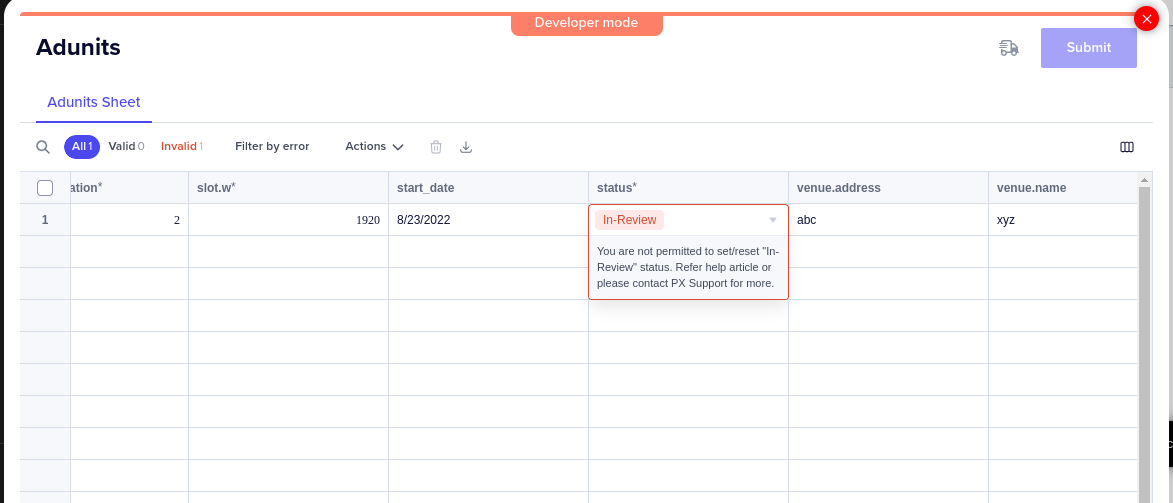
For additional details, see How The "In-Review" Adunit Status is Used.
This notification appears only once when a user logs in for the first time from the browser and uploads the adunits. If the latitude and longitude for the adunit do not match the provided city, country, DMA, or DMA code, Place Exchange will validate and correct their location and store it in the system. This notification serves to inform the user about this feature.
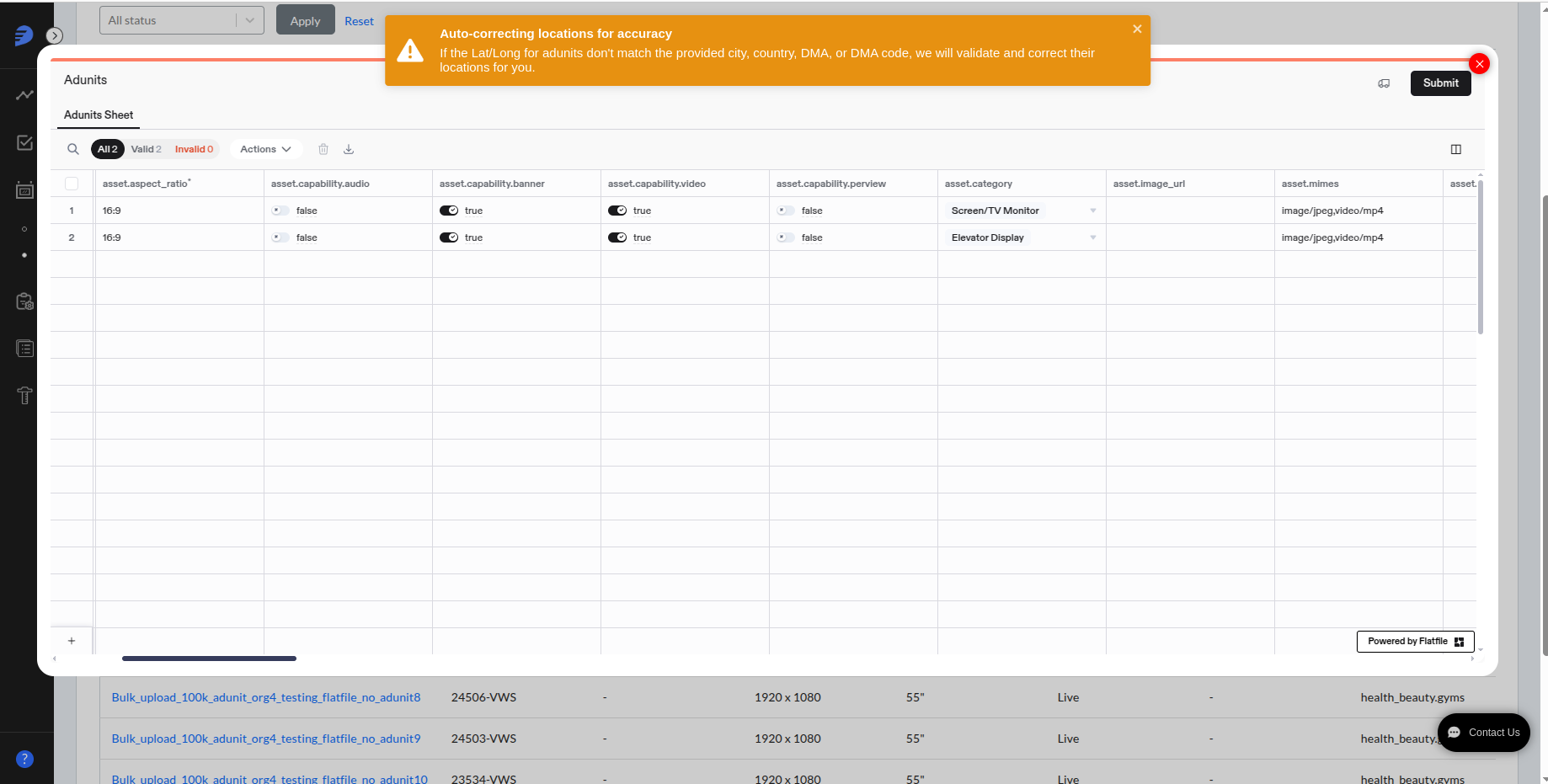
The system determines the asset.aspect_ratio by dividing the width of a given slot by its height:
asset.aspect_ratio = slot.width / slot.height
After calculating this ratio, the system applies a ±10% margin. The platform validates the asset if its ratio falls within this specific range; otherwise, the system triggers a validation error and rejects the upload.
Example:
- Let's say that we have a slot with the following values:
- slot.width = 448
- slot.height = 768
- The system calculates the
asset.aspect_ratio:- Actual Aspect Ratio=768/448=0.58
- The system calculates the
asset.aspect_ratiomargin:- 10% of 0.58 = 0.058
- The acceptable range is thus:
- Minimum: 0.58 - 0.058 = 0.522
- Maximum: 0.58 + 0.058 = 0.638
- Valid
asset.aspect_ratioexamples:- 7:12 : 7/12 = 0.583 (falls within the acceptable range)
- 9:16 : 9/16 = 0.5625 (falls within the acceptable range)
- 5:9 : 5/9 = 0.555 (falls within the acceptable range)
- Invalid
asset.aspect_ratioexample:- 1:5 : 1/5 = 0.20 (not within the acceptable range of 0.522 to 0.638)
The system displays the following validation message for the invalid asset.aspect_ratio : "1:5: Aspect ratio should match slot width/height. Provide correct values for width, height, and aspect_ratio. The nearest ratio is 7:12."

The asset.dynamic_creative field identifies inventory suitable for dynamic creative campaigns.
The field can have one of the following values:
- Certified – Place Exchange has verified that the inventory supports dynamic creatives.
- Not Certified – Place Exchange has not verified support for dynamic creatives.
- Blank – This is the default value when no data is provided.
Access to asset.dynamic_creative is restricted by user role. Only Super Users can edit the asset.dynamic_creative column during import.

For Troubleshooting location data errors, see Troubleshooting Location Errors.
