minute read
This page describes how to work with Deals in the Portal.
- For an overview of deal related terminology, see Understanding Deals on Place Exchange.
- For more information on how to add a new deal or update an existing deal, see Adding and Updating Deals.
- For more information on how to archive or unarchive an existing deal, see Archiving Deals.
The following video helps you understand how to create deals, placements, and navigate campaigns.
Publisher partners can track and manage their deals registered in Place Exchange under Campaigns in the Publisher Portal.

The Deals tab within the Campaigns section displays all deals currently set up in Place Exchange. The platform sorts this data by the Last Modified column. By default, the system displays only unarchived deals.
| Column | Description |
|---|---|
| Deal Name | This moniker references a deal, and the system uses it for internal trafficking purposes. |
| Deal Token (DSP Deal ID) | Buyers view this specific token within the DSP. |
| Deal Type | This attribute specifies the campaign type associated with the created deal. |
| Priority |
The platform uses the priority to determine the auction outcome. The system offers five priority levels in decreasing importance:
|
| Auction Type | This setting determines how the system calculates the final clearing price. |
| Allowed Buyers | This setting defines the subset of DSPs that receive the deal and hold eligibility to submit bids. |
| Bid Floor | This value sets the minimum price, expressed as a Cost Per Mille (CPM), that a publisher accepts to sell an impression. |
| Placements | This list contains the specific placements associated with the deal. A placement acts as a trafficking construct that connects a set of inventory to one or more deals available to buyers. Users navigate to the Single Placement Edit screen in the Portal by clicking the placement name. |
| Last Modified | This field displays the date and time in UTC when a user last updated the placement. |
| ID | The Place Exchange system generates this globally unique identifier to track the item internally. |
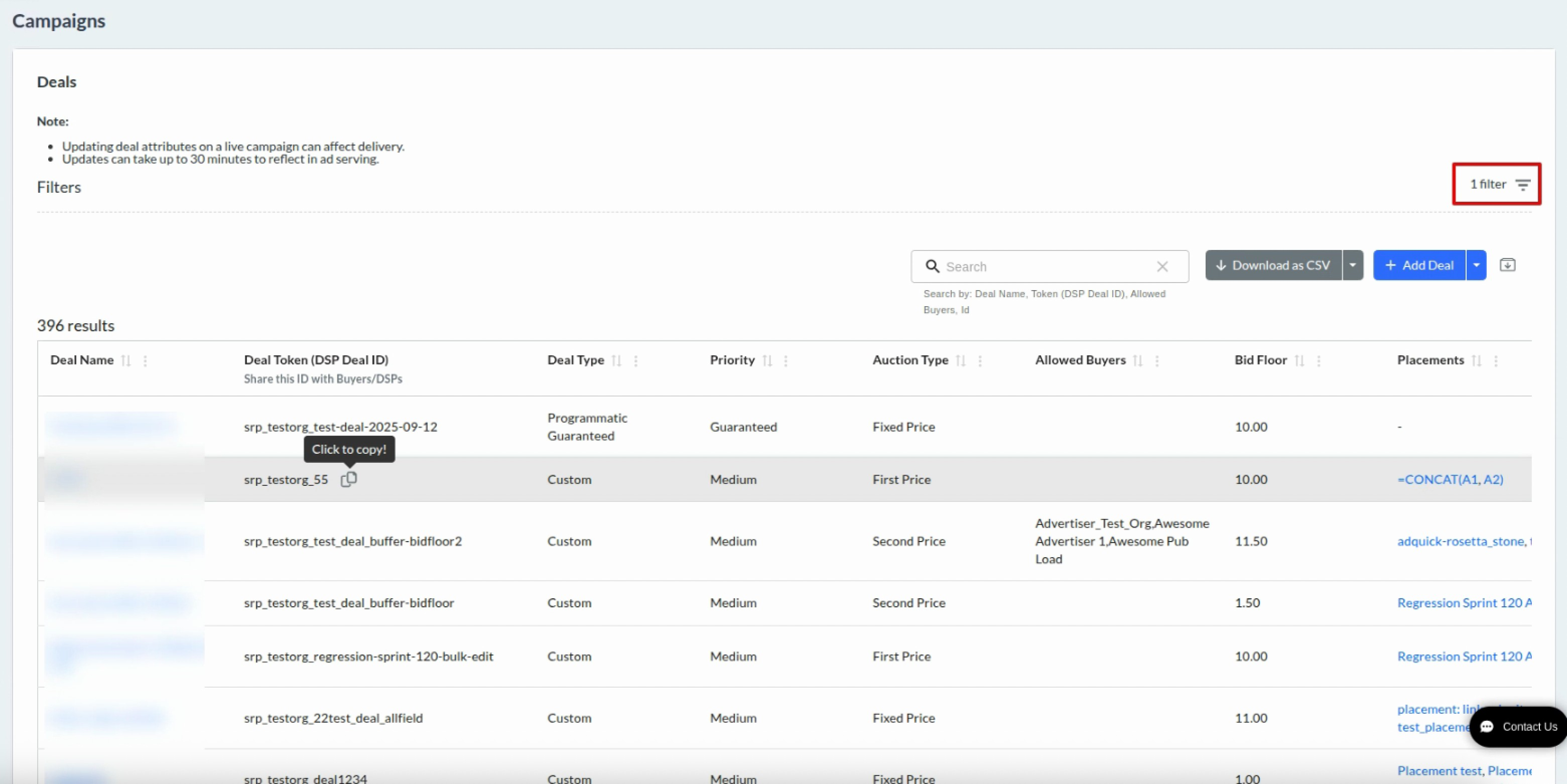
The Archived filter displays a specific subset of data by showing only archived or unarchived deals. By default, the table displays unarchived deals.
- Select the desired status from the Archived drop-down menu and click Apply to view the filtered results.
- Click Reset to restore the default unarchived data view. Alternatively, select the unarchived option from the drop-down menu and click Apply.
- Click the Hide filter icon on the far right to collapse the filter section.

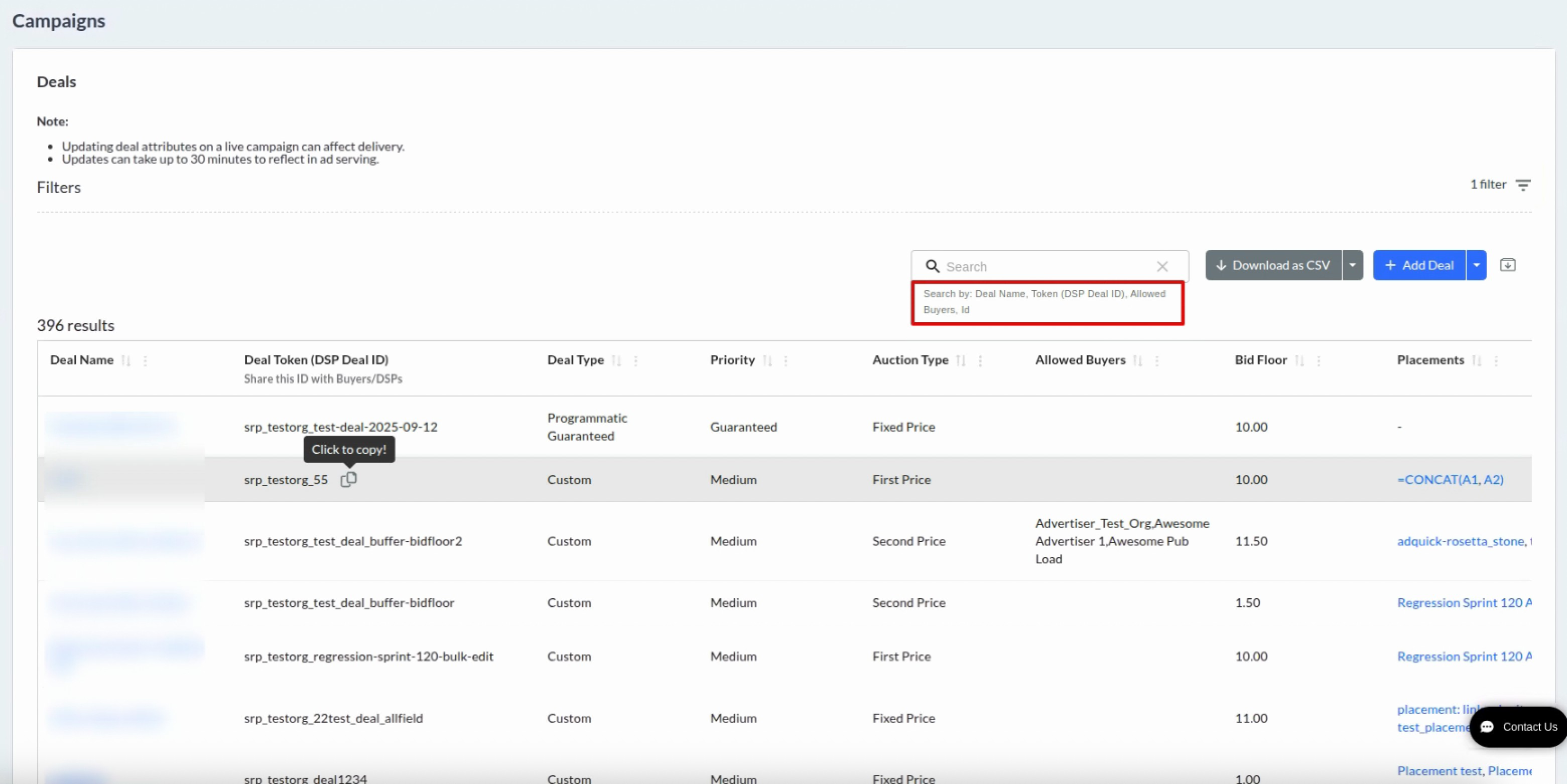
The contain-based search applies to the following columns, as displayed directly below the Search box:
- Id
- Deal Name
- Deal Token (DSP Deal ID)
- Allowed Buyers
For example, if you search for the substring "test", the system returns all results containing that string, such as "Test_deal" and "Deal_test".
Refer to Using the Publisher Portal for an overview of how contain-based search works.
Export the filtered deals by clicking the Download as CSV button. The system also offers the option to export your data as an Excel formatted file.
- By default, the system downloads unarchived deals because the interface applies the unarchived filter automatically.
- To download archived deals, apply the Archived filter and click the Download as CSV button.
- The system displays a notification confirming the download of the filtered results.
-
If you update the filter during an active download, the system continues downloading the previously filtered data without interruption, while simultaneously updating the table to display the newly filtered results.
Archived deals are not available in Active Campaigns.
Refer to Archiving Deals for step-by-step instructions on how to archive and unarchive deals.
Refer to Adding and Updating Deals for step-by-step instructions on how to add and update deals.
For questions or assistance creating complex deals, email help@placeexchange.com.
After you create deals, you can:
- Create Placements to associate specific inventory with your deals.
- Distribute deals to your buyers. The Deal Token (DSP Deal ID) column displays the value, often labeled "Deal ID," that buyers view in their DSP.

The platform does not currently support deal deletion. You can archive an invalid deal instead.
Refer to Archiving Deals for step-by-step instructions on how to archive and unarchive deals.
Share the Deal Token (DSP Deal ID), which is the unique identifier for your Deal on the buy side/DSP.
Ad approval will continue to be available through the standard process, even for deals created in the portal.
Check that:
- You are not logged in to your Sandbox organization.
- You are not using an AdBlocker in your browser.
If upload errors persist after you validate your data, retry the upload in a private browsing window. This action prevents cached cookies and active browser extensions from interfering with the upload process.
Buyers may want to activate a campaign through a single variable-priced deal in the DSP, but target inventory across multiple price tiers. To support this requirement, Place Exchange creates one deal for each price tier and maps it to the same DSP deal ID (deal token). To align internal campaign monitoring perfectly with the buyer's external reporting, the Portal generates all performance reports based on this shared Deal Token.
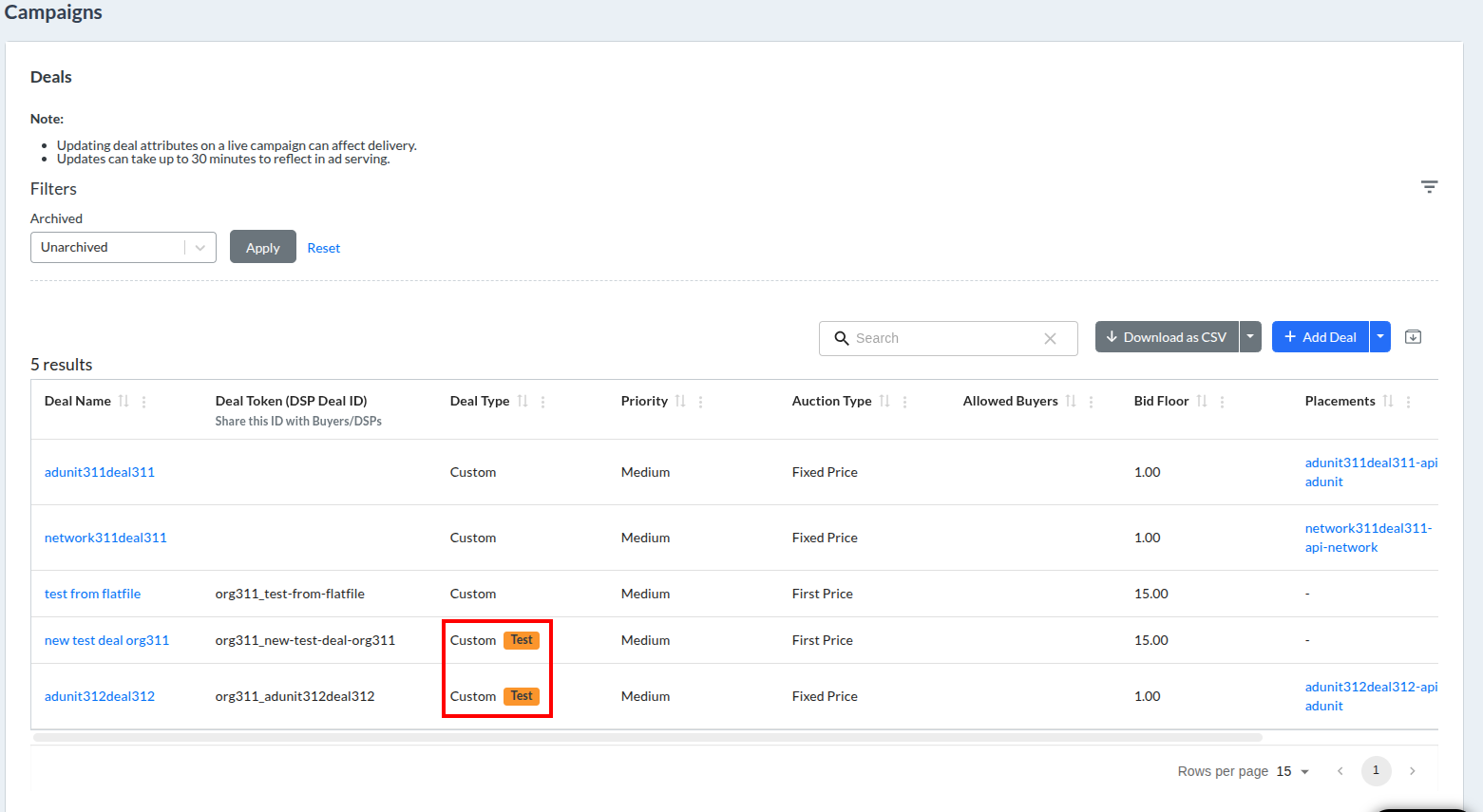
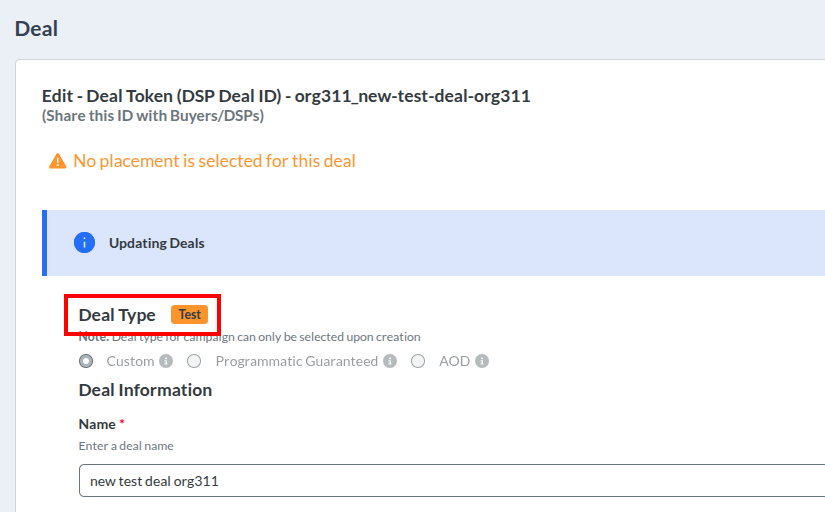
The Portal displays a "Test" badge on test deals to help users immediately distinguish non-billable test deals from revenue-producing programmatic deals.
The system displays this badge in the following locations:
- Deals summary – The portal displays the "Test" badge next to the Deal Type value for all test deals.
- Edit Deal Token (DSP Deal ID) – When a user opens a single deal record, the portal shows the "Test" badge near the Deal Type label.
- Deal add/edit form, Status dropdown – The system enforces different permissions based on the user's role and the current deal status.
- For existing test deals, the system disables the Status field for non-superusers. Superusers retain the ability to change the status.
- For all other deal types, the system allows non-superusers to see the "test" option in the drop-down menu, but it prevents them from selecting it. Superusers can apply the "test" status to any deal at any time.
- Flatfile deal import – The system prevents non-superusers from setting a new deal to "test" and restricts them from changing the status of any existing test deal.