 minute read
This page provides a step-by-step guide for publishers to archive or unarchive deals in the Portal.
You can archive existing deals one at a time or in bulk.
- The system does not pass archived deals in bid requests for their associated placements.
- You cannot map archived deals to new or existing placements.
- You cannot update archived deals unless you unarchive them first.
- The system retains archived deals indefinitely so you can unarchive them later. Note that this retention policy might change in the future.
You can archive a single deal through the Edit Deal form view.
Once you archive a record, the system disables the entire form, and you can no longer interact with it.
To archive a single deal:
Place Exchange
- In the Summary view, identify the deal to archive.
- Click on the Deal name.
- Click the Archive button at the top right corner of the page.
The Edit Deal page opens.
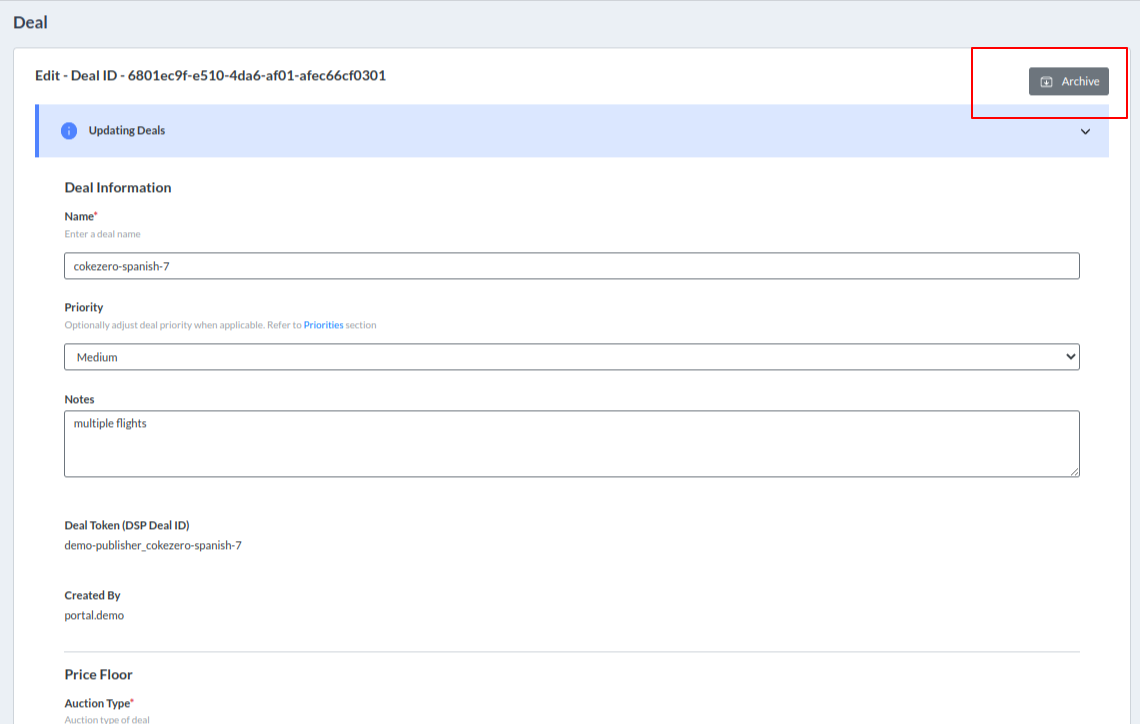
The record is archived.
A notification message confirms that the deal is archived.

Tip: If you mistakenly archive a deal, you can click the Undo button in the notification message before it disappears to immediately unarchive the record.
The Deals Summary page displays.
You can unarchive a single deal through the Edit Deal form view.
To unarchive a single deal:
Place Exchange
- By default, the Summary page displays unarchived deals. To view an archived deal in the table, change the filter selection to Archived and click Apply.
- In the Summary view, identify the deal to unarchive.
- Click on the Deal name.
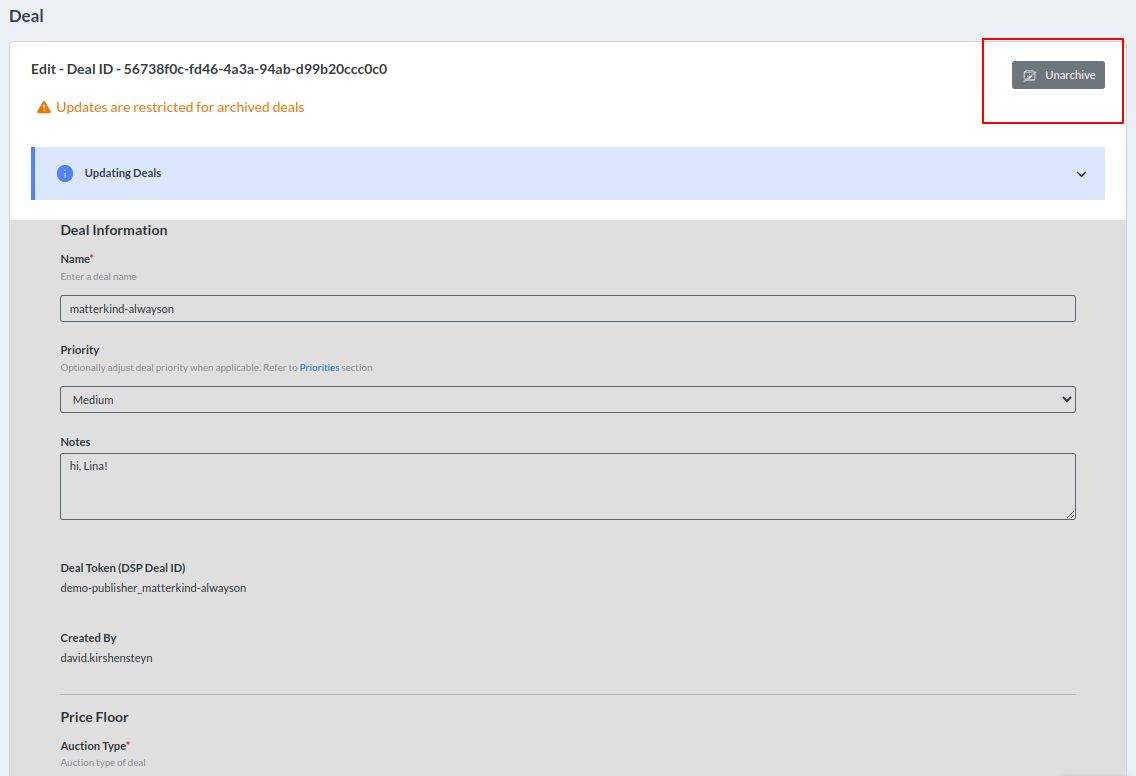
- Click the Unarchive button at the top right corner of the page.
The system will then display the archived deal in the top row.
The Edit Deal page opens.
A notification message confirms that the deal is archived.
Once you unarchive the record, you can interact with the form controls and make any necessary updates.
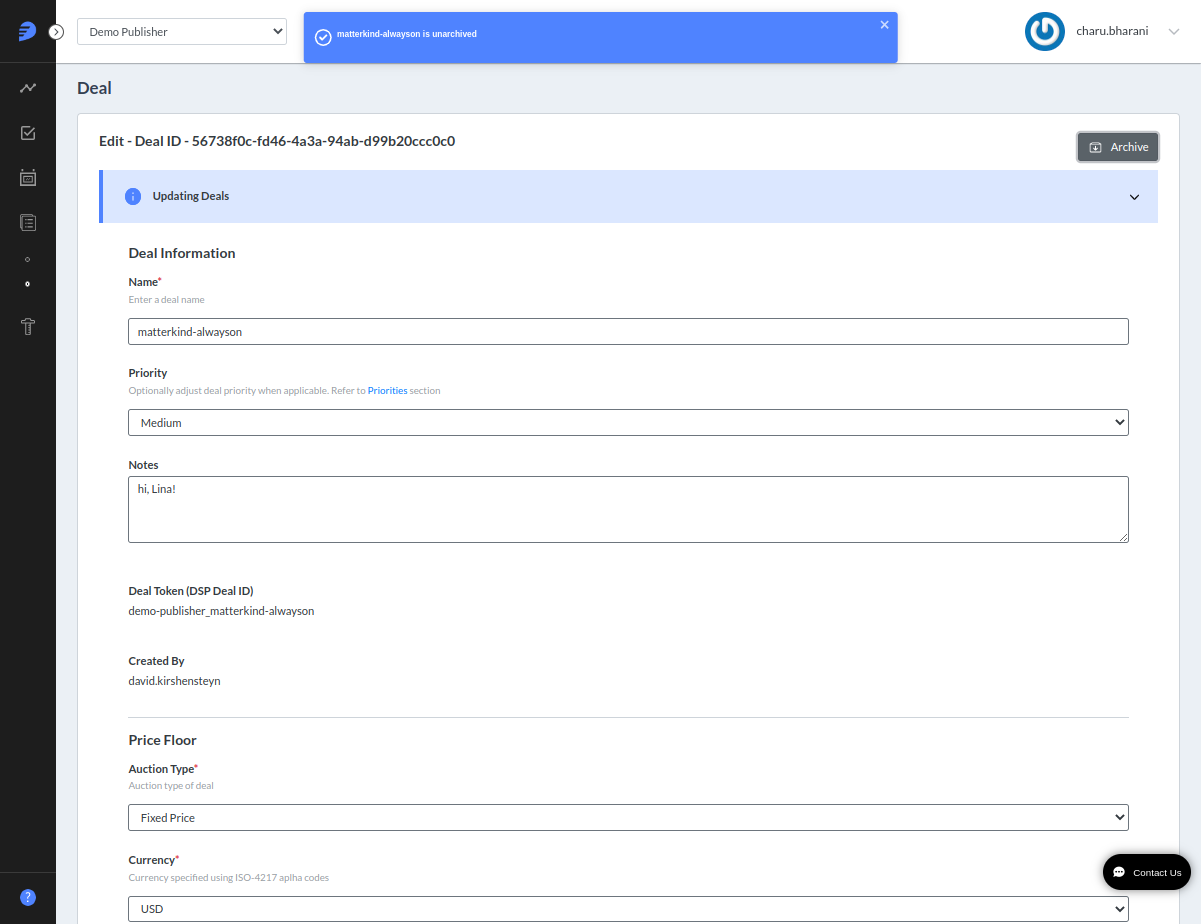
Tip: If the deal was mistakenly unarchived, click the Archive button to archive it.
A user can either archive deals manually or through a CSV file.
To archive multiple deals using CSV:
Place Exchange
- Click the Download CSV or Download as Excel button to export your deals from the portal.
- In a spreadsheet editor, remove all but the entries for the deals you want to archive.
- Modify the Archived column in the file and update its value 'True/False' accordingly.
- To archive a deal, set its Archived column to "True".
- To unarchive a deal, set its Archived column to "False".
- Save the file.
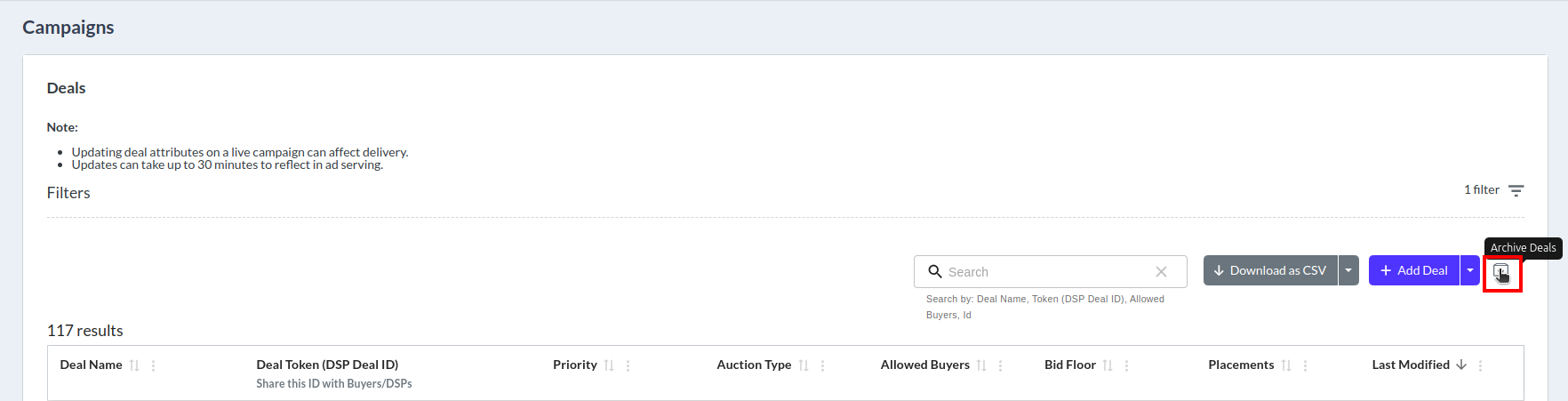
- Navigate to the Deals section in the portal and click the Archive Deals icon next to the Add Deals button.
- Click Upload Data from file and upload the prepared CSV file.
- If you typed in the data manually, you can skip all the instructions below and directly go to Step 8.
- Cross-check all entries and edit the values directly in the view if you identify any discrepancies.
- Hover over any highlighted cell to view the specific error message and corrective instructions.
- After all highlighted issues are fixed and the data looks correct, click Submit.
- Check the summary view to make sure everything looks correct for the deals you just archived or unarchived.
Only the Deal Name and Archived columns are required. You can delete the other columns.
Note: Refer to Inventory Management FAQs and Tips for commonly asked questions and resolutions.
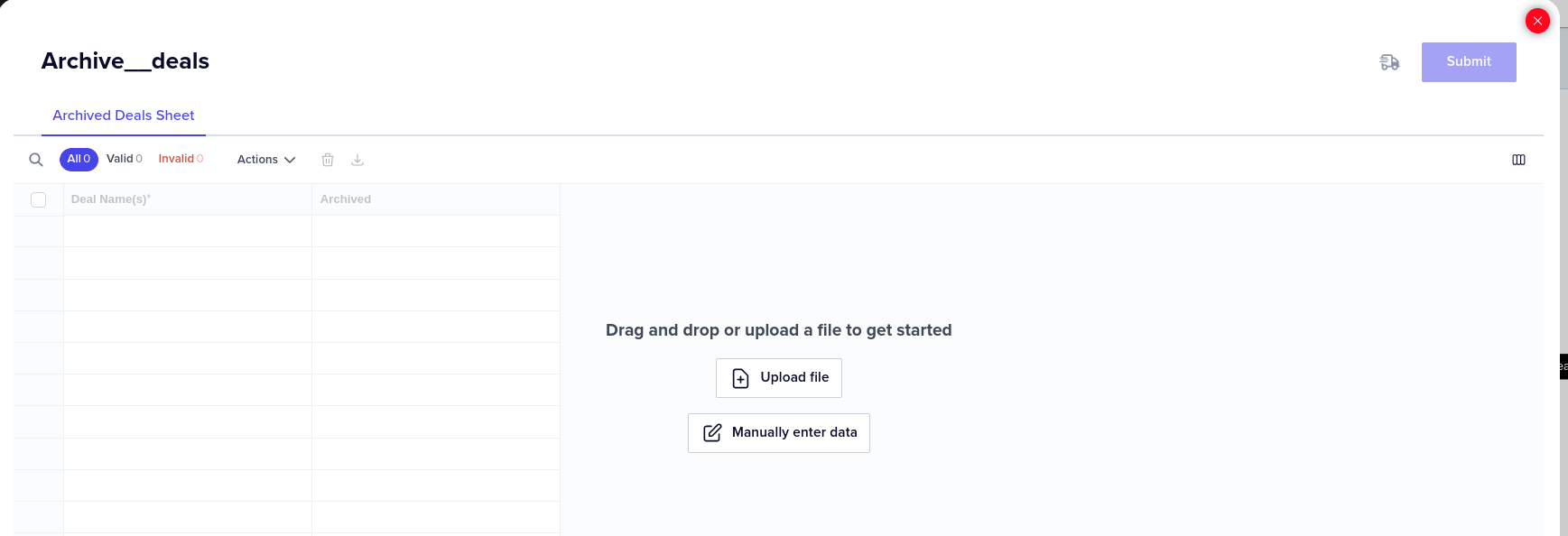
The Flatfile Auto-Mapping feature automatically maps columns and drop-down values in the background. Once the system completes the mapping, it directs you to the Review section.
The Review section displays the data from your uploaded file for final verification. The system highlights cells containing invalid values with a red border. Use this view to perform the following actions:
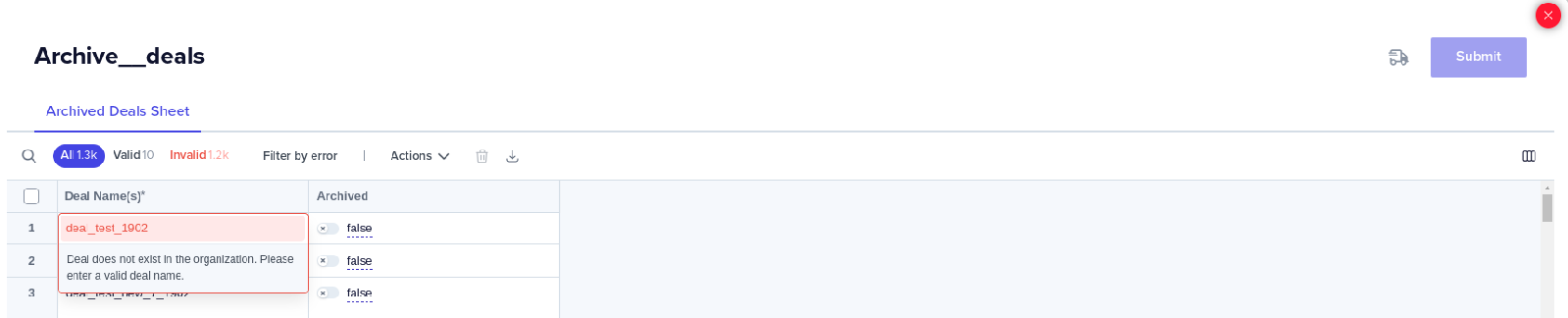
The Submit button will be enabled only if all the data entered is valid.
On upload, the system displays a pop message "Successfully archived and unarchived Deals." with the deal count.

Clicking on Ok will reload the deal view with newly uploaded or updated records.
