minute read
Every new creative entering Place Exchange must undergo a publisher review and approval process. The system clears bids from buyers only after the publisher approves the creative.
Place Exchange uses AdApproval objects as the primary mechanism for publishers to manage ads serving on their screens.
Publishers use AdApproval objects to perform the following operations:
- Approve or reject specific creatives
- Retrieve assets and metadata for review
- Cache creative content for faster delivery
- Audit ad playback
Publishers can also tag ad creatives with custom keywords during the review process, and then match them against restrictions configured on your adunits, so ads tagged with a restricted keyword are automatically filtered out at auction time. See Ad Approvals Keywords.
The following video walks you through the ad approval workflow, how to approve or reject DSP creatives and some best practices.
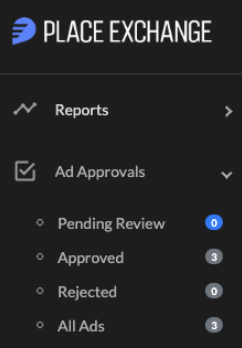
To see an overview of ad approvals by status, click the checkmark Ad Approvals icon in the side menu.
The Portal displays several sections based on approval status.
Within each section, the system automatically sorts ad approvals by the Last Modified column to ensure you see the most recent updates first.
To sort by other columns, click the arrows next to each column heading.
After you apply a sort, the Portal enables several features based on your current view:
- You can share the browser URL with other users to display that exact sorted view.
- You can launch the approval queue using your custom sort order.
Export your ad approvals by clicking the Download as CSV button. If you prefer a different format, click the drop-down arrow on the same button to select Download as Excel.
The system generates a file containing all records based on your current filters and sort order.

To approve or reject both display and video ads:
Place Exchange
- Click on Launch Approval Queue to bring up all pending ad approvals, or search and sort for specific information to view selected approvals.
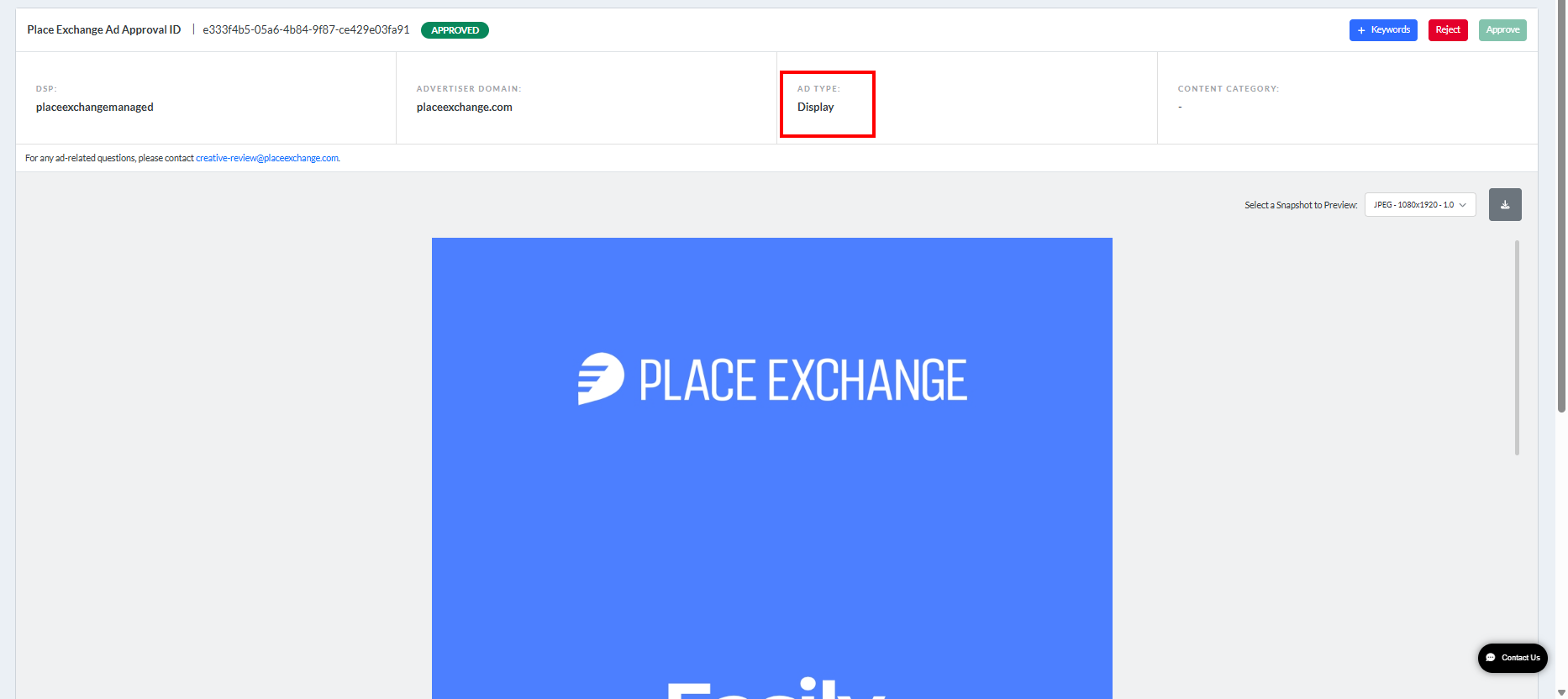
- Click the DSP Creative ID to review a specific creative.
- To identify whether a creative is a display or video format, check the Ad Type column on any ad approval overview page.
- For display creatives, the Portal provides JPG or PNG snapshots at a 1.0 scale factor for you to download and review.
- For video creatives, you can download the asset as an MP4 file.
- The Snapshot Metadata tab displays critical technical details extracted from the DSP's bid response:
- MP4 supported only
- other formats do not have ad approvals generated
- 21:9
- 16:9
- 9:16
- 4:3
- 3:4
- 3:2
- 2:1
- 1:2
- 1:1
- DSPs often respond with multiple media files of varying bitrates and resolutions, but with matching aspect ratios.

| Column | Description |
|---|---|
| Mime Type |
Creative format. |
| Resolution |
Width x Height passed from the DSP’s bid response. Note: Some DSPs provide dimensions that match the aspect ratio rather than the specific ad unit slot. |
| Bit Rate | The Mbps of the encoded video provided by the DSP. |
| Aspect Ratio |
The system calculates the Aspect Ratio based on the DSP's bid response. Supported ratios: |
| Duration | The creative's length as specified in the DSP’s bid. |
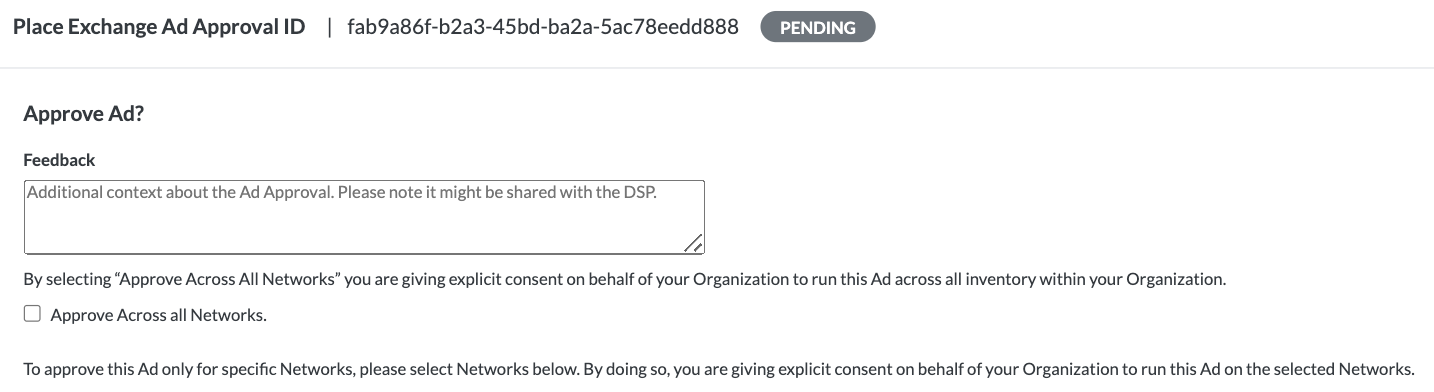
You can apply ad approvals to either of the following scopes:
- All registered screens – This action applies your approval or rejection across your entire inventory.
- A specific subset of networks – This action limits the approval to the networks you select. If you choose this option, the system will not automatically approve those ads for any new networks you register in the future.
Publishers can receive email notifications whenever new ad approvals move into a pending status. To enable these alerts for specific users, submit a request to help@placeexchange.com.
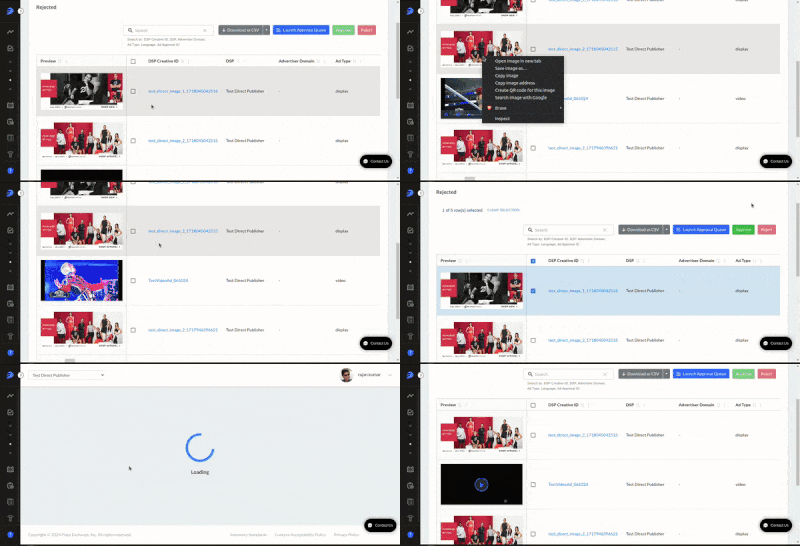
To bulk approve or reject ads:
Place Exchange
- Select the ads to approve or reject from the table.
- You can select all the ads on the visible page by clicking the checkbox at the top. Use the Row per page drop-down at the bottom of the table to control how many ad approvals are visible at once. You can choose from 15, 25, 50, or 100 rows per page. The default is set to 15.
- You can preview the creatives in the Preview column. You can play the video and make it full screen for a better view.
- You can open images in a new tab.
- Once selected, click on the Approve or Reject buttons as required.
- All registered screens – This action applies your approval or rejection across your entire inventory.
- A specific subset of networks – This action limits the approval to the networks you select. If you choose this option, the system will not automatically approve those ads for any new networks you register in the future.
You can apply ad approvals to either of the following scopes:
- Set up for pre-approval for all creatives.
- Add an advertiser domain (adomain) to the Allow List for pre-approvals.
- Request a bulk creative approval.
The default status for any new ad is Pending Approval. However, publishers can request Place Exchange to change the default setting to Pre-Approved (immediately eligible to serve). This is highly recommended for publishers who have a secondary layer of creative approval in their CMS or mediation layer. Contact your Partnership Manager for more details.
All pre-approved creatives will appear under the Approved tab with a status of Pre-Approved.
Send a request to help@placeexchange.com with the advertiser details. Place Exchange’s Support Team will then add the adomain to the Allow List and all ads for that advertiser will be pre-approved.
Send a request to help@placeexchange.com with the advertiser details. Place Exchange’s Support Team will approve the creatives in bulk.
Note: Place Exchange does NOT transcode creatives but copies the files received from the DSP to our host. Publishers are expected to handle this action.
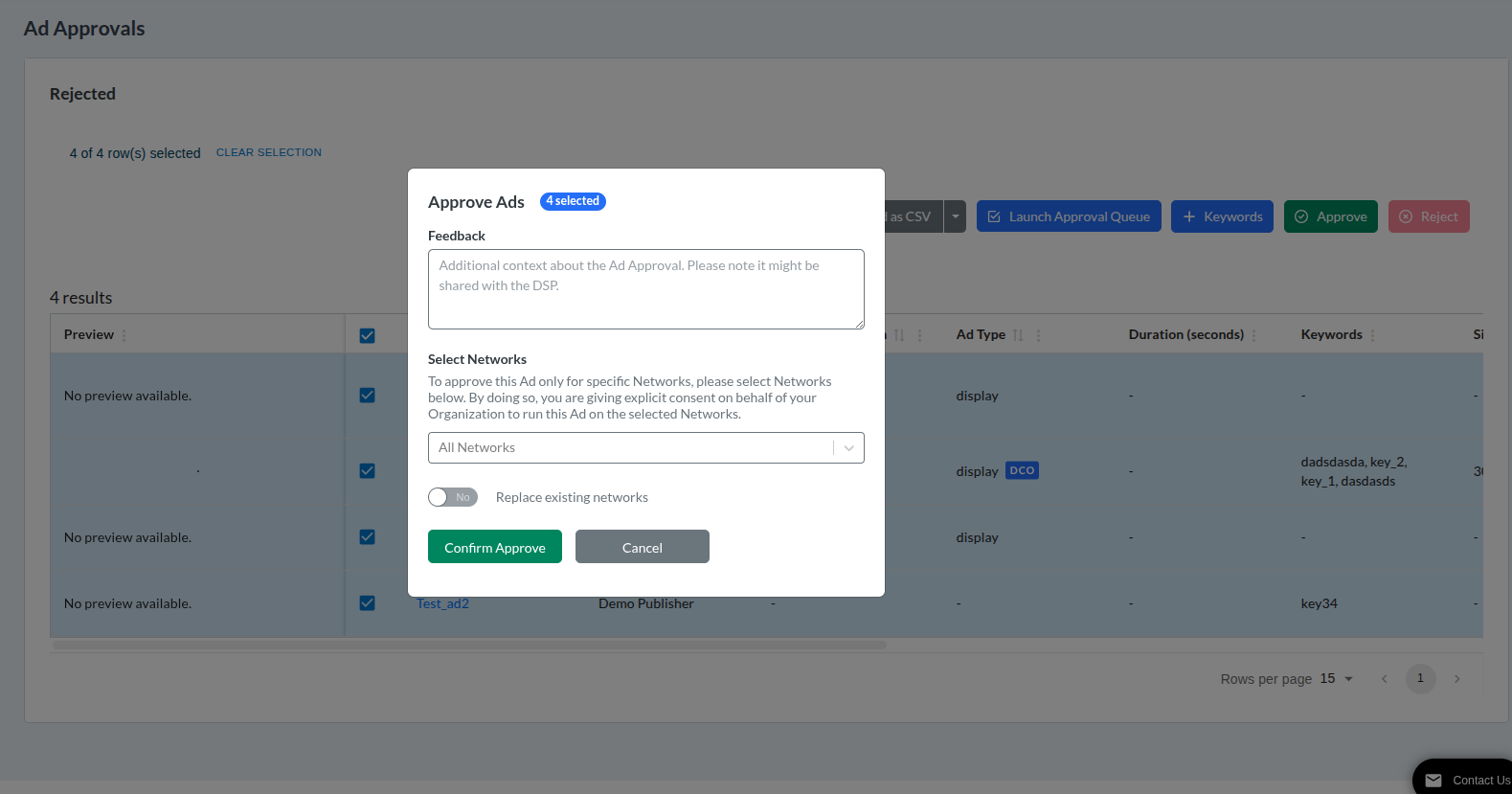
You can approve multiple ad records for specific Networks or all Networks.
If you select specific Networks, you are giving explicit consent on behalf of your Organization to run these ads on the selected Networks.

To add keywords for an ad approval list:
- Go to Ad Approvals > Rejected or Pending.
- In the Ad Approvals table, select the check boxes for the ads you want to tag.
- Click the Approve button in the toolbar.
-
Select or type the networks from the drop-down list. The previous Networks list is replaced with the new selection.
- Click Confirm Approve.
You can select up to 100 records at a time.
The Approve Ads window opens.